

Connections
A connection stores where an external system lives and how to sign in to it, so a project can import data from it or export data to it without asking again. Connections belong to one project. You manage them on the project’s Manage Connections page and use them on the pipeline canvas, in schedules, in transfers and in exports.
Import and export connections
Section titled “Import and export connections”| Import connection | Export connection | |
|---|---|---|
| Direction | Brings data into DDL | Sends data out of DDL |
| On the Pipeline canvas | Becomes a source node with the connection’s name. You import tables from it with Import to DDL. | No node |
| Used by | Add data › New Connection (External), Schedules that sync source nodes, the source side of Transfer | Export Data in a node’s menu, the destination side of Transfer, Dump Data in Versions |
Import and export lists are separate, even for the same database: if you read from and write to one database, create one connection of each kind. Kafka and FTP can only be imported from. Connection names are unique within a project and kind.
Everyone who can open the project sees all its connections, whoever created them.
Manage Connections
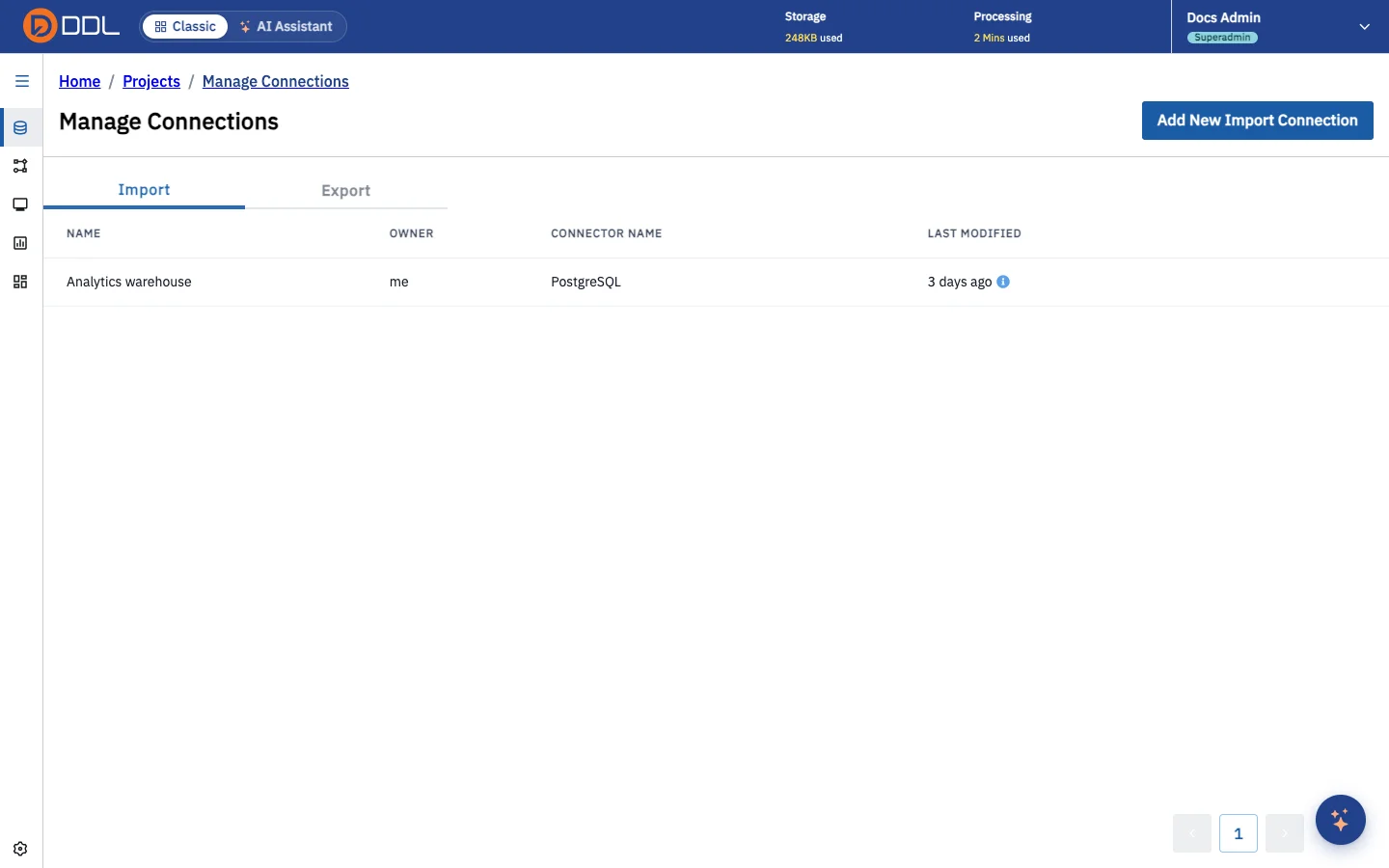
Section titled “Manage Connections”Open Connections in the project menu (/projects/<id>/connections). The page title is Manage Connections.
| Control | What it does |
|---|---|
| Import / Export tabs | Switch between the two lists. |
| Add New Import Connection / Add New Export Connection | Starts the wizard for the open tab. Needs Modify Project; disabled while the project is locked. |
| Table | Name, Owner (me, or the creator’s name), Connector Name and Last Modified. Newest change first, 10 rows per page. |
| ⋮ row menu | Shown when you hover a row, and always on touch screens: Edit Configuration and Delete. |
The page has no search box. A new project starts with both lists empty. On a phone, the table becomes one card per connection.
Add a connection
Section titled “Add a connection”- Open the Import or Export tab and click Add New Import Connection or Add New Export Connection.
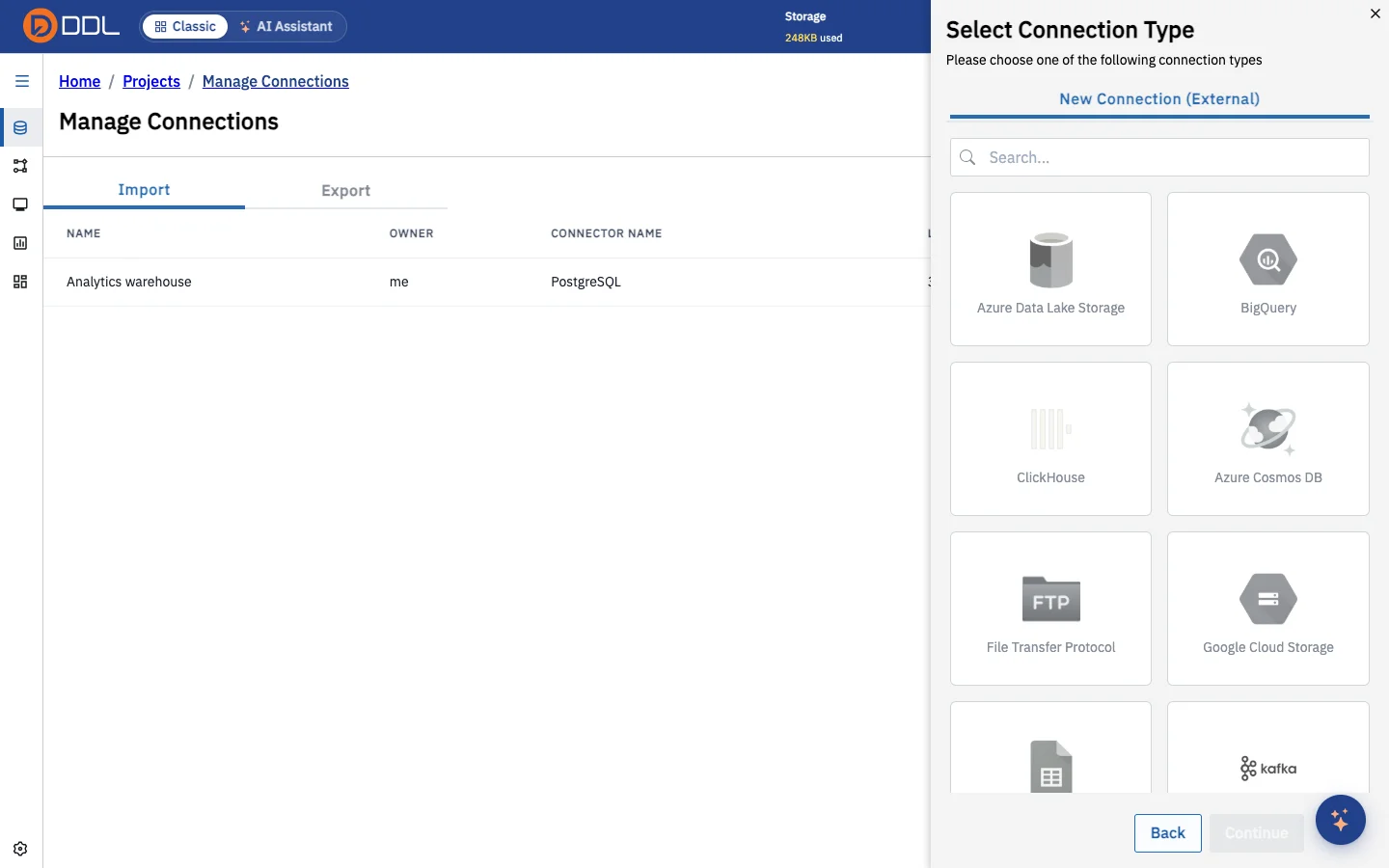
- Select Connection Type: click a connector card (click it again to unselect it). The search box above the cards filters them by name. Click Continue.
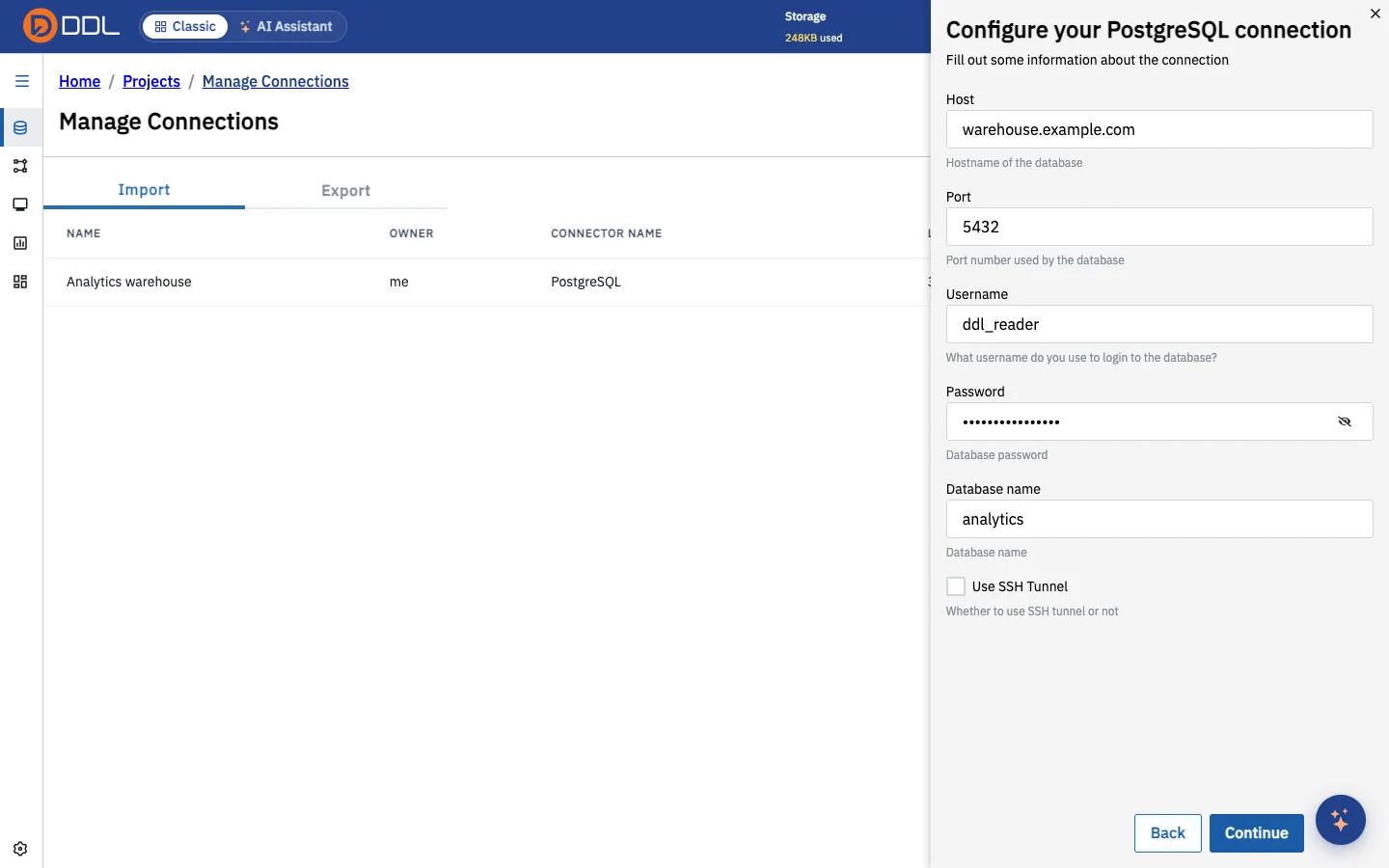
- Configure your … connection: fill in the fields. A required field shows *Required Field while it is empty, and Continue stays unavailable until the required fields are filled. Click Continue: DDL now tests the connection (the button reads Testing Connection) and only moves on when the test succeeds.
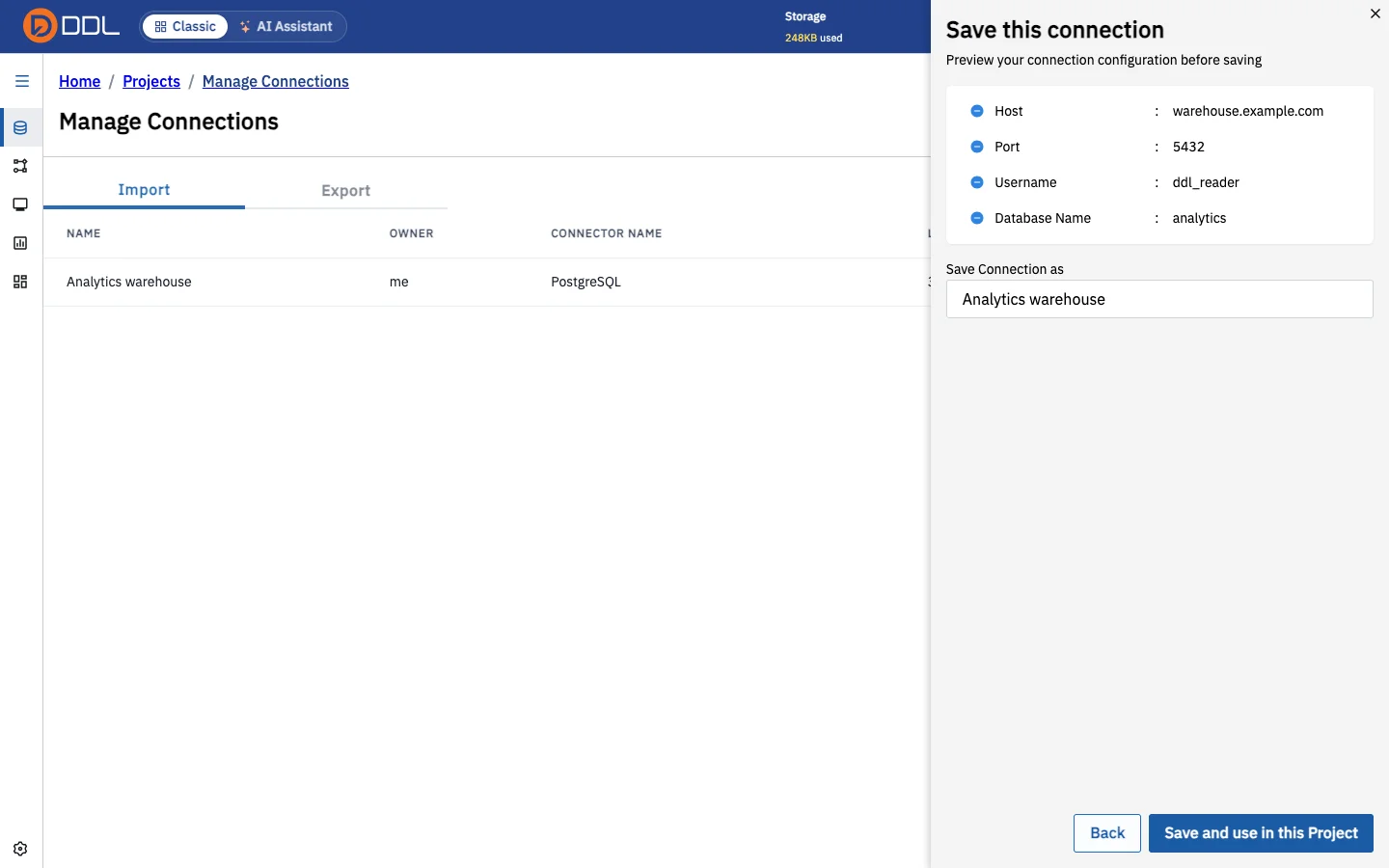
- Save this connection: check the summary. Database and SSH passwords and SSH keys are left out of it.
- Type a name in Save Connection as, for example
Analytics warehouse, and click Save and use in this Project or press Enter.
What happens next depends on the kind:
- Import: DDL saves the connection and adds a source node with the same name to the project’s Pipeline canvas. Click that node and use Import to DDL to bring in tables; see Pipeline canvas. Because the name is also the node’s name, pick one that no node in the project uses.
- Export: the connection appears in the destination lists of Export Data, Transfer and Dump Data.
When the test fails
Section titled “When the test fails”Continue stays on the form when the test fails, and the error stays on screen until you change a field. The message is “Failed to connect to the database” for every connector except Google Sheets, which reports a more specific reason. Check, in this order:
- Host, port, database name, user name and password. Watch out for spaces copied along with them.
- Whether the DDL servers may reach the host. A database inside a private network often needs an allow-list entry for DDL or the Use SSH Tunnel option.
- Whether the user may log in from the DDL servers and read the database.
Database passwords, including Oracle passwords, can contain special characters such as @, :, /, # and ?. Enter the password as it is; do not replace these characters.
Tests for Azure Data Lake Storage, Apache Kafka and S3 Object Storage fail after about ten seconds when the host cannot be reached. Check the address and network access before trying again.
To test a connection that is already saved, open its ⋮ menu, choose Edit Configuration and click Continue. There is no separate test button.
Connector reference
Section titled “Connector reference”| Connector | Import | Export | What the form asks for |
|---|---|---|---|
| Amazon S3 | Yes | Yes | Access key and secret key |
| Apache Kafka | Yes | No | Boostrap Servers |
| Azure Cosmos DB | Yes | Yes | Account URI and Account Key |
| Azure Data Lake Storage | Yes | Yes | Storage account name and Access key |
| BigQuery | Yes | Yes | A service-account key file (JSON) with at least read access |
| ClickHouse | Yes | Yes | The database fields, port 8123 by default |
| File Transfer Protocol | Yes | No | Host, Port, Username and Password |
| Google Cloud Storage | Yes | Yes | Service Account key file |
| Google Sheets | Yes | Yes | The URL of the spreadsheet. See Google Sheets. |
| Microsoft SharePoint | Yes | Yes | Username, Password and Site |
| Microsoft SQL Server 2000 | Yes | Yes | The database fields |
| Microsoft SQL Server 2008 - 2019 | Yes | Yes | The database fields, port 1433 by default |
| MongoDB | Yes | Yes | Hostname, Username, Password, Database name, and Port number unless you tick User DNS-constructed seed list |
| MySQL | Yes | Yes | The database fields, port 3306 by default |
| Oracle | Yes | Yes | The database fields, port 1521 by default, plus the Oracle SID and service name |
| PostgreSQL | Yes | Yes | The database fields, port 5432 by default |
| S3 Object Storage | Yes | Yes | Endpoint URL, access key and secret key, for S3-compatible storage |
| Salesforce | Yes | Yes | Authentication method: Token API Key (token, username and password) or Domain (username, Salesforce Domain and password) |
What you choose after the connection is made, such as tables, files, sheets or the import method, belongs to importing and exporting; see Pipeline canvas.
Database connectors
Section titled “Database connectors”PostgreSQL, MySQL, Microsoft SQL Server, Oracle and ClickHouse share one form:
| Field | Notes |
|---|---|
| Host | Host name or address of the database server |
| Port | Pre-filled with the connector’s default port, where it has one |
| Username, Password | The database account DDL signs in with. The password is masked. |
| Database name | The database to connect to |
| Use SSH Tunnel | Tick to reach the database through an SSH server. Then fill SSH Host, SSH Port (22 by default), SSH Username and SSH authentication: Password (then SSH Password) or SSH key (then upload the private key file in SSH Key). |
Google Sheets
Section titled “Google Sheets”The Google Sheets form shows the address of the service account DDL uses. Share the spreadsheet with that address first, then paste the spreadsheet’s link into the form. There is no password field: DDL reads the sheet through that share. For an Export connection, give the address edit access so that DDL can write to the sheet.
If the sheet is not shared with that address, the test fails with “You have no access to this document. Ensure you have shared the document with the email mentioned.”
Free accounts
Section titled “Free accounts”On a Free account, only the database connectors and Google Sheets are available; other connectors fail with “You may not connect to … instance with the free version”. A project can have at most three Import connections and one Export connection, and custom connectors are not available.
Edit or delete a connection
Section titled “Edit or delete a connection”Edit Configuration in the ⋮ menu opens the form with the saved values. Change what you need, click Continue (DDL tests the connection again), then save on the last step. Renaming an Import connection renames its source node on the canvas too. You need Modify Project, and the project must not be locked.
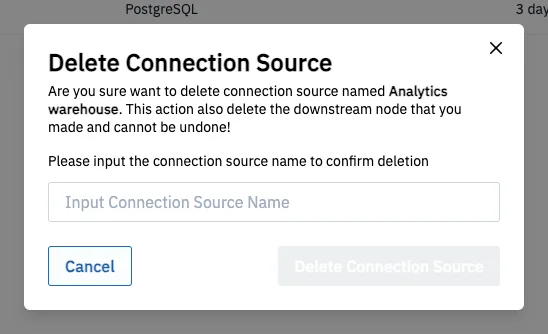
Delete is for the project owner only and is disabled while the project is locked. The Delete Connection Source dialog names the connection and asks you to type that name (“Input Connection Source Name”); Delete Connection Source becomes available once the name matches.
Custom connectors
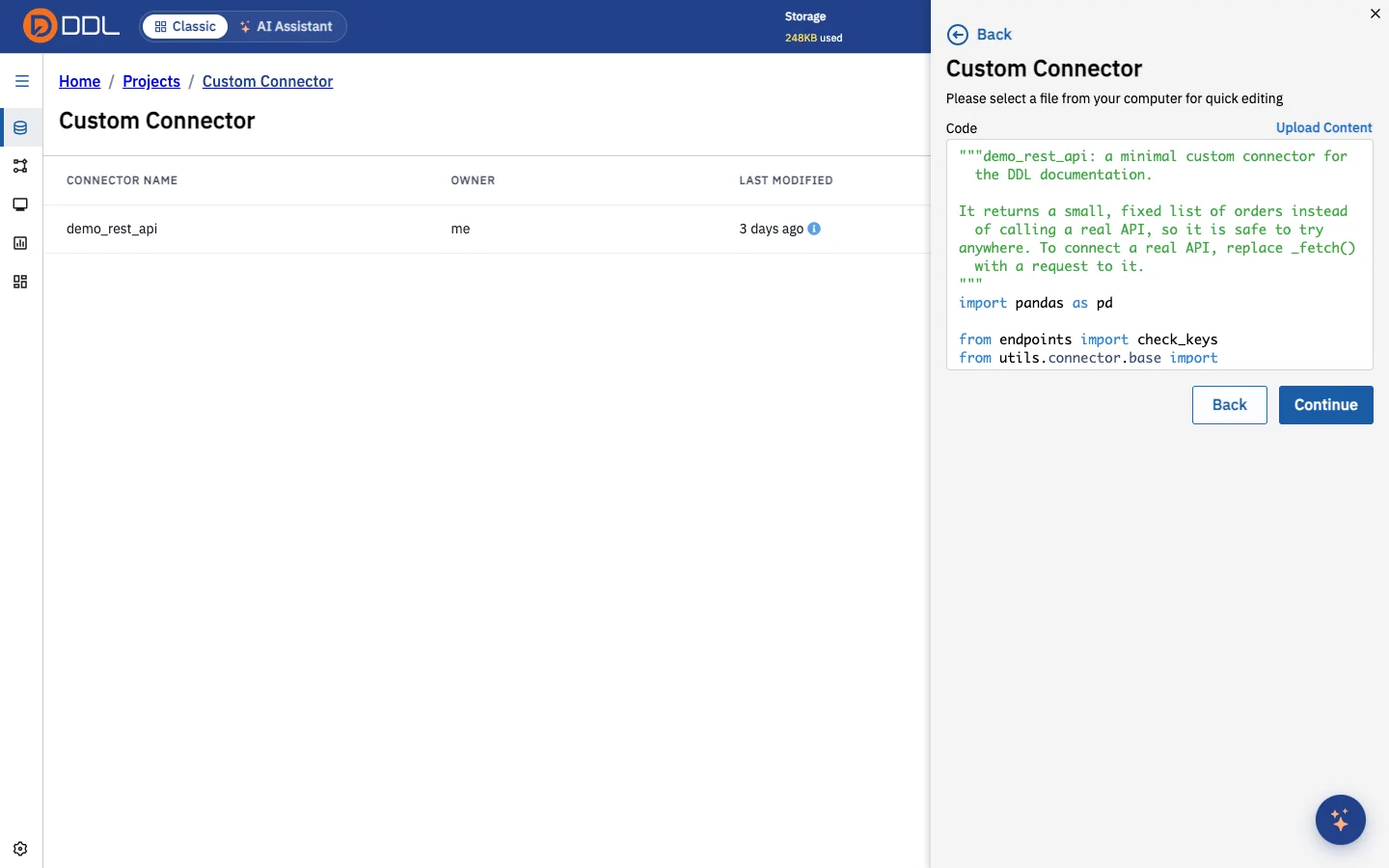
Section titled “Custom connectors”A custom connector is a Python script that teaches DDL a new source or destination. Custom connectors belong to your account, not to one project: the same list appears on the Custom Connector page of every project you work in, and your connectors appear in the connector picker of all your projects.
Open the page with Custom Connector under Connections in the project menu (/projects/<id>/connections/custom), or with Manage next to the Custom Connector heading in the connector picker. The table lists Connector Name, Owner and Last Modified.
- Click New Connector.
- Put the script into Code: click the box to open the Code Editor, paste the script and click Done, or load it from a file with Choose File (Upload Content once Code holds a script). Click Continue.
- Type a Connector Name and click Save Configuration.
| Rule | Message when it is broken |
|---|---|
The script defines one class that inherits directly from DDL’s BaseConnector |
“Connector subclass is not found” |
The class has an import_() method, an export() method, or both. import_() puts the connector on the Import side, export() on the Export side. |
“Custom connector must have either import_() or export() function” |
| The name uses only letters, numbers and underscores | “Name may only contain letters, numbers, or underscores (_)” |
The name is not the name of a built-in connector, such as postgresql |
“Name is not allowed” |
| The name is unique among your custom connectors | “You already created custom connector with the same name” |
The class’s conn_config defines the fields of the connection form. A connector without fields skips the Configure step, so you go straight from the picker to Save this connection. After saving, use the connector like a built-in one: it is listed under Custom Connector in Select Connection Type.
To change or remove a connector, use Edit Configuration or Delete in its ⋮ menu, on this page or on its card in the picker. Deleting asks you to type the name in Delete Custom Connection, and it is refused while a connection still uses the connector (“This custom connector is still used in some import connections”, or “export connections”).
Troubleshooting
Section titled “Troubleshooting”| Symptom | Cause | What to do |
|---|---|---|
| Add New … Connection is disabled | You lack Modify Project, or the project is locked | Ask the owner for access, or unlock the project. |
| The connector you need is not in the picker | It only supports the other direction: Kafka and FTP are import only | Check the other tab and the connector reference. |
| “You may not connect to … instance with the free version” | Free accounts can only use the database connectors and Google Sheets | Ask your administrator about your account type. |
| Continue is disabled on the form | A *Required Field is empty | Fill every required field. |
| “Failed to connect to the database” | Wrong credentials, or the DDL servers cannot reach the host | See When the test fails. |
| Google Sheets: “You have no access to this document…” | The sheet is not shared with DDL’s service account | Share it with the address shown on the form. |
| Delete is greyed out | You are not the project owner, or the project is locked | Ask the owner. |
| The Delete Connection Source dialog shows no connection name or text box | A known issue of this DDL version: the dialog loses the connection you chose | Click Cancel and ask your DDL administrator to remove the connection. See Edit or delete a connection. |
| “You may not import from more than 3 sources in this project” | Free account limit | Reuse an existing connection, or ask your administrator about your account type. |
| Deleting a custom connector is refused | A connection still uses it | Delete those connections first. |