

AI Assistant
The AI Assistant is a chat built into DDL. It reads your projects, nodes, logs, Data Repository tables, charts and dashboards with your own DDL access. You can ask it to build or repair pipelines, create, change or delete charts and dashboards, and share dashboards. Nothing changes in DDL until you approve it.
You use it in two places that share one conversation: the AI Assistant tab, a full-screen workspace for longer work, and the AI panel that the ✦ button opens on any page.
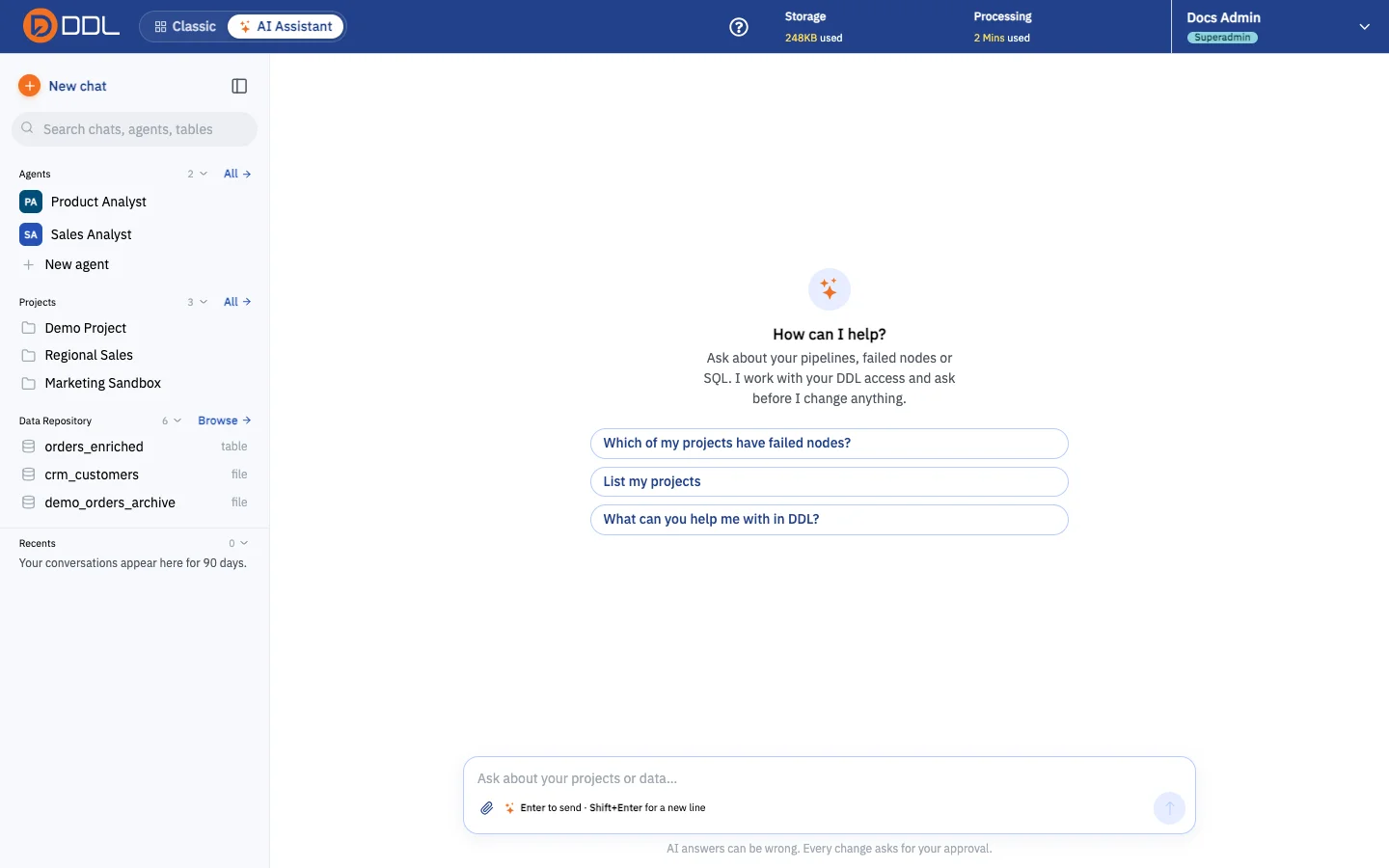
Where you find the AI
Section titled “Where you find the AI”| Place | How to open it | Best for |
|---|---|---|
| AI workspace | AI Assistant in the navbar (/home?view=ai) |
Longer conversations, questions about Data Repository tables, AI agents, and reading results side by side |
| AI panel | The round ✦ button at the bottom right of every page, or Ctrl+J (⌘+J on a Mac) | Quick questions about the page you are on, and building on a project’s Pipeline page |
| Buttons on pages | Ask AI, Diagnose & fix and Audit with AI in a node’s side panel, Explain SQL in SQL Query, Build with AI on an empty pipeline | A common question in one click. Most of them ask at once; Build with AI opens the panel in Build mode. |
A conversation you start in the panel continues in the workspace and the other way round. Your conversations stay in Recents for 90 days.
What the AI can do
Section titled “What the AI can do”| Feature | What it does | Where to start |
|---|---|---|
| Chat | Answers questions about your projects, nodes, runs and SQL, and looks up what it needs with your access. It can propose one change at a time, such as rerunning a failed node. | The panel on any page, or the workspace |
| Ask Data | Answers questions about up to three Data Repository tables with a read-only query, and shows the result as a table and a chart. | A table in the workspace sidebar, or the ✦ button on a table’s page in the Data Repository |
| Dashboards and charts | Reads dashboards and chart numbers; proposes charts, dashboard changes, sharing and deletions for your approval. | Ask on a chart or dashboard page; see Dashboards and charts |
| AI Builder | Proposes a whole pipeline as a build plan: imports, SQL, merge, union, copy, action and schedule steps. One approval runs them all. | Build in the panel of a project’s Pipeline page, or an agent in Build |
| Pipeline Doctor | Finds why a node failed, quotes the log lines that show it and proposes a fix. | Diagnose & fix in the side panel of a failed node |
| AI Audit | Checks a node and everything upstream of it, and lists findings by severity, each with a fix. | Audit with AI in a node’s side panel or in the Lineage view |
| AI Action | Classifies, extracts, summarizes, translates or answers a prompt for each value of a column, as a step of a node. | Search Action on a node page; see Add an action |
| AI agents | Assistants that already know a set of tables, so their answers come faster. | Agents in the workspace; see Agent Studio |
The AI answers in the language you write in. It helps only with DDL: projects, pipelines, data, charts and dashboards, accounts and divisions, and how to use DDL features.
The AI workspace
Section titled “The AI workspace”Click AI Assistant in the navbar. Opened from a project page, the workspace starts with that project as its context, and Classic takes you back to that page.
- Left: the sidebar with New chat, the search box Search chats, agents, tables, and the sections Agents, Projects, Data Repository and Recents.
- Middle: the chat. Above it sit the context chip, the name of the AI model and, for a chat about a project or tables, Save as agent (see Agent Studio).
- Right: the Preview, with one tab per result card you opened. ✕ on a tab closes that card; ✕ next to Preview closes them all. Below 1124 pixels wide, the Preview covers the chat, including on tablets; close it to return to the chat.
Choose what a chat is about
Section titled “Choose what a chat is about”| Click in the sidebar | The next questions are about | Chip above the chat |
|---|---|---|
| A project | That project | Project: Demo Project |
| A table under Data Repository | That table, with Ask Data | Data: demo_orders |
| + next to another table | Up to three tables in one question | One Data: chip per table |
| An agent | The tables of that agent | Agent: Sales Analyst |
| Nothing | Everything you can open in DDL | No chip |
✕ on a chip removes it. A new context applies to the next question; the conversation goes on. Only a change to or from an agent asks first, because an agent does not know what was said before: Start a new chat with Sales Analyst? with Cancel and Start new chat. The earlier chat stays in Recents.
Browse projects and tables
Section titled “Browse projects and tables”The sidebar lists three projects and three tables. All next to Projects and Browse next to Data Repository open the full lists.
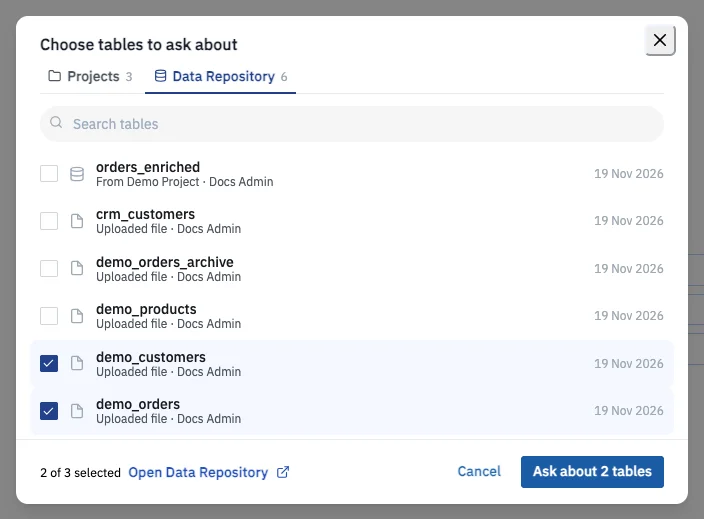
- Click Browse next to Data Repository. The dialog Choose tables to ask about opens. Its Projects and Data Repository tabs switch between the two lists.
- Search, and tick up to three tables. Load more shows more tables, and the footer counts your picks, for example 2 of 3 selected.
- Click Ask about 2 tables. The tables become the context of the chat.
On the Projects tab, click a project to make it the context. Open Projects and Open Data Repository leave the workspace for those pages.
Recents
Section titled “Recents”Recents lists your conversations, newest first, under Today, Yesterday, Previous 7 days, Previous 30 days and then one heading per month. Each row shows the title (your first question), what the chat was about and the time.
- Click a conversation to open it. Its address,
/home?view=ai&c=<id>, opens it again after a reload. - The ⋯ menu of a row has Rename and Delete. Delete asks first: … will be deleted for good. Changes the assistant already made in DDL are not undone.
- The search box finds conversations by their title, as well as agents, projects and tables.
- Load more loads 50 more conversations; Showing 50 of 120 says how many there are. If the list cannot load further, it says Search to find older conversations.
- Conversations are kept for 90 days after their last message, and only you can open them.
Resize or fold the sidebar
Section titled “Resize or fold the sidebar”- Drag the right edge of the sidebar to make it 240 to 420 pixels wide, at most 40% of the workspace. Double-click the edge, or focus it and press Enter, to return to 280 pixels; the arrow keys change it in small steps.
- Close sidebar, or dragging the edge to the far left, folds it into a thin rail with Open sidebar, New chat, Search conversations and Conversations.
- Click a section heading to fold that section.
DDL remembers the width, the folded sidebar and the folded sections in this browser. Touch screens keep the default width.
The AI panel
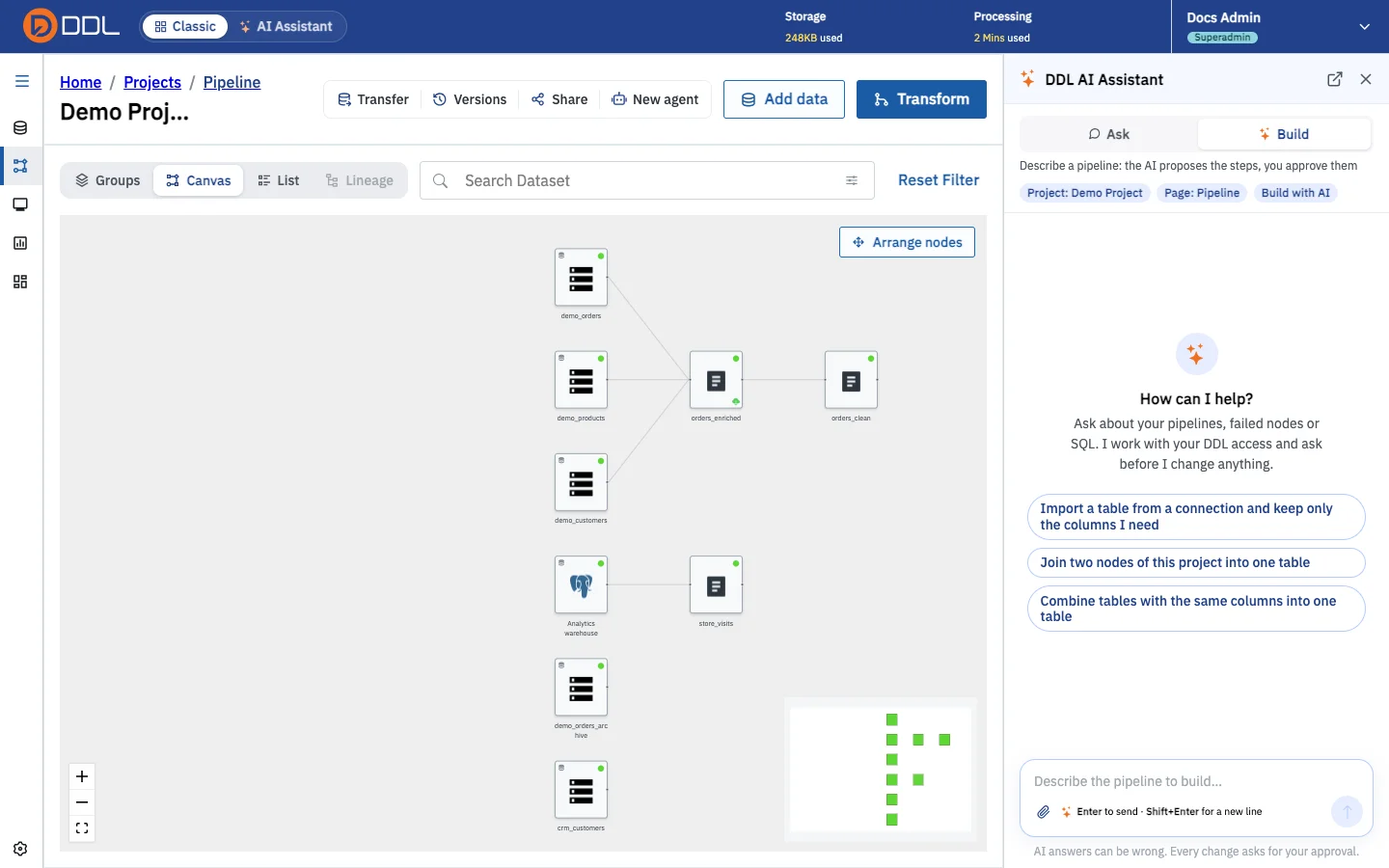
Section titled “The AI panel”Where the AI is available, click ✦ at the bottom right of the page, or press Ctrl+J (⌘+J). The panel DDL AI Assistant opens on the right and knows the page you are on. The chips under its header show what goes with your next question, such as Project: Demo Project, Page: Pipeline, Node: orders_enriched, View: Monitoring or SQL from the editor. Chart and dashboard pages can add Dashboard: Sales overview, Chart: Monthly revenue, Page: Dashboard, View: Dashboard editor or View: Project charts.
- Its header has the name of the AI model, New conversation (once the chat has messages), Open in AI workspace (the same conversation, full screen) and Close. Esc also closes the panel.
- Suggested questions fit the page, for example Summarize the status of this project on a pipeline, Why did this node fail? on a failed node, or Explain this SQL query in SQL Query. On chart and dashboard pages, suggestions include Summarize this dashboard, Add a filter to this dashboard and Suggest a chart for this data. Click one to ask it.
- Click a result card, or Preview on it, to open it in the Preview of the AI workspace. Classic in the navbar brings you back to the page.
- On screens 1124 pixels wide and wider the panel docks beside the page; on narrower screens it opens over the page, and on a phone it fills the screen.
Ask or Build on a Pipeline page
Section titled “Ask or Build on a Pipeline page”On the Pipeline page of a project you may change, the panel starts with a switch:
| Mode | Hint under the switch | What the next question does |
|---|---|---|
| Ask | Questions and diagnosis about this project | Gets an answer. The AI can still propose a single change, such as a rerun, for your approval. |
| Build | Describe a pipeline: the AI proposes the steps, you approve them | Asks for a build plan. The chip Build with AI appears, the box reads Describe the pipeline to build… and the suggestions change, for example Join two nodes of this project into one table. |
Text you already typed stays when you switch. While a build plan waits for your approval the switch stays on Build and says Approve or decline the plan first, or ask for changes.
The switch appears only on the Pipeline page, and not when you may not change the project or the project is locked. In the AI workspace, Build is available in a chat with an agent that has a work project.
Ask a question
Section titled “Ask a question”- Type your question and press Enter. Shift+Enter adds a new line; a question can be up to 4,000 characters.
- While the AI works, the answer shows Working… and a dashed line AI steps: with the tools it used, such as ✓
get_pipeline. The send button turns into Stop, which ends the answer. - Read the answer. Results come as cards; click Preview on a card to open it.
Name the project and node you mean, ask for one thing at a time, and ask to see the data before you ask the AI to build on it. SQL in an answer comes with Copy and, on the SQL Query page, Insert into editor.
Result cards
Section titled “Result cards”| Card | Shows | Buttons in the Preview |
|---|---|---|
| Pipeline summary | The nodes of a project by status, and the ones that need attention | Open in DDL |
| Data preview | The first rows of a node | Copy CSV, Open in DDL |
| Error log | An excerpt of a node’s log, with sensitive values hidden | Load full log, Open in DDL |
| SQL | A query the AI wrote, ran as a preview or proposes | Copy, Insert into editor, Open in SQL Query |
| Answer | An Ask Data result | Show SQL, Copy CSV, Open table, Save as chart, Save as Verified SQL |
| Diagnosis | The cause of a failure, the evidence and the fix | Open in DDL |
| Lineage | Where a node’s data comes from (Parents, Grandparents…) and where it goes (Readers, Level 2 down…), including nodes of other projects and nodes marked No access | Open lineage |
| Audit | Findings by severity | Fix, Open lineage |
| Build plan | The steps of a build plan and their progress | Open project |
| Chart | A saved chart and its numbers, loaded with your DDL access | Preview, then Chart or Data; Open dashboard when available |
| Dashboard | A saved dashboard | Open, Edit, Preview, according to your access |
| Charts | Charts saved together, up to 10 in one approved change | Open a chart you may access |
| Chart preview | A proposed chart before you approve the change | Review the preview before approving |
| Public link | A newly created dashboard public link, shown once | Copy the link while the card is available |
Rows in the cards come from DDL with your own access, not from the AI. You see them even when the data policy keeps them from the AI model.
Query results in the Preview
Section titled “Query results in the Preview”When the AI has run a query as a preview, for example after Preview the total amount per city from orders_enriched, its SQL card in the Preview runs the query again in DDL with your access and shows the rows under Result: up to 25 rows (First 25 rows (DDL’s SQL preview).), or The query returned no rows. When DDL refuses, the card says so, for example You cannot read the data of these tables., with Try again.
Queries that only wait for your approval, and queries longer than 20,000 characters, never run from the card.
Ask Data: questions about tables
Section titled “Ask Data: questions about tables”- In the AI workspace, click a table under Data Repository, or pick tables with Browse. The chip reads Data: demo_orders. On a table’s page in the Data Repository, the ✦ button asks about that table too.
- Optionally click + next to another table to add it. A question can use up to three tables.
- Ask, for example What is the total amount per month?
- Click Preview on the Answer card.
The AI writes read-only queries, at most three per question, and DDL runs them with your access. The Answer card shows a bar or line chart when the result suits one (The chart shows the first 50 rows.), up to 100 rows of the table, and the row count. Show SQL shows the query, Copy CSV copies the rows and Open table opens the table in the Data Repository. Save as chart starts a chart you can review in the chart builder; see Turn an answer into a chart.
- A Verified badge means that the answer ran a Verified SQL that the table’s owner saved, not a query the AI wrote.
- The owner of the table, or a superadmin, asking about that table alone sees Save as Verified SQL, which keeps the query for similar questions.
- Answers get better when the table is described in its AI Context.
Dashboards and charts
Section titled “Dashboards and charts”Use Ask for charts and dashboards. Build makes pipeline plans, not dashboards. These features need the AI Assistant and Dashboards enabled, and an access level that allows changes if you want to save anything. Public links must also be switched on. Dashboard viewer accounts cannot use AI, and public and embedded pages have no AI panel.
Ask about a dashboard
Section titled “Ask about a dashboard”- Open a dashboard you can access and click ✦. Check the chips, such as Page: Dashboard and Dashboard: Sales overview.
- Keep Ask and ask, for example, What are the latest numbers on this dashboard?
- If the answer includes a Chart card, click Preview. Use Chart or Data to inspect the result in DDL, and Open dashboard to return to the dashboard when offered.
DDL loads chart numbers with your access. The model receives them only when Small query results (Ask Data) is on, up to the first 50 rows and 20 columns. With it off, you can still see numbers in the cards, but the model sees only columns and the row count. See Data sent to the AI.
Build a dashboard
Section titled “Build a dashboard”- Stay in Ask and describe the dashboard you need, including its project, charts and filters.
- Review the Save dashboard approval card. Check Dashboard, New charts, Tiles added, Filters added and Who sees numbers. A Chart preview card lets you inspect a proposed chart before anything is saved.
- Click Approve & run only when the plan is right, or Cancel and ask for changes.
- After the approved change finishes, use Open, Edit or Preview on the Dashboard card, according to your access. A Charts card can list up to 10 charts saved together.
See Charts for the chart builder and Dashboards for tiles, layouts and filters.
Change, share or delete
Section titled “Change, share or delete”Ask for one change at a time, such as adding a filter or moving a tile. Review the plan before approving. A plan that removes or replaces something uses a red card with This removes or replaces something. Check the plan before you approve. Deletions warn This cannot be undone. and use Delete instead of Approve & run.
- A Share dashboard card proposes who receives access. Check the recipients and what they may see before approving; see Share dashboards.
- You can ask to stop a share, remove a tile or filter, remove a viewer’s grants, revoke a public link, or delete a chart or dashboard. Each removal needs approval on a red card.
- Ask explicitly for a public link. When public links are enabled, an approved request returns a Public link card. The link is shown once: copy it then and keep it out of places where it should not be shared. A protected link has a password field with Generate and Copy; do not put its password in the chat.
Turn an answer into a chart
Section titled “Turn an answer into a chart”- On an Ask Data Answer card, click Save as chart.
- Choose the Project where you may create the chart.
- Click Open chart builder. Review the chart and save it there.
For superadmins
Section titled “For superadmins”You can ask for a division, a new account, an account change or dashboard viewer grants. Review each plan with the same care as a dashboard share. New-account and division-administrator password fields have Generate and Copy: generate a password in the field and copy it securely, rather than sending it to the AI. Password values are not included in this guide or the chat. See Dashboard viewer accounts for their access limits.
Build a pipeline with AI
Section titled “Build a pipeline with AI”- Open the project’s Pipeline page, open the AI panel and click Build. In a project without nodes, Build with AI in the middle of the canvas does the same.
- Describe the result you need, for example Create a node revenue_by_city with the total amount per city from orders_enriched.
- The AI reads the pipeline and proposes a Build plan card: a summary and up to 12 steps, each with its kind and the name of the new node. Show what runs shows exactly what a step runs, such as its SQL or its join; Show all details opens every step. On the canvas the planned nodes appear dashed, with the label Dashed nodes: the AI’s build plan, not built yet.
- Click Approve plan to build it, or Decline. To change the plan, write what to change in the message box: the AI proposes a new plan and the old card says Replaced.
| Step kind | What it creates |
|---|---|
| Import table | A table imported from a connection of the project |
| SQL | A SQL node |
| Merge, Union, Copy | A merge, union or copy node |
| Action | An action on a node the plan created |
| Schedule | A sync schedule of a source node |
Follow and manage a plan
Section titled “Follow and manage a plan”After you approve, the card shows Building and the progress, such as 2 of 3 steps done, with the status of each step (Waiting, Running, Done, Failed or Skipped). The plan keeps running if you close the browser, and the card catches up when you come back.
| Status | Meaning | What you can do |
|---|---|---|
| Needs your approval | Waits for you until the time shown after Expires | Approve plan, Decline, or ask for changes |
| Building | Steps are running | Stop ends the plan after the current step |
| Built | Every step is done | Undo |
| Paused | A step waited more than 20 minutes for its data. | Continue once the data is ready, or Undo |
| Stopped | You stopped it; the nodes it made stay | Continue or Undo |
| Interrupted | The AI service stopped working on it, for example after a restart | Continue or Undo |
| Failed | The plan stopped at the step that failed. | Undo, fix the cause, and ask for a new plan |
| Declined, Expired, Replaced | Nothing was built | Ask again |
Undo opens Undo this plan? with the nodes it will delete, and a button such as Delete 2 nodes. Sync schedules the plan created are removed too. DDL refuses while other nodes read from those nodes, and an undo cannot be reversed.
- While a plan runs, its conversation takes no new questions: A build plan of this conversation is still running. Wait until it is done, or stop it on its card. Start a New chat meanwhile.
- Other approved changes also lock the chat while running: A change you approved is still running. Wait until it is done. If an answer is still being prepared, you see This conversation is still answering. Wait until it is done.
- A plan runs with your DDL session. When the session ends in less than 20 minutes, the AI asks you to sign in again first.
- Building needs permission to change the project and an AI access level that allows changes.
Fix a failed node with Pipeline Doctor
Section titled “Fix a failed node with Pipeline Doctor”- Click the failed node, for example
cost_per_cityin Marketing Sandbox, to open its side panel. - Click Diagnose & fix. The panel opens and asks Diagnose why this node failed and propose a fix.
- The AI reads the log, the SQL and the nodes upstream. When an upstream node caused the failure, it diagnoses that one. Its Diagnosis card shows Cause, Evidence (the log lines, copied as they are) and Fix, marked SQL change, Re-run, Upstream node, Connection, Data or Other.
- When the fix is a new query or a rerun, an approval card follows. Check it and click Approve & run.
When the fix is outside the AI’s reach, such as a connection password, the answer tells you what to do in DDL and proposes nothing.
Audit a node
Section titled “Audit a node”Audit with AI, in the ⌄ menu next to Ask AI (or Diagnose & fix) in a node’s side panel or in the toolbar of the Lineage view, asks Audit this node and everything upstream of it. The AI only reads during an audit.
Its Audit card counts the findings and lists them under High, Medium and Low, each with its node, evidence and fix. With none, it says No problems found in the nodes checked. Fix on a finding puts Fix finding F1: … in the message box; send it, and the AI proposes that change for your approval.
Attach files
Section titled “Attach files”Attach a file to compare it with DDL data, check a specification against a pipeline or simply ask what is in it.
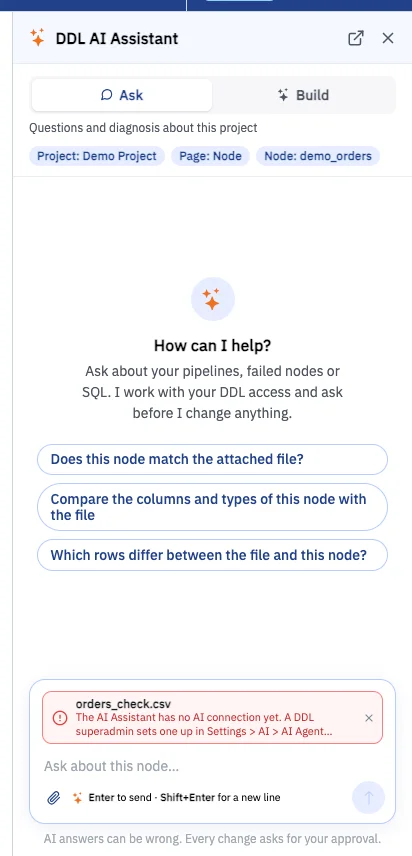
A connected AI model is required for uploads too. Without one, the upload is refused with The AI Assistant has no AI connection yet, even if the paperclip is visible.
- Click the paperclip in the message box, or drop or paste the file there.
- Wait until the chip shows what DDL read, such as 20 rows · 6 columns, 3 sheets or 300 of 400 pages. A large file may be read only in part, and the chip says so. Hover a chip to see the hidden Excel sheets that were not read.
- Ask your question and send. Sent without a question, a file gets one: What is in the attached file?, or Compare the attached file with this node: does it match? when you are on a node.
| Rule | Limit |
|---|---|
| File types | CSV, TSV, Excel (.xlsx, .xlsm), JSON, TXT, MD, SQL and PDF. Save old .xls files as .xlsx or .csv. PDFs need a text layer: a scanned PDF cannot be read. |
| Size | 10 MB per file |
| Number | 3 files per question, 20 uploads a minute |
Compare a file with a node
Section titled “Compare a file with a node”Open the node’s side panel, open the AI panel, attach the file and ask, for example, Does this node match the attached file? DDL compares the file and the node itself and shows a comparison card:
- the verdict Matches, Matches so far (only part could be compared) or Differences, with the rows of the file and of the node and the key columns used to match rows,
- counts such as Matching rows, Rows with other values, Rows only in the file and Rows only in the node,
- Columns, each marked Match, Other type, Only in file or Only in node,
- Rows that differ, with example values, and Open the node.
The example rows are shown only while the answer is on screen. In a conversation opened again, the card says they are not kept in the history; ask again to see them.
What happens to your files
Section titled “What happens to your files”- DDL reads a file when you pick it. The file stays in the memory of the AI service, never in DDL’s database: a file you do not send is dropped after an hour, and a sent file stays while you use the conversation, 24 hours at most. A restart of the AI service drops all files.
- DDL keeps only a summary of the file in the conversation: its name, size, sheets, rows and column names, never its content.
- The AI model receives what it reads from the file. Recognised personal data is masked first when your administrator has masking on; the note under the chips says which applies.
- ✕ on a chip, before you send, stops the upload or deletes the file. New chat and opening another conversation delete files you have not sent.
- After sending, the trash icon on a file (Delete from the AI service) asks Delete this file from the AI service? Its name stays in the conversation, marked Deleted. Deleting the conversation deletes its files too. Answers already given stay.
- A file that has expired shows No longer available when you open the conversation again. Attach it again to go on.
The paperclip is missing when your administrator has turned file attachments off. When file content is not sent to the AI, it answers from the outline and statistics of the file only.
Approve changes
Section titled “Approve changes”The AI acts as you: it sees only what your DDL account may see, and it can change only what you may change. Every change waits for you on an approval card:
- The card Action plan · Needs your approval names the change and its details, and ends with the tool, the access level it needs and the time it expires.
- Read it. A red card means the plan removes or replaces something. For a deletion, check This cannot be undone. The message box is locked meanwhile: Approve or cancel the change above to continue.
- Click Approve & run, or Delete on a deletion card, to run exactly this change. Click Cancel to leave DDL unchanged. The card then says Approved., Cancelled. Nothing was changed. or, if you waited too long, Expired. Ask again if you still need this change.
- The AI proposes one change at a time. A build plan is the exception: one approval for all its steps. A Save dashboard plan also groups its charts, tiles and filters under one approval.
- A change waits 10 minutes unless your administrator set another time (1 to 120 minutes). A build plan waits at least 30 minutes.
- Waiting approvals that contain no password are kept in DDL. They still work after the AI restarts, until they expire. Password-bearing cards are not stored; ask again if one is no longer available.
- Once approved, a change runs to completion even if you close the page. Closing the page does not cancel it.
- It can propose, for example, a new project or SQL, merge, union or copy node, an imported table, a new query for a SQL node, an action, a rename, a rerun or stop of a node, a sync or a sync schedule.
- It can delete charts and dashboards, remove tiles and filters, stop shares, remove viewer grants and revoke public links, always with a red approval card. It never deletes projects, nodes, connections, schedules, accounts or divisions through an action card. The explicit Undo of a build plan can remove the nodes and schedules that plan created.
- It never writes or runs Python scripts, and never creates, edits or runs exports; it can only switch an existing export on or off.
- Password fields for new accounts, division administrators and protected public links have Generate and Copy. Use those fields, not the chat, to enter or generate a secret.
- With read-only AI access, set by your administrator, the AI proposes no change and points you to the page where you can make it yourself.
- Deleting a conversation does not undo its changes. Only build plans have Undo.
Check a SQL change
Section titled “Check a SQL change”When the change is a new query for a SQL node, look at both cards before you approve:
- The approval card lists the lines changed and warns when the change removes columns, for example Removes column(s) amount — used by: city_margin, and when a join may multiply rows.
- The SQL card opens on Changes, a comparison of the current and the new query (3 lines added, 1 removed), or on New SQL. Under Columns of the result it lists the Removed and Added columns, Readers whose SQL uses a removed column:, and other nodes to check by hand (Also read by: …).
Privacy and safety
Section titled “Privacy and safety”- What the model receives. By default the AI model gets node names, statuses, SQL and log excerpts, but not the rows of your data. For previews, query results and dashboard chart numbers, it sees only columns and the row count while you see the data in cards. Small query results (Ask Data) also controls whether dashboard numbers go to the model; see AI settings.
- Personal data. E-mail addresses, phone numbers, NIK and card numbers, and the columns your administrator lists, are replaced with placeholders such as
[EMAIL_1]before anything goes to the model. This includes chart conditions and dashboard filter values on personal-data columns. DDL restores values in answers according to your access. E-mail-like account names are masked, for examplea***@example.com. Dashboard numbers remain masked for people without project access when masking is on. - Sensitive data. Projects and tables marked Sensitive data (AI) go only to your company’s own AI model. Without one, the AI answers without the page (This page holds data marked sensitive…), and Pipeline Doctor, Ask Data and Build refuse that data.
- Passwords. Never send passwords or keys in a question. Use the separate password fields when an approval needs one. Create connections that need a secret in DDL yourself; see Connections.
- History. Conversations hold the text and the cards, not the data rows, and are deleted 90 days after their last message. Every tool call the AI makes for you is logged in Settings › AI › Activity; see AI settings.
- Mistakes. AI answers can be wrong. Every change asks for your approval. Check numbers that matter in DDL before you use them.
Limits
Section titled “Limits”| What | Limit |
|---|---|
| A question | 4,000 characters |
| Files | 3 per question, 10 MB each, 20 uploads a minute |
| Ask Data | 3 tables per question, 3 queries per answer |
| Build plan | 12 steps |
| Charts saved in one approved change | 10 charts |
| SQL from the editor sent with a question | The first 20,000 characters |
| Questions per minute, monthly budget, length and time of an answer, approval time | Set by your administrator. The default is 30 questions a minute. From 80% of the monthly budget a yellow bar warns This month’s AI budget is almost used up. |
| Conversations | 90 days after the last message |
On a phone
Section titled “On a phone”- After sign-in, a phone opens on the AI tab when the AI Assistant is available.
- The workspace sidebar starts as a rail; Open sidebar shows it over the chat, and picking something closes it again. Below 1124 pixels wide, previews and About this agent cover the chat, on tablets as well as phones; ✕ brings it back.
- The AI panel fills the screen, the browse dialog becomes a sheet, and the ✦ button steps aside while you type or scroll down.
Troubleshooting
Section titled “Troubleshooting”| What you see | Why | What to do |
|---|---|---|
| No AI Assistant tab and no ✦ button | The AI Assistant is not available on your DDL | Ask your administrator; see AI settings. |
| The AI Assistant has no AI connection yet. | No AI model is connected | A superadmin sees Open AI settings; others ask a superadmin. |
| The AI Assistant is turned off by your administrator. | The AI Assistant is switched off | Ask your administrator. |
| This month’s AI budget is used up. Ask your administrator to raise it. | The monthly AI budget is spent | Ask your administrator. |
| You have asked 30 questions in the last minute… | The per-person limit | Wait the time it names. |
| The answer took too long. Try a shorter question. | The time limit of an answer | Split the question. |
| Could not reach the AI Assistant service. | The AI service is not reachable | Try again later; tell your administrator if it persists. |
| No Ask and Build switch | Not a Pipeline page, the project is locked, or you may not change it | See Ask or Build. |
| A build plan of this conversation is still running… | A plan of this chat is running | Wait, click Stop on its card, or start a New chat. |
| A change you approved is still running. Wait until it is done. | An approved change is still running | Wait or start a New chat. Closing the page does not stop the change. |
| This conversation is still answering. Wait until it is done. | An answer is still running | Wait for it to finish, or use Stop to end the answer. |
| This change is no longer available. | The approval expired, or a password-bearing card was lost after a restart | Ask again and review the new plan. |
| No AI on a public or embedded dashboard, or in a dashboard viewer account | These views do not offer AI | Use a standard account in DDL if you need AI and have the required access. |
| No paperclip | File attachments are turned off | Ask your administrator. |
| A file chip shows an error, such as The file is larger than 10 MB. | The file breaks a rule for files | Remove it with ✕ and attach a file that fits. |
| This conversation does not exist or was deleted. | Deleted, or older than 90 days | Click New chat. |