

What's new
The changes to DDL that you can see and use, newest first and grouped by month. Each item says what changed and links to the guide that explains it.
Highlights
Section titled “Highlights” Dashboards Build pages of charts and text, set your own filters and share results with the people who need them.
AI Assistant Ask about your data, build pipelines and fix failed nodes in a chat. Nothing changes until you approve.
Agent Studio AI agents that already know a set of tables, for faster answers.
List, Lineage and Groups Find, rerun and trace nodes in large pipelines, also across projects.
Distribution E-mail reports, personal messages and failure alerts from your data.
MCP integration Connect Claude, Cursor, VS Code and other AI tools with a personal token.
Phones, tablets and dark mode Use DDL on any screen, in a light or a dark theme.
November 2026
Section titled “November 2026”22 November: charts and dashboards
Section titled “22 November: charts and dashboards”- Charts and Dashboards. The new pages replace the old project chart and dashboard screens. Dashboards is now the first item in the account menu. Build charts with seven types from project nodes or datasets you can read. The dashboard editor adds charts, text tiles, filters each viewer sets for themselves and auto-refresh. Use Export CSV or Download PNG where supported, and share dashboards with Members, Roles, Teams or Divisions, optionally with Can edit. Old charts appear as Legacy.
- Public links and embedding. Where your administrator enables them, share a dashboard with a public link or display it inside another app. Both are off by default and unavailable for sensitive projects. See Share dashboards. Optional
- Dashboard viewer accounts. Superadmins create read-only accounts that open only their granted dashboards, without project pages, AI or usage meters. See Dashboard viewer accounts. Admin
- Divisions in Settings. Settings › Organization settings › Divisions replaces division management in the admin console, with New division, Set administrator password and Delete division. See Teams and roles. Admin
- Users page. The list gains a Type column and a Root badge, and account forms include Account type. See Teams and roles. Admin
- AI and dashboards. Ask about a dashboard’s numbers, build or change a dashboard in one approval, or use Save as chart on an AI answer. Chart and dashboard deletions wait on red cards with Delete. Waiting approvals without password fields survive a restart. These features need a configured AI model and are never available to dashboard viewer accounts or on public pages. See AI Assistant. Optional
- MCP tools. Thirteen new tools cover dashboards, charts, divisions and accounts, bringing the total to 82. New tokens start on Read for everyone. See MCP integration.
- Monitoring. Syncs now appear as Sync rows, but have no log or working Stop action of their own. Download Log downloads retained process logs as
.logfiles; a log that is no longer retained is still refused. See Monitoring. - Data Repository. Name is pre-filled from the file name up to the first dot without overwriting what you typed. Ctrl+K (⌘+K on a Mac) focuses Search Dataset. See Data Repository.
- Schedules. A one-time Fixed schedule in the past is refused with a message, rather than silently skipped. See Schedules.
- Subscribe to a dashboard. Subscribe starts a Distribution using the dashboard’s default filters, not your current filter selections. See Distribution. Optional
Fixes:
- Process logs no longer show internal tracebacks or file paths. See SQL Query.
- The floating AI button no longer covers Back or Continue in the connector picker, connection form or schedule wizard. See Connections and Schedules.
- Database passwords with special characters such as
@,:,/and#work. Tests for Azure Data Lake Storage, Apache Kafka and S3 Object Storage fail promptly when a host is unreachable. See Connections. - A new account is kept when its verification e-mail cannot be sent. See Create an account.
- Generate New Password also ends a sign-in lockout. See Teams and roles.
Known limitations: the project connection delete dialog can lose the selected name; see the caution. Component access may leave its component selector unavailable; see Admin console.
Week of 16 November
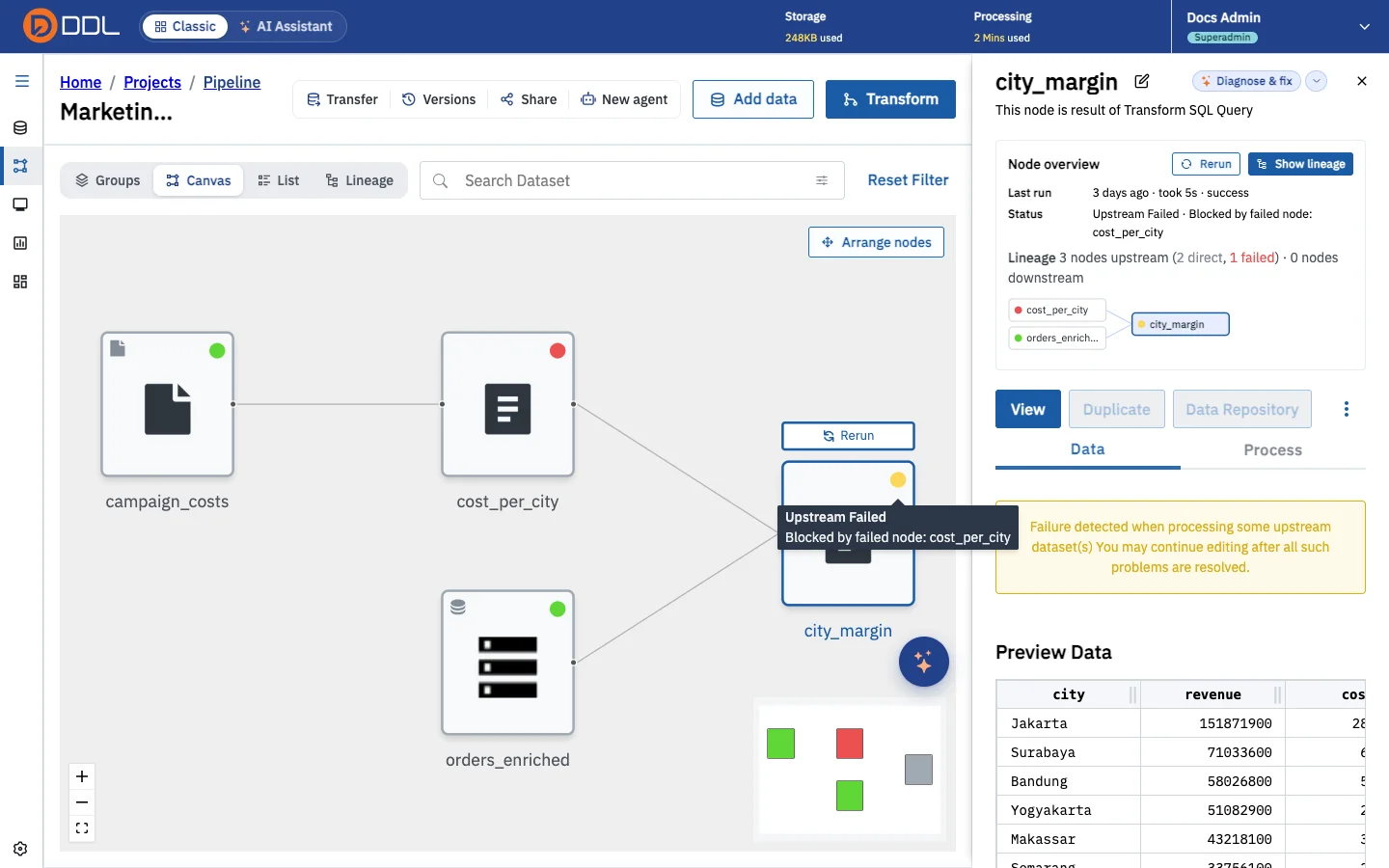
Section titled “Week of 16 November”- See why a node waits. For a node that is Upstream Failed or Scheduled, the tooltip of its status dot and the new Status row of Node overview name the failed node that blocks it, or the nodes it waits for. See Why a node is blocked or waiting.
- No runs on outdated data. A node that reads several nodes no longer runs while one of them has failed: it and the nodes after it become Upstream Failed, and Rerun names the nodes to fix first. See Run, sync, rerun and stop.
- Delete attached files. Remove a file from the AI service before or after you send it. Chips show how much of a large file was read, and a note says how long files are kept. See What happens to your files. Optional
- File switches in the AI data policy. Allow file attachments and Send file content to the AI in Settings › AI › AI Agent decide whether people may attach files, and whether the AI model reads their content. See Data sent to the AI. Admin
- Faster DDL and AI. The DDL server answers most requests faster, the AI Assistant runs its lookups side by side, and AI clients read, export, compare and clone large pipelines much faster. See MCP integration.
- Sign-in when DDL is busy. If DDL cannot look up your account, the sign-in page says Login is temporarily unavailable, please try again in a moment, and the attempt no longer counts towards a lockout. See When sign-in fails.
- Lineage across projects. Switch on Include other projects in the Lineage view to follow a node’s data into the projects that use it, and back to where it comes from. The Lineage toolbar also has Audit with AI. See Lineage across projects.
- Review SQL changes and audit pipelines with AI. Before you approve a new query for a SQL node, the AI shows the lines and columns that change and the nodes downstream that use them. Audit with AI checks a node and everything upstream of it, and lists findings with fixes. See Check a SQL change and Audit a node. Optional
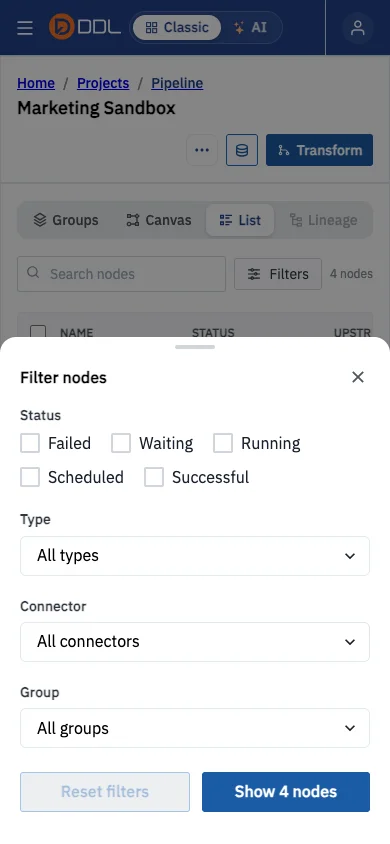
- The Pipeline page on phones. The project header is more compact, the view switch fits small screens, and the filters of the List open from a Filters button. See Find nodes.
Fixes:
- Right after the DDL server starts, requests no longer fail now and then with unexpected errors.
Week of 9 November
Section titled “Week of 9 November”- Agent Studio. Create AI agents that already know a set of tables, chat with them in Ask or Build, and share them with your division. See Agent Studio. Optional
- AI use by agent. AI Ops shows the questions and the cost of each agent, and the eval runs have a suite for agents. See AI Ops. Admin
- Query results in the Preview. When the AI previews a query, its SQL card runs the query again with your access and shows up to 25 rows under Result. See Query results in the Preview. Optional
- Ask and Build. On a project’s Pipeline page, the AI panel starts with an Ask and Build switch: Build turns your next message into a build plan. See Ask or Build on a Pipeline page. Optional
- Response limits. Superadmins set the longest answer, the rounds and time per answer, the rows read per lookup and how long a change waits for approval. See Response limits. Admin
- A tidier pipeline toolbar. Transfer, Versions and Share form one group next to Add data and Transform. On a phone they open from ⋯ as Project actions. See The toolbar.
- A roomier AI workspace. Browse every project and table in a dialog, find chats in Recents grouped by date, and drag the sidebar to the width you like. The AI Assistant tab no longer carries a beta label. See The AI workspace. Optional
- Attach files to the AI Assistant. Attach up to three CSV, Excel, JSON, text, SQL or PDF files to a question, and compare a file with a node. See Attach files. Optional
- AI on every page. The Classic and AI Assistant tabs are in the navbar of every page, and the ✦ button or Ctrl+J opens the AI panel about the page you are on. See Classic and AI Assistant. Optional
- Waiting nodes. The List, the lineage, Project health and the AI Assistant count nodes held back by a failure upstream as Waiting, apart from the nodes that failed themselves. See Find nodes.
- A clearer Lineage toolbar. Depth and Direction are buttons, Hide successful says how many nodes it hides, and the side panel says how many upstream and downstream nodes are direct neighbours. See The lineage toolbar.
- Distribution in English. Messages on the Distribution screens and in e-mails to administrators are in English, and the node picker shows readable types such as Transform or PostgreSQL. What recipients get stays in Indonesian. See Distribution. Optional
- Phones and tablets. DDL adapts to small screens: menus open as panels and sheets, side panels fill the screen, and the AI panel makes room for the keyboard. See Phones and tablets.
- Dark mode. Choose Light, Dark or System in Settings › Personal settings › Appearance. See Appearance. Optional
- Pipeline Doctor, AI Builder and Ask Data. Diagnose & fix on a failed node explains the failure and proposes a fix, Build proposes a whole pipeline that you approve once, and Ask Data answers questions about Data Repository tables with a read-only query. See Pipeline Doctor, Build a pipeline with AI and Ask Data. Optional
- AI Action. Classify, extract, summarize or translate every value of a column, or answer a prompt for it, as a step of a node. See Add an action. Optional
- AI models and sensitive data. Superadmins connect AI models (Anthropic, Amazon Bedrock, Google Vertex AI, Azure OpenAI or an OpenAI-compatible server), choose a model per role, set a monthly budget and follow the cost in AI Ops. Projects and tables marked as sensitive go only to a model that runs inside your company. See Model connections and Sensitive data (AI). Admin
Fixes:
- Signing in after someone else in the same browser tab no longer shows the previous user’s data.
- Forgot Password?, Verify Account and Sign Up open again without sending you to the sign-in page.
- Dashboard snapshots in distribution e-mails always use the light theme.
- Recents can load all your conversations, not only the latest hundred.
- Long answers no longer break off while the AI is still working, and a change that waits long for approval can still be approved.
- The ✦ button no longer covers the buttons at the bottom of side panels and lists.
- The Ask and Build switch and the tabs of the browse dialog work with the arrow keys.
Week of 2 November
Section titled “Week of 2 November”- AI Assistant. Chat with DDL in the AI workspace on Home or in the AI panel, and pick up earlier chats later. Superadmins set it up in Settings › AI, the page Settings now opens on. See AI Assistant. Optional
- Large pipelines. Groups (a map of the project with Project health), List (find, rerun or stop many nodes at once) and Lineage join the canvas, and folders and saved layouts keep big canvases in order. See List, Lineage and Groups.
- Distribution. Send e-mails, reports and alerts from your data: a six-step wizard with a test e-mail, schedules and triggers, approvals and a history of every send. See Distribution. Optional
- Projects in AI activity. Calls of AI clients on a node now show the node’s project in Activity. See Activity.
- Enter saves. Enter saves a new name in Change Project Name, and a new connection in Save Connection as. See Rename a project.
- Progress while a schedule saves. Submit and Update show Submitting or Updating until the schedule is saved. See Create a schedule.
- A tidier navbar. Your username sits on one line, shortened with a tooltip when it is long, with your role badge below it. See The navbar.
- AI settings for superadmins. Only superadmins change the AI settings that apply to everyone. Division admins see them locked, and their Show all users covers their own division. See Administrator settings. Admin
Fixes:
- The delete buttons of Project Settings and of dashboard filters display correctly again.
October 2026
Section titled “October 2026”- MCP integration. Connect Claude Code, Claude Desktop, Cursor, VS Code and other MCP clients to DDL with a personal access token. A token has an access level (Read, Write or Script) and an expiry date, you can revoke it at any time, and every tool call is logged. See MCP integration.
- More for AI clients. AI clients can also delete, clone and compare projects, export a pipeline definition, manage actions and custom action scripts, and create merge, union and copy nodes. Every change still waits for your OK. See What an AI client can do.
September 2026
Section titled “September 2026”- Append with SQL Procedure transfers. A transfer item that uses SQL Procedure to load an Oracle database has a Transfer mode: Replace clears the target rows first, while Append adds new rows and rolls the batch back if a key already exists. See Transfer to another connection.
- Resume large transfers. SQL Procedure transfers stream their rows and keep checkpoints. A failed item offers Resume from last checkpoint or Restart from scratch, and View Logs shows the SQL Procedure Status. See Transfer to another connection.
- One transfer status everywhere. A transfer node shows the same status on the canvas, in Search Dataset, in the status filter and in its side panel. See Node statuses.
- Oracle data types. Oracle
NUMBERcolumns with decimals or a long precision keep their exact values, andRAWcolumns, such as binary IDs, copy into Oracle without errors. See Database connectors.
Fixes:
- When DDL ends a transfer process that hung, its transfer items are marked as failed too, so you can run them again.
- A new transfer item is always added to the transfer node whose side panel is open.
Related pages
Section titled “Related pages” Introduction What DDL is and where each feature lives.
FAQ and troubleshooting Answers to common questions, including about the new features.