

Projects
A project is your workspace in DDL. It holds one pipeline and everything built on it: the connections it imports from and exports to, SQL queries, schedules, run history, charts and dashboards. Access is granted per project, so a project is also what you share with colleagues.
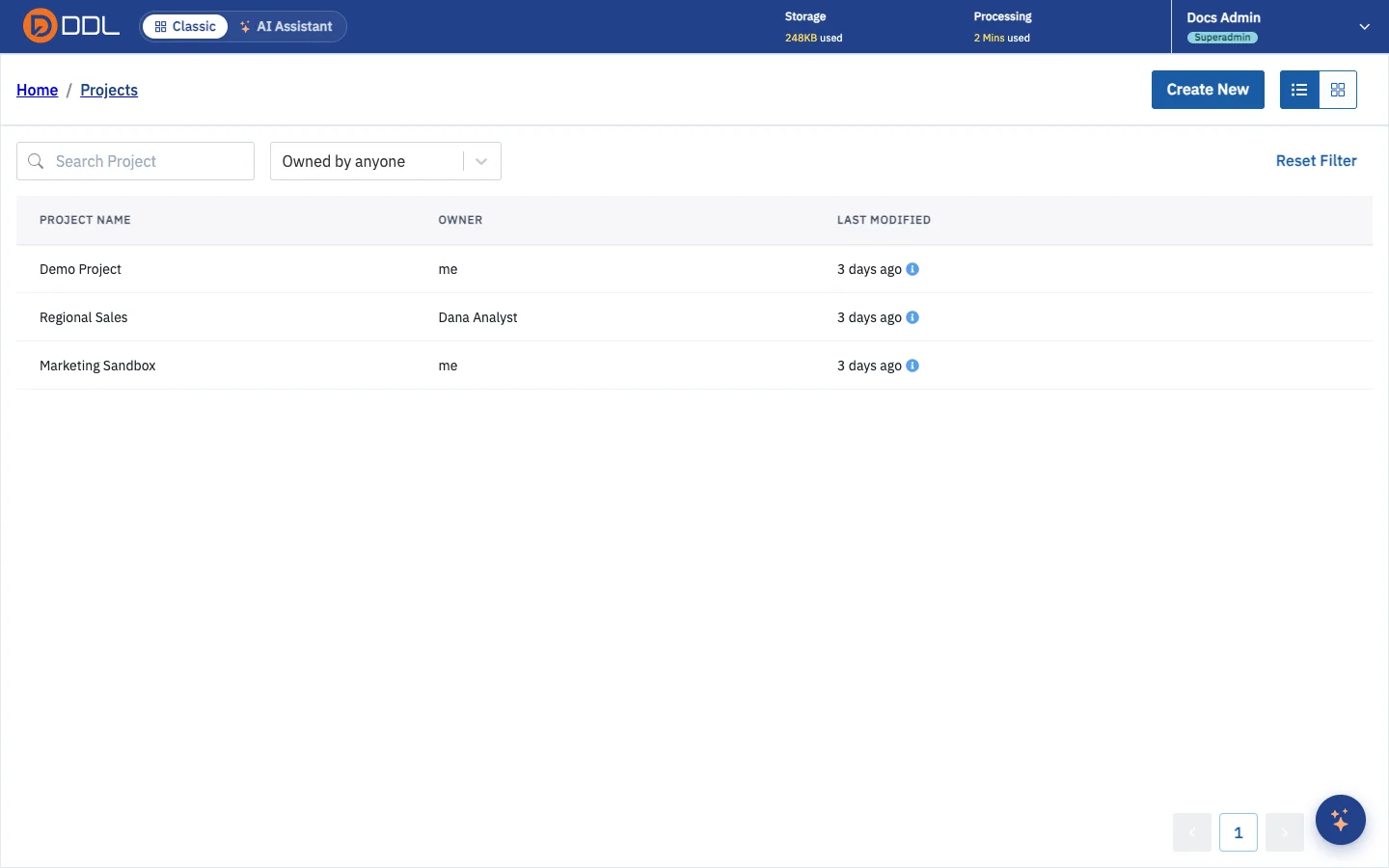
Find a project
Section titled “Find a project”The Projects page (/projects) lists every project you own and every project someone shared with you. Open it with View All next to Projects on the Home page, or go to /projects. The rest of the app’s menus are described in Home and navigation.
| Control | What it does |
|---|---|
| Create New | Creates a project immediately. See Create a project. |
| List / grid switch | Shows the projects as a table (tooltip LIST) or as cards (tooltip GRID). Both show the same projects. |
| Search Project | Filters by name. Any part of the name matches, in upper or lower case. |
| Owner filter | Owned by anyone (default), Owned by me, or Not Owned by me for projects shared with you. |
| Reset Filter | Clears the search and sets the owner filter back to Owned by anyone. |
The table has three columns. Project Name opens the project (so does a click anywhere on the row). Owner reads me for your own projects and shows the owner’s name for shared ones. Last Modified is relative, for example “5 minutes ago”; hover the info icon next to it for the exact date and time. The most recently changed projects come first.
The grid shows one card per project with Last updated and Owner. An account without projects shows There is no project to show. On a phone, the table becomes one card per project.
Create a project
Section titled “Create a project”Create New does not ask for a name. DDL creates the project at once, calls it Project 1, Project 2 and so on, and opens its empty Pipeline canvas.
- On the Projects page, click Create New.
- DDL opens the Pipeline canvas of the new project.
- Give it a real name right away: open Project Settings and use Change Project Name.
The number comes from a counter per account that only counts up: deleting Project 3 does not free that name. Your e-mail address is put on the project’s failure e-mail list automatically.
Inside a project
Section titled “Inside a project”The rail on the left of the project pages is the project menu. Click the menu icon at its top to expand it and read the labels; × collapses it again.
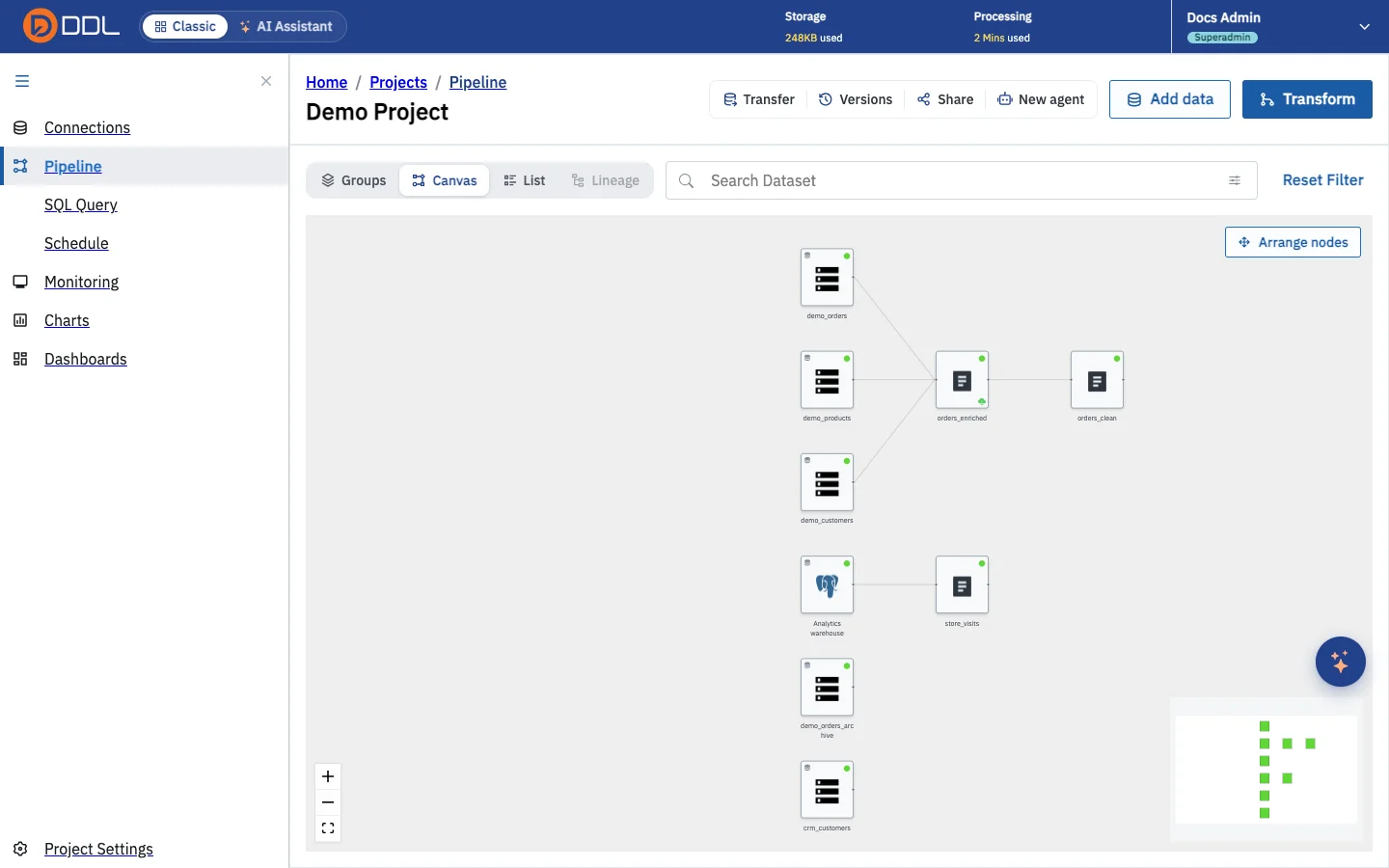
| Menu item | Opens | Read more |
|---|---|---|
| Connections | Manage Connections, the project’s import and export connections. Sub-item: Custom Connector. | Connections |
| Pipeline | The pipeline canvas at /projects/<id>. Sub-items: SQL Query and Schedule. |
Pipeline canvas, SQL Query, Schedules |
| Monitoring | The runs of this project and their logs. | Monitoring |
| Charts | The project’s charts, built from its nodes and from datasets you can read; New chart opens the chart builder. | Charts |
| Dashboards | The project’s dashboards; each opens on its own page, /dashboards/<id>. |
Dashboards |
| Project Settings | Name, failure e-mails, data retention, lock, sensitive data and deletion. | Project settings |
Sub-items appear only while you are in their section and the menu is expanded: Custom Connector on the Connections pages, SQL Query and Schedule on the Pipeline, SQL Query and Schedule pages. On a phone, open the project menu with the menu button in the top bar.
The Pipeline toolbar holds two more project-wide tools that this page covers: Versions and Share. On a phone they are in the More project actions (⋯) sheet as Version history and Share project.
Project settings
Section titled “Project settings”Open Project Settings at the bottom of the project menu (/projects/<id>/settings). Each row shows a setting and its current value; click a row to change it.
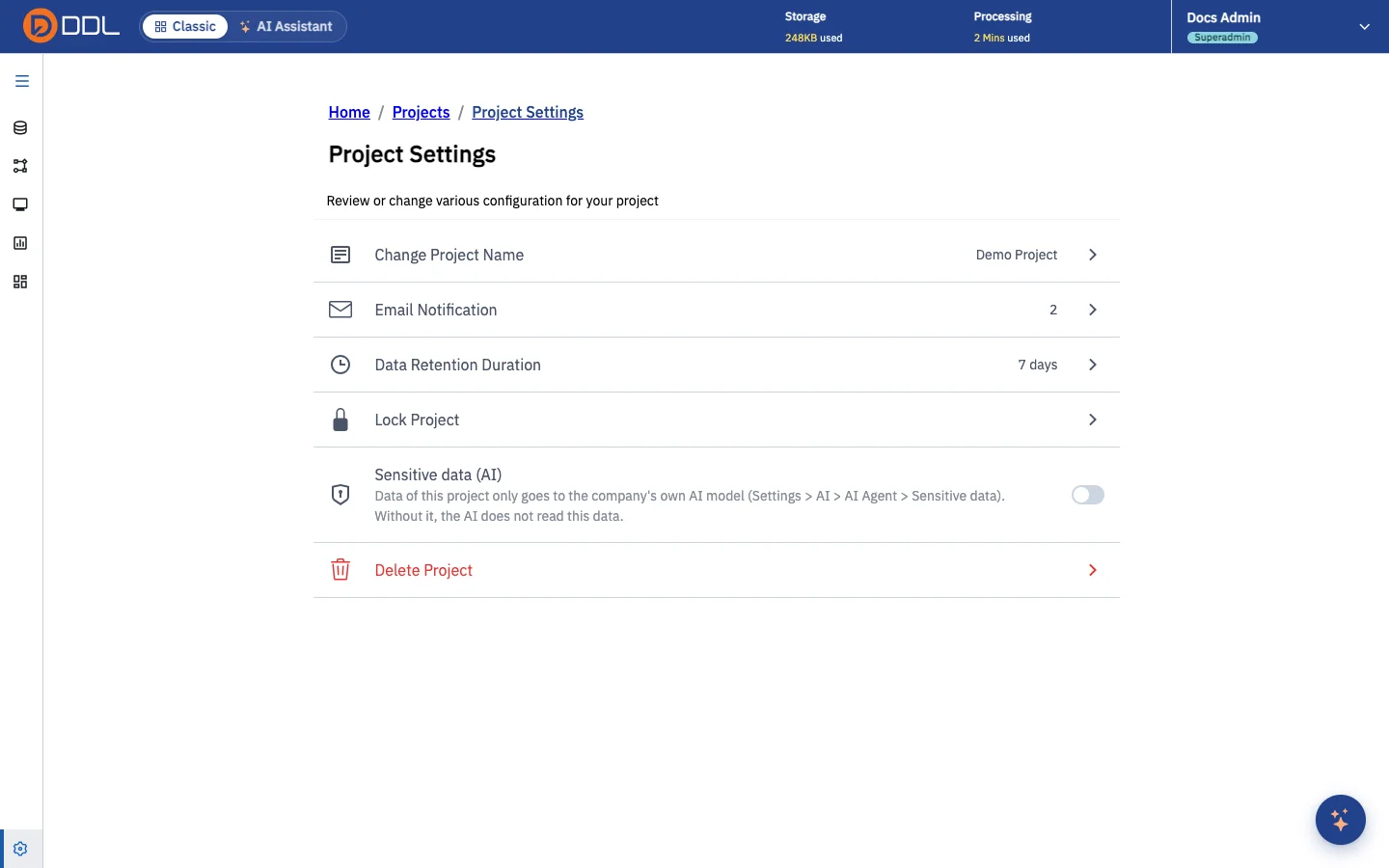
| Row | Shows | Who can change it |
|---|---|---|
| Change Project Name | The current name | People with Modify Project |
| Email Notification | How many addresses get failure e-mails | People with Modify Project |
| Data Retention Duration | The retention in days, for example 0 days | People with Modify Project |
| Lock Project / Unlock Project | Which of the two you can do now | People with Modify Project |
| Sensitive data (AI) | A switch, plus who marked the project and when | The owner or a superadmin. Shown only when AI is enabled. |
| Delete Project | (red) | The owner only |
The owner holds every permission. The other permissions are explained in Access levels.
Rename a project
Section titled “Rename a project”- In Project Settings, click Change Project Name.
- Replace the name in the dialog.
- Click Save or press Enter. Both do nothing while the name is empty or unchanged.
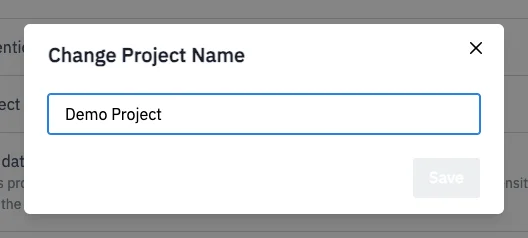
The new name shows up in the breadcrumb, on the Projects page, in Monitoring and in the Added From column of the Data Repository. Names are unique per owner: if you already own a project with that name, DDL refuses with “A project with name “…” is already exist”.
E-mail notifications
Section titled “E-mail notifications”Email Notification is the list of addresses that get an e-mail when a run in this project fails. The owner’s address is on it from the start.
- Click Email Notification.
- Type an address in Enter email address and press Enter to add it. Repeat for more addresses.
- Click Save.
Each message has the subject “[DO NOT REPLY] DDL Error Notification”. It names the project, the node (as Dataset), the job type, the time (in Western Indonesian Time, WIB) and the error, and it has the run’s log attached. Queries you run in the SQL Query workbench never send these e-mails.
Data retention and Versions
Section titled “Data retention and Versions”Data Retention Duration decides whether DDL keeps the previous data of a node when the node runs again and its data is replaced.
- 0 days, the default: the previous data is discarded. Versions can then only show what the node holds now.
- More than 0 days: the previous data is backed up every time it is replaced, so you can look at it and export it in Versions.
To change it, click Data Retention Duration, enter a number of days and click Save. The dialog reminds you that a long retention adds to your storage usage and billing.
Lock a project
Section titled “Lock a project”Lock a project that is finished and only needs to keep running on its schedules.
- Nobody can change a locked project, the owner included: Add data, Transform, Transfer and the connection actions are disabled.
- Its sync schedules keep running.
- Intermediate data that is not saved as a dataset is removed to save disk space. It is rebuilt on the next sync after you unlock the project.
To lock, click Lock Project in Project Settings, read the explanation and confirm with Lock Project. While the project is locked, the Pipeline toolbar shows a red Project Locked button. Hover it, click Unlock Project and confirm to unlock; the Unlock Project row in Project Settings does the same.
Sensitive data (AI)
Section titled “Sensitive data (AI)”When AI features are enabled on your DDL, Project Settings shows Sensitive data (AI). Switch it on to keep this project’s data away from outside AI models: “Data of this project only goes to the company’s own AI model (Settings > AI > AI Agent > Sensitive data). Without it, the AI does not read this data.”
- Only the project owner or a superadmin can change the switch. A mark set by a superadmin can only be cleared by a superadmin.
- A project that reads a sensitive Data Repository table is sensitive automatically. The row then says “Sensitive because it uses a sensitive Data Repository table.” and the switch is locked.
- The row shows who marked the project and when.
The company model and the data policy are set up in AI settings and data policy.
People without project access see only grouped numbers from sensitive projects and cannot Export CSV from those charts. You cannot create public links or embeds for sensitive dashboards. Share them with signed-in people instead; see Share dashboards.
Delete a project
Section titled “Delete a project”- In Project Settings, click Delete Project. Only the owner can.
- Read the warning, “This action will delete your entire project and cannot be undone”, and click Delete Project.
DDL marks the project for deletion, takes you back to the Projects page and removes the project, its nodes, its connections, its backed-up versions, its charts and its dashboards in the background. Shared dashboards, public links and embeds from that project no longer open. Datasets you saved from it to the Data Repository are kept, with the data they had.
Share a project
Section titled “Share a project”Sharing gives other people, or everyone who has a certain role, access to the project. What they can do depends on the permissions you grant.
- Open the project’s Pipeline and click Share in the toolbar (tooltip Share Project). On a phone, open More project actions (⋯) and choose Share project.
- The Share Project dialog opens. The box at the top shows the team and role you are working in (You are currently part of:).
- Click Add New Access.
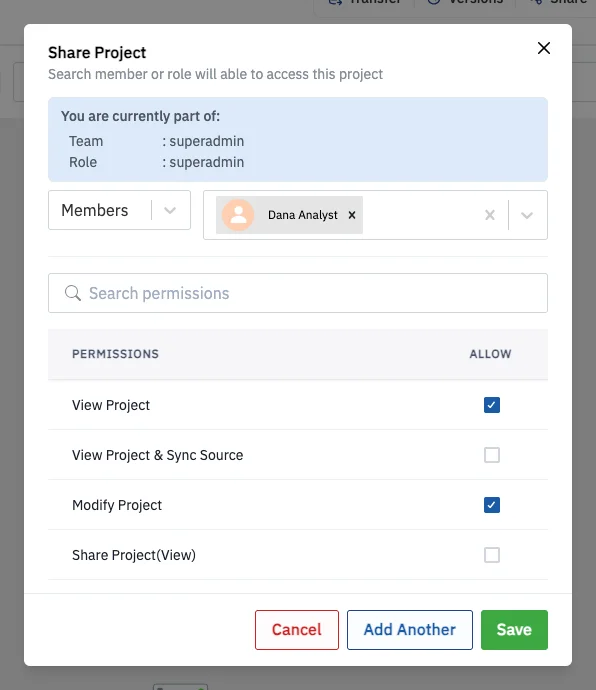
- In the first list choose Members (people) or Roles (everyone with a role). In the second list, Select Member or Select Role, search and pick one or more entries. Entries that already have access are not offered again.
- Tick Allow for each permission to grant. Search permissions filters the list.
- Click Save. DDL confirms with “New access added successfully” and the dialog goes back to the list of grants. To grant access to someone else straight away, click Add Another instead: it saves and empties the form.
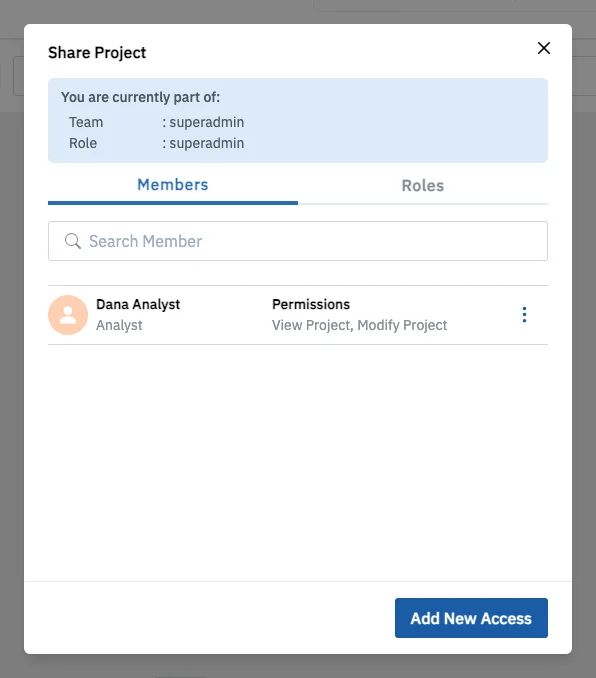
The dialog lists the current grants on two tabs, Members and Roles, each with a search box. Every entry shows the person’s role (or, for a role, its team) and the permissions granted; the owner is not listed. Open the ⋮ menu of an entry to Edit its permissions or Delete the grant; deleting asks for confirmation and cannot be undone. A tab with no grants says, for example, “There is no Member shared with this share project.”
Access levels
Section titled “Access levels”| Permission | What the person can do |
|---|---|
| View Project | Open the project and look at its pipeline, nodes, connections, runs, settings and every dashboard of the project without changing anything. DDL adds this permission to every grant automatically. |
| View Project & Sync Source | Everything in View Project, plus run a manual sync of the project’s source nodes. They cannot change the project or its schedules. |
| Modify Project | Change the project: add data, transform, build schedules, add and edit connections, and change the name, failure e-mails, retention and lock in Project Settings. Create charts and dashboards, edit and delete any dashboard of the project, and manage public links and embeds where enabled and allowed by the data policy. |
| Share Project(View) | Open the Share Project dialog and add, edit or remove access for others. |
Some actions are kept for the owner: Delete Project, deleting a connection and, together with superadmins, the Sensitive data (AI) switch.
A dashboard can also be shared on its own without granting project access. A Can edit share lets someone change its layout, text, titles and existing filters and share it onward, but not add charts or new filter columns, delete it, or manage public links and embeds. Dashboard viewer accounts stay read-only. Superadmins can open any dashboard by address, but their lists still show only owned or shared dashboards, and they need Modify Project to create charts and dashboards. Division administrators get no extra dashboard rights. Dashboard access changes apply on the next request; an owner who loses Modify Project loses dashboard deletion, public-link and embed control, and their public links stop working until it is restored.
Versions
Section titled “Versions”Versions shows the data a node held at an earlier date and time and lets you export it. Open it with Versions on the Pipeline toolbar (tooltip Project versions), or on a phone with More project actions (⋯) › Version history. The page lives at /projects/<id>/history; Back returns to the Pipeline.
- Choose a node in Node name. The list holds the project’s nodes that store data.
- Pick a date, today or earlier, and optionally a time.
- Click Preview. It stays disabled until you have chosen a node and a date.
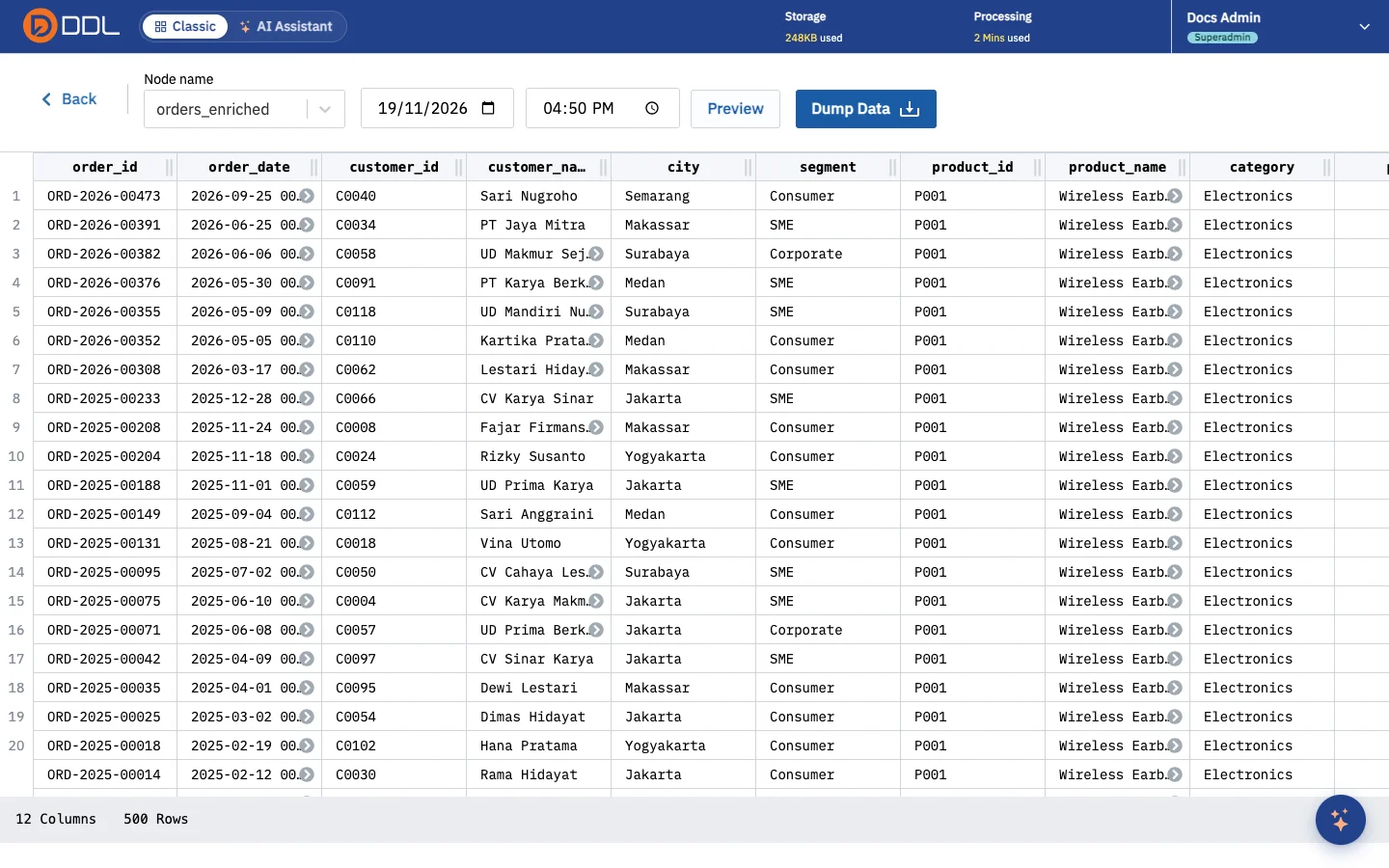
DDL shows the data from the node’s latest run that finished at or before that moment, with the row and column count below. The choice is kept in the page address, so you can bookmark it or send the link to someone who can open the project. Until you preview something the page says Nothing to Preview.
If no run of that node had finished by then, or the older data was not kept, DDL answers “There is no data in node … at …”. Older data is only kept when Data Retention Duration is above 0 days.
Dump Data
Section titled “Dump Data”Dump Data becomes available once a preview shows data. It opens the Dump Data to… panel:
| Select Destination | What you fill in | Result |
|---|---|---|
| Download as File (default) | File Type (parquet) and File Name |
Your browser downloads that version as a Parquet file. |
| Export Connection | Select Connection: one of the project’s export connections, or Add New Sink at the top of the list. Then the destination’s fields. | DDL writes that version to the destination. View Table previews the destination first. |
Click Confirm to start.
Troubleshooting
Section titled “Troubleshooting”| Symptom | Cause | What to do |
|---|---|---|
| A project is called “Project 4” | Create New names projects automatically | Rename it in Project Settings. |
| “You may not create more than 2 projects” | Free account limit | Delete a project you no longer need, or ask your administrator about your account type. |
| “A project with name “…” is already exist” | You already own a project with that name | Choose another name. |
| Share is missing on the Pipeline toolbar | You are not the owner and lack Share Project(View) | Ask the owner to share the project with you with that permission. |
| Project Settings rows are greyed out | You lack Modify Project; Delete Project needs the owner | Ask the owner for access. |
| Add data, Transform and Transfer are disabled | The project is locked, or you lack Modify Project | Unlock it, or ask for access. |
| Versions says “There is no data in node … at …” | No run had finished by then, or older data was not kept | Pick a later time. Set Data Retention Duration above 0 days to keep history from now on. |
| Delete Project says the project “has dataset node(s) that is being used” | A dataset saved from this project is imported somewhere | Delete the importing dataset nodes, then try again. |
| No failure e-mail arrives | Failure e-mails are off for your DDL, or e-mail is not set up | Ask your administrator. |