

Account settings
Settings holds your account options: your password, appearance and, for standard accounts, AI access and usage. Superadmins also manage divisions, teams, roles and user accounts from here.
Open Settings
Section titled “Open Settings”For a standard account:
-
Click your username at the top right of any page. On a phone, tap the avatar.
-
Click Settings.
Settings opens on the AI page, the first item of the menu on the left.
-
Click an item of the menu to open its page. Personal settings and Organization settings are sections: click one to show or hide its pages.
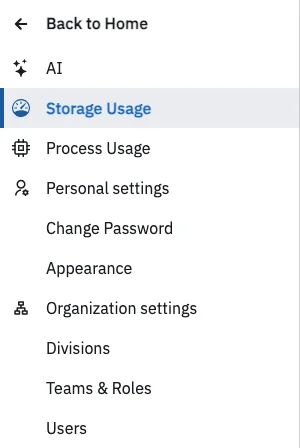
Back to Home, at the top of the menu, leaves Settings. A viewer opens Settings through Change password in the account menu and leaves with Back to Dashboards. On a phone, the menu opens from ☰ in the navbar, as described in Phones and tablets.
| Menu item | Address | Who sees it |
|---|---|---|
| AI | /settings/ai-integration |
Standard accounts. The tabs depend on your role. |
| Storage Usage | /settings/storage-usage |
Standard accounts except Free accounts |
| Process Usage | /settings/process-usage |
Standard accounts |
| Billing | /settings/billing |
Pro accounts |
| Personal settings › Change Password | /settings/change-password |
Everyone; viewers see Change Password directly |
| Personal settings › Appearance | /settings/appearance |
When themes are enabled; viewers see Appearance directly |
| Organization settings › Divisions | /settings/divisions |
Superadmins |
| Organization settings › Teams & Roles | /settings/teams-and-roles |
Superadmins |
| Organization settings › Users | /settings/users |
Superadmins |
The AI page
Section titled “The AI page”AI connects AI tools to your account and, for administrators, sets up the AI of the whole DDL. Dashboard viewers cannot use AI or MCP tokens. For standard accounts, the page opens on MCP Integration:
| Tab | What it holds | Who sees it | Read more |
|---|---|---|---|
| MCP Integration | Access tokens for AI assistants such as Claude, Cursor or VS Code, made with Create token at the top right. Administrators also see the switches that apply to everyone. | Standard accounts | MCP integration |
| Activity | A log of AI calls from MCP clients, the AI Assistant and AI actions in pipelines. | Standard accounts | MCP integration |
| AI Agent | The AI engine, its models, the data policy and the limits. The tab is marked Demo while DDL runs its demo AI engine. | Superadmins | AI settings and data policy |
| AI Ops | AI use and cost: the whole DDL for superadmins, the people of their division for division admins. | Administrators | AI settings and data policy |
Storage Usage
Section titled “Storage Usage”Storage Usage shows how much space projects take over time. Use it to see what fills your storage and which project to clean up first.
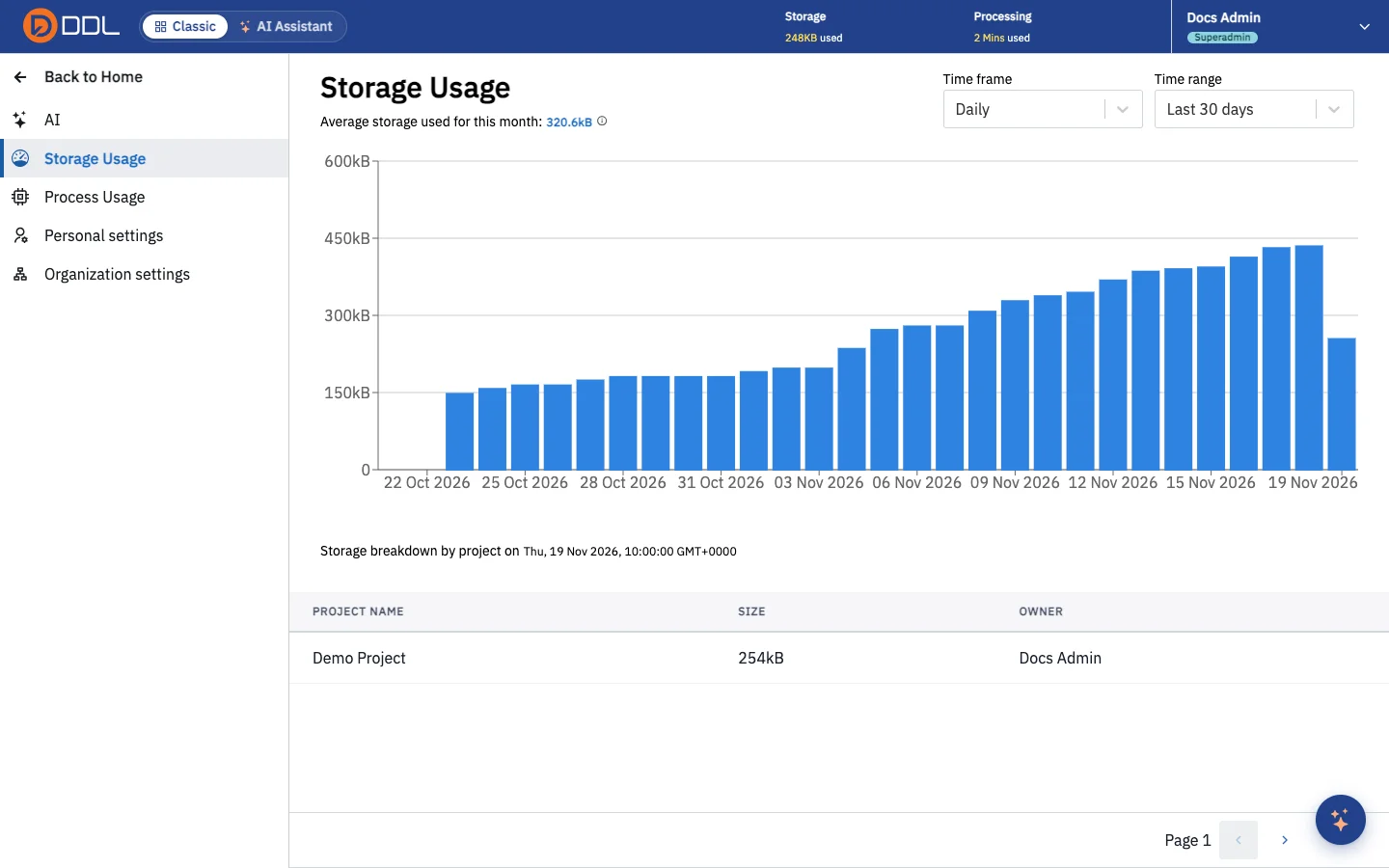
| Part | What it shows |
|---|---|
| Average storage used for this month | The average size of your projects since the first day of this month. DDL measures project sizes every hour, so a new upload shows up after the next measurement. |
| Time frame and Time range | Daily with Last 30 days (the default, up to yesterday), This month (including today) or Last month. Monthly with Last 3 months or Last 6 months, complete months only. |
| Chart | The average size per day or per month. Hover over a bar to read its Average Size. |
| Storage breakdown by project on … | The projects of your division at the latest measurement, largest first, with Project Name, Size and Owner. Five per page: the arrows below the table turn the pages. |
The average and the chart count the projects you own. With the superadmin role, they count every project of your division. The breakdown always covers the whole division, so it can list projects of other people. Seeing a project there does not let you open it.
Process Usage
Section titled “Process Usage”Process Usage adds up the run time of your processes in a billing cycle: imports, transforms, exports and the other process types that Monitoring lists. A billing cycle lasts one month and starts on the day of the month your account started.
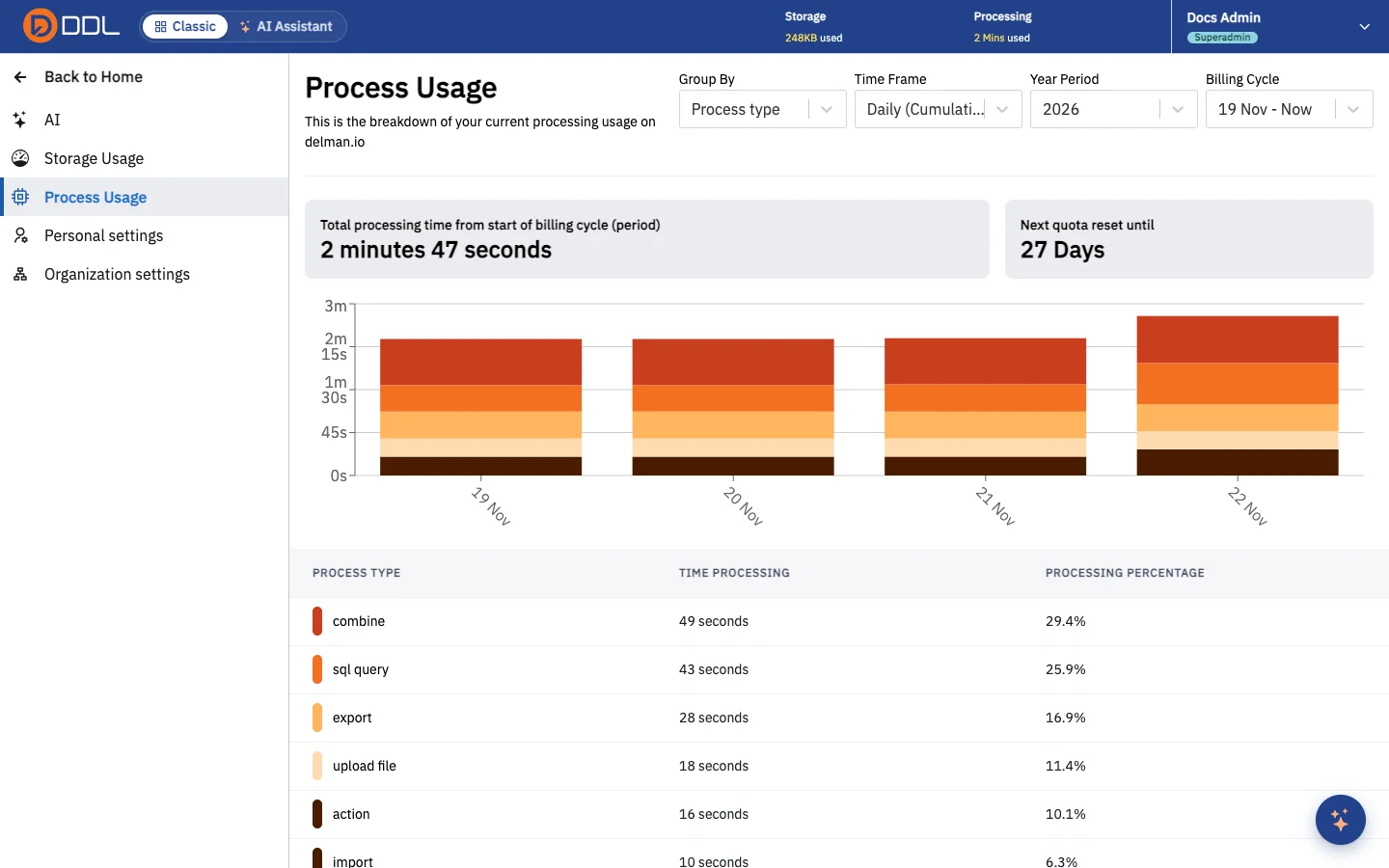
| Control | Options |
|---|---|
| Group By | Process type (the default) or Projects. A project that was deleted keeps its name with (deleted) after it. |
| Time Frame | Daily (Cumulative) (the default) shows the running total day by day. Daily shows the time of each day. |
| Year Period | The year of the billing cycles to choose from. |
| Billing Cycle | One cycle, such as 18 Nov - Now for the current one. The current cycle is selected when the page opens. |
Below the controls:
- Total processing time from start of billing cycle (period) is the total of the chosen cycle. For the current cycle, Next quota reset until shows how many days are left before it starts again.
- The bar chart shows the four groups that used the most time in their own colour and adds the rest up as others. On Daily (Cumulative), a dashed line marks the processing limit of your plan, if it has one.
- The table lists every group with Time Processing and Processing Percentage. Shares below 0.1 % read
<0.1%. Process types appear under their internal names: combine is a transform and sql query a query run in the SQL Query workbench.
Billing
Section titled “Billing”Billing shows what a billing cycle costs. Choose Year Period and Billing Cycle at the top, then read the cards:
| Card | What it shows |
|---|---|
| Total billing this month | The subscription plus any excess of the cycle. |
| Due By | How many days are left until the next billing cycle. |
| Total Processing Cost | The cost of processing time above what your plan includes. |
| Total Storage Cost | The cost of storage above what your plan includes. |
| Total Excess Amount | Both excess costs together. |
Below the cards, Group By splits the cost into a table of Items, Usage and Total Cost: the subscription, the extra storage, and the extra processing per process type (usage) or per project (project). Amounts are in Indonesian rupiah (IDR).
Plans and limits
Section titled “Plans and limits”For standard accounts, your plan sets the limits measured by the usage pages and the usage meters. The badge next to your username shows your role, or your plan when you have no role in a team.
Dashboard viewers show the Dashboard viewer badge instead, without usage meters. They do not use storage or processing quotas. The table below applies only to standard accounts; a viewer’s access comes from dashboard grants, not a plan or role.
| Free | Pro | Team accounts and superadmins | |
|---|---|---|---|
| Average storage per billing cycle | 1 GB | 10 GB included, more is billed | No limit |
| Processing time per billing cycle | 15 minutes | 30 minutes included, more is billed | No limit |
| Over the limit | New runs fail with This process is marked as failed as you exceeded your processing time quota or … as the data exceeded storage quota | Runs go on; the excess appears on Billing | Not applicable |
| Projects you own | 2 | No limit | No limit |
| Use Script transforms and custom connectors | Not available | Available | Available |
Free accounts also have fewer connectors (Free accounts) and cannot share projects or datasets, or receive them. Accounts made with Sign Up start on the Free plan; an administrator can add yours to a team, which lifts these limits (Teams and roles).
Change your password
Section titled “Change your password”-
In Settings, open Personal settings › Change Password. For a viewer, use Change password in the account menu, then Change Password in Settings.
-
Type your current password in Type your current password. After a password reset, the temporary password from the e-mail works here.
-
Type the new password in Type your new password and again in Retry your new password.
-
Click Change Password, or press Enter.
DDL answers Password has been changed! and empties the form. You stay signed in.
The button stays grey until all three fields are filled, the new password follows the rules and both new passwords match. The new password needs at least 8 characters, with a number, a lowercase letter, an uppercase letter and a character that is neither a letter nor a number. The message under the field names the rule that is missing.
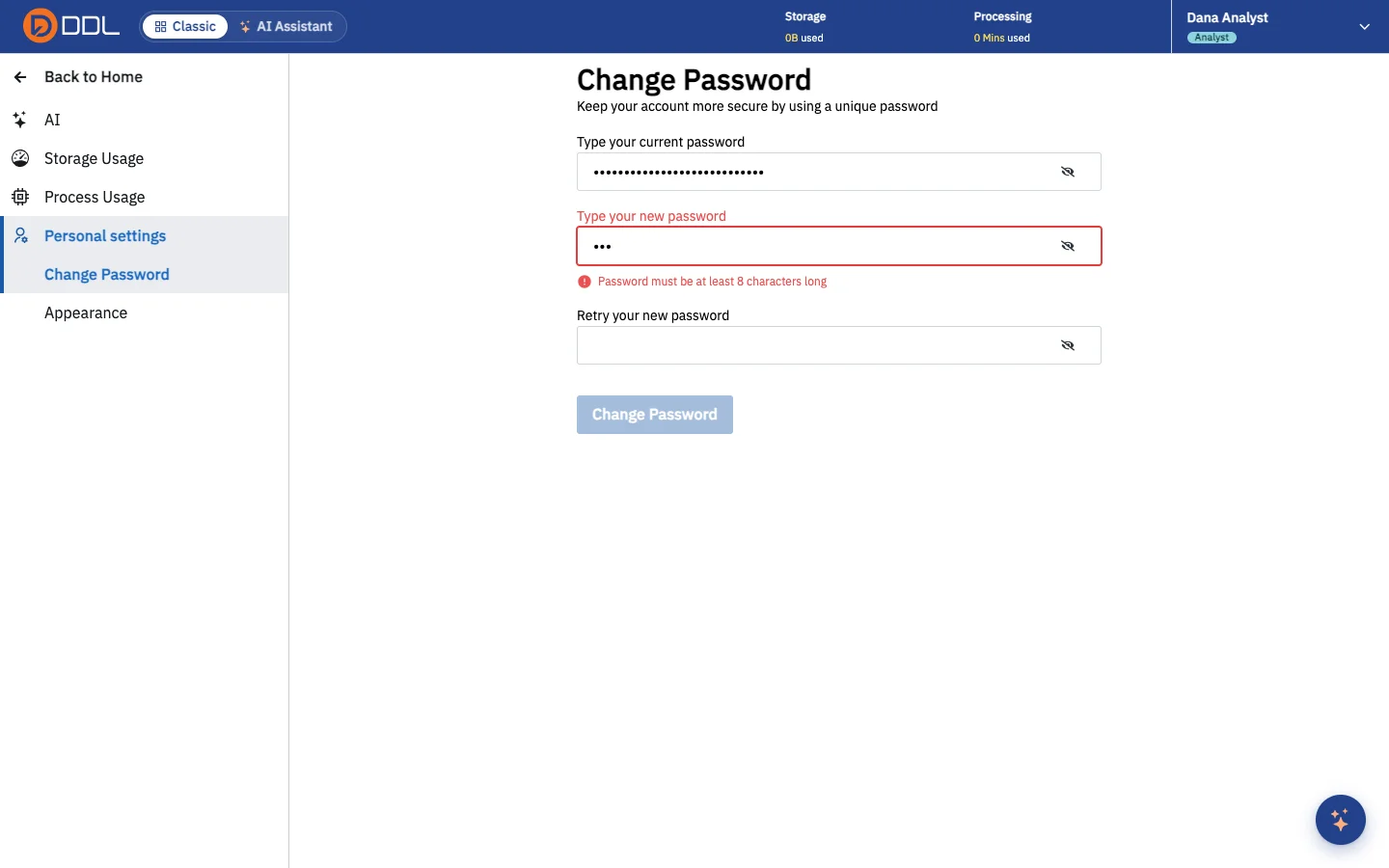
| Message | What to do |
|---|---|
| Invalid username or password | The current password is wrong. Type it again, or reset it with Forgot Password? on the sign-in page (Reset a forgotten password). |
| Your new password can not be the same with your current password | Choose a different new password. |
| Password does not match | Type the same new password in both fields. |
Appearance
Section titled “Appearance”Choose how DDL looks under Personal settings › Appearance. Click a card under Theme; DDL switches at once.
| Theme | What it does |
|---|---|
| Light | Light backgrounds with dark text. |
| Dark | Dark backgrounds, easier on the eyes in low light. |
| System | Follows the light or dark setting of your device, and says which one is active, for example Your device is set to light mode. This is the choice until you pick another one. |
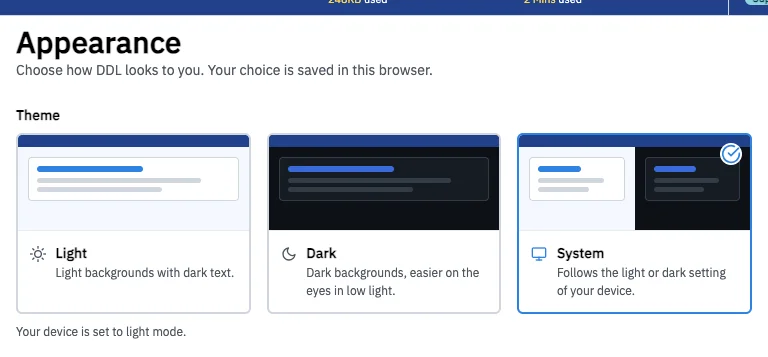
Your choice is saved in this browser, so it stays after you sign out but does not follow you to another browser or device. The sign-in, sign-up and password reset pages always stay light.
Organization settings
Section titled “Organization settings”Superadmins manage Divisions, Teams & Roles and Users under Organization settings. See Manage divisions and Teams and roles. Use Users › Dashboard access to manage dashboard viewer accounts. The rest of the administration is in the admin console.
Troubleshooting
Section titled “Troubleshooting”| What you see | Why | What to do |
|---|---|---|
| AI, usage and billing pages are missing for a viewer | Viewers have only password and appearance settings. | Nothing to fix. Return with Back to Dashboards. |
| Storage Usage is missing from a standard account’s menu | Free accounts do not have it. | Nothing to fix. Your storage shows in the navbar meter. |
| Billing is missing, or its address shows page not found | Billing is for Pro accounts only. | Nothing to fix. |
| Appearance is missing, or the page says Appearance settings are not enabled. | The light and dark themes are not turned on for your DDL. | Ask your administrator. |
| Organization settings is missing | It is for superadmins. | Ask a superadmin to manage divisions, teams, roles or accounts. |
| Storage Usage does not change after an upload | Project sizes are measured once an hour. | Look again later. |
| The storage breakdown lists projects you cannot open | It covers your whole division. | Nothing to fix. Access comes from sharing (Share a project). |
| Process Usage shows little or no time although runs finished | Short runs add up to very little. | Check the runs in Monitoring. |
| The Change Password button stays grey | A field is empty, a rule is missing or the new passwords differ. | Read the message under each field. |