

Schedules
A schedule syncs a node of your pipeline for you: once at a set moment, or again and again, for example every morning at 06:00. Each scheduled sync brings new data into the node and then runs every node downstream of it, exactly like a sync you start by hand. Use schedules for data that changes outside DDL, so your SQL nodes, charts and exports follow it on their own.
What you can schedule
Section titled “What you can schedule”| Node | What a scheduled sync does |
|---|---|
| Source node, such as the PostgreSQL node Analytics warehouse | Runs every import of that connection again, and its transfers, like Sync all in the node’s Sync menu. |
| Dataset node, a Data Repository dataset imported into the project, such as demo_orders | Points the node to the latest version of its dataset, like Sync now. |
| File, transform, SQL and transfer nodes | Cannot be scheduled. A file node is updated with Update File, and transform and SQL nodes run by themselves when their inputs get new data. |
After the sync, DDL schedules every node downstream and runs each one as soon as the nodes it reads are done. A node that reads several nodes waits for the last of them. If one of its inputs has failed, DDL does not run it on old data: it and everything below it become Upstream Failed. The rules are the same as for a manual sync; see Run, sync, rerun and stop.
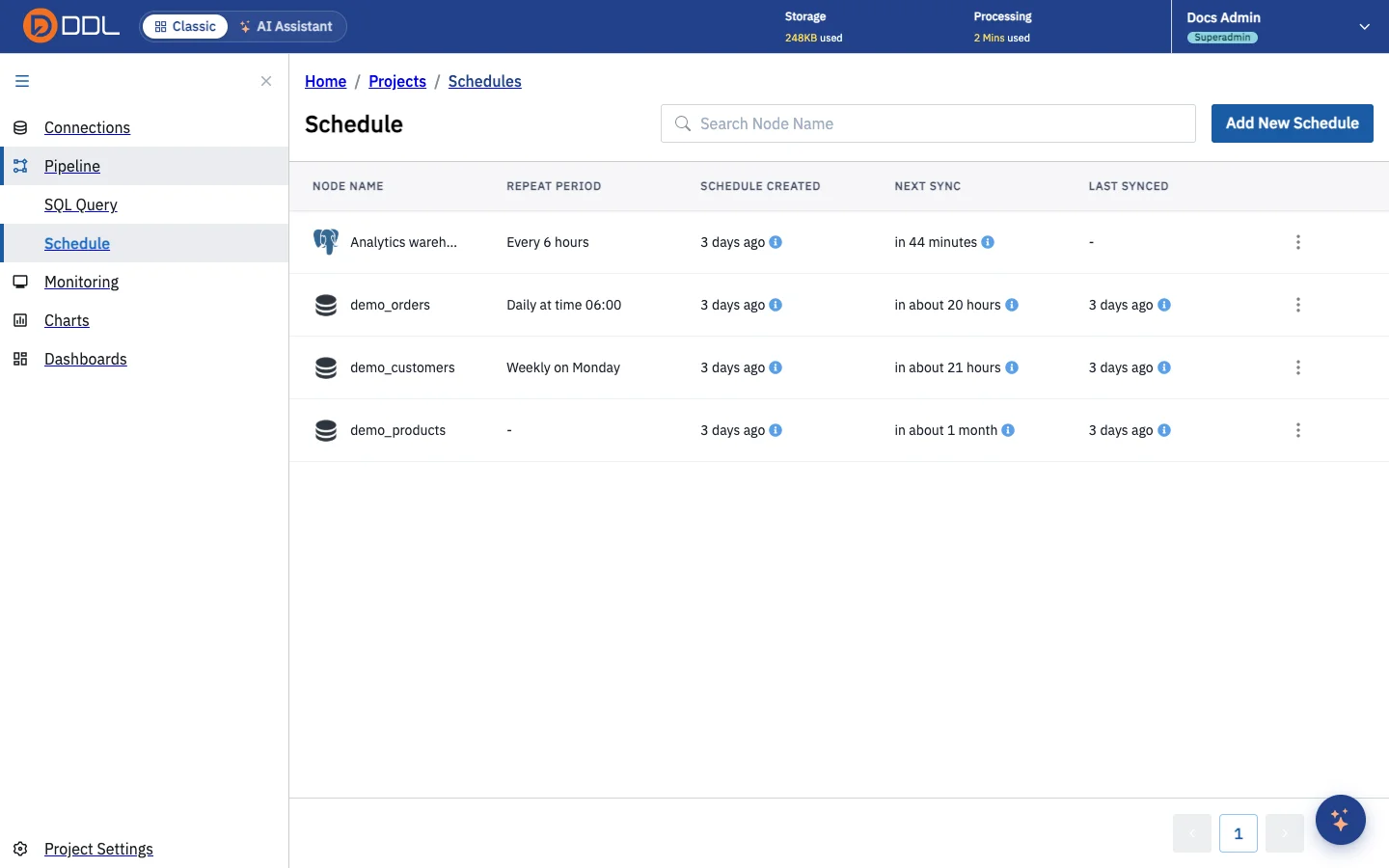
The Schedule page
Section titled “The Schedule page”In the project menu, click Pipeline, then Schedule below it. If the menu shows only icons, expand it with ☰ first. The page lives at /projects/<id>/schedules.
| Column | What it shows |
|---|---|
| Node Name | The node and the icon of its source. A node with two schedules has two rows. |
| Repeat Period | How the schedule repeats, for example Daily at time 06:00, Weekly on Monday or Every 6 hours. A one-time schedule shows “-”. |
| Schedule Created | When the schedule was set up. |
| Next Sync | When it runs next. Check this column first when data “did not update”. |
| Last synced | When the node last finished a sync, scheduled or started by hand. “-” if it never did. |
| ⋮ | Edit and Delete. |
- Times are relative, such as “in 5 hours”. Hover the ⓘ next to a time to see the full date and time in your time zone; on a touch screen, tap it.
- The soonest Next Sync comes first, eight schedules per page. Use ‹ and › at the bottom to page.
- Search Node Name filters the list by node name. The search is kept in the page address, so you can bookmark it.
- A project without schedules shows There is no schedule to show.
- On a phone, each schedule is shown as a card.
Create a schedule
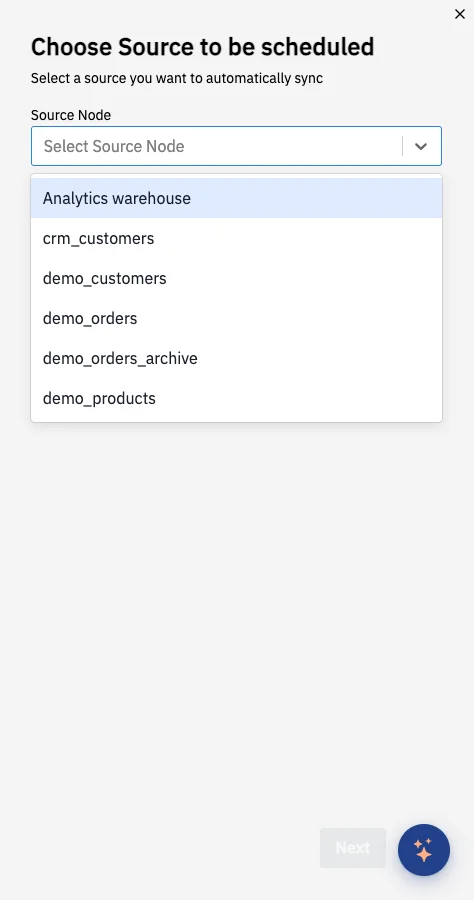
Section titled “Create a schedule”- On the Schedule page, click Add New Schedule. A side panel opens on Choose Source to be scheduled.
- In Source Node, choose the node to sync. The list holds the project’s source and dataset nodes, in alphabetical order. Click Next.
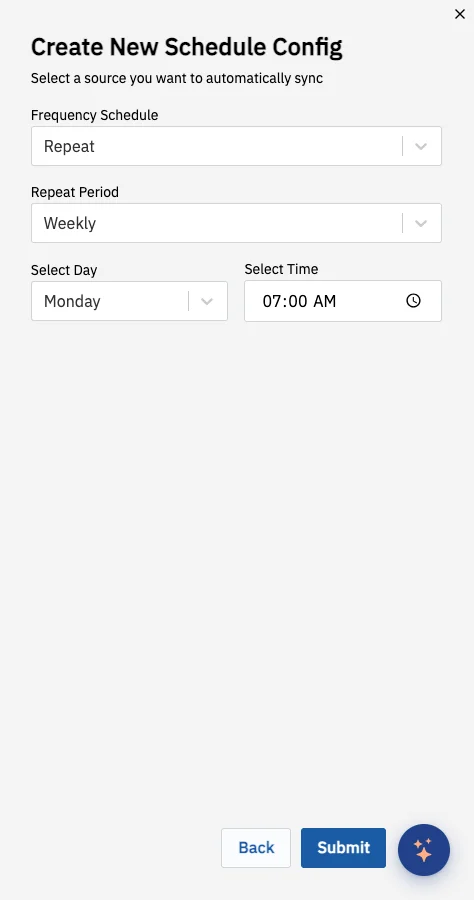
- In Create New Schedule Config, choose the Frequency Schedule: Fixed to sync once, Repeat to sync again and again. Fill in the fields that appear; they are explained in Frequency options.
- Click Submit. While DDL saves, the button reads Submitting and Back is disabled. DDL confirms with Sync event scheduled, closes the panel and adds the schedule to the list.
Submit stays greyed out until every field the chosen frequency needs is filled in. Back returns to the node choice. To leave without saving, close the panel with ✕ at its top right: nothing is scheduled until you click Submit.
Frequency options
Section titled “Frequency options”Fixed syncs once, at the date in Sync On and the time in Schedule Period. Pick a moment in the future. DDL refuses a time that has already passed with Schedule start date must be in the future for a one-time (non-repeating) sync. After its run, a fixed schedule leaves the list.
Repeat asks for a Repeat Period:
| Repeat Period | Fields | When it syncs | Shown in the list as |
|---|---|---|---|
| Hourly | Input Minute, from 1 to 59 | Every hour at that minute | Hourly at minute 15 |
| Daily | Select Time | Every day at that time | Daily at time 06:00 |
| Weekly | Select Day, Select Time | Every week on that day, at that time | Weekly on Monday |
| Monthly | Sync On: Beginning of the Month or End of the Month | On the first or the last day of every month, at 00:00 | Beginning of The Month, End of The Month |
| Monthly | Sync On: Custom, then Select Date and Select Time | Every month on the day of the chosen date, at that time | Monthly at 15 |
| Custom | Input Amount and Schedule Period: Minutes, Hours, Days or Weeks | At that interval, counted from when you set up the schedule | Every 6 hours |
Time zones
Section titled “Time zones”You enter dates and times in your browser’s time zone, and Next Sync shows the result in your time zone too. Beginning of the Month and End of the Month are the exception: they run at midnight in the time zone of the DDL server, which may not be yours.
Late and missed runs
Section titled “Late and missed runs”If DDL cannot start a run at its time, for example during maintenance, it still starts it up to five minutes late. After that, the run is skipped and the schedule continues at its next time. Missed runs are not made up one after another.
Schedule a node from the canvas
Section titled “Schedule a node from the canvas”You can also manage the schedules of one node where you work on it.
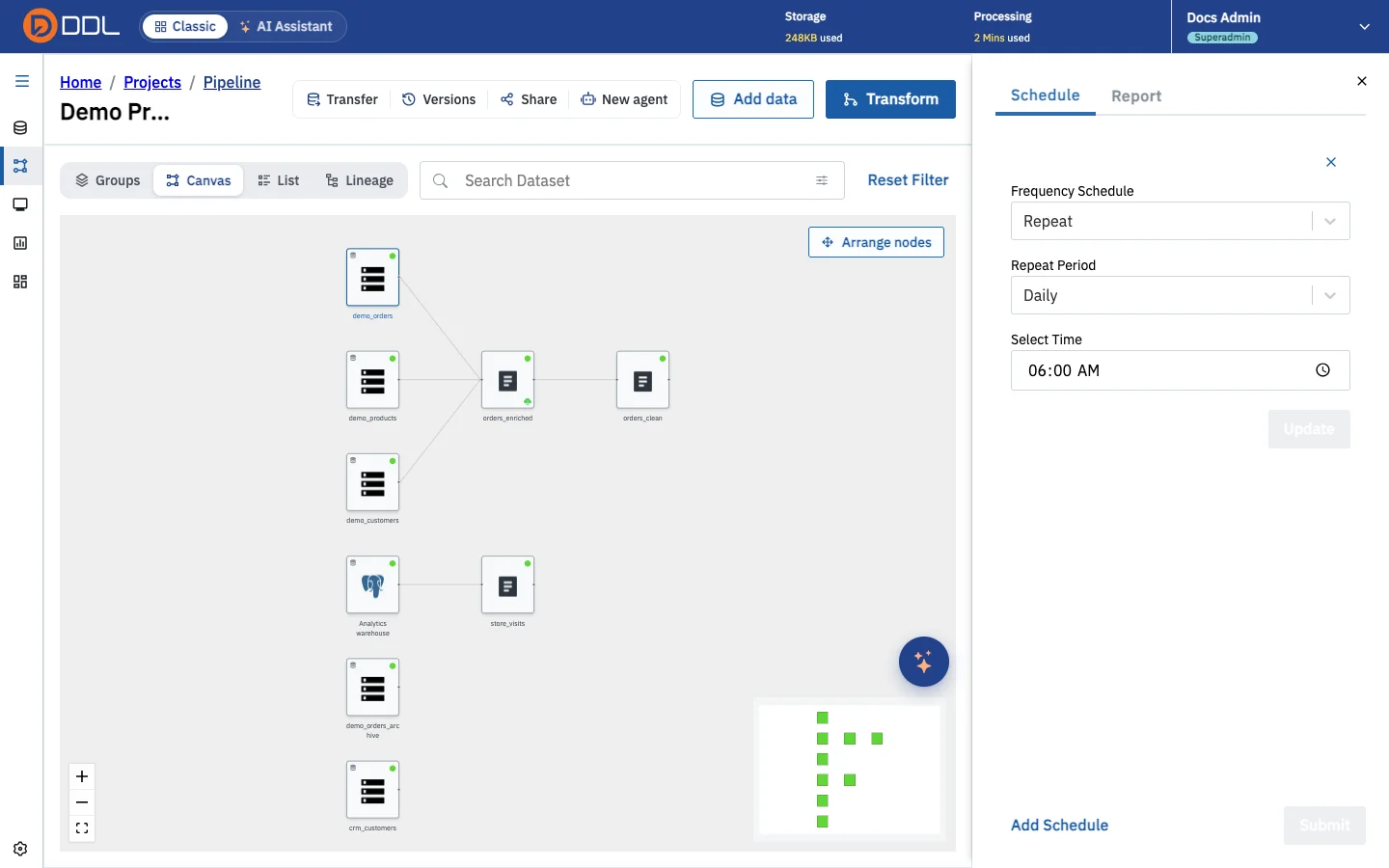
- On the Pipeline page, click a source or dataset node.
- In its side panel, open Sync and choose Schedule sync. The item is greyed out while the node is busy, and for a source node also without Modify Project.
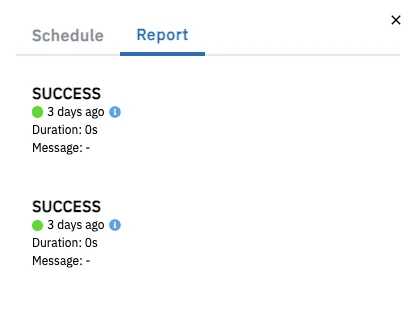
- The side panel shows two tabs, Schedule and Report.
The Schedule tab lists the node’s schedules as cards, with the same fields as above. A node can have several schedules, for example one daily and one at the end of the month.
- Add Schedule adds an empty card. Submit saves all new cards at once.
- To change a saved schedule, edit its card and click the card’s Update.
- To remove one, click ✕ on its card and confirm in the Delete dialog.
- Without schedules, the tab says No scheduled sync yet.
The Report tab is the node’s sync history, scheduled and started by hand, newest first. Each card shows the status, when it ran, the Duration and a Message. Until the node has synced, it says No scheduled sync report yet.
Edit or delete a schedule
Section titled “Edit or delete a schedule”To change a schedule, click ⋮ on its row and choose Edit. The panel opens on Edit Schedule Config with the current settings. Change them and click Update (it reads Updating while DDL saves). DDL confirms with Sync schedule updated. The node of a schedule cannot be changed: to schedule another node, create a new schedule and delete the old one.
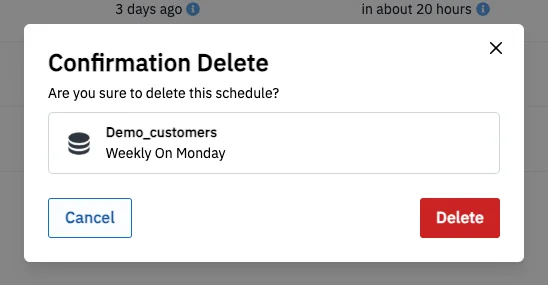
To remove a schedule, click ⋮ › Delete. The Confirmation Delete dialog asks Are you sure to delete this schedule? and shows the node and its repeat period. Click Delete; DDL confirms with Sync schedule deleted. Data that was already synced stays.
Check that a schedule ran
Section titled “Check that a schedule ran”- Last synced and Next Sync on the Schedule page show when the node last synced and when it syncs next.
- The node’s Sync › Schedule sync › Report tab lists each sync with its status and duration.
- Monitoring lists each source or dataset sync as a Sync row. A source node’s sync also records one Import process per imported table, named after the node it fills, plus Transfer processes. Downstream nodes have their own Transform rows. A Sync row has no log of its own; use the node’s Report tab and the logs of those processes.
- To get an e-mail when a run fails, add your address to the project’s failure e-mails.
- To e-mail the fresh data itself after each sync, use a distribution with the trigger After data updates, where your DDL has Distribution.
Troubleshooting
Section titled “Troubleshooting”| Problem | Cause and fix |
|---|---|
| Add New Schedule, Edit or Delete is greyed out | You do not have Modify Project on this project. Ask its owner. |
| A node is missing from Source Node | Only source and dataset nodes can be scheduled. File, transform and SQL nodes update in other ways. |
| Submit stays greyed out | A field is missing, for example the Repeat Period, or Input Minute is empty. |
| You may not edit this dataset as it will disrupt the update on downstream datasets. Please wait until all the updates are finished. when you submit a new schedule | Nodes downstream are still running. Wait until they finish, then submit again. |
| This dataset is currently updating as part of an existing data flow. You may continue editing after it is finished. when you submit a new schedule | The node itself is syncing. Try again when it is done. |
| Schedule start date must be in the future for a one-time (non-repeating) sync | The Fixed date and time have already passed. Choose a future moment and submit again. |
| A one-time schedule disappeared from the list | Fixed schedules leave the list after their run. Check Last synced. |
| It ran at an unexpected hour | Time zones differ, or it is a Beginning of the Month or End of the Month schedule, which runs at the server’s midnight. Check Next Sync and edit the schedule. |
| The schedule ran but a node downstream did not update | An input of that node failed, so it is Upstream Failed. Find the Failed process in Monitoring and fix that node first. |