

Agent Studio
An AI agent is an AI Assistant that knows one set of your tables. When you create it, DDL studies those tables once: their columns, how they relate to each other and what needs cleaning. Every question and build in a chat with the agent starts from that data map instead of looking the data up again, so answers come faster, and the agent follows the instructions and examples you give it.
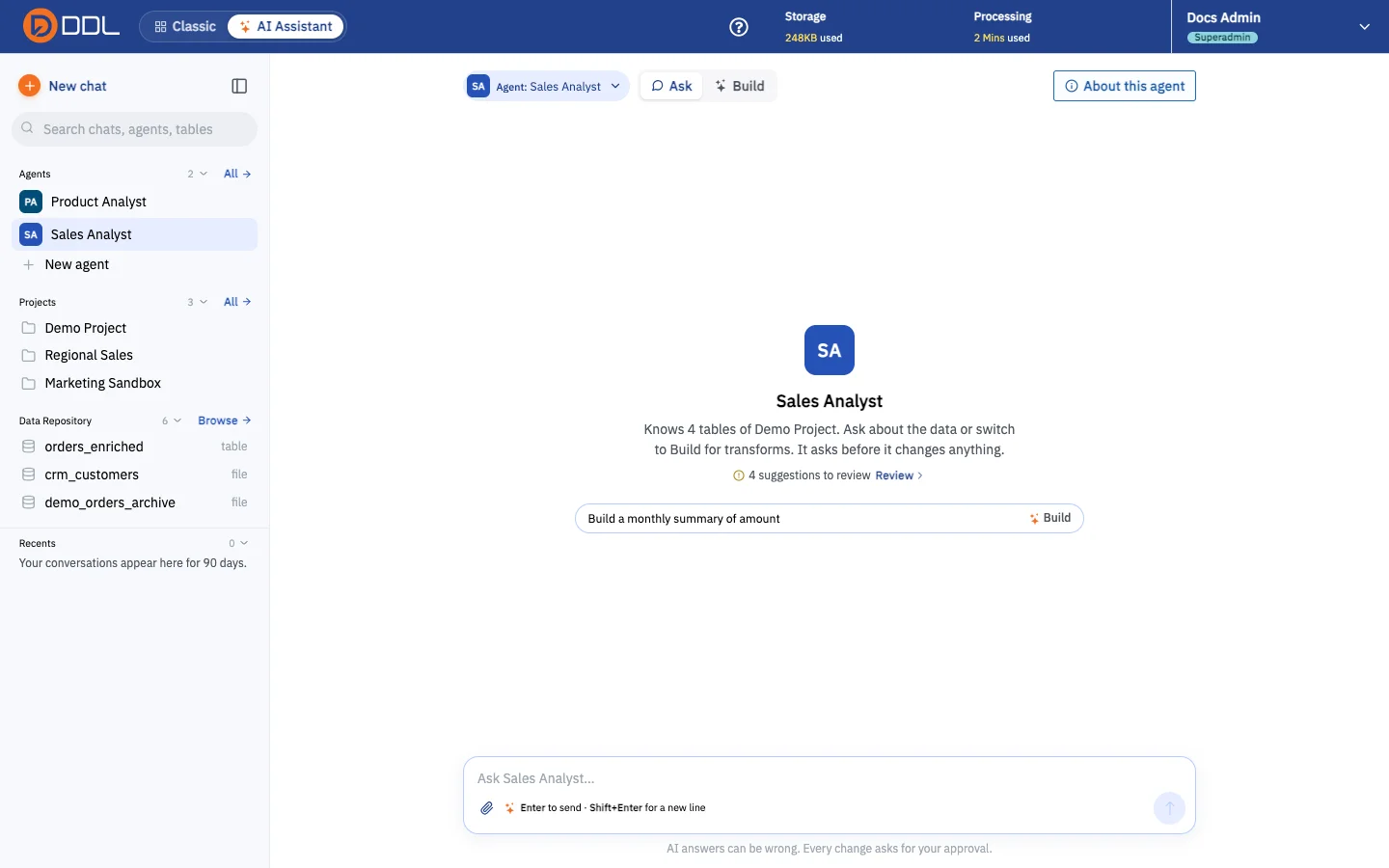
Agent Studio is where you create, use and manage agents, inside the AI workspace (AI Assistant in the navbar).
What an agent knows
Section titled “What an agent knows”| Part | What it is | Who sets it |
|---|---|---|
| Data | Up to 30 tables: nodes of one project, Data Repository tables, and tables of that project’s connections that are not imported yet | You, when you create the agent. Change it later with Add or remove tables. |
| Data map | Columns with their types and statistics, row counts, relationships between the tables with how well their values match, and cleaning fixes such as numbers stored as text | DDL, automatically. You can accept or correct what it found. |
| Instructions | Business rules, metric definitions and naming, for example Weeks start on Monday. | You. Optional. |
| Saved examples | Verified answers (a question with its SQL) and saved builds (the steps of a finished build plan). Similar requests reuse them. | You, from the chat |
| Work project | The project of the nodes you picked. Build adds new nodes only here. | Follows from the tables you pick |
| Sharing | Only me or Division | You |
You do not pick tools for an agent. In Ask it reads its tables and answers; in Build it proposes a build plan in its work project, which waits for your approval like any build plan. An agent never gives anyone more access than they have: for each person who uses it, the tables they cannot open are left out of what the AI receives.
Create an agent
Section titled “Create an agent”-
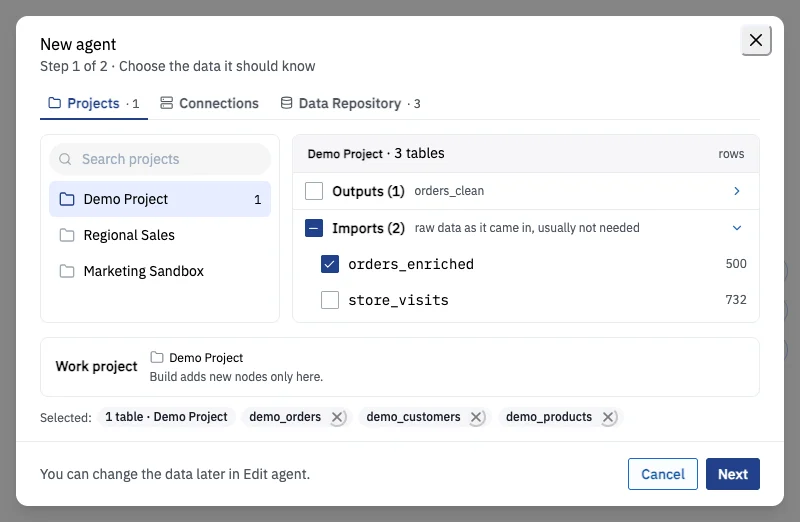
Open AI Assistant in the navbar and click New agent under Agents in the sidebar. The dialog New agent opens on Step 1 of 2 · Choose the data it should know.
-
On the Projects tab, pick a project on the left. Its tables appear on the right with an estimate of their rows, in three groups:
- Outputs (end of the pipeline) and Intermediate (steps in between). Tables with data are picked for you.
- Imports (raw data as it came in, usually not needed). Not picked.
Outputs is open; open the other groups with their arrow. Tick single tables, or the box of a group for all of them. A table marked no data yet is still running or has failed, so there is nothing to map yet.
-
Optionally add more tables:
- Data Repository: search and tick tables.
- Connections, shown when the project has source connections that DDL can read before an import: pick a connection, then a schema and its tables, or the sheets of a Google Sheets connection. The agent reads a sample now; a build imports the table before using it.
-
Check Work project and the Selected: line below the lists, then click Next.
-
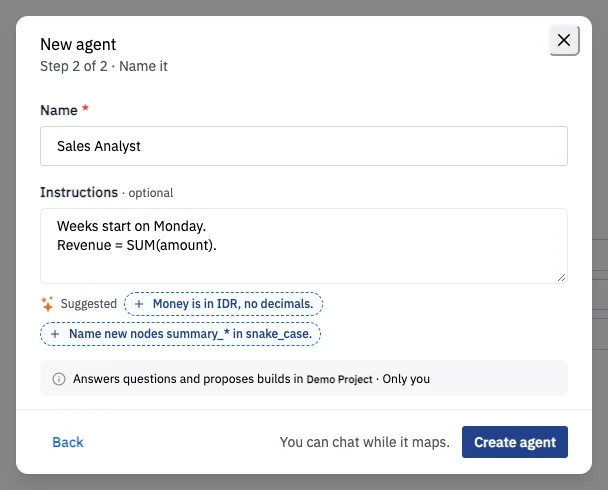
On Step 2 of 2 · Name it, fill in:
- Name. DDL suggests
<project> Analyst(Suggested from your data); type your own if you like. - Start from a template, optional and only when your organization offers templates. A template Fills the instructions. The data stays what you picked.
- Instructions, optional. Click a suggestion such as Weeks start on Monday. to add it as a line.
The summary says what the agent will do, for example Answers questions and proposes builds in Demo Project · Only you.
- Name. DDL suggests
-
Click Create agent. The chat with the agent opens while DDL maps its tables; the chip shows the progress, such as Mapping 2/4. You can chat while it maps.
Other ways to start a new agent:
- New agent in the toolbar of a project’s Pipeline page, or Create agent from this project in the ⋯ sheet on a phone. The dialog opens with that project picked.
- Save as agent above a chat about a project or Data Repository tables. The dialog opens with that data picked.
- New agent in the menu of the agent chip, and in the Agents dialog.
Rules for the data
Section titled “Rules for the data”| Rule | What you see |
|---|---|
| An agent knows at most 30 tables | An agent can know up to 30 tables. More boxes cannot be ticked. |
| Project tables come from one project, the work project | Picking another project clears the tables of the first one |
| Connection tables can be read before an import only from PostgreSQL, MySQL, Microsoft SQL Server, Oracle, ClickHouse and Google Sheets | Import other tables first, then add the imported node |
| Two tables of one agent cannot have the same name | Two tables of the agent are named …: rename one, or leave one out |
| A name is required, up to 100 characters; instructions take up to 4,000 | Give the agent a name. |
| You can own up to 50 agents | You can have at most 50 AI agents |
An agent’s name cannot be changed after you create it. Its tables, and with them its work project, can: see Add or remove tables.
Chat with an agent
Section titled “Chat with an agent”Click an agent under Agents in the sidebar. The sidebar shows three; All opens the Agents dialog with every agent you can use, searchable, each with its work project, its number of tables and Only you, Shared with your division or Shared by its owner. Your own agents come first.
A new chat with the agent shows its name, one sentence about what it knows, such as Knows 4 tables of Demo Project. Ask about the data or switch to Build for transforms. It asks before it changes anything., and up to three starter questions: your saved examples first, then questions DDL builds from the data map. A starter marked ✦ Build is asked in Build mode.
Your chats with agents are in Recents like any other, with the agent’s avatar and name under the title.
Ask or Build
Section titled “Ask or Build”When the agent has a work project, a switch next to the chip offers:
- Ask: the agent reads its tables and answers. It changes nothing.
- Build: describe what to build; the agent proposes a build plan in its work project. After a plan is built, the card offers to save it to the agent and, when your organization uses Distribution, Send results with Distribution.
An agent without a work project, made of Data Repository tables only, answers questions only. Agents do not build dashboards: Ask reads data, and Build proposes pipeline plans only. To create or change a dashboard, choose No agent (general AI) and use Ask; see Dashboards and charts.
What an answer shows
Section titled “What an answer shows”| Part of the answer | What it means | What you can do |
|---|---|---|
| Data map summary | The tables and instructions used for an answer | Click it to inspect which items were used |
| An unconfirmed assumption | An answer can depend on a relationship or cleaning rule that nobody has confirmed | Check it against your data. Confirm saves it; Change opens the item in Edit agent. People who do not own the agent see See and Only the agent’s owner can confirm it. |
| … is not part of this agent. | The question needs a table the agent does not know | The owner clicks Add to agent to add it |
| Save as a verified answer of the agent? Next time a similar question takes one click. | Offered after an answer that ran SQL | Save as verified answer (Edit title first if you like), or Not now |
| Save this build to the agent? Next time a similar request takes one click. | Offered after a build plan was built | Save example, or Not now |
| … changed since the data map was built · the data map is updating | A table’s columns changed; DDL maps it again in the background | Nothing: the answer reads the table as it is now |
Someone who does not own the agent saves examples for themselves: Saved to your examples of Sales Analyst. Only you see it.
Switch or leave an agent
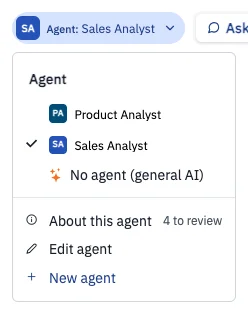
Section titled “Switch or leave an agent”Click the chip Agent: Sales Analyst for its menu: pick another agent, No agent (general AI) to leave agents, About this agent, Edit agent (View setup for an agent you do not own) and New agent.
An agent does not know what was said to another one. Changing the agent in a chat that has messages asks first, for example Start a new chat with Product Analyst?, with Cancel and Start new chat. The old chat stays in Recents.
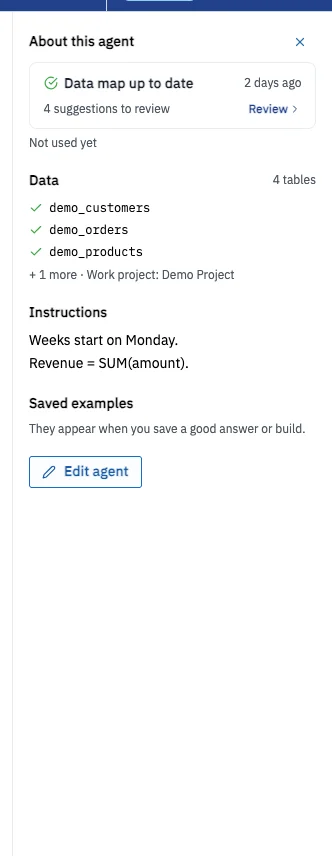
About this agent
Section titled “About this agent”About this agent above the chat opens a panel beside it on screens at least 1124 pixels wide. Below 1124 pixels, it covers the chat, including on tablets. Esc or ✕ closes it and brings the chat back. Result previews follow the same layout.
| Part | Shows |
|---|---|
| Status | Data map up to date and its age, the mapping progress, or Data map could not be built, with 2 suggestions to review and Review (See for people who do not own the agent) |
| Data | The first tables and + 2 more, and Work project: Demo Project |
| Instructions | The first lines, or None yet. with Add instructions for the owner |
| Saved examples | The first examples, or They appear when you save a good answer or build. |
| Usage | For the owner: number of uses and AI cost in the last 30 days, when recorded |
Edit agent (or View setup) at the bottom opens the agent’s settings.
Review the data map
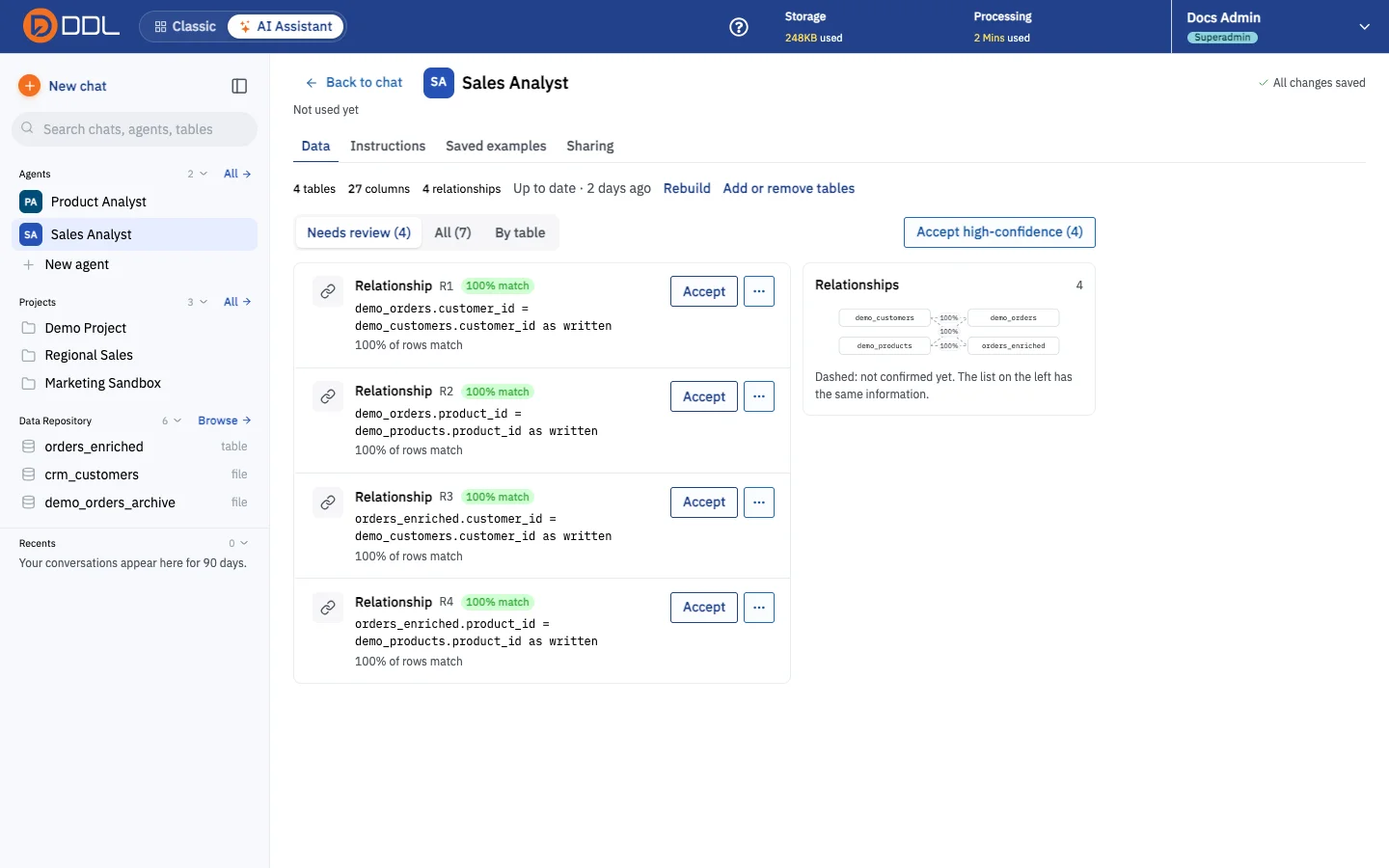
Section titled “Review the data map”Reviewing is optional: the agent asks in the chat when an answer depends on something unconfirmed. To check everything at once, open Edit agent and stay on the Data tab.
The top line counts the tables, columns and relationships and gives the status of the map, such as Up to date · 2 h ago. Rebuild maps every table again; Add or remove tables changes the data.
| Item | What DDL found | Shown with |
|---|---|---|
| Relationship | Two columns whose values match, such as demo_orders.customer_id = demo_customers.customer_id, written as they are or after UPPER(TRIM()) |
How well they match, for example 98% match, and how many values have no match |
| Cleaning fix | A text column that needs cleaning: numbers with separators, whole numbers stored as text, mixed letter case, stray spaces or several date formats | The fix as a SQL expression, and how sure DDL is (clear pattern, likely, not sure) |
| Column meaning | What a column of a Data Repository table means, from that table’s AI Context | Shared AI Context: Applies everywhere this table is used. Open AI Context changes it there; only the table’s owner can accept it. |
- Choose Needs review, All or By table above the list.
- Click Accept on an item that is right, or Accept high-confidence (3) to accept all the sure ones at once.
- For an item that is wrong, choose Not right in its ⋯ menu. Reset in the same menu makes it a suggestion again.
When every item is reviewed, the list says Everything is reviewed. The agent treats these as confirmed. The relationship diagram beside the list draws each table as a box and each relationship as a line with its match; Dashed: not confirmed yet.
- When a table’s columns change, DDL maps the agent again by itself the next time someone asks it a question.
- Mapping stopped · rebuild to finish it or Mapping failed: click Rebuild. While the map is missing, answers read the tables directly.
- A table deleted or renamed in DDL shows a yellow note, such as … no longer exists in DDL (deleted or renamed)., with Rebuild.
- The data map holds structure and statistics, never rows of data. Example values appear only when your administrator allows data rows to be sent to the AI, and never for personal-data columns while masking is on.
Edit an agent
Section titled “Edit an agent”Edit agent opens the agent’s settings in the middle of the workspace, with Back to chat at the top left. Every change is saved at once; the header says Saving… and then All changes saved. People who do not own the agent see the same tabs, marked View only.
| Tab | What you do there |
|---|---|
| Data | Review the data map, Rebuild, Add or remove tables |
| Instructions | Business rules, metric definitions and naming the agent should follow. Edit the text and click Save. |
| Saved examples | See each example as Verified answer or Saved build, with how often it was used. The trash icon asks Delete this example? before it deletes. |
| Sharing | Choose who may use the agent, offer it as a template, or delete it |
Add or remove tables
Section titled “Add or remove tables”- In Edit agent › Data, click Add or remove tables. The dialog Add or remove tables opens with the agent’s tables ticked.
- Tick or clear tables on Projects, Connections and Data Repository, as when you created the agent.
- Click Save tables. Only the tables you add are mapped again.
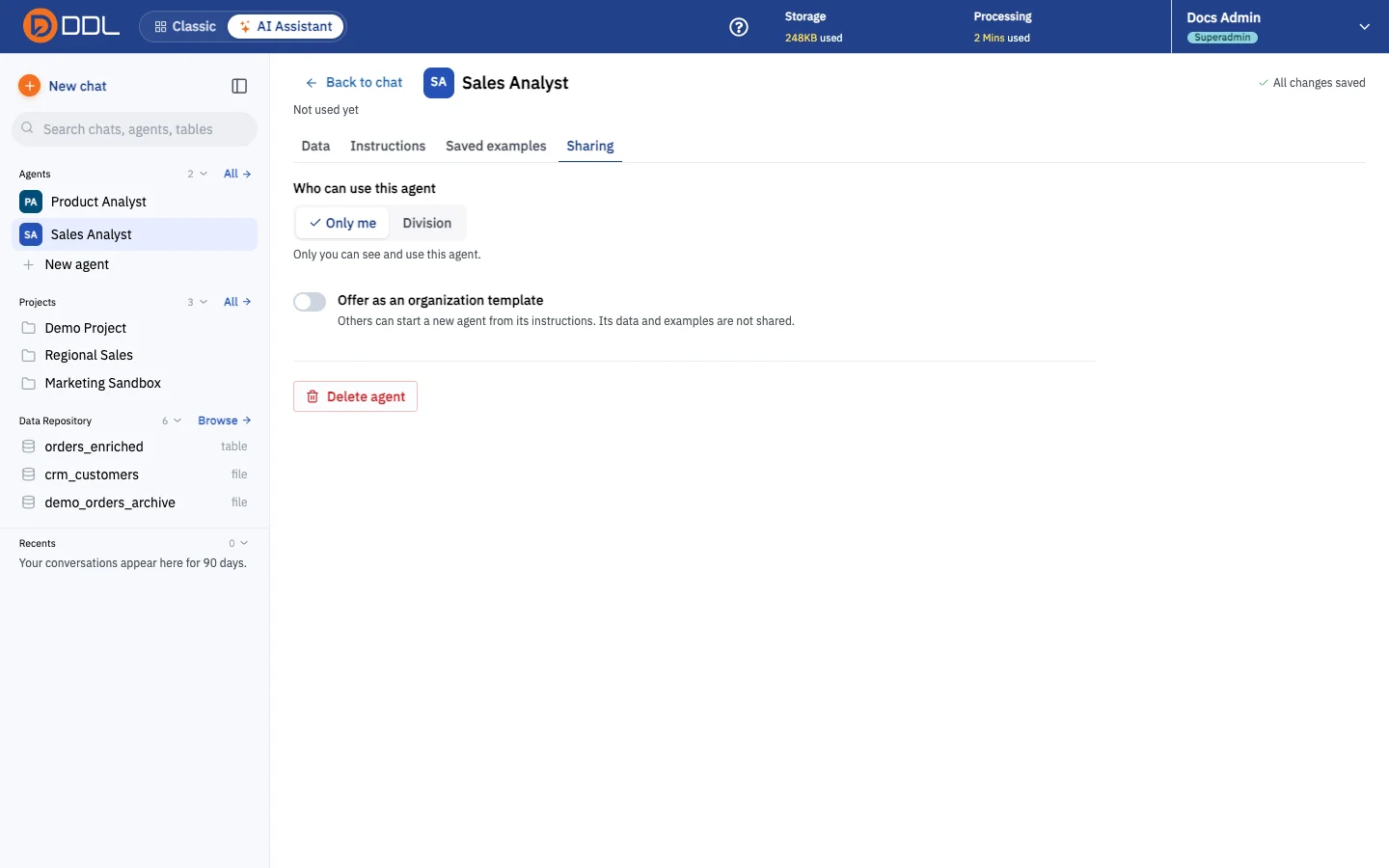
Share or delete an agent
Section titled “Share or delete an agent”On the Sharing tab, Who can use this agent offers:
- Only me: Only you can see and use this agent.
- Division: People in your division can use this agent and see its setup. Only you can change it.
Superadmins also see Offer as an organization template: Others can start a new agent from its instructions. Its data and examples are not shared. Your own template shows Template next to its name in your lists.
Delete agent asks Delete Sales Analyst? (Its data map, instructions and saved examples are deleted. Your chats with it stay in Recents.) and needs a second Delete agent. Opening one of those chats later says This agent is no longer available. It was deleted or is no longer shared with you., with Chat without an agent.
Who can do what
Section titled “Who can do what”| Task | Owner | Superadmin | Division member, shared agent |
|---|---|---|---|
| Chat in Ask | Yes | Yes | Yes |
| Chat in Build | When they may change the work project | When they may change the work project | When they may change the work project |
| See the setup | Yes | Yes | View setup, read only |
| Accept or correct the data map, confirm an assumption | Yes | Yes | No |
| Edit instructions, add or remove tables, share, delete | Yes | Yes | No |
| Offer as a template | No | Yes | No |
| Save examples | Shared with everyone who uses the agent | Shared | Personal: only they see them |
| See the usage line | Yes | Yes | No |
A division member never sees the tables of a shared agent that they cannot open themselves, nor the items and examples about those tables.
Track agent use
Section titled “Track agent use”- Check the recorded uses and cost for the last 30 days in Edit agent and About this agent. An unused agent has no recorded chat usage.
- Administrators can check calls and cost per agent under By agent in Settings › AI › AI Ops. Superadmins can also review uploaded AI agent test scores under Eval runs. See AI settings and data policy.
- Your own AI calls, including those of agents, are listed in Settings › AI › Activity.
Troubleshooting
Section titled “Troubleshooting”| What you see | Why | What to do |
|---|---|---|
| Next stays grey | No table is picked | Tick at least one table. |
| This project has no tables yet. | The project has no nodes with tables of its own, only connections or datasets from the Data Repository | Pick the tables on the Data Repository tab, or build the pipeline first. |
| A table you expected is not under Projects | It is a dataset the project imports from the Data Repository | Tick it on the Data Repository tab. |
| Mapping stopped · rebuild to finish it | The mapping stopped reporting | Click Rebuild in Edit agent › Data. |
| The data map could not be built. Answers read the tables directly. | Mapping failed | Click Rebuild; check that the tables have data. |
| No Ask and Build switch | The agent has no work project | Add tables of a project, or create a new agent. |
| This AI agent only answers questions. Switch to Ask, or ask its owner. | You cannot open its work project, or it may not build | Ask the owner. |
| This AI agent builds only in its work project. | The build was asked for another project | Build in the work project, or use another agent. |
| Only the agent’s owner can change it. | You use an agent someone shared | Ask the owner, or create your own agent. |
| This agent is no longer available… | The agent was deleted or is no longer shared with you | Click Chat without an agent. |