

AI settings and data policy
Settings › AI is where you configure and monitor DDL’s AI. Superadmins decide which AI models answer, what DDL may send to them, how far one answer may go and the monthly budget. Standard accounts can see their own AI calls, and administrators can review usage and cost.
This page covers the AI Agent, Activity and AI Ops tabs. The fourth tab, MCP Integration, connects AI tools outside DDL: see MCP integration.
Open the AI settings
Section titled “Open the AI settings”- Click your name at the top right and choose Settings. Settings opens on AI, at
/settings/ai-integration. - Pick a tab. MCP Integration opens first.
| Tab | What it holds | Who sees it |
|---|---|---|
| MCP Integration | Access tokens for AI tools outside DDL, their setup, and the administrator settings of the integration | Standard accounts; the administrator settings only administrators. See MCP integration. |
| AI Agent | Model connections and roles, engine and model, response limits, the data policy, personal-data masking, AI Action and the engine status | Superadmins |
| Activity | The AI calls made for you: by MCP clients, the AI Assistant and AI Action | Standard accounts; administrators can add other users |
| AI Ops | Usage and cost by day, feature, model, user, project and agent, and the eval runs | Superadmins for the whole DDL, division admins for their division. Eval runs: superadmins only. |
- A link can open a tab directly:
/settings/ai-integration?tab=agent,?tab=activity,?tab=opsor?tab=mcp. A tab you may not see is ignored. - On a phone, the tabs become buttons, two per line, and the lists of tokens, activity and eval runs become cards.
What switches AI on
Section titled “What switches AI on”Three switches decide what runs. All three are on in a new DDL.
| Switch | Where | When it is off |
|---|---|---|
| Allow AI integration | MCP Integration › Administrator settings | No AI at all: no new tokens and existing ones stop working within a minute, no AI Assistant, no AI Action. The AI Agent tab warns AI integration is turned off for this DDL, so the AI Assistant is unavailable to everyone until it is turned on again. |
| AI Assistant | AI Agent › Engine & model | The AI Assistant disappears for every user: the ✦ button, the AI panel and the AI workspace. AI Action stops too. MCP clients keep working. |
| AI Action in pipelines | AI Agent › AI Action | The AI actions of pipelines (AI Classify, AI Extract, AI Summarize, AI Translate, AI Prompt) are no longer offered, and one that is already in a pipeline stops at its next run with AI Action is turned off. A superadmin can turn it on in Settings > AI Integration > AI Agent. |
Even with all three on, the AI Assistant answers only while its service runs and has a model. Engine status tells you whether it does.
AI Agent tab
Section titled “AI Agent tab”Only superadmins open this tab. What you set here applies to every user of your DDL. The tab has three parts:
- Connections and Model per role, at the top, choose the AI models. Each saves on its own.
- Engine & model, Response limits, Data sent to the AI and AI Action are saved together. Unsaved changes appears as soon as you edit one of them. Save changes saves them all (AI Agent settings saved) and Discard drops your edits. When DDL refuses a value, the reason appears in red below the buttons.
- Engine status, at the bottom right, shows what the AI Assistant service runs right now.
The engine is chosen on the AI Assistant server, not on this tab:
| Engine | Where its model comes from |
|---|---|
| AI Gateway | The Connections and Model per role on this tab. In the mode Managed by Delman, Delman provides the connections, and the card says Connections are provided by Delman on this server; changes here are not used. |
| Claude API (direct) | Claude credentials (an API key or Workload Identity Federation) on the AI Assistant server, never stored in DDL. You pick the model under Engine & model. |
Model connections
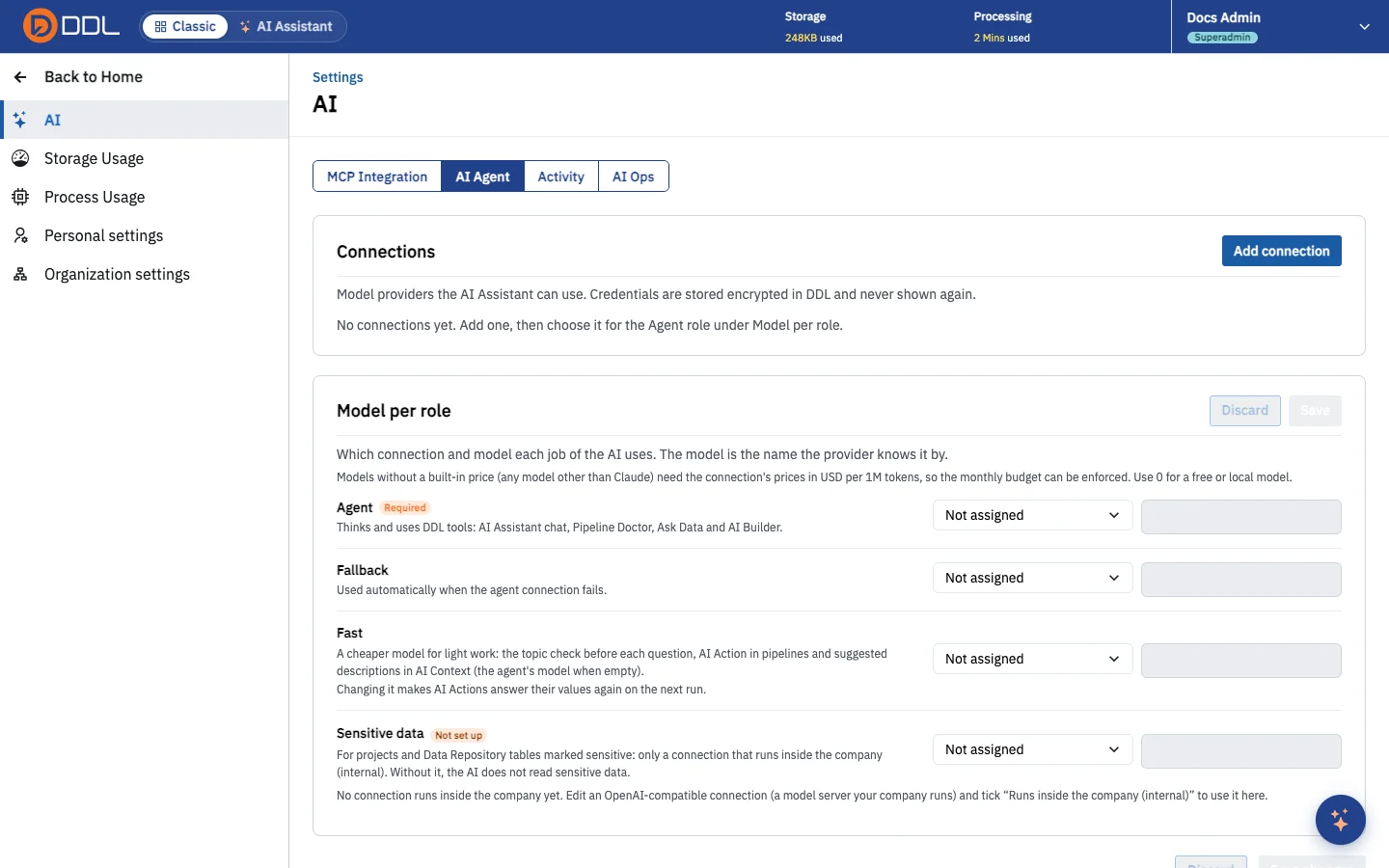
Section titled “Model connections”Connections lists the model providers the AI Assistant can use. Credentials are stored encrypted in DDL and never shown again. Without any, the card says No connections yet. Add one, then choose it for the Agent role under Model per role.
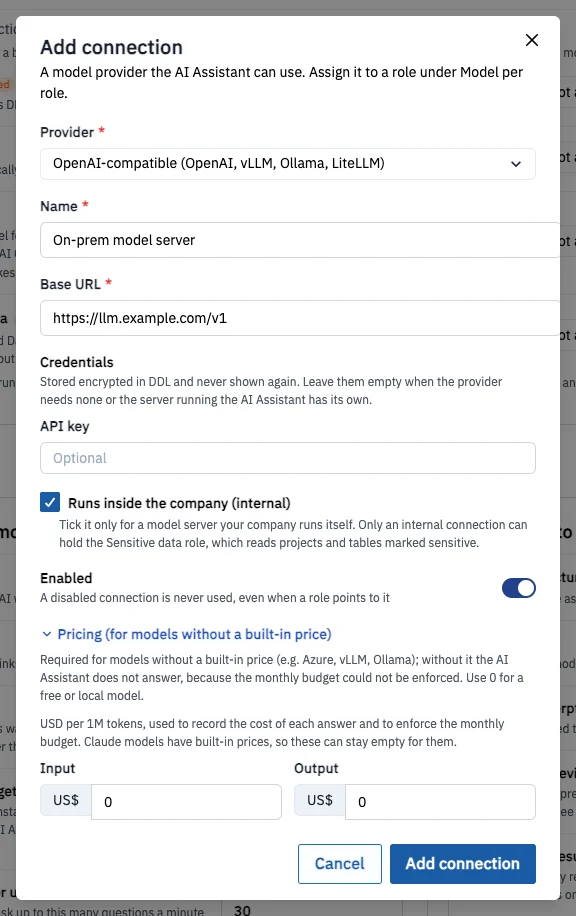
- Click Add connection.
- Choose the Provider. The form then shows the fields that provider needs.
- Enter a Name, such as
Company AI. Each name can be used only once. - Fill in the provider’s fields and its Credentials. Enter secrets only in these fields, never in a chat.
- If the models you will use on this connection have no built-in price, open Pricing (for models without a built-in price) and enter the Input and Output price in US$ per 1M tokens. Enter 0 for a free or local model.
- Leave Enabled on and click Add connection. Check that DDL confirms the connection was added.
- Choose the connection for a role under Model per role, then test it.
| Provider | Fields | Credentials | Model name, as the provider knows it |
|---|---|---|---|
| Anthropic API | Base URL, optional: Leave empty to use the default endpoint of the provider | API key | The model identifier supplied by your provider |
| Amazon Bedrock | Region | Access key ID, Secret access key and Session token, all optional: empty uses the AWS credentials of the server that runs the AI Assistant. The two keys go together. | The model identifier supplied by your provider |
| Google Vertex AI | Region, Project ID | Service account JSON, optional: empty uses the Google credentials of that server | The model identifier supplied by your provider |
| Azure OpenAI | Base URL, API version (default 2024-10-21) |
API key | The deployment name |
| OpenAI-compatible (OpenAI, vLLM, Ollama, LiteLLM) | Base URL, and the box Runs inside the company (internal) | API key, optional | The model name served at the base URL |
A base URL starts with http:// or https://. Each connection in the list shows:
- its name, with the badge DISABLED, INTERNAL (Runs inside the company: it may read data marked sensitive) or CREDENTIALS UNREADABLE when it applies;
- the provider, the region or base URL, and which credentials are stored, such as API key set, API key missing or No credentials stored;
- the result of the last test, Connected, Failed (with the error below the row) or Not tested, and when it ran: Tested 5 minutes ago or Never tested.
Each row has three buttons:
- Test opens a small panel. Type a model (DDL fills in the one of the first role that uses the connection) and click Run test, which Sends a tiny request with this model through the AI Assistant service. Read the connection status, duration or error after the test. Test is greyed out when testing is not set up on the server.
- Edit opens the same form. Saved secrets show Saved — leave empty to keep: type a value only to replace one. An optional saved secret has Remove (and Undo); it is deleted when you save. The provider cannot be changed: add a new connection instead.
- Delete asks first and names the roles that lose their connection. Check those roles before confirming: they become unassigned, and the AI Assistant may stop answering until you assign another connection. Deletion cannot be undone.
A disabled connection is never used, even when a role points to it. DDL keeps up to 50 connections.
Model per role
Section titled “Model per role”Which connection and model each job of the AI uses. The model is the name the provider knows it by. Each role has a connection list, which starts on Not assigned, and a box for the model name.
| Role | Used for | Rules |
|---|---|---|
| Agent (Required) | Thinks and uses DDL tools: AI Assistant chat, Pipeline Doctor, Ask Data and AI Builder. | Without it the AI Assistant does not answer. |
| Fallback | Used automatically when the agent connection fails. | Needs an Agent, and must differ from it in connection or model. Its answers are marked Fallback in Activity and counted in AI Ops. |
| Fast | A cheaper model for light work: the topic check before each question, AI Action in pipelines and suggested descriptions in AI Context (the agent’s model when empty). | Changing it makes AI Actions answer their values again on the next run. |
| Sensitive data | For projects and Data Repository tables marked sensitive: only a connection that runs inside the company (internal). Without it, the AI does not read sensitive data. | Only internal connections are offered. The role shows Ready or Not set up. See Sensitive data. |
- For each role, choose a connection, or Not assigned.
- Type the model name or deployment name exactly as your provider gives it.
- Click Save on the card. DDL confirms Model roles saved; Discard drops your changes.
The scores under Eval runs help you choose the model of a role.
Engine and model
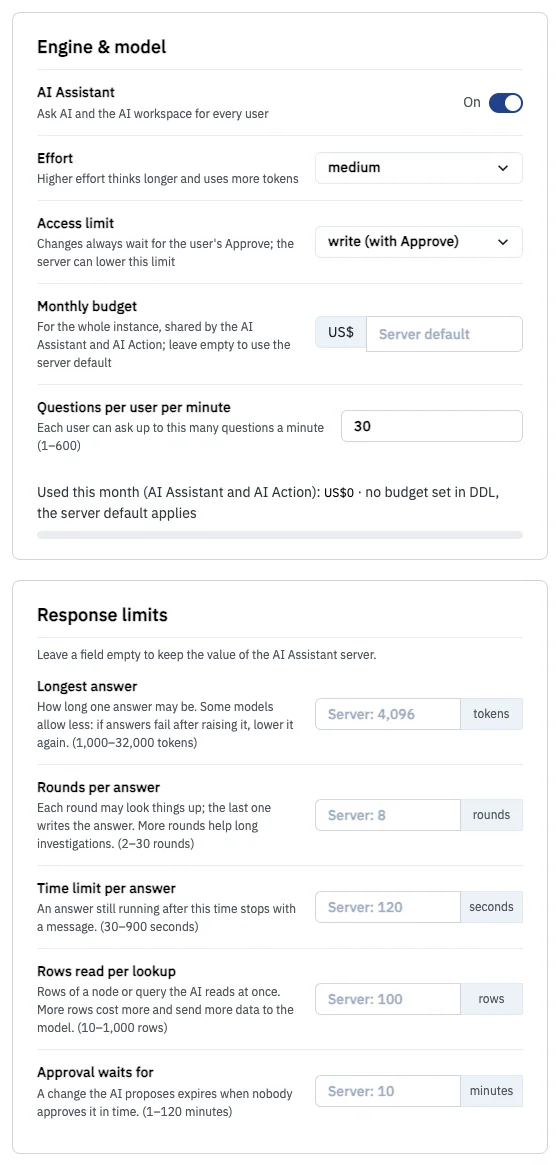
Section titled “Engine and model”| Setting | Options | Default | What it does |
|---|---|---|---|
| AI Assistant | On, Off | On | Ask AI and the AI workspace for every user |
| Model | Models offered by your deployment | The deployment’s selected model | Only with the Claude API (direct) engine; its price per 1M tokens shows below the name. With AI Gateway, Model per role chooses the models. |
| Effort | low, medium, high | medium | Higher effort thinks longer and uses more tokens |
| Access limit | read (view only), write (with Approve) | write (with Approve) | The most the AI Assistant may do for anyone. With read (view only) it proposes no changes. Changes always wait for the user’s Approve; the server can lower this limit. It never runs Python scripts. |
| Monthly budget | An amount in US$, or empty | Empty: the server’s default | For the whole instance, shared by the AI Assistant and AI Action |
| Questions per user per minute | 1 to 600 | 30 | Each user can ask up to this many questions a minute |
Below the rows, a bar shows the recorded spending for the month against the budget. Without a budget in DDL, the line ends with no budget set in DDL, the server default applies and the bar stays empty. It turns orange at 80% and red at 100%. From 80%, users see This month’s AI budget is almost used up in the AI panel. When the budget is spent, the AI Assistant and AI Action stop until the next calendar month (UTC) or until you raise the budget. MCP clients do not count against it.
Response limits
Section titled “Response limits”Leave a field empty to keep the value of the AI Assistant server. An empty field shows that value in grey, such as Server: 4,096.
| Limit | Range | What it controls |
|---|---|---|
| Longest answer | 1,000 to 32,000 tokens | How long one answer may be. Some models allow less: if answers fail after raising it, lower it again. |
| Rounds per answer | 2 to 30 rounds | Each round may look things up; the last one writes the answer. More rounds help long investigations. |
| Time limit per answer | 30 to 900 seconds | An answer still running after this time stops with a message. |
| Rows read per lookup | 10 to 1,000 rows | Rows of a node or query the AI reads at once. More rows cost more and send more data to the model. |
| Approval waits for | 1 to 120 minutes | A proposed change expires when nobody approves it in time. Waiting approvals without passwords are kept in DDL for the same period and survive an AI restart. |
Approvals that carry a password are not stored. Once you approve a change, it runs to completion even if you close the page; closing it does not cancel the change.
A standard AI Assistant server uses 4,096 tokens, 8 rounds, 120 seconds, 100 rows and 10 minutes. If the card says The AI Assistant server does not apply these limits yet: update it to the latest version., the server is older than these settings and ignores them.
Data sent to the AI
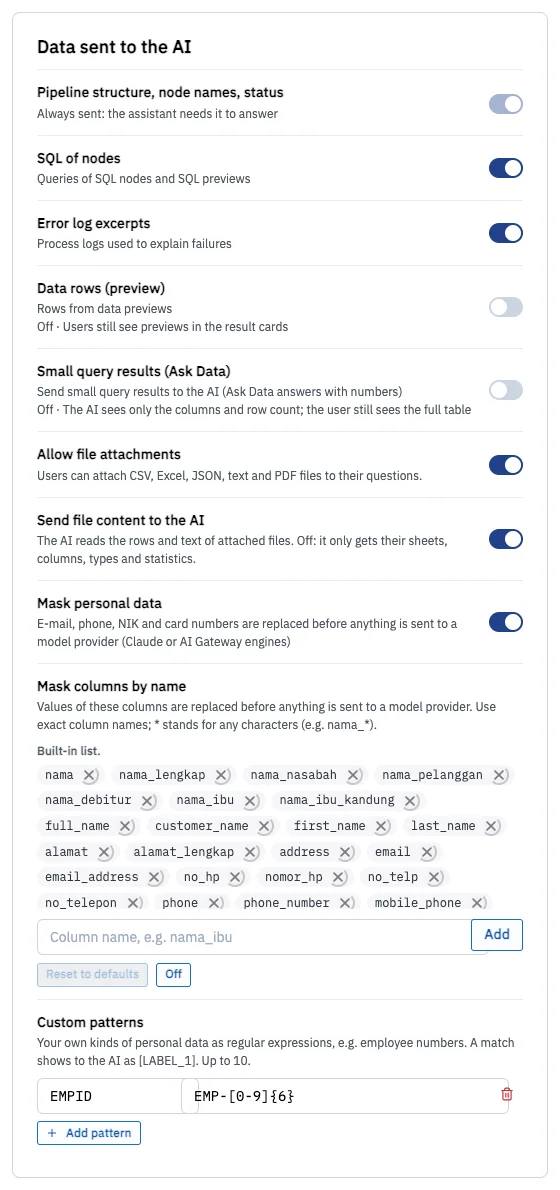
Section titled “Data sent to the AI”These switches decide what the AI Assistant may send to the AI model. Parts it may not send are replaced by a short note for the model. Users still see them, because the result cards load them from DDL directly.
| Switch | Default | When on | When off |
|---|---|---|---|
| Pipeline structure, node names, status | Always on | Always sent: the assistant needs it to answer | Cannot be switched off |
| SQL of nodes | On | Queries of SQL nodes and SQL previews go to the model | The model gets a note instead of the SQL; users still see it in DDL |
| Error log excerpts | On | Process logs used to explain failures go to the model | The model gets a note instead of the log; users still see the log card |
| Data rows (preview) | Off | Rows from data previews go to the model | Users still see previews in the result cards |
| Small query results (Ask Data) | Off | Sends small query results and dashboard chart numbers to the model, at most the first 50 rows and 20 columns | The model sees only columns and the row count; users still see the results in DDL with their own access |
| Allow file attachments | On | Users can attach CSV, Excel, JSON, text and PDF files to their questions. | The paperclip disappears and uploads are refused |
| Send file content to the AI | On | The AI reads the rows and text of attached files. | The AI gets only the sheets, columns, types and statistics of the files. Greyed out while attachments are off: Applies only while file attachments are allowed. |
These switches apply to the AI Assistant inside DDL, AI agents included. MCP clients get what their tools return; see MCP integration.
Personal data masking
Section titled “Personal data masking”Mask personal data, on by default, replaces personal data before anything goes to a model provider. The model sees placeholders such as [EMAIL_1] or [NAME_2]. DDL restores values in answers and proposed changes according to the user’s access. Masking covers questions, page context, tool results, attached files, AI action values, chart conditions and dashboard filter values on personal-data columns. E-mail-like account names are masked, for example a***@example.com.
The same setting and column rules also mask dashboard values for people without project access, including public and embedded dashboards and their CSV and PNG outputs. Dashboard access alone does not grant project access. See Share dashboards.
Three kinds of rules work together:
- Built-in patterns: E-mail, phone, NIK and card numbers.
- Mask columns by name: every value of the listed columns. The Built-in list. holds 39 common names, such as
nama,full_name,customer_name,email,no_hp,phone_number,nik,npwp,no_rekening,account_number,alamat,address,tanggal_lahiranddob. Names must match whole, soproduct_namestays readable;*stands for any characters, as innama_*.- Type a name into Column name, e.g. nama_ibu and click Add; ✕ on a name removes it. The list then says Your own list.
- Reset to defaults brings back the built-in list. Off masks no column by its name.
- Names use a to z, 0 to 9,
_and*, up to 64 characters, and the list holds at most 200 names. A rule cannot match every column.
- Custom patterns: Your own kinds of personal data as regular expressions, e.g. employee numbers. Without any, the list says No custom patterns. Click Add pattern and enter a label and a regular expression, for example
EMPIDandEMP-[0-9]{6}. A match shows to the model as[EMPID_1]. You can add up to 10 patterns.- A label has 2 to 10 capital letters or digits and starts with a letter. The built-in kinds, such as
EMAIL,PHONE,NIK,CARD,NAMEorPII, are taken. - A pattern has up to 200 characters. DDL refuses backreferences such as
\1, repeats inside repeats such as(a+)+, and patterns that match empty text. - Only superadmins can see the custom patterns, as they may contain the very values they protect.
- A label has 2 to 10 capital letters or digits and starts with a letter. The built-in kinds, such as
While Mask personal data is off, the column list and the patterns are kept but not used: Not used while Mask personal data is off.
Sensitive data
Section titled “Sensitive data”Some data must not leave the company at all. Mark it sensitive:
- a project, with Sensitive data (AI) in its Project Settings, as its owner or a superadmin;
- a Data Repository table, with Sensitive data in its AI Context, as its owner or a superadmin.
Sensitivity follows the data: a table published from a sensitive project is sensitive, and so is a project that reads a sensitive table. Only a superadmin can clear a mark that a superadmin set.
| Who asks | What happens to sensitive data |
|---|---|
| The AI Assistant, AI agents and AI Action | It goes only to the model of the Sensitive data role, which must be an internal connection. Without one, the AI does not read it. |
| MCP clients | Direct requests for sensitive data are refused. list_recent_failures, list_dashboards, list_charts and list_chart_sources omit sensitive items rather than refusing the whole list. Sensitive details are also withheld from a completed change’s result. |
To let the AI Assistant work with sensitive data:
- Add an OpenAI-compatible connection to a model server your company runs, and tick Runs inside the company (internal): Tick it only for a model server your company runs itself. Set both prices, 0 if you pay nothing per token.
- Under Model per role, choose it for Sensitive data, type its model name and click Save.
- Check that the role shows Ready: An internal connection answers for projects and tables marked sensitive.
Until then the role shows Not set up, and without any internal connection the card says No connection runs inside the company yet…. The connection that holds the role cannot lose its internal mark or change its base URL; give the role to another internal connection first.
AI Action
Section titled “AI Action”The AI Action card controls the AI actions of pipelines (see Add an action):
- AI Action in pipelines, on by default: AI Classify, Extract, Summarize, Translate and Prompt in pipelines. Each different value is sent once and its answer saved. While the AI Assistant is off, the card says Not available while the AI Assistant is off.
- Most different values per run, 5,000 by default, from 1 to 20,000: A run on a column with more different values stops before it sends anything.
AI actions use the Fast role (the agent’s model when Fast is empty), and the Sensitive data role for sensitive projects. They count against the monthly budget, and their values are masked like the AI Assistant’s.
Engine status
Section titled “Engine status”| Row | Shows |
|---|---|
| Service | Online with the AI version; Offline with the error, or The AI Assistant service did not answer; or Not configured when the AI Assistant has not been set up for this DDL |
| Engine | AI Gateway or Claude API (direct) |
| Mode | AI Gateway only: Your own connections or Managed by Delman |
| Configured | AI Gateway only: Ready; No agent connection yet, with Add a connection and assign it to the Agent role; or Not checked yet until the first question |
| Agent connection, Agent model | AI Gateway only: what the Agent role uses |
| Model, Sign-in method, Credentials | Claude API only: the model; how the server signs in (API key, Workload Identity Federation, Auth token or Not configured); and Set on the server, never stored in DDL |
Check again asks the service again.
Activity
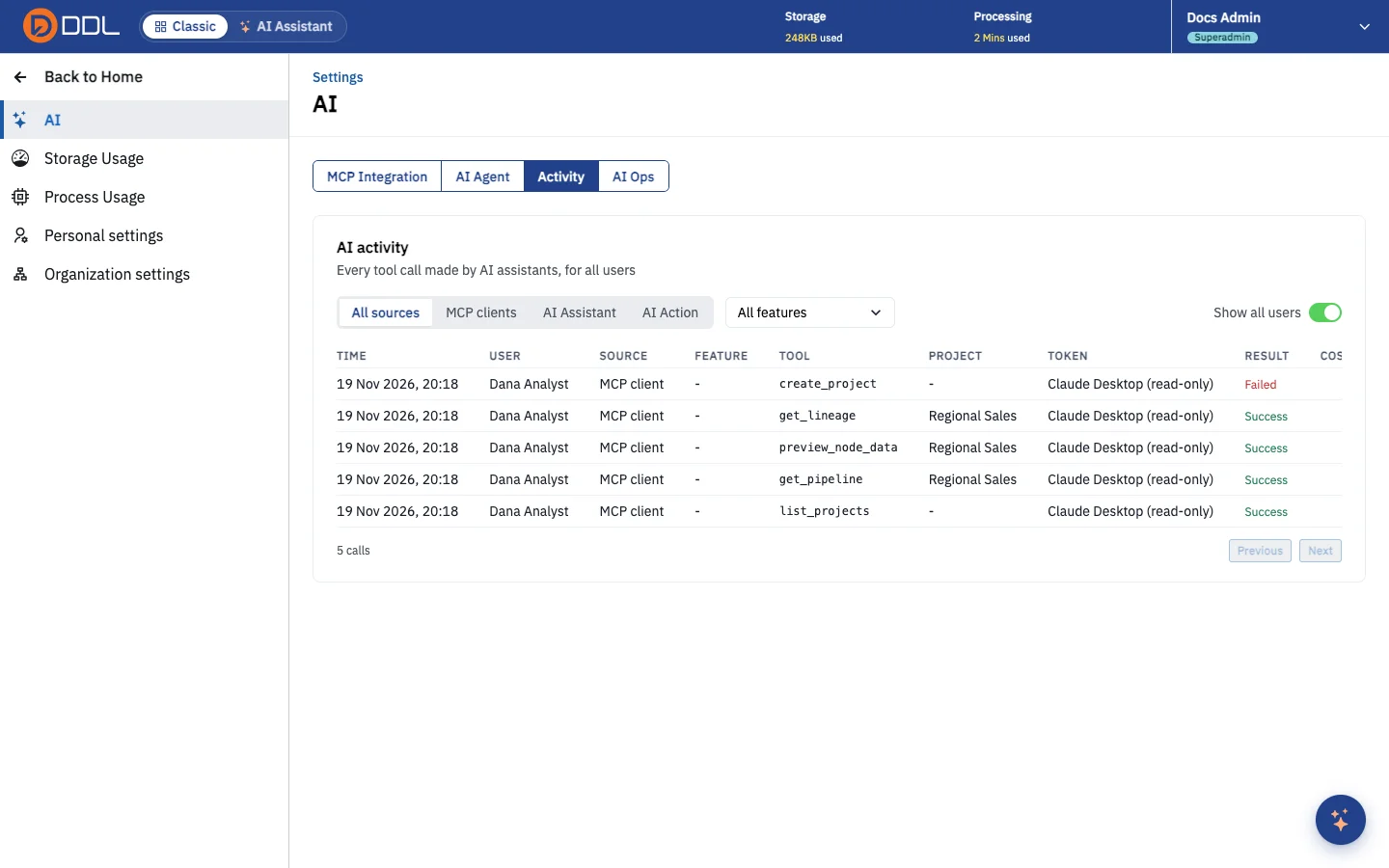
Section titled “Activity”The Activity tab, AI activity, lists Every tool call made by AI assistants on your behalf, newest first, ten per page, with the number of calls and Previous and Next below the list. It shows calls, not conversations: a chat stays private to its owner, also for administrators.
- Source: All sources, MCP clients, AI Assistant or AI Action.
- Feature: All features, Chat, Pipeline Doctor, Ask Data, AI Builder, AI Audit, AI Action, AI Context, AI agent or MCP.
- Show all users, for administrators, adds the calls of other users and a User column: everyone’s for a superadmin, those of their division for a division admin. The description then reads Every tool call made by AI assistants, for all users. It is the same switch as under Administrator settings on the MCP Integration tab.
| Column | Shows |
|---|---|
| Time | When the call was made |
| User | Whom it was for, with Show all users on |
| Source | MCP client, AI Assistant or AI Action |
| Feature | The AI feature behind the call, such as Chat or Pipeline Doctor; - for MCP clients and for calls from before features were recorded |
| Tool | The DDL tool, such as get_pipeline. assistant_message is a finished answer of the AI Assistant, with what it cost. |
| Project | The project the call was about, if you can open it |
| Token | The access token an MCP client used |
| Result | Success or Failed; hover Failed for the error. A completed call with a remark shows Success plus a Note badge; hover Note to read it. Fallback marks an answer of the fallback model. |
| Cost | In US$: < US$0.01 below a cent, - when nothing was charged to DDL’s AI budget |
| Duration | In milliseconds |
With the User column, the list can be wider than the card: scroll it sideways to see Cost and Duration.
An empty list says No AI activity yet. Calls made by MCP clients, the AI Assistant and AI Action appear here., or, with a feature chosen, No activity of this feature yet. Calls made before features were recorded have none.
AI Ops
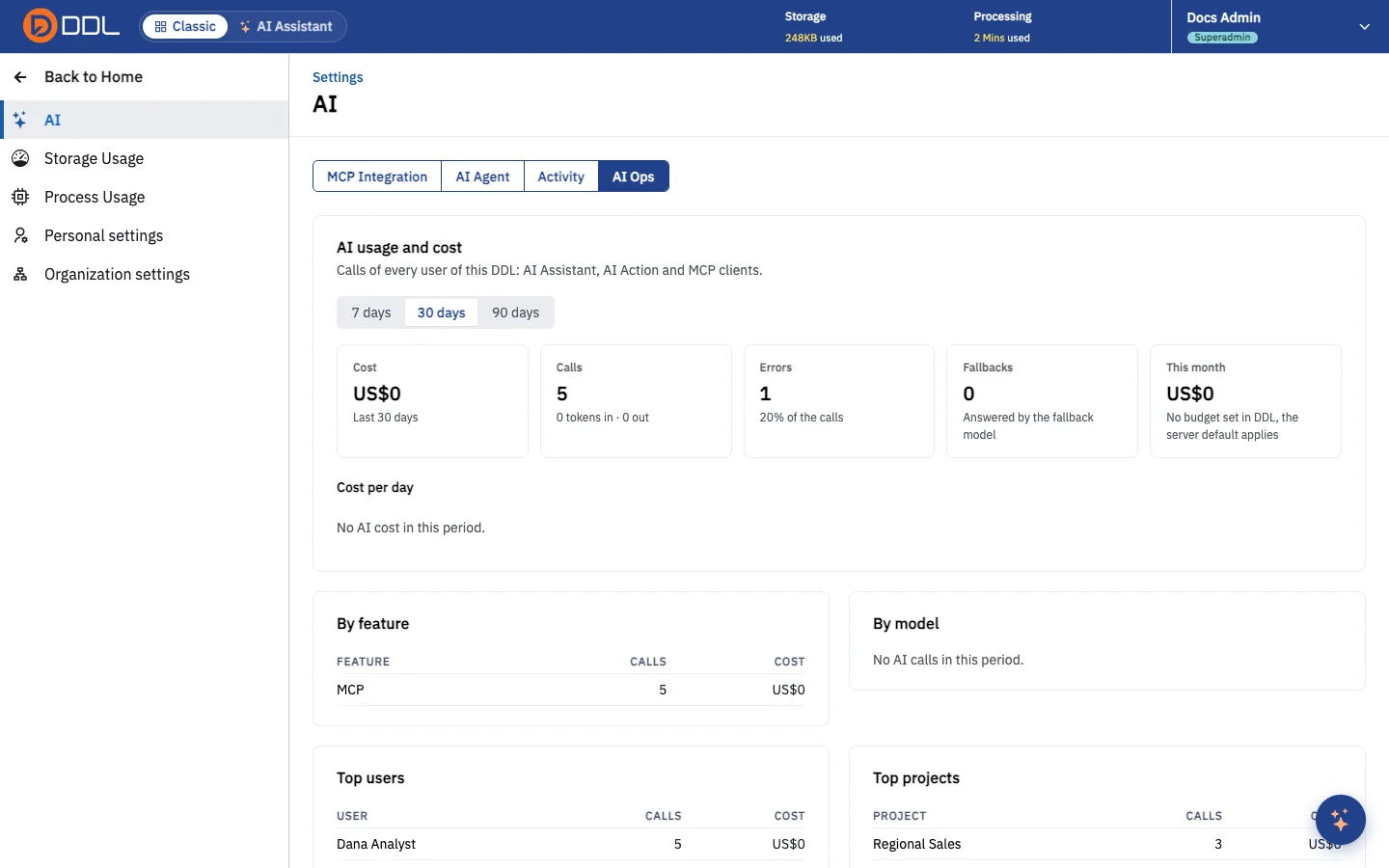
Section titled “AI Ops”AI Ops shows what the AI costs and how well it works. A superadmin sees the whole DDL: Calls of every user of this DDL: AI Assistant, AI Action and MCP clients. A division admin sees the users of their division.
- Choose 7 days, 30 days (the default) or 90 days.
- Tiles: Cost in the period; Calls, with the tokens in and out; Errors, with their share of the calls; Fallbacks, Answered by the fallback model; and This month, the cost of the calendar month against the monthly budget, with a bar. Without a budget in DDL, This month says No budget set in DDL, the server default applies and has no bar. A division admin sees Instance budget instead: Shared by the whole DDL. Only superadmins see how much is used.
- Cost per day: one bar per day; hover a bar for its cost and number of calls. Without any cost it says No AI cost in this period.
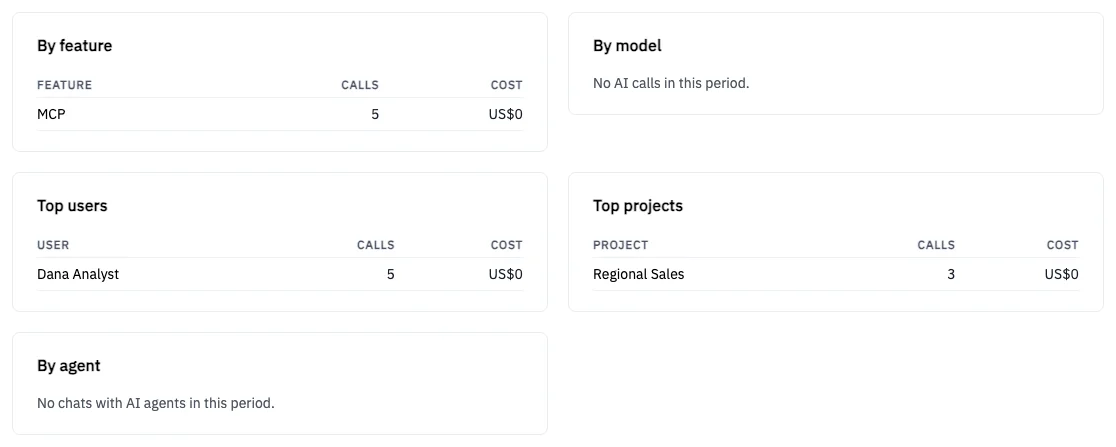
- Tables with the Calls and Cost of the ten biggest, most expensive first: By feature, By model with its Connection, Top users, Top projects, and By agent for chats with AI agents. A project you cannot open is left out, and an agent you cannot open shows as Private agent. A table without calls says No AI calls in this period.; By agent says No chats with AI agents in this period.
MCP client calls count under Calls, Errors, Top users and Top projects, and as MCP in By feature, at no cost. They use no model of DDL, so they are not in By model.
Eval runs
Section titled “Eval runs”Superadmins also see Eval runs: Scores of the eval suites per model, newest first. Use them to pick the model of a role. An eval suite gives a model a fixed set of DDL tasks and scores what it does. Whoever runs the AI Assistant server runs the suites and uploads the results; DDL lists the last 50.
| Suite | What it measures |
|---|---|
| Pipeline Doctor | Diagnoses of failed nodes |
| Ask Data | Answers about Data Repository tables: the right rows, the Verified SQL when one fits, and no invented numbers |
| Tools | The DDL tools on a fixed set of questions |
| AI agent | An AI agent asked the questions of its verified answers: the query it runs must return what the verified SQL returns, without needless lookups |
The filter above the table shows All suites or one suite. The columns are Date, Suite, Model (with the connection and provider), Score (green from 90%, orange from 70%, red below), Passed (the cases passed out of all; hover for the share) and Notes, such as the name of the agent tested. Without runs the section says No eval runs yet. Ask your administrator about running and uploading evaluations.

Who can see and change what
Section titled “Who can see and change what”| Task | User | Division admin | Superadmin |
|---|---|---|---|
| Create and revoke your own access tokens | Yes | Yes | Yes |
| Revoke other users’ tokens | No | Their division | Everyone |
| Change the Administrator settings of MCP | No | No | Yes |
| See your own AI calls in Activity | Yes | Yes | Yes |
| See other users’ AI calls | No | Their division | Everyone |
| Open the AI Agent tab and change its settings | No | No | Yes |
| Open AI Ops | No | Their division, without the month’s spending | The whole DDL |
| See Eval runs | No | No | Yes |
| Mark a project or table sensitive | Their own | Their own | Any |
Troubleshooting
Section titled “Troubleshooting”| What you see | Why | What to do |
|---|---|---|
| No AI Agent or AI Ops tab | They are for superadmins and administrators | Use Activity for your own calls, and ask a superadmin for changes. |
| Service says Not configured | The AI Assistant service is not set up for this DDL | Ask whoever runs your DDL server. MCP integration still works. |
| Service says Offline | The service does not answer | Click Check again. If it stays offline, tell whoever runs the server. |
| Configured says No agent connection yet, and users see The AI Assistant has no AI connection yet. | No enabled connection holds the Agent role | Add a connection and choose it for Agent. |
| Set the prices of AI connection … first when you save the roles | The model has no built-in price and its connection has no prices | Enter both prices on the connection, 0 for a free or local model. |
| AI connection … is not marked as running inside the company… | Only an internal connection can hold Sensitive data | Tick Runs inside the company (internal) on an OpenAI-compatible connection your company runs. |
| A fallback needs an agent connection first | Fallback is set without Agent | Assign Agent first. |
| The fallback must differ from the agent connection or model | Fallback uses the same connection and model as Agent | Choose another model or connection. |
| A connection shows CREDENTIALS UNREADABLE | Its credentials cannot be decrypted on this server, for example after the encryption key changed | Edit the connection and enter them again. |
| Test is greyed out | Testing is not set up on the server | Ask whoever runs the server. You can still save and use the connection. |
| A test says The AI Assistant service cannot be reached from the DDL backend | The DDL backend cannot reach the service | Tell whoever runs the server. |
| Users see This month’s AI budget is used up. Ask your administrator to raise it. | The monthly budget is spent | Raise Monthly budget, or wait for the next month. |
| Users have no paperclip | Allow file attachments is off | Switch it on under Data sent to the AI. |
| An AI action stops with AI Action is turned off… | Allow AI integration, AI Assistant or AI Action in pipelines is off | Switch all three on, then run the node again. |
| An AI action stops with AI Action is not set up on this server… | The DDL backend does not know where the AI Assistant service runs | Ask whoever runs your DDL server. |
| Users see The answer took too long. Try a shorter question. | The Time limit per answer was reached | Raise it, or ask users to split long questions. |