

MCP integration
The Model Context Protocol (MCP) lets an AI tool outside DDL work with your projects, charts and dashboards. Connect Claude Code, Claude Desktop, Cursor, VS Code or another MCP client, then ask it about data or, if you allow changes, to create a SQL node, chart or dashboard. The tool signs in with a personal access token that you create in DDL. It acts as you: your DDL permissions and the token’s access level both apply.
You create and manage tokens in Settings › AI › MCP Integration. The AI Assistant built into DDL needs no token.
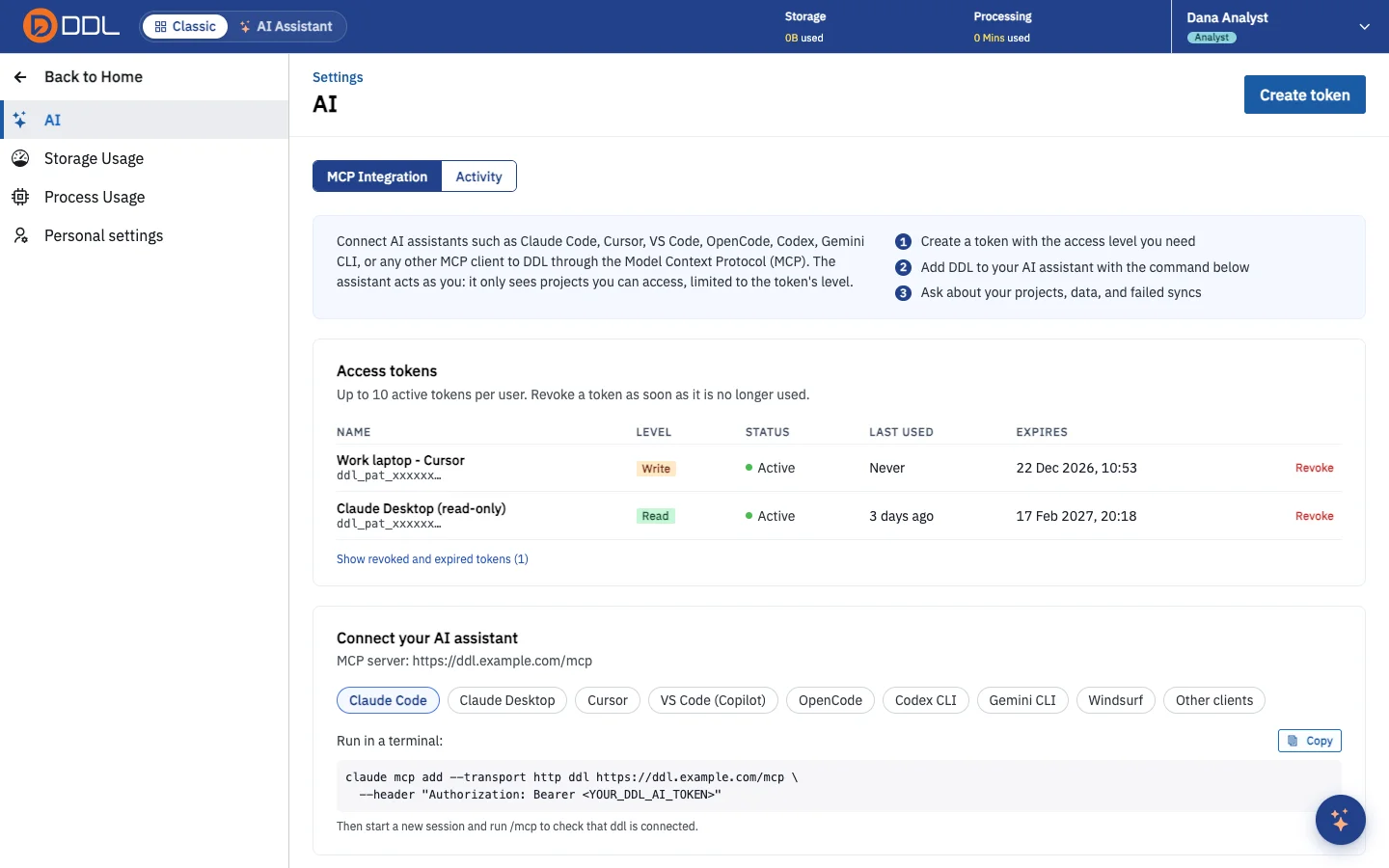
How it works
Section titled “How it works”- You create a token in DDL and choose its access level: Read, Write or Script.
- You add the DDL MCP server and the token to your AI client.
- The client sends the token with every request. The MCP server checks it with DDL and runs each tool call as you, with your own project permissions.
- Tools above the token’s level are hidden from the client, and refused if it calls them anyway. Superadmin-only tools are also hidden from every non-superadmin token, regardless of its level.
- Before anything changes in DDL, DDL returns a plan for the client to show you. The change runs only on a second, confirmed call.
- DDL records every tool call. You find them in Settings › AI › Activity.
What the tools return goes to the AI model behind your client. Data marked sensitive in DDL never does. See the Security checklist.
Create an access token
Section titled “Create an access token”- Open Settings › AI. The MCP Integration tab is selected.
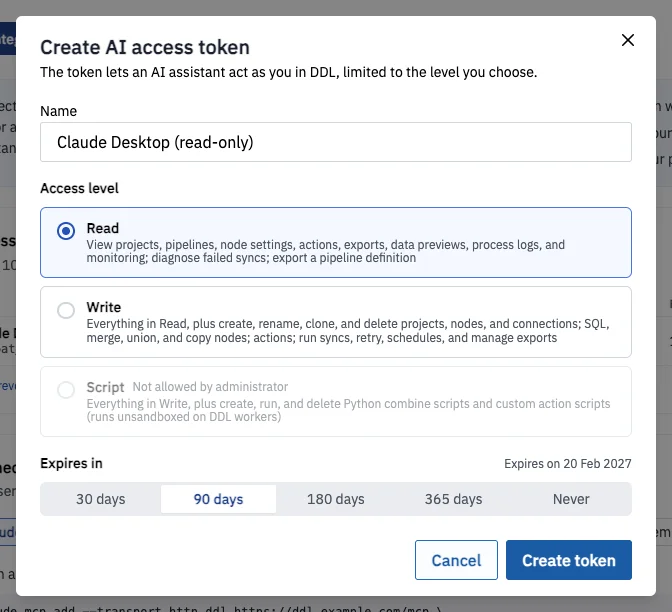
- Click Create token at the top right. The dialog Create AI access token opens: The token lets an AI assistant act as you in DDL, limited to the level you choose.
- Enter a Name that tells you where the token is used, for example
Claude Desktop (read-only). - Choose an Access level. See Access levels.
- Choose how long the token works under Expires in. The date it stops working appears next to the label, for example Expires on 17 Feb 2027.
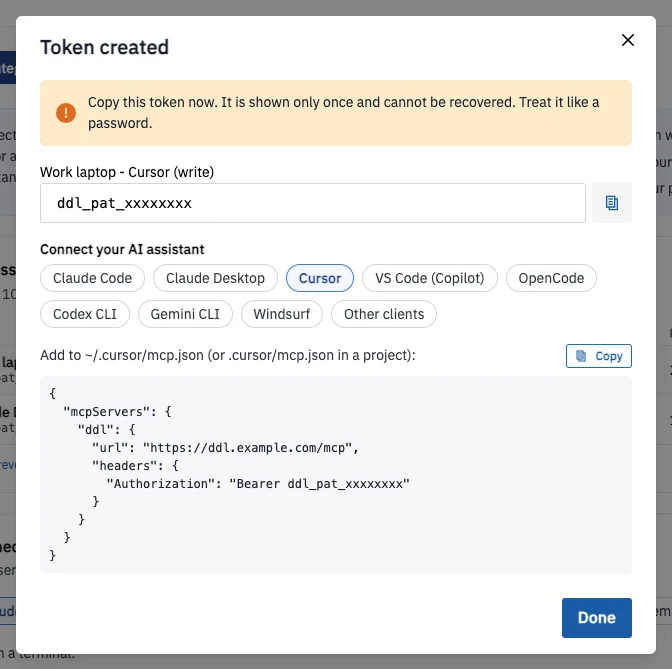
- Click Create token. The dialog turns into Token created.
- Click the copy button next to the token. Copy this token now. It is shown only once and cannot be recovered. Treat it like a password.
- Under Connect your AI assistant in the same dialog, pick your client. Its snippet already holds the new token: copy it into your client, then click Done.
Once the token is shown, a click outside the dialog no longer closes it. After Done, DDL never shows the token again; the list keeps only its first characters.
| Field | Options | Rules |
|---|---|---|
| Name | Free text. The box suggests e.g. My laptop - Claude Code. | Required, up to 100 characters |
| Access level | Read, Write, Script | Every new token starts on Read, including a superadmin’s. Superadmins see Superadmin: every level is available. For other users, levels above the administrator’s limit are greyed out with Not allowed by administrator. |
| Expires in | 30 days, 90 days, 180 days, 365 days, Never | 90 days is preselected. Never is offered only when your administrator allows it, and warns The token keeps working until you revoke it. Revoke it as soon as it is no longer used, or if it may have leaked. |
You can have 10 active tokens at a time. One more is refused with You already have 10 active tokens, revoke one first.
Access levels
Section titled “Access levels”Each level includes everything of the level before it.
| Level | What DDL says it allows | Good to know |
|---|---|---|
| Read | View projects, pipelines, node settings, actions, exports, data previews, process logs, and monitoring; diagnose failed syncs; export a pipeline definition | Also lineage, previews that create nothing, read-only queries on Data Repository tables, AI agents and their data maps, dashboards, chart data and chart sources. Superadmins can also list accounts. Nothing in DDL changes. |
| Write | Everything in Read, plus create, rename, clone, and delete projects, nodes, and connections; SQL, merge, union, and copy nodes; actions; run syncs, retry, schedules, and manage exports | Also save or delete charts and dashboards, and share dashboards. Superadmins can create divisions and save accounts. Every change waits for your OK. See Changes need your OK. |
| Script | Everything in Write, plus create, run, and delete Python combine scripts and custom action scripts (runs unsandboxed on DDL workers) | Scripts run on DDL’s own servers without a sandbox: a script can read what those servers can read and reach the network. Grant it as you would grant administrator rights. |
The level a client really gets is the lowest of:
- the level of the token;
- the Highest access level your administrator allows, unless you are a superadmin. Lowering it also limits tokens that already exist, although the list still shows the level they were created with;
- the limit of the MCP server itself, when whoever runs it has set one.
Choose the lowest level that does the job. Read answers most questions, such as why did this sync fail? or what is in this table?
Connect your AI client
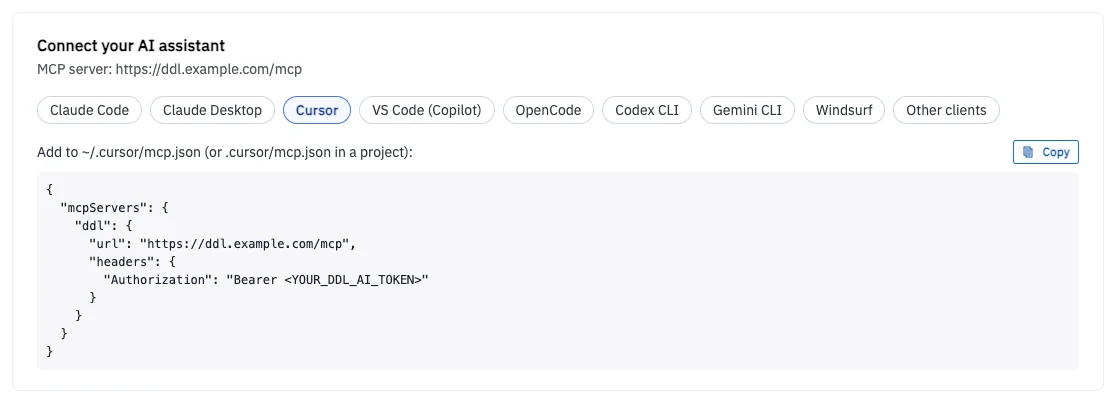
Section titled “Connect your AI client”On the tab, Connect your AI assistant starts with the address of your DDL MCP server: MCP server: followed by your DDL address and /mcp, unless your administrator set another one. Below it, and in the Token created dialog, is one chip per client: Claude Code, Claude Desktop, Cursor, VS Code (Copilot), OpenCode, Codex CLI, Gemini CLI, Windsurf and Other clients. Click a chip to see where the setup goes, and Copy to copy it.
On the tab, the snippets hold the placeholder <YOUR_DDL_AI_TOKEN>: replace it with your token. In the Token created dialog they already hold the new token. The snippets below show https://ddl.example.com/mcp for the server and ddl_pat_xxxxxxxx for the token; copy yours from DDL, which fills in the address of your server.
Run in a terminal:
claude mcp add --transport http ddl https://ddl.example.com/mcp \ --header "Authorization: Bearer ddl_pat_xxxxxxxx"Then start a new session and run /mcp to check that ddl is connected.
In Claude Desktop, open Settings > Developer > Edit Config and add this to claude_desktop_config.json. It needs Node.js: npx runs the mcp-remote bridge, which connects Claude Desktop to the remote server.
{ "mcpServers": { "ddl": { "command": "npx", "args": [ "-y", "mcp-remote", "https://ddl.example.com/mcp", "--header", "Authorization:${DDL_AUTH}" ], "env": { "DDL_AUTH": "Bearer ddl_pat_xxxxxxxx" } } }}Restart Claude Desktop after saving.
Add to ~/.cursor/mcp.json, or .cursor/mcp.json in a project:
{ "mcpServers": { "ddl": { "url": "https://ddl.example.com/mcp", "headers": { "Authorization": "Bearer ddl_pat_xxxxxxxx" } } }}Add to .vscode/mcp.json, or run MCP: Open User Configuration:
{ "inputs": [ { "type": "promptString", "id": "ddl-token", "description": "DDL AI access token", "password": true } ], "servers": { "ddl": { "type": "http", "url": "https://ddl.example.com/mcp", "headers": { "Authorization": "Bearer ${input:ddl-token}" } } }}VS Code asks for the token the first time the server starts and stores it securely. The file itself holds no token.
Add to opencode.json in your project, or ~/.config/opencode/opencode.json:
{ "$schema": "https://opencode.ai/config.json", "mcp": { "ddl": { "type": "remote", "url": "https://ddl.example.com/mcp", "enabled": true, "oauth": false, "headers": { "Authorization": "Bearer ddl_pat_xxxxxxxx" } } }}Run in a terminal. Codex reads the token from an environment variable:
export DDL_AI_TOKEN="ddl_pat_xxxxxxxx"codex mcp add ddl --url https://ddl.example.com/mcp --bearer-token-env-var DDL_AI_TOKENAdd the export line to your shell profile so DDL_AI_TOKEN is set whenever Codex starts.
Add to ~/.gemini/settings.json, or .gemini/settings.json in a project:
{ "mcpServers": { "ddl": { "httpUrl": "https://ddl.example.com/mcp", "headers": { "Authorization": "Bearer ddl_pat_xxxxxxxx" } } }}Add to ~/.codeium/windsurf/mcp_config.json:
{ "mcpServers": { "ddl": { "serverUrl": "https://ddl.example.com/mcp", "headers": { "Authorization": "Bearer ddl_pat_xxxxxxxx" } } }}Then click Refresh in Windsurf’s MCP settings.
Any MCP client that supports remote servers can connect. Use these values in your client’s own config format:
Server URL : https://ddl.example.com/mcpTransport : Streamable HTTP (sometimes called "http" or "remote")Header : Authorization: Bearer ddl_pat_xxxxxxxxAuth : the Bearer token above (no OAuth)Look for “remote”, “HTTP” or “URL” MCP servers in your client’s documentation. If it only supports local (stdio) servers, use the mcp-remote bridge shown under Claude Desktop.
Every client connects the same way: to a remote MCP server over streamable HTTP, with the token in an Authorization: Bearer header. There is no OAuth sign-in.
Ask your first questions
Section titled “Ask your first questions”Start a new session in your client and ask in plain language. The client picks the DDL tools itself and looks up ids instead of guessing them. With the demo data, for example:
| You ask | Tools it may use | Level |
|---|---|---|
| List my DDL projects. | list_projects |
Read |
| Show the pipeline of Demo Project. What does orders_enriched read? | get_pipeline, get_lineage |
Read |
| Show the first 20 rows of orders_enriched. | preview_node_data |
Read |
| Why did cost_per_city in Marketing Sandbox fail? Quote the log. | diagnose_node, get_process_log |
Read |
| Create a SQL node revenue_by_city in Demo Project with the total amount per city from orders_enriched. | preview_sql, create_sql_node |
Write |
Name the project and the node you mean. Your client may also ask you to allow each tool call; that is a setting of the client, on top of DDL’s own check before changes.
What an AI client can do
Section titled “What an AI client can do”DDL offers 82 MCP tools: 36 at Read, 36 additional tools at Write and 10 additional tools at Script. Levels are cumulative. Superadmin-only tools are hidden from other users, who see at most 79 tools; a lower token level or administrator limit reduces the list further.
| Area | Read | Write adds | Script adds |
|---|---|---|---|
| Projects and nodes | List projects; read a pipeline, a node with its full SQL, data previews and sync schedules | Create, rename and delete projects; rename and delete nodes | – |
| Lineage | Follow a node’s data upstream and downstream, also across projects | – | – |
| Connections | List connections and connector types, browse a source, preview a source table | Create, copy and delete connections; import a table as a node | – |
| SQL and transforms | Preview a query or a merge without creating anything | Create SQL, merge, union and copy nodes; change the query of a SQL node | – |
| Runs and monitoring | Project monitoring, recent failures across your projects, process logs, diagnosis of a failed node | Sync a source; retry or stop a node | – |
| Schedules | List the sync schedules of a source | Schedule a sync, delete a schedule | – |
| Exports | List exports, read export settings | Create, run, change, switch on or off, and delete exports | – |
| Actions | List action types, read a node’s actions and their parameters | Add, change and delete actions | Read, create, change and delete custom action scripts |
| Whole pipelines | Export a pipeline definition, compare two pipelines | Clone a project | – |
| Data Repository | Read a table’s AI Context, run a read-only query on up to three tables | – | – |
| AI agents | List your agents and read their data maps | – | – |
| Dashboards and charts | List dashboards, charts and chart sources; read a dashboard and chart data | Save or delete charts and dashboards; share dashboards | – |
| Divisions and accounts (superadmins) | List accounts | Create divisions; create or update accounts | – |
| Python combine scripts | List your combine scripts | – | Read, create, change, run and delete combine scripts |
The 13 new tools are:
| Tool | Level | What you can request |
|---|---|---|
list_dashboards |
Read | List dashboards you may access |
get_dashboard |
Read | Read a dashboard’s definition |
get_chart_data |
Read | Read a chart’s data with your access |
list_charts |
Read | List charts you may access |
list_chart_sources |
Read | Find available sources for charts |
list_accounts |
Read, superadmin only | List accounts |
save_charts |
Write | Plan and approve saving charts |
save_dashboard |
Write | Plan and approve saving a dashboard |
delete_chart |
Write | Plan and approve deleting a chart |
delete_dashboard |
Write | Plan and approve deleting a dashboard |
share_dashboard |
Write | Plan and approve dashboard sharing changes |
create_division |
Write, superadmin only | Plan and approve creating a division |
save_account |
Write, superadmin only | Plan and approve creating or updating an account |
MCP clients cannot create public links, upload files, share projects, edit settings or Distribution, or rename or delete accounts or divisions. Create public links in DDL itself; see Share dashboards. Newly created accounts receive random passwords, not passwords chosen by the AI client. Manage their passwords in DDL.
Long results are shortened to fit the client and say what they left out. A data preview returns at most 100 rows per page unless your administrator sets another limit. See Charts and Dashboards for their editors.
Changes need your OK
Section titled “Changes need your OK”Every tool that changes DDL works in two calls:
- The client first calls the tool without confirming. DDL checks the request and returns a plan; nothing changes yet. The plan shows what would be created, changed or deleted, a sample of a new query’s rows, and warnings such as a join that multiplies rows, a removed column that other nodes still read, or an export that would write into the same table as another one.
- The client shows you the plan. Only when you agree does it call the tool again to make the change.
Clients that support MCP forms (elicitation) then also show DDL’s own question, for example Create SQL node ‘revenue_by_city’ in project ‘Demo Project’?. Only you can answer it, not the AI model. If you decline, nothing changes. Other clients rely on the AI model to show the plan and on their own prompt to allow a tool call: keep that prompt on for tools that change data.
- Dashboard plans pin the version they were prepared against. If a dashboard changes before you approve, request a fresh plan rather than approving an outdated change.
- DDL checks a dashboard share plan before writing anything. Review who receives access and what they may see.
- A delete plan lists everything that goes with it, including the items removed with a chart or dashboard. Deleting a node also deletes every node downstream of it; deleting a source connection deletes its source node and everything downstream.
- The client never sees passwords or keys. To create a connection that needs one, DDL asks you in a form that goes straight to DDL. A client without such forms, or a connector that needs a key file, cannot create the connection: create it in Connections.
- DDL’s own permissions still apply. A token never lets you do more than you can do in DDL, and a locked project cannot be deleted, nor its nodes, until you unlock it.
Manage and revoke tokens
Section titled “Manage and revoke tokens”Access tokens lists your active tokens: Up to 10 active tokens per user. Revoke a token as soon as it is no longer used.
| Column | Shows |
|---|---|
| Name | The name, with the first characters of the token below it, such as ddl_pat_xxxxxx… |
| Owner | Who created the token; only with Show all users on |
| Level | Read, Write or Script, as created |
| Status | Active, Expired or Revoked |
| Last used | How long ago a client last connected with it, or Never. Hover for the date and time. |
| Expires | The date and time the token stops working, or Never. Hover for the creation date. |
Without active tokens the list says No active tokens. Create one to connect an AI assistant to DDL. Revoked and expired tokens are hidden: Show revoked and expired tokens (1) shows them, Hide revoked and expired tokens hides them again.
Revoke a token
Section titled “Revoke a token”- In Access tokens, click Revoke in the row of the token.
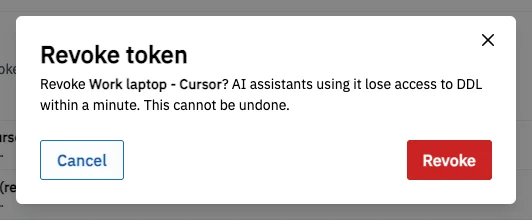
- The dialog Revoke token asks, for example, Revoke Work laptop - Cursor? AI assistants using it lose access to DDL within a minute. This cannot be undone.
- Click Revoke. DDL confirms Token “Work laptop - Cursor” revoked.
Revoke a token as soon as it may have leaked, or when you stop using the client or the computer. To replace a token, create the new one, update your client, then revoke the old one. Administrators with Show all users on can also revoke the tokens of the people they manage.
Administrator settings
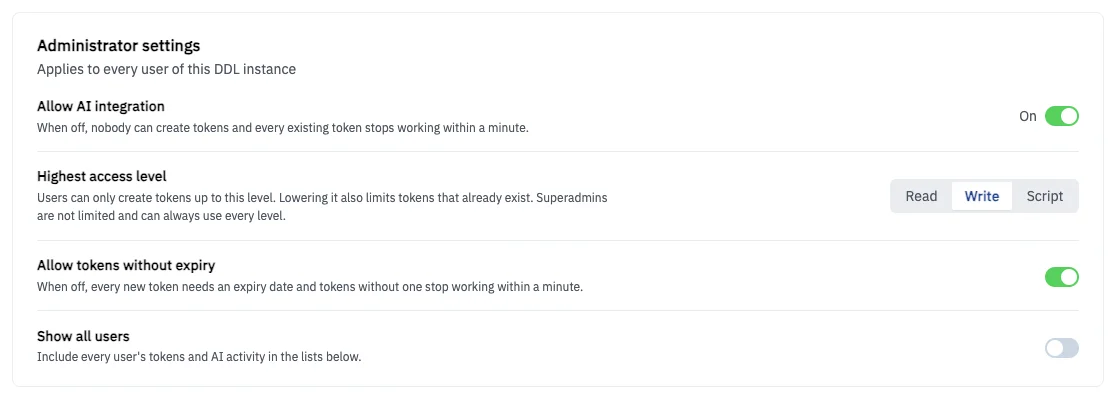
Section titled “Administrator settings”Administrators find Administrator settings, Applies to every user of this DDL instance, at the bottom of the tab. Only superadmins can change them. Division admins see Only superadmins can change these settings. and can use only Show all users.
| Setting | Default | What it does |
|---|---|---|
| Allow AI integration | On | When off, nobody can create tokens and every existing token stops working within a minute. It also turns off the AI Assistant and AI Action for everyone; see What switches AI on. |
| Highest access level | Write | Users can only create tokens up to this level. Lowering it also limits tokens that already exist. Superadmins are not limited and can always use every level. |
| Allow tokens without expiry | On | When off, every new token needs an expiry date and tokens without one stop working within a minute. |
| Show all users | Off | Adds other users’ tokens and AI activity to the lists of this page: everyone’s for a superadmin, those of the users of their division for a division admin. It changes only your own view. |
A change takes effect at once, and DDL confirms AI integration settings updated.
Review what your clients did
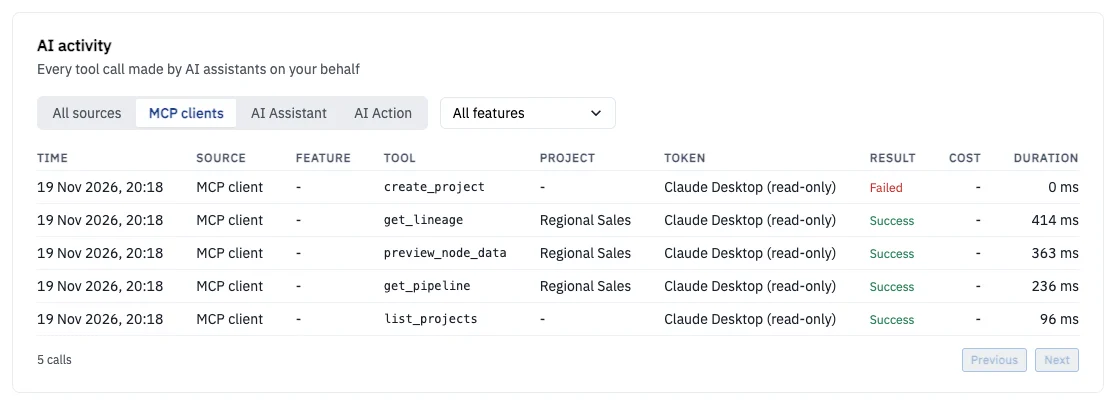
Section titled “Review what your clients did”- Open the Activity tab of Settings › AI.
- Click MCP clients.
- Read the calls, newest first. Tool names the DDL tool, such as
get_pipeline; Project is the project it was about; Token is the token the client used. Hover Failed in Result to read the error. A completed call with a remark shows Success plus a Note badge; hover Note to read it.
All columns and filters are described in Activity.
Security checklist
Section titled “Security checklist”- Grant the lowest level. Read for questions, Write only while you build, Script rarely.
- Treat a token as a password. DDL shows it once and keeps only a fingerprint of it and its first characters. Never paste it into a chat, ticket, screenshot or repository. Keep it in your client’s settings, an environment variable or a secret store.
- Let tokens expire. Pick the shortest period that works, and revoke the tokens you no longer use.
- Know where your data goes. The client sends what the tools return, such as data previews and log lines, to its own AI model. The data policy and personal-data masking in AI settings apply to the AI Assistant inside DDL, not to MCP clients. Use only clients and AI providers that your organisation allows for this data.
- Sensitive data stays in DDL. A direct request for data marked sensitive is refused, whatever the token’s level. The list tools
list_recent_failures,list_dashboards,list_chartsandlist_chart_sourcesomit sensitive items instead of refusing the whole call. If a completed change would return sensitive names or data, DDL withholds that part of the result; the change can still have succeeded. Check the result in DDL itself. - Secrets stay in DDL. Passwords and keys of connections, and secret-looking values in scripts, show as
***. E-mail-like account names are masked, for examplea***@example.com. - Everything is logged. Each tool call is listed in Activity with the token that made it, and administrators can see the calls of all users.
Troubleshooting
Section titled “Troubleshooting”| What you see | Why | What to do |
|---|---|---|
| Create token is greyed out, and AI integration is disabled by your administrator. | Allow AI integration is off | Ask a superadmin. |
| A level says Not allowed by administrator | It is above the Highest access level | Choose a lower level, or ask a superadmin. |
| You already have 10 active tokens, revoke one first | You reached the limit of active tokens | Revoke a token you no longer use. |
| The administrator requires AI tokens to have an expiry date | Tokens without expiry are not allowed | Choose an expiry period. |
| The client does not connect, or reports 401 or Unauthorized | The token is mistyped, expired or revoked, AI integration is off, or the address or transport is wrong | Check the token in Access tokens, copy the snippet from DDL again, or create a new token. A token starts with ddl_pat_. |
Claude Desktop does not connect to ddl |
Node.js is missing, or Claude Desktop was not restarted | Install Node.js, save the config and restart Claude Desktop. |
| Tool ‘…’ needs ‘write’ access, but this AI access token only has ‘read’… | The token’s level, or your administrator’s limit, is too low | Create a token with a higher level, if you are allowed to. The message says Settings > AI Integration; the page is now Settings › AI. |
| Not run: this data is marked sensitive in DDL… | The project or table is marked sensitive | Look at it in DDL, or ask the AI Assistant when your company’s own model is set up. |
| Project … does not exist or is not shared with this DDL user | You cannot open that project | Ask its owner to share it with you. |
| This MCP client cannot show a secure form for the password… | The client cannot ask you for a password safely | Create the connection in DDL. |
| Authentication with DDL failed… The AI token may be expired or revoked… | The token stopped working during the session | Create a new token and update the client. The message says Settings -> AI Integration; the page is now Settings › AI. |
| DDL is unreachable… | DDL is down or busy | Try again in a moment. |
| A tool you expect is missing | It is above the token’s level, superadmin-only, or not offered on your DDL | Check the level, or ask your administrator. |
| Tool ‘…’ is only for DDL superadmins… | The tool manages accounts or divisions and your account is not a superadmin | Ask a superadmin to make the change in DDL. |
| This account can only open dashboards | The account is a dashboard viewer; conversion revokes its tokens | Use a standard account with the required access. |
| Public links are made in DDL, not from this chat… | MCP cannot create public links | Create the link in DDL; see Share dashboards. |
| A list omits expected sensitive items | Sensitive entries are omitted from list results | Open the data in DDL itself. |
| Done in DDL, but the result names data marked sensitive… | The change finished, but its result contains sensitive details | Check DDL before asking the client to repeat the change. |