

Home and navigation
DDL has a navbar across the top of every page, a Home page that leads to your projects and datasets, and a menu on the left inside each project and in Settings. This page explains each of them, from the sign-in page to the layout on a phone.
Sign in
Section titled “Sign in”- Open the address of your DDL, for example
https://ddl.example.comor the address your organisation gave you. - Type your Username and Password. The Sign In button becomes active when both fields are filled.
- Click Sign In or press Enter.
With a standard account, on a computer or a tablet you land on Home. On a phone you land on the AI Assistant tab of Home when the AI Assistant is available, and on the classic Home otherwise. A dashboard viewer account lands on Dashboards (/dashboards) on every device.

If your organisation has set up Google sign-in, the page also shows OR and a Google button. It signs you in to the DDL account that uses your Google e-mail address, and creates one if none exists yet.
A session lasts six hours. When it expires, DDL takes you back to the sign-in page with a message. If you open a link to a DDL page while signed out, DDL shows the sign-in page first and then opens Home for a standard account or Dashboards for a viewer account, so open the link again after you sign in.
When sign-in fails
Section titled “When sign-in fails”| What you see | What it means | What to do |
|---|---|---|
| Invalid username or password, with Warning: 2 attempt(s) remaining before account lockout. | The username or the password is wrong. | Check both, including upper and lower case. |
| Warning: This is your last attempt before account lockout. | One more wrong attempt locks the account. | Use Forgot Password? instead of guessing. |
| Account Temporarily Locked, with a countdown, and the button reads Account Locked (4:59) | Three wrong attempts in a row lock the account for five minutes. | Wait until the countdown ends. |
| The Verify Account page opens | Your account was created with Sign Up and is not verified yet. | Enter the code from the e-mail. See Create an account. |
| Login is temporarily unavailable, please try again in a moment | DDL could not check your account. This does not count as a wrong attempt. | Try again in a moment. If it persists, tell your administrator. |
Create an account
Section titled “Create an account”Many organisations create accounts for their users. If your DDL allows sign-up, you can create your own account from the sign-in page.
-
Below the sign-in form, click Sign Up next to Creating new account?.
-
Fill in Username, Email, Password and Confirm Password. A username cannot contain spaces.
-
Tick I agree to Terms of Service and Privacy Policy and click Sign Up.
DDL sends a six-digit verification code to your e-mail address and opens the Verify Account page.
-
Type the code in Verification Code and click Confirm. No e-mail? Check your spam folder, or click resend e-mail.
DDL takes you back to the sign-in page with the message Your account is verified, you may now login.
A password must have:
| Rule | Message when it is missing |
|---|---|
| At least 8 characters | Password must be at least 8 characters long |
| At least one number | Password must contain at least 1 number(s) |
| At least one lowercase letter | Password must contain at least 1 lowercase letter(s) |
| At least one uppercase letter | Password must contain at least 1 uppercase letter(s) |
| At least one character that is not a letter or a number | Password must contain at least 1 non-alphanumeric character(s) |
Accounts created with Sign Up start on the Free plan, which limits storage, processing time and the number of projects you own. If sign-up is turned off for your DDL, the request fails: ask your administrator for an account.
If sign-up or verification says Too many requests. Please try again later., wait before trying again. If DDL says Could not send the verification email right now. Please try again later., your account is kept: try resend e-mail later rather than creating another account.
Reset a forgotten password
Section titled “Reset a forgotten password”-
On the sign-in page, click Forgot Password?.
-
Type your username and click Submit.
DDL answers If the username is registered, a password reset email has been sent. Please check your inbox or spam folder. It gives the same answer for every username, so nobody can use this page to find out who has an account.
-
Open the e-mail and sign in with the temporary password it contains.
-
Choose a new password in Settings › Personal settings › Change Password. A dashboard viewer uses account menu › Change password instead; the Settings page heading is Change Password. Until you do, the temporary password keeps working.
Too many requests in a row lock the form for a while: the page shows Too Many Requests or Account Temporarily Locked with a countdown, and the button reads Rate Limited until the time is up.
Home (/home) is where a standard account starts and the hub you come back to. Click the DDL logo at the top left of any page to return to it. For a dashboard viewer account, both sign-in and the logo open Dashboards instead.
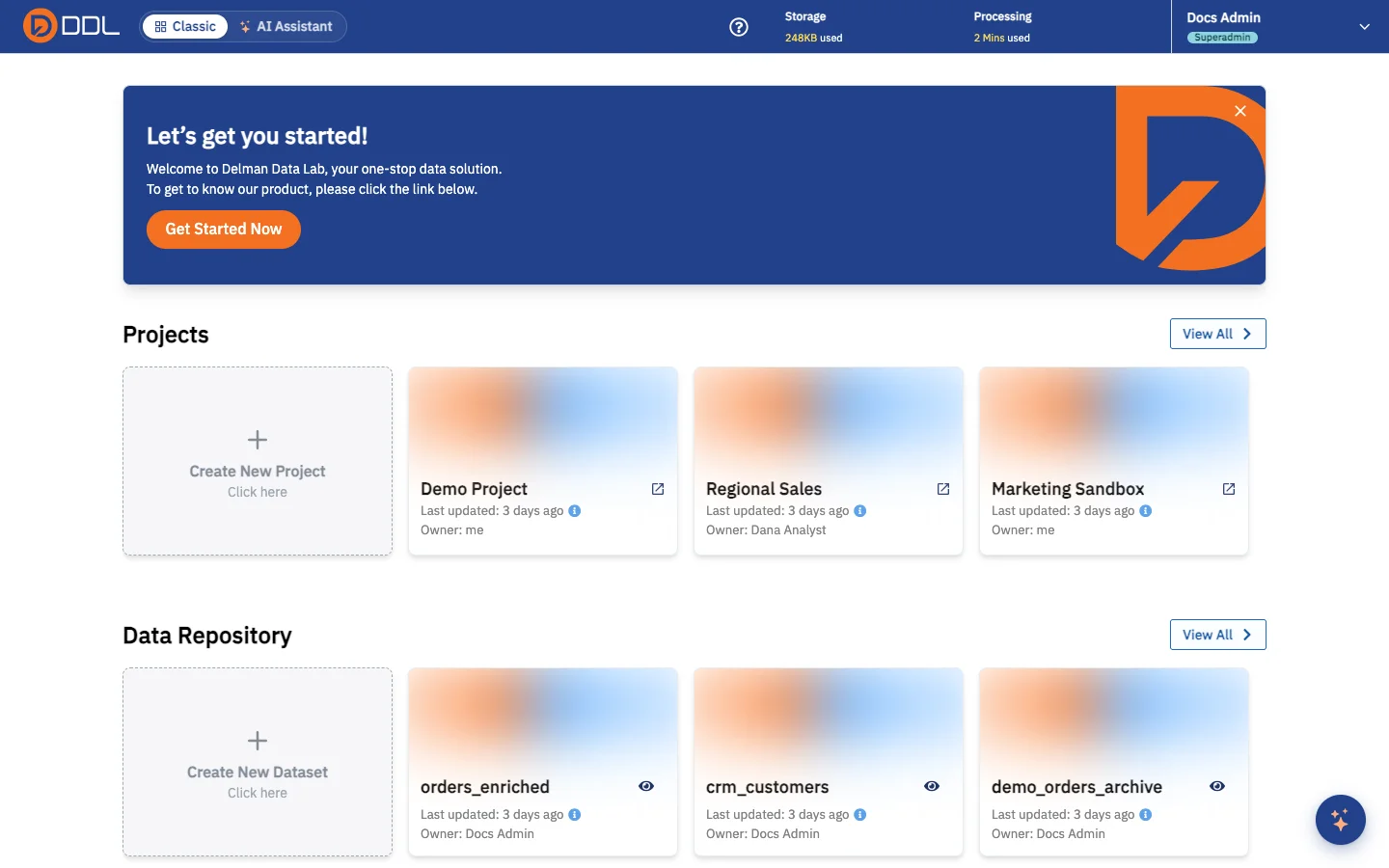
| Part | What it does |
|---|---|
| Let’s get you started! | A welcome banner. Get Started Now opens this guide in a new tab. Close the banner with ✕. To show it again, click the ? button in the navbar, which appears on Home only. DDL remembers your choice in this browser. |
| Projects | The Create New Project tile, then your three latest projects. A card shows the name, Last updated and Owner; click it to open the project’s Pipeline page. View All opens the Projects page. |
| Data Repository | The Create New Dataset tile, which opens the upload panel of the Data Repository, then your three latest datasets. Click a card to open the dataset, or the eye icon (Preview Dataset) to look at its rows without leaving Home. View All opens the Data Repository. |
Create New Project creates the project immediately, with a numbered name such as Project 3, and opens it. There is no dialog: you rename the project afterwards in its Project Settings. See Getting started and Projects.
On a phone the cards of a section scroll sideways. On a new account, Home may first offer a tutorial; see If DDL offers a tutorial.
The navbar
Section titled “The navbar”The navbar runs across the top of every page after sign-in. From left to right:
| Item | What it does | When you see it |
|---|---|---|
| ☰ | Opens the menu of the page as a panel from the left. | Phones, on pages that have a menu on the left. |
| DDL logo | Goes to Home for standard accounts, or Dashboards for dashboard viewer accounts. | Always. |
| Classic and AI Assistant | Switch between the DDL pages and the AI workspace. See Classic and AI Assistant. | Standard accounts, when the AI Assistant is available; never on public dashboard pages. |
| ? | Shows the welcome banner of Home again. | On Home only. It does nothing while the banner is visible. |
| Storage and Processing | Your usage in the current billing cycle. Hover over a meter for details. | Standard accounts on screens 992 pixels wide and wider. On narrower screens they move into the account menu. Viewer accounts have no meters or quota banner. |
| Your username and badge | Opens the account menu. The badge shows your role or plan, such as Free or Pro, or Dashboard viewer for a viewer account. | Always. Phones show an avatar icon instead. |
Usage meters
Section titled “Usage meters”- Storage is the average size of the projects you own during the current billing cycle. DDL measures project sizes about once an hour, so a new upload shows up later.
- Processing adds up the run time of your processes in the billing cycle, rounded down to whole minutes. Short runs can show 0 Mins.
When your plan has a limit, each meter shows a bar and how much of the limit you have used. From 75% the bar turns yellow and a warning sign appears next to the meter. On the Free plan an exceeded limit turns it red, and a red banner says This account has exceeded Free Tier Processing limit. Accounts without a limit see only the amount used. To check whether something ran, use Monitoring, not the meters. Account settings explains the usage pages.
Classic and AI Assistant
Section titled “Classic and AI Assistant”For standard accounts, when the AI Assistant is available, the navbar shows two tabs. Dashboard viewer accounts and public dashboard pages never show them:
- Classic: the DDL pages described in this guide.
- AI Assistant: the AI workspace (
/home?view=ai), with your conversations, your AI agents, and your projects and Data Repository tables to give the AI context.
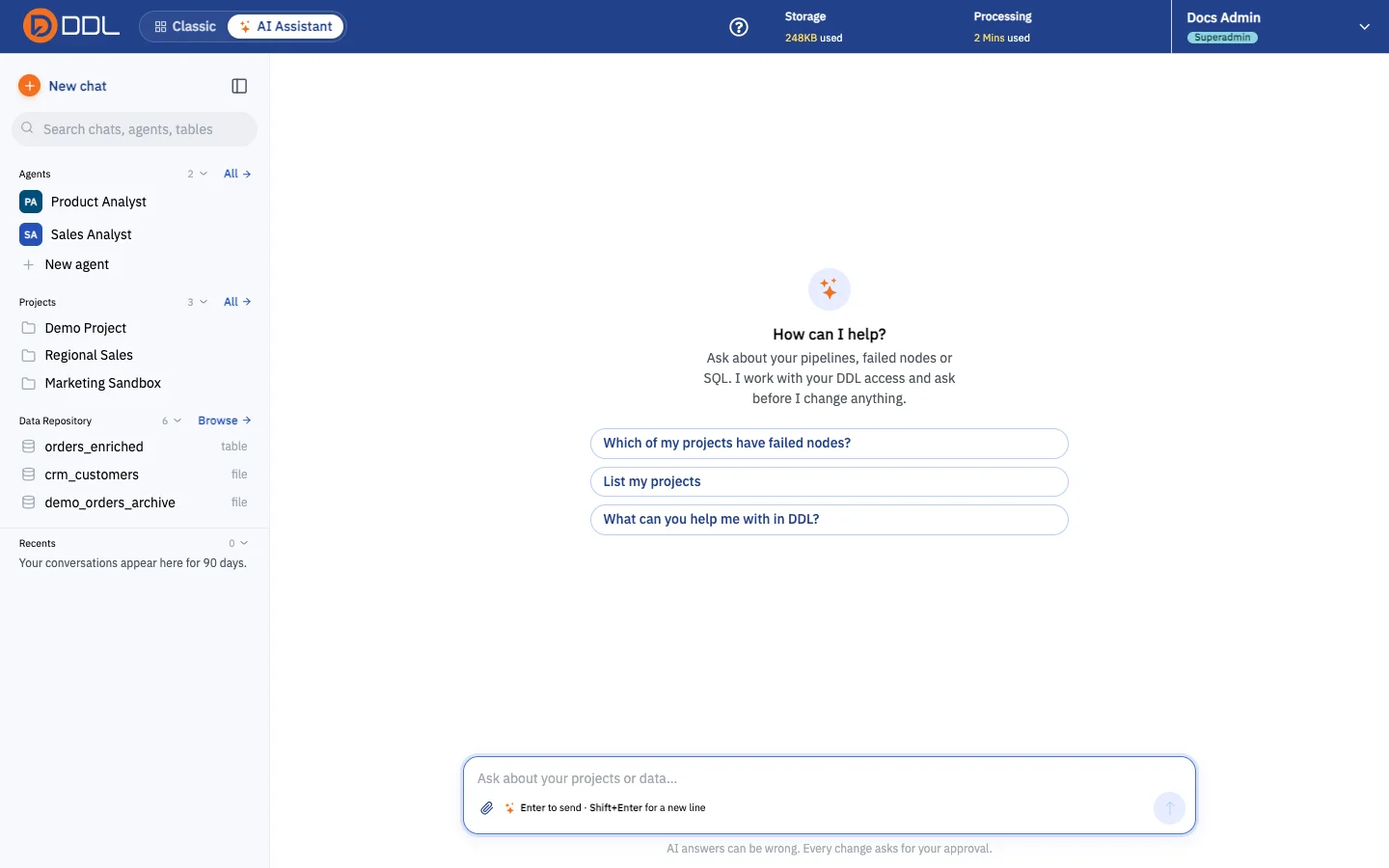
The tabs follow where you are:
- Switch to AI Assistant from a project page and the workspace starts with that project. Classic then takes you back to the page you came from.
- On Home, DDL remembers the last tab you used in this browser.
On phones the tab reads AI, and on very narrow screens Classic shows only its icon.
The ✦ button and the AI panel
Section titled “The ✦ button and the AI panel”When AI is available to your standard account, a round ✦ button sits at the bottom right of app pages. It opens the DDL AI Assistant panel, which knows the page you are on, such as the project, node, SQL, dashboard or chart. Dashboard and chart pages add context chips such as Dashboard: Sales overview and Chart: Revenue by city. Ctrl+J (⌘+J on a Mac) opens and closes the panel, and Esc closes it. The button and panel are never available to dashboard viewer accounts or on public dashboard pages.
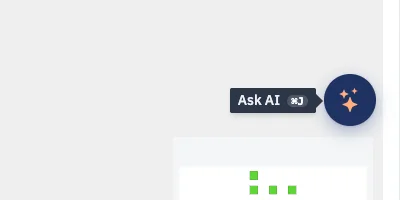
- On screens 1124 pixels wide and wider, the panel docks on the right and the page moves aside. On narrower screens it opens over the page, and on a phone it fills the screen.
- The button hides while the panel is open and on the AI Assistant tab. On touch screens it also steps aside while you type or scroll down.
- Some pages have their own shortcuts into the AI: Ask AI or Explain SQL in the SQL editor, Ask AI or, for a failed node, Diagnose & fix in a node’s side panel, and Build with AI on an empty pipeline.
AI Assistant covers Ask and Build, attachments, approvals and the workspace.
Inside a project
Section titled “Inside a project”A project page has a menu on the left, a header with breadcrumbs, and the content of the page.
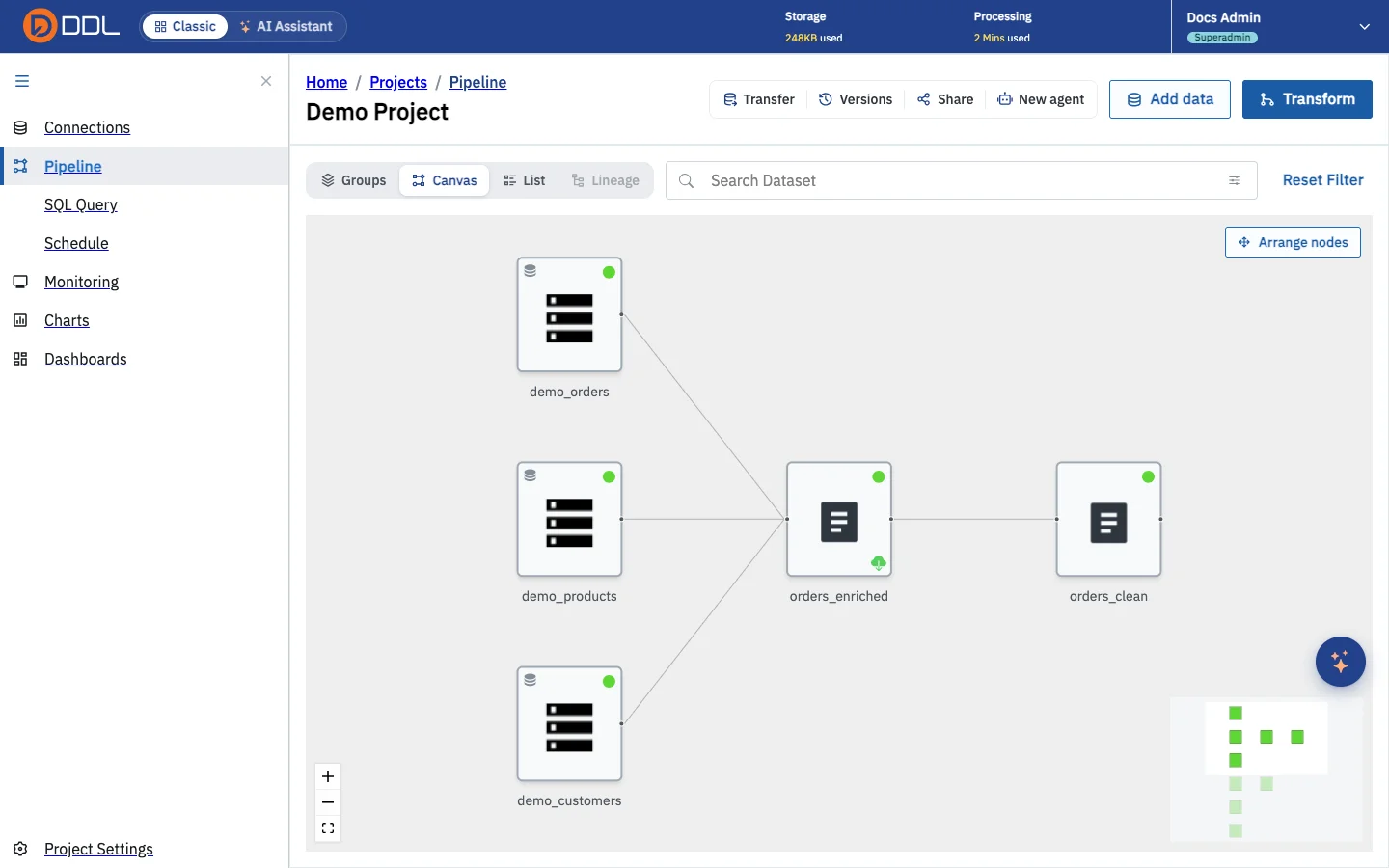
The project menu
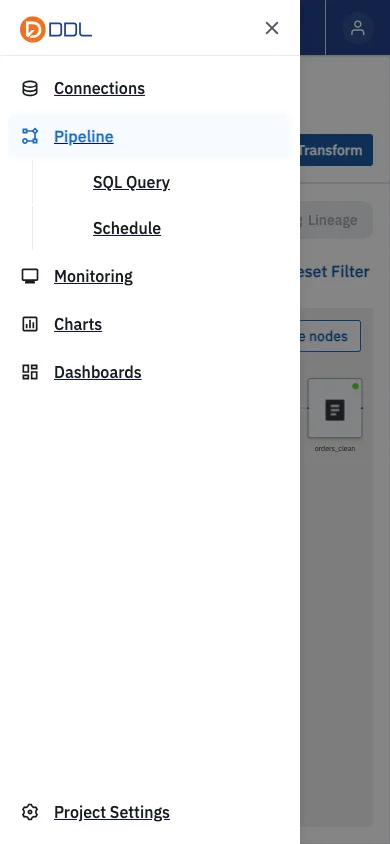
Section titled “The project menu”The menu starts collapsed, as a column of icons. Click the ☰ icon at its top to show the labels, and again to collapse it. DDL remembers your choice in this browser.
| Item | Opens | Address |
|---|---|---|
| Connections | The connections of the project. Below it: Custom Connector. | /projects/<id>/connections |
| Pipeline | The pipeline of the project. Below it: SQL Query and Schedule. | /projects/<id> |
| Monitoring | The processes of this project. | /projects/<id>/monitoring |
| Charts | The charts of the project. | /projects/<id>/charts |
| Dashboards | The dashboards of the project. | /projects/<id>/dashboards |
| Project Settings | Name, e-mail notifications, data retention, lock, sensitive data (AI) and deletion. | /projects/<id>/settings |
Sub-items such as SQL Query show only when the menu is expanded and you are in their section. To reach SQL Query from Monitoring, click Pipeline first.
Header and breadcrumbs
Section titled “Header and breadcrumbs”The header shows breadcrumbs such as Home / Projects / Pipeline. Click Home or Projects in them to go back up. On the Pipeline page the title is the name of the project.
The Pipeline page also has a toolbar in its header: Transfer, Versions, Share (when you may share the project) and New agent (with the AI Assistant), then Add data and Transform. Pipeline canvas explains them.
Account menu
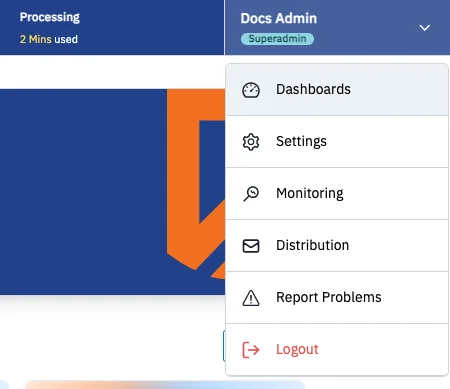
Section titled “Account menu”Click your username at the top right to open the account menu. For standard accounts, the items appear in this order:
| Item | What it does |
|---|---|
| Dashboards | Opens dashboards across your projects (/dashboards). See Dashboards. |
| Settings | Opens Settings on the AI page. The menu on the left leads to Storage Usage, Process Usage, Personal settings (Change Password and, when enabled, Appearance) and, for superadmins, Organization settings (Divisions, Teams & Roles and Users). Some items depend on your plan. Back to Home leaves Settings. See Account settings. |
| Monitoring | The processes of every project you can open (/monitoring). See Monitoring. |
| Distribution | Scheduled e-mail reports (/distribution). See Distribution. |
| Report Problems | Opens your e-mail app with a new message to Delman support. |
| Logout | Ends your session and returns to the sign-in page. |
On screens narrower than 992 pixels, a standard account’s menu also shows the Storage and Processing meters at the top.
If your account is a dashboard viewer
Section titled “If your account is a dashboard viewer”A Dashboard viewer account is read-only and opens only dashboards granted to it. Its account menu has just Dashboards, Change password and Logout, in that order. Its badge says Dashboard viewer, rather than a role or plan.
- Sign-in and the DDL logo take you to Dashboards (
/dashboards), not Home. - You can open
/dashboardsand a granted dashboard at/dashboards/<id>. Opening/dashboards/<id>/edittakes you to the read-only dashboard instead. - Password and, when enabled, appearance pages remain available at
/settings/change-passwordand/settings/appearance. Other app addresses show a loading screen and redirect to/dashboards; sign-in and error pages remain available. - There are no Classic or AI Assistant tabs, no ✦ button, no Storage or Processing meters and no quota banner.
See Dashboard viewer accounts for access and account management.
Find any page
Section titled “Find any page”DDL has no main menu bar. These are the shortest ways to each area:
| To open | Click | Address |
|---|---|---|
| Home | The DDL logo | /home |
| All projects | Home › Projects › View All | /projects |
| Dashboards across your projects | Account menu › Dashboards | /dashboards |
| The Data Repository | Home › Data Repository › View All | /data-repository |
| A project’s SQL editor | Pipeline › SQL Query in the project menu | /projects/<id>/sql-query |
| Monitoring of all projects | Account menu › Monitoring | /monitoring |
| Settings (standard accounts) | Account menu › Settings | /settings/ai-integration |
| Divisions (superadmins) | Settings › Organization settings › Divisions | /settings/divisions |
| Distribution | Account menu › Distribution | /distribution |
| The AI workspace | AI Assistant in the navbar | /home?view=ai |
| The admin console (administrators) | No menu entry: type the address | /settings-admin |
The admin console is described in Admin console.
Keyboard shortcuts
Section titled “Keyboard shortcuts”| Keys | What they do | Where |
|---|---|---|
| Ctrl+J or ⌘+J | Open or close the AI panel | Every page, when the AI Assistant is available |
| Esc | Close the AI panel. On the Pipeline page, leave the Lineage view or go back from a group to the group map. | AI panel, Pipeline page |
| Ctrl+K or ⌘+K | Search pipeline nodes, or focus Search Dataset in the Data Repository | Pipeline page, Data Repository list; not the Projects list |
| Enter | Sign in, or save a new project name | Sign-in page, Change Project Name |
Light and dark appearance
Section titled “Light and dark appearance”DDL can follow a light or a dark theme. Choose it in Settings › Personal settings › Appearance:
- Light: light backgrounds with dark text.
- Dark: dark backgrounds, easier on the eyes in low light.
- System: follows the light or dark setting of your device.
Your choice is saved in this browser only. The sign-in, sign-up and password pages always stay light.
Phones and tablets
Section titled “Phones and tablets”DDL adapts its layout to the width of the screen.
| Screen | Layout |
|---|---|
| Phone (narrower than 768 pixels) | The page menu opens from ☰ in the navbar. Side panels fill the screen. The account menu opens from the bottom. |
| Tablet (768 to 1123 pixels) | The project menu is a column of icons that expands over the page. Side panels and the AI panel open over the page. |
| Computer (1124 pixels and wider) | The menu and side panels sit beside the page, and the AI panel docks on the right. |
On a phone:
- ☰ in the navbar shows the menu of the page, such as the project menu or the Settings menu, as a panel from the left. ✕ or a tap outside closes it.
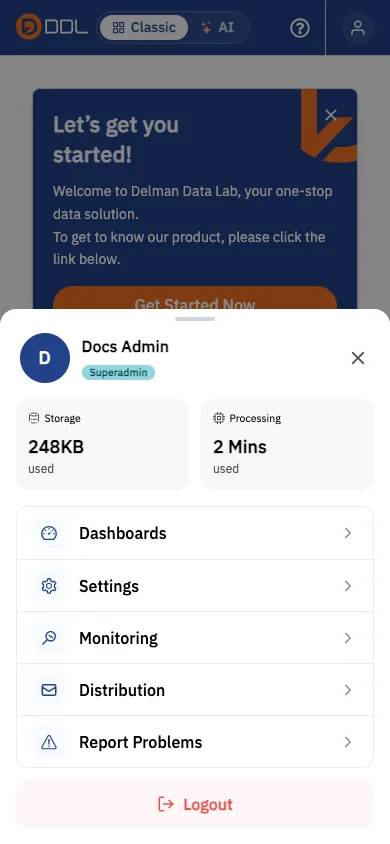
- The avatar at the top right opens the account menu as a sheet from the bottom. For standard accounts it includes Storage and Processing usage, then Dashboards as the first menu item. Viewer accounts have only Dashboards, Change password and Logout, without usage cards.
- The SQL editor says Editing works best on a tablet or a computer. It still works for a quick look or a small change.
- On phones and touch devices, the dashboard editor says Tiles are shown in this order, row by row. Open the editor on a computer to drag and resize them freely. See Dashboards.
- On the Pipeline page, Add data shows as an icon and the other tools move into the ⋯ menu.
- The welcome tutorial is not offered on phones.
On touch screens, phones and tablets alike, press and hold a node on the pipeline to open its menu, as a right-click does with a mouse.