

Admin console
The admin console manages user accounts, roles, role assignments and the connections that Distribution sends through. Administrators open it by its address. Divisions are now managed in Settings › Organization settings › Divisions.
Who is an administrator
Section titled “Who is an administrator”Administrators differ by division and role (How DDL organises people):
| Who | How someone becomes one | What they can do |
|---|---|---|
| Superadmin | The superadmin role in the superadmins division. The built-in administrator account is the first one. | Everything on this page, Settings › Organization settings including divisions and dashboard viewer accounts, the AI settings that apply to everyone and the Distribution settings. |
| Other people of the superadmins division | Any other role in a team of the superadmins division. | Root access across divisions, the admin console without the superadmin-only account actions and Divisions tile, the AI settings that apply to everyone and the Distribution settings. They do not see Organization settings. |
| Division admin | The superadmin role in another division. DDL creates one such account with every division. | The admin console for their own division and AI Ops for its people, but not division management, dashboard viewer management, or creating and deleting accounts. The administrator account is deleted if its division is deleted. |
Other standard accounts have no administration pages. Dashboard viewers have no administrator rights, even through a role, ownership or root membership: only their explicit read-only Dashboard access grants apply. Division administrators have no extra dashboard rights from their role.
Open the admin console
Section titled “Open the admin console”-
Add
/settings-adminto the address of your DDL, for examplehttps://ddl.example.com/settings-admin, and open it. -
Click Admin Settings.
The console opens at
/settings-admin/admin. Without administrator access, the page shows only Back To Home. -
Click a tile. The pages of the console have no menu: use the Back button of your browser to return to the tiles.
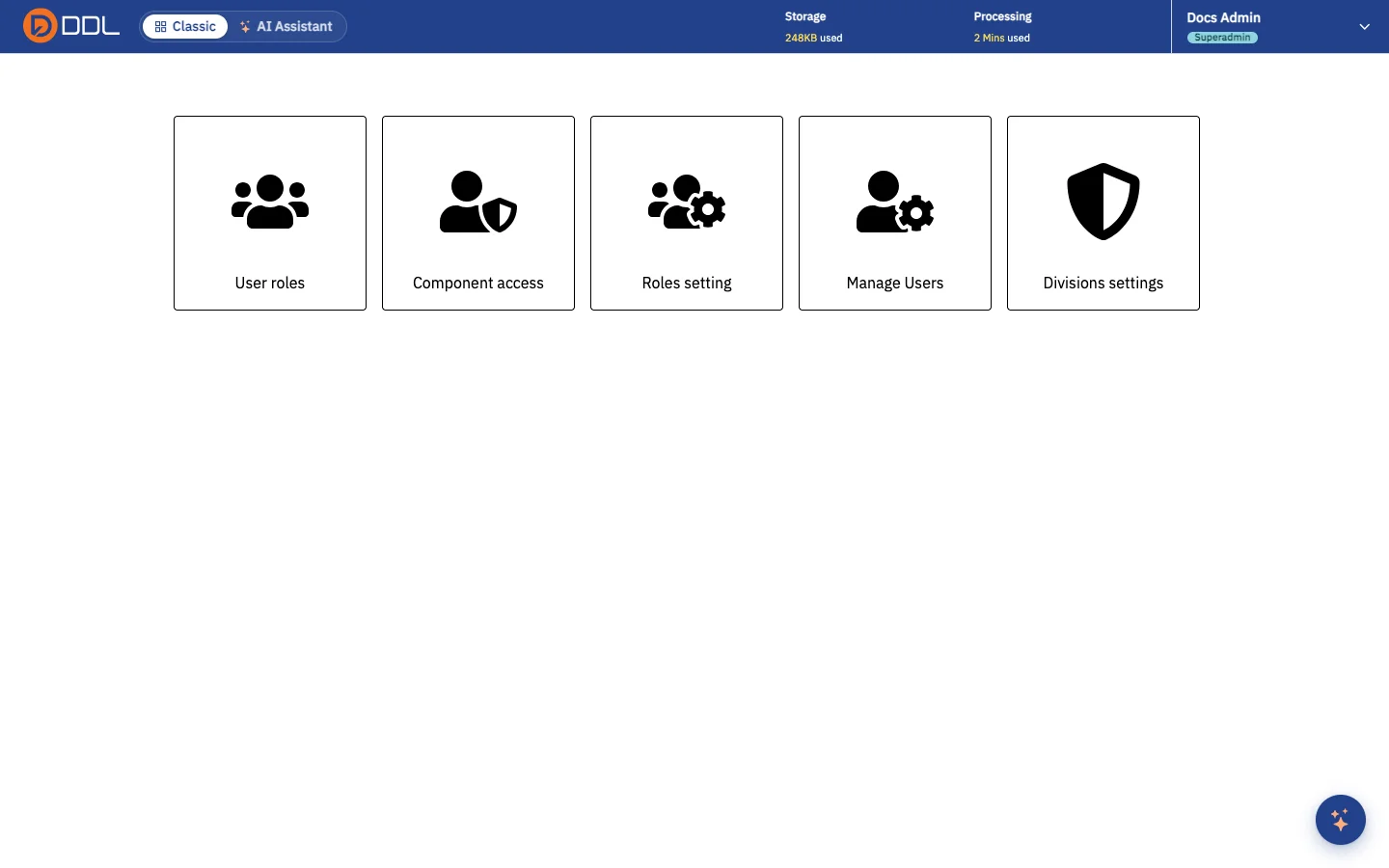
| Tile | Address | What it is for |
|---|---|---|
| Manage Users | /settings-admin/admin/users |
Find accounts. Superadmins also create and delete them. |
| Roles setting | /settings-admin/admin/roles |
Create, rename and delete the roles of your own team. |
| User roles | /settings-admin/admin/user_roles |
See a person’s roles, give them a role of your team, or take a role away. |
| Divisions settings | /settings-admin/admin/divisions → /settings/divisions |
Opens Divisions in Settings. Superadmins only. |
| Component access | /settings-admin/admin/component_access |
Per-connection or table grants; see the limitations under Component access. |
The other pages under /settings-admin belong to Distribution: see E-mail and other connections and Other administrator settings.
Manage Users
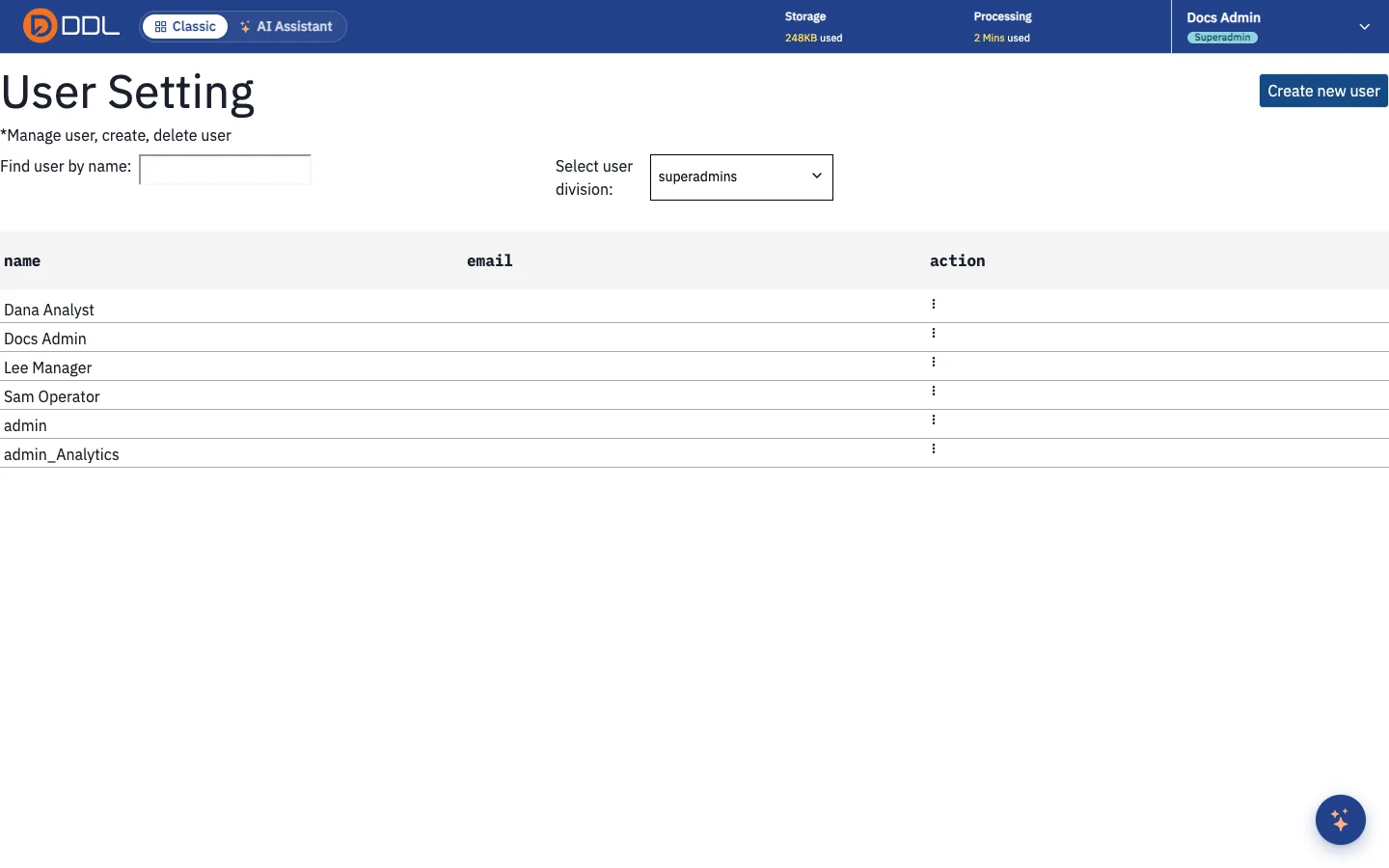
Section titled “Manage Users”Manage Users opens User Setting, the list of accounts, up to 100: every account of the DDL when you are in the superadmins division, the accounts of your own division otherwise. Type in Find user by name: to filter the list as you type. Superadmins also see Select user division:, Create new user and a ⋮ menu on each account.
Create an account
Section titled “Create an account”- Click Create new user.
- In Create User, fill in Username:, Email: and Password:.
- Click Add.
The password needs at least 8 characters, uppercase and lowercase letters, a digit and a symbol. DDL refuses the server’s default password with Choose a password other than the server’s default. The account is verified at once and starts like a standard account added under Organization settings › Users: see Add a user. To create a dashboard viewer, use Create a viewer account.
Delete an account
Section titled “Delete an account”- Open the ⋮ menu of the account and click Delete.
- DDL asks Are you sure you want to delete … ?. Click Delete.
After the deletion, dialogs can stay open on the page. Close them with Cancel: the deletion is already done.
Roles setting
Section titled “Roles setting”Roles setting opens Role Setting, the roles of the team you belong to. For a superadmin, that is the superadmin team; for a division admin, the superadmin team of their division. To manage the roles of other teams, use Teams & Roles.
- Create new role opens Create Role. Type the Role Name: and click Add.
- Find role by name: filters the list.
- ⋮ › Manage opens the same dialog with the name of the role. Change it and click Add to rename the role.
- ⋮ › Delete asks Are you sure you want to delete … ?. Click Delete, then close any dialog that stays open with Cancel.
The rules of Teams & Roles apply: some names are reserved, and the built-in roles cannot be renamed or deleted. The members of a deleted role normally move to the member role of the team, which the superadmin teams do not have: take a role away from its members in User roles before you delete it.
User roles
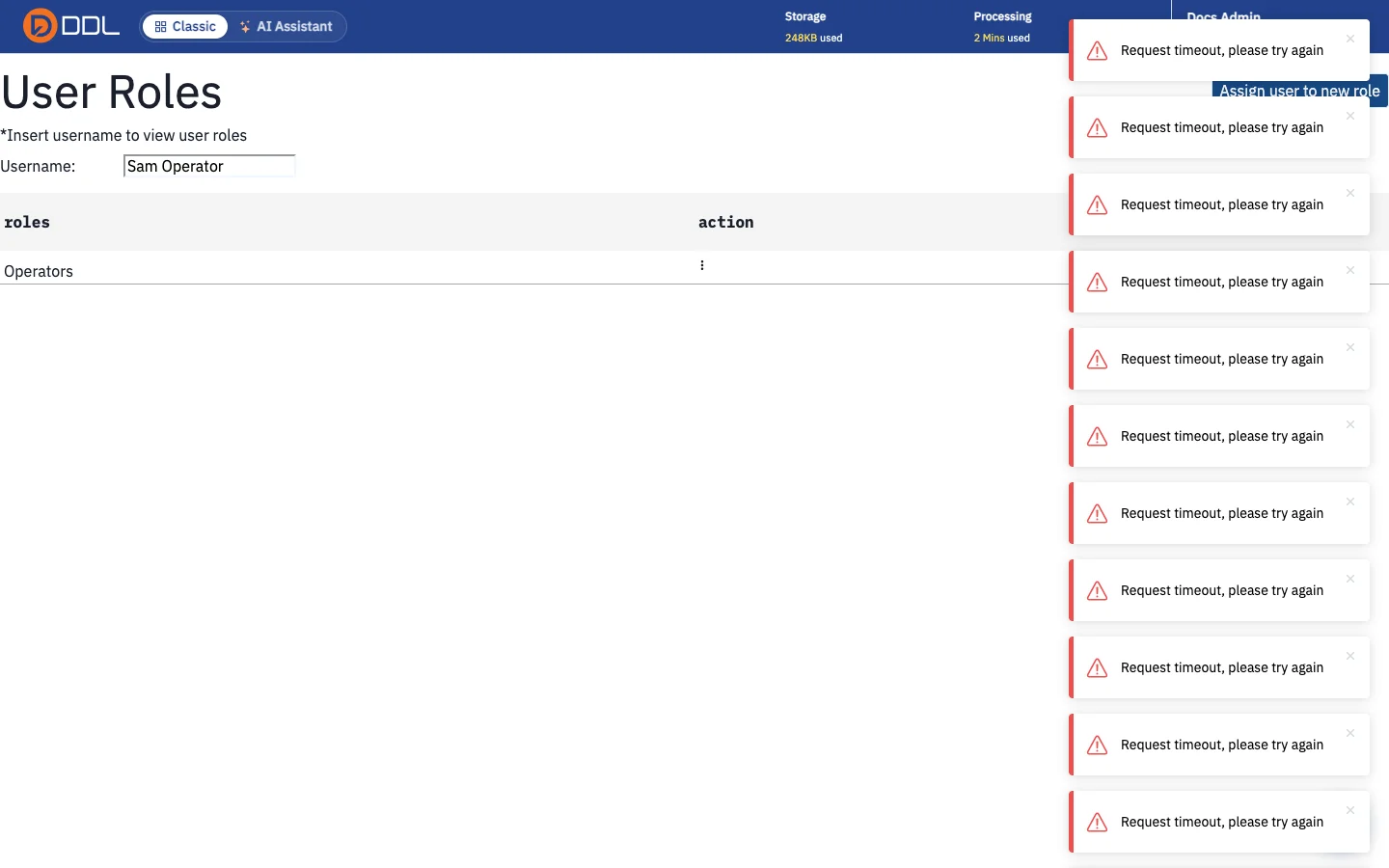
Section titled “User roles”User roles opens User Roles, where you look up one person and change their roles. It is the only place to take a role away from someone.
-
In Username:, start typing the person’s username and pick it from the suggestions.
The table lists the person’s roles, in every team.
-
To give the person a role, click Assign user to new role. In Roles:, pick one of the roles of your own team and click Add.
-
To take a role away, open the ⋮ menu of the role and click Delete. Confirm Delete this Access Setting with Delete.
- The suggestions hold the people of your division and the Free accounts.
- The superadmin role cannot be taken away: Can’t remove this role.
- A standard account that loses its last role gets the Free plan in superadmins, or a placeholder role in another division. A viewer’s roles do not affect its dashboard grants.
- The change applies the next time the person signs in.
Divisions settings
Section titled “Divisions settings”The superadmin-only Divisions settings tile redirects to Settings › Organization settings › Divisions at /settings/divisions. See Manage divisions for the list, administrator passwords and deletion.
Set up a division
Section titled “Set up a division”Use New division in Settings. See Create a division for setup and the administrator’s password.
Component access
Section titled “Component access”E-mail and other connections
Section titled “E-mail and other connections”Distribution sends its e-mails, chat messages and files through connections. Open them from the account menu › Distribution › Settings › Connections (email, chat, files), or at /settings-admin/smtp.
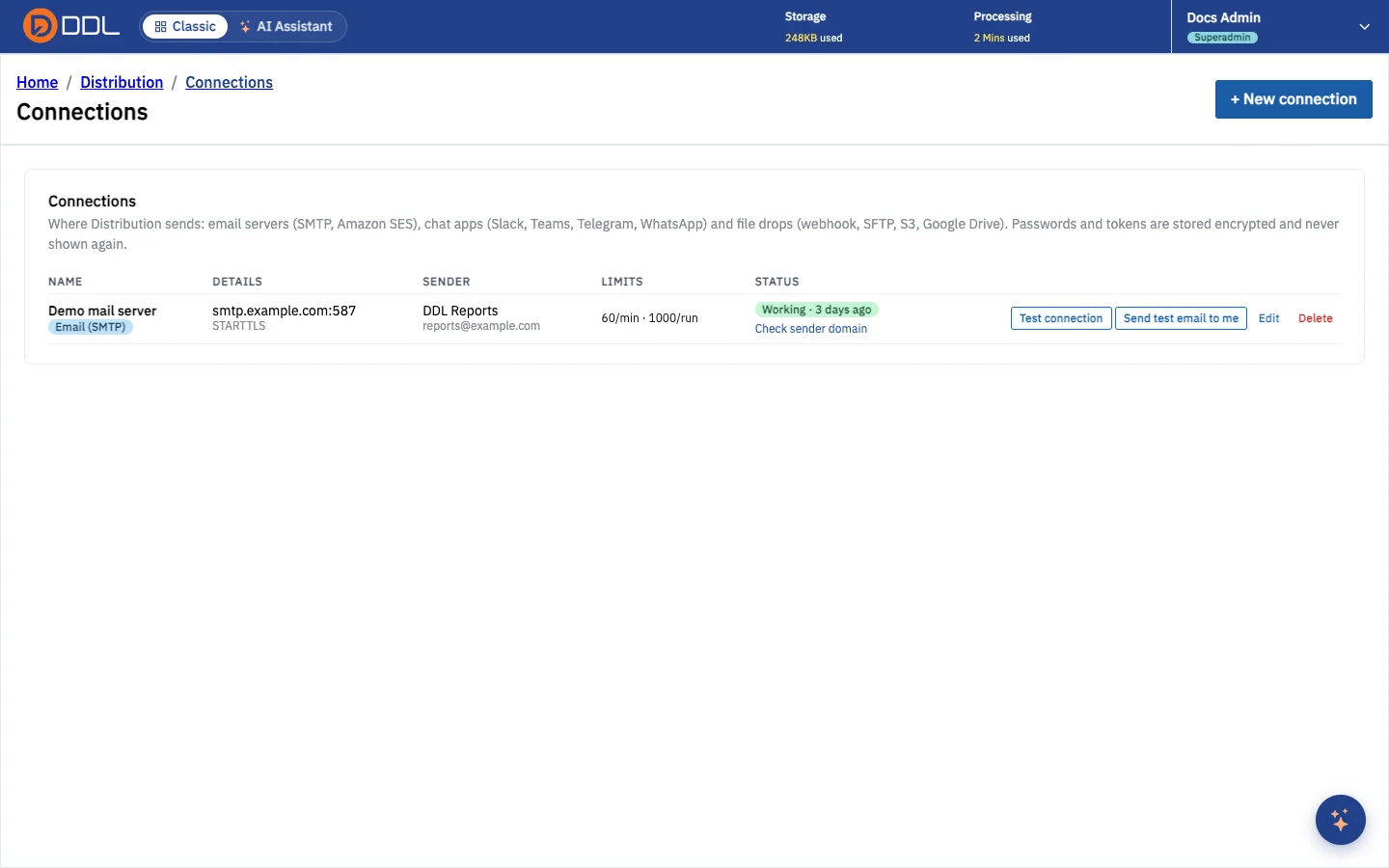
The table shows each connection’s Name and type, its Details (server and port, or a summary), the Sender, the Limits (e-mails per minute and per run) and the Status: Not tested, Working or Failed, with when it was tested. Hover over a status for the date or the error.
Add an e-mail server
Section titled “Add an e-mail server”At least one e-mail server is needed before anyone can send a distribution.
-
Click + New connection.
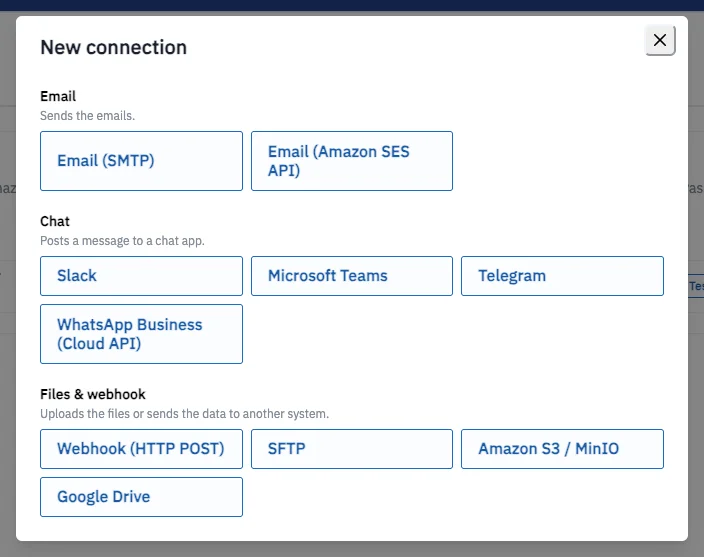
New connection offers the types in three groups: Email (Sends the emails.), Chat and Files & webhook.
-
Click Email (SMTP).
-
Fill in Add email server, as in the table below, and click Save.
Until the form is complete, Still needed: at the bottom says what is missing. DDL answers Email server “…” saved.
-
In the server’s row, click Test connection. DDL answers “…” works, or shows the error.
-
Click Send test email to me. Type your own address in Send to if it is empty, click Send test and check your inbox.
| Field | What to enter |
|---|---|
| Name | A name people recognise when they choose the server, up to 120 characters. Required. |
| Server address (SMTP host) | The SMTP server of your e-mail provider, for example smtp.example.com. Required. |
| Port | 587 by default. |
| Security | STARTTLS (usually port 587) (the default), SSL/TLS (usually port 465) or None (usually port 25). Changing it also sets Port to the usual port, unless you typed another one. |
| Username and Password | The login for the server, if it needs one. |
| Sender email | The From address, for example reports@example.com. Required. |
| Sender name | The name recipients see, for example DDL Reports. |
| DKIM selector (optional) | From your e-mail provider. Check sender domain uses it to find the DKIM record. |
| Reply-to (optional) | Where replies go, if not to the sender. |
| Max emails per minute and Max emails per run | Sending limits: 60 per minute and 1000 per run by default. |
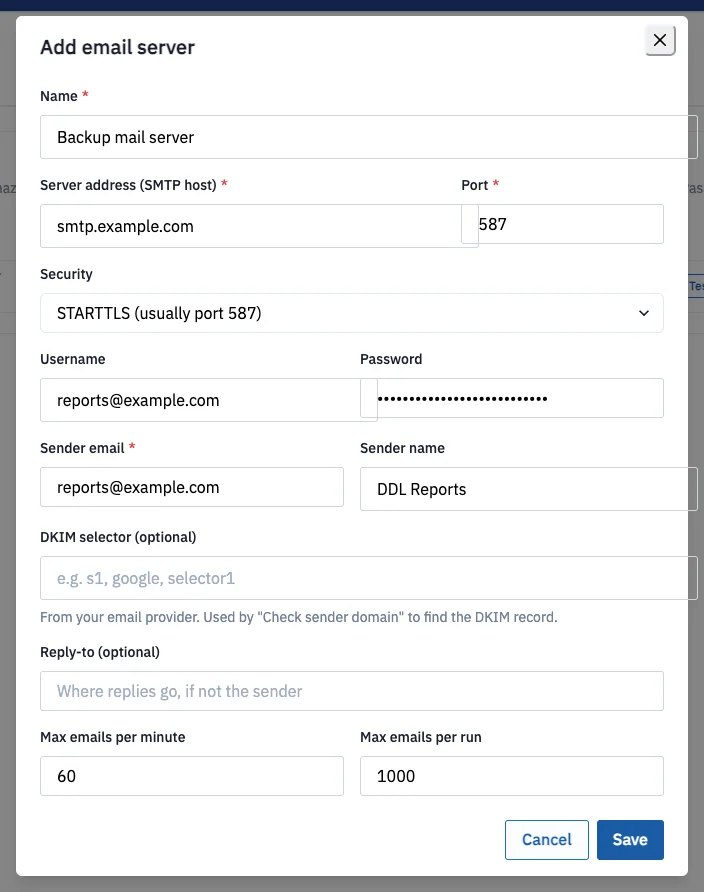
Passwords and tokens are stored encrypted and never shown again. When you edit a server, leave Password empty to keep the saved one. If you change the server address or the username, type the password again: DDL never sends a saved password to a different server.
Check the sender domain
Section titled “Check the sender domain”Check sender domain, below the status of an SMTP server, looks up the DNS records that e-mail providers check for the domain of the sender address: SPF, DKIM and DMARC, each Found or Missing. When a record is missing, e-mails are more likely to land in spam. Ask whoever manages your domain to add it, then click Check again.
Chat apps, file drops and Amazon SES
Section titled “Chat apps, file drops and Amazon SES”The other types open a form with the fields of that service, such as the Incoming webhook URL of Slack, the Bot token of Telegram, the Bucket of Amazon S3 or the Target folder ID of Google Drive. Fill them in and click Save. Test connection is available for every type, Send test email to me for the e-mail types. People who are not administrators see the names of chat and file connections, but not where they point.
Edit or delete a connection
Section titled “Edit or delete a connection”- Edit opens the form of the connection again. Its type cannot be changed: add a new connection instead.
- Delete asks Delete email server? and warns that distributions cannot send with it anymore. A connection that a distribution still uses is not deleted: the error ends with (it is still used by a distribution).
Other administrator settings
Section titled “Other administrator settings”| Setting | Where | Read more |
|---|---|---|
| Divisions, teams, roles and user accounts | Settings › Organization settings | Teams and roles |
| Viewer account type and read-only dashboard grants | Settings › Organization settings › Users › Dashboard access | Dashboard viewer accounts |
| Who may create AI tokens, up to which access level and for how long | Settings › AI › MCP Integration | MCP integration |
| The AI engine, its models, the data policy and limits, AI use and cost | Settings › AI › AI Agent and AI Ops | AI settings and data policy |
| AI summaries in distribution e-mails | Distribution › Settings › AI summary, /settings-admin/distribution-ai |
Distribution |
| Sending rules and approvals | Distribution › Settings › Sending rules (approval), /settings-admin/distribution-approval |
Distribution |
| Addresses that are never e-mailed | Distribution › Settings › Do-not-email list, /settings-admin/distribution-suppressions |
Distribution |
Troubleshooting
Section titled “Troubleshooting”| What you see | Why | What to do |
|---|---|---|
/settings-admin shows only Back To Home |
You are not an administrator. | Ask a superadmin. |
| No Divisions settings tile, no Create new user | They are for superadmins. | Ask a superadmin. |
| Can’t delete superadmin user | Accounts with the superadmin role cannot be deleted. | Nothing to fix. |
| Fail to delete user | DDL could not delete the account. | Ask the people who run your DDL server. |
| Can’t remove this role | The superadmin role cannot be taken away. | Nothing to fix. |
| A person is missing from the Username: suggestions of User roles | The page loads only the first 25 accounts, in alphabetical order. | Add roles in Teams & Roles instead. |
| Deleting a role in Roles setting fails | Its members have no member role to move to. | Take the role away from its members in User roles, then delete it. |
| Dialogs stay open after a deletion in Manage Users or Roles setting | The page does not close them. | Close them with Cancel. The deletion is already done. |
| A role change has no effect | Roles are read when a person signs in. | Ask the person to sign out and sign in again. |
| Only administrators can add or change connections. | Superadmins manage connections. | Ask a superadmin. |
| A connection shows Failed | The server, port, security or login is wrong. Hover over Failed for the error. | Correct it with Edit, for example port 587 with STARTTLS or 465 with SSL/TLS. |
| Deleting a connection fails with (it is still used by a distribution) | A distribution sends with it. | Choose another server in that distribution first. |
| Component name stays disabled in Component access | Component selection may remain unavailable in this version. | Share projects or datasets instead, and ask your administrator to investigate. |