

Dashboard viewer accounts
A dashboard viewer account lets someone read chosen dashboards without opening the rest of DDL. As a superadmin, you create the account and choose its read-only access.
Admin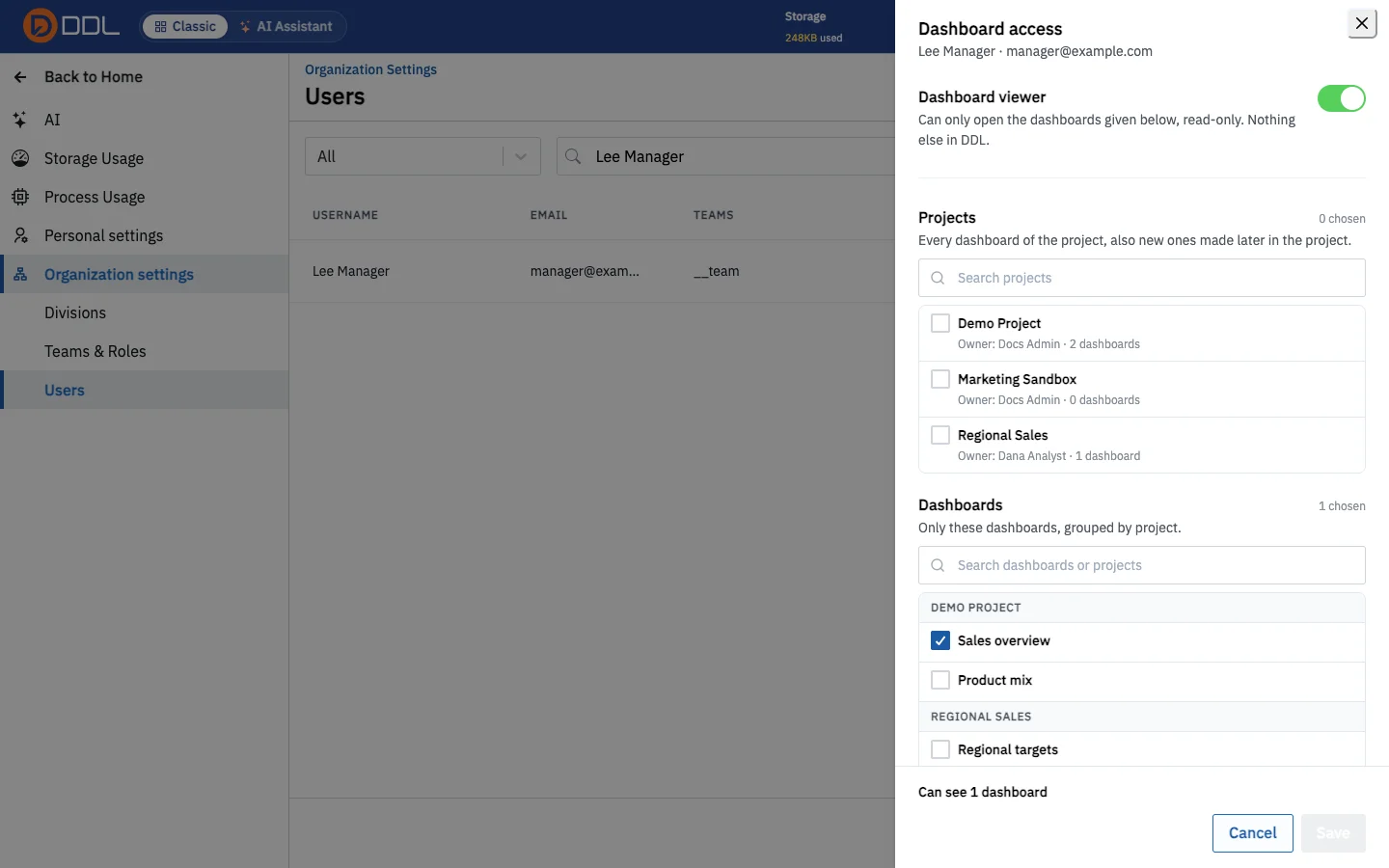
What a viewer account can and cannot do
Section titled “What a viewer account can and cannot do”| A viewer can | A viewer cannot |
|---|---|
| Sign in, including with Google when enabled, and land on Dashboards. | Open Home, projects, Data Repository, pipelines, Monitoring or Distribution. |
| Open explicitly granted dashboards, use filters, Refresh and full screen. | Create or edit dashboards or charts, Share, or Subscribe. |
| Use Export CSV where allowed and Download PNG for supported chart types. | Use AI, create or use MCP tokens, or access storage, processing and billing pages. |
| Use Change password and, when enabled, Appearance. | Gain any extra rights from roles, shares, ownership or root membership. |
Only Dashboard access grants count. DDL checks them on every request, including while the viewer stays signed in. Granting a project gives access to its dashboards, not permission to open the project or its datasets. Viewer accounts do not use storage or processing quotas and show no usage meters.
Before you start: a division
Section titled “Before you start: a division”A viewer must belong to a division other than the two System divisions, superadmins and Free & Pro users. Create one if needed: see Manage divisions.
The guide’s viewer is Lee Manager (manager@example.com) in Analytics, with access to Sales overview. Sam Operator (operator@example.com) remains a standard root account in Operators of Platform Team, not a viewer.
Create a viewer account
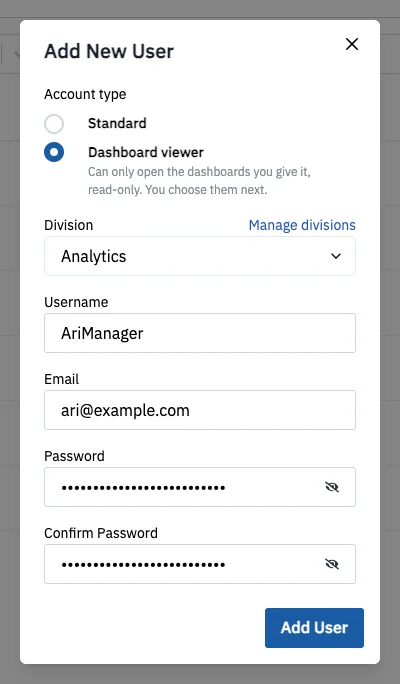
Section titled “Create a viewer account”- Open Settings › Organization settings › Users and click Add New User.
- Set Account type to Dashboard viewer. Its note explains: Can only open the dashboards you give it, read-only. You choose them next.
- Choose Division, for example Analytics. Use Manage divisions if you need to create one. If none is eligible, DDL says Dashboard viewers need their own division. Create one in Divisions.
- Enter Username, Email, Password and Confirm Password. Usernames cannot contain spaces. Use a unique password of at least 8 characters, with uppercase and lowercase letters, a digit and a symbol. The server’s default is refused: Choose a password other than the server’s default.
- Click Add User. DDL answers Dashboard viewer created and opens Dashboard access.
- Choose grants as described below and click Save.
DDL verifies the new account immediately and sends no email. Send its sign-in details through a safe channel. Creating the account and saving its grants are separate: cancelling Dashboard access does not undo account creation, but does not save your grant selections.
Choose what it can open
Section titled “Choose what it can open”Open the account’s ⋮ menu in Users and choose Dashboard access. Keep Dashboard viewer switched on.
| Section | Grant scope |
|---|---|
| Projects | Every dashboard in the chosen project, including dashboards created there later. It does not grant project or dataset access. |
| Dashboards | Only the selected dashboards, grouped by project. Future dashboards are not included. |
- Use Search projects or Search dashboards or projects to find the items you need.
- Select whole projects, individual dashboards, or both. A dashboard included through a project shows Given by its project; you do not need a second grant.
- Review each section’s chosen count and the footer, Can see N dashboards.
- Click Save. DDL answers Dashboard access saved.
You can grant at most 200 projects and 500 dashboards per viewer. Lists initially show 50 items; when you see Showing the first 50. Search to find others., search to find the rest.
Revoke access
Section titled “Revoke access”Clear the project or dashboard selection and click Save. To remove a dashboard covered by a project grant, remove that project grant too. If you still want the viewer to see some dashboards from that project, grant those individually.
A dashboard remains accessible if another saved grant still covers it. Once no grant covers it, access stops at the next request; the viewer does not need to sign out. Cancel discards unsaved grant changes.
Turn an existing account into a viewer, or back
Section titled “Turn an existing account into a viewer, or back”Make a standard account a viewer
Section titled “Make a standard account a viewer”- In Users, open the account’s ⋮ menu and choose Dashboard access.
- Switch on Dashboard viewer.
- Read Make this a dashboard viewer?. Projects, data, pipelines, AI and other settings close to this account, and its personal AI tokens are revoked.
- Confirm with Make dashboard viewer.
- Choose its project or dashboard grants, then click Save. The conversion applies when you save, not when you first move the switch.
Make a viewer a standard account
Section titled “Make a viewer a standard account”- Open its Dashboard access panel and switch off Dashboard viewer.
- Confirm Make this a standard account? with Make standard account.
- Click Save.
Conversion back removes the viewer’s grants. Review the standard account’s roles and shares separately; its revoked personal AI tokens are not restored.
The switch is locked for your own account, administrator accounts, accounts without a division, and accounts in superadmins or Free & Pro users. Use an eligible non-administrator account in a separate division.
What the viewer sees
Section titled “What the viewer sees”The viewer lands on Dashboards at /dashboards, with a Dashboard viewer badge and no usage meters. The list has Search dashboards and Grid and List views, but no tabs or New dashboard.
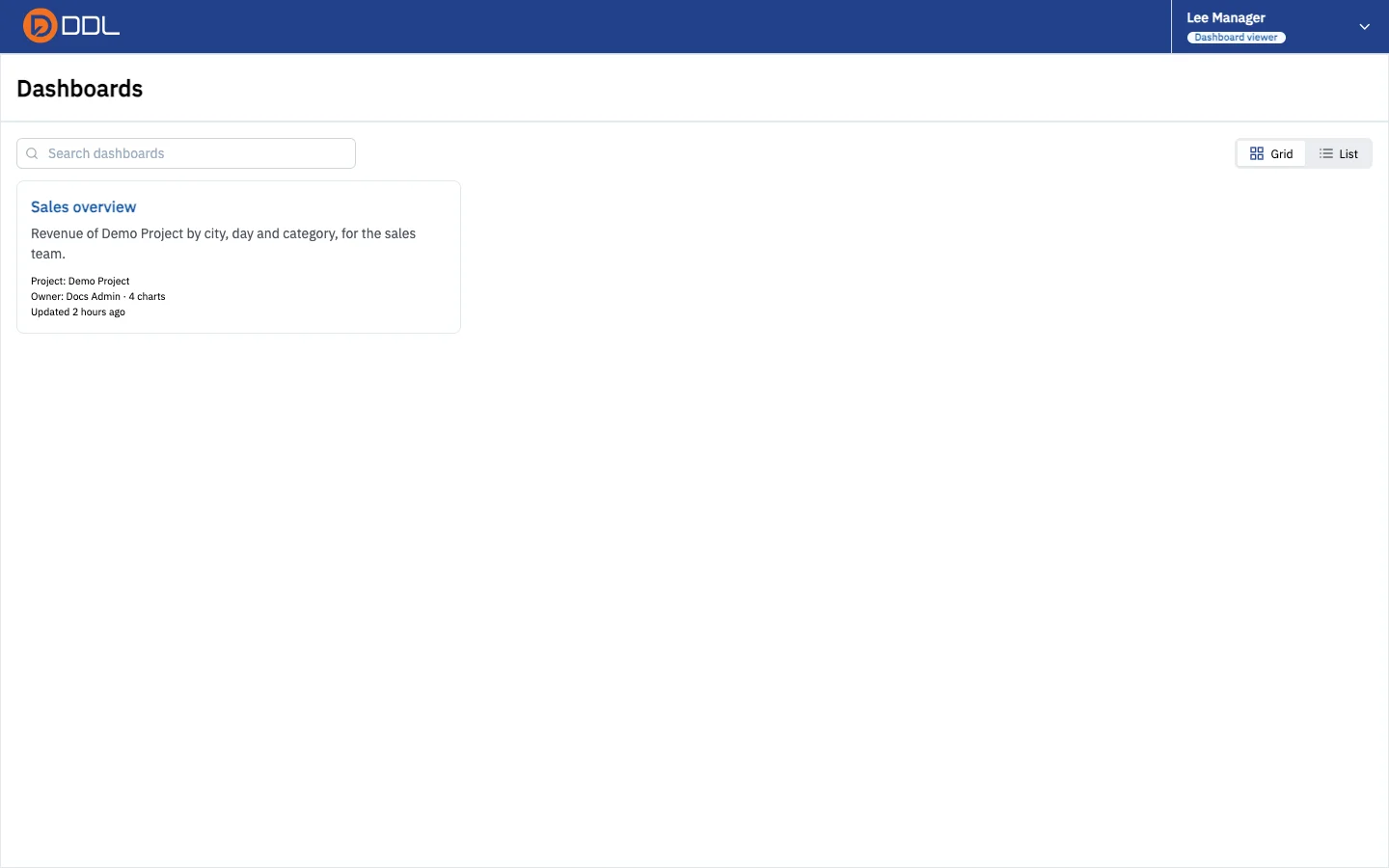
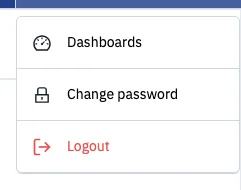
The account menu has only Dashboards, Change password and Logout.
Change password opens Settings. Its menu contains only Back to Dashboards, Change Password and, when enabled, Appearance. Other DDL pages lead back to Dashboards.
With no grants, the list says Your administrator has not given you any dashboards yet. Ask them for access to the dashboards you need. Opening an ungranted dashboard says You do not have access to this dashboard and asks you to contact your administrator. Old charts that cannot be converted show not available.
Passwords and sign-in
Section titled “Passwords and sign-in”A viewer changes their own password through Change password in the account menu. See Change your password.
As a superadmin, use Users › Edit › Generate New Password to reset it. Copy the new password before closing the dialog and send it through a safe channel. The old password stops working, and generating a new password also lifts a sign-in lockout. See Edit a user or give a new password.
With the AI
Section titled “With the AI”When AI is enabled, superadmins can ask DDL AI to create viewer accounts and grant dashboards. The approval card asks for a password, with Generate and Copy. Copy it before closing: DDL AI does not keep it.
Accounts created through MCP receive a random password. Set a password you can hand over with Generate New Password. MCP refuses project grants for projects marked sensitive. These are administrator actions; viewers themselves cannot use AI or MCP. See AI Assistant and MCP integration.
Troubleshooting
Section titled “Troubleshooting”| What you see | What to do |
|---|---|
| Dashboard viewer is greyed out | Check whether this is your own account, an administrator, an account without a division, or an account in a System division. Use an eligible account in a separate division. |
| Permission denied while managing a viewer | Ask a superadmin; division administrators cannot manage viewer accounts. |
| Give at most 200 projects or too many dashboard grants | Reduce the selections to at most 200 projects and 500 dashboards. A project grant already covers all its dashboards. |
| An item is missing after the first 50 results | Use the section’s search box. |
| The viewer sees no dashboards | Check that grants were saved and cover the intended dashboards. Roles and shares do not help a viewer. |
| Dashboards are not available | Ask your administrator to enable Dashboards. |
| A tile shows not available | Ask its owner to convert or replace the old chart. See Charts. |
| The viewer cannot be selected in Share | This is intentional. Give access through Dashboard access, not sharing. |
| A dashboard is still visible after removing its individual grant | A project grant may still cover it. Remove all covering grants and Save. |
| Choose a password other than the server’s default | Choose a unique password that follows the rules. |
| Sign-in is locked | Ask a superadmin to use Generate New Password, then use the new password. |