

Distribution
A distribution sends e-mail made from your DDL data: a weekly sales report for your team, a personal message to every person in a table, or an alert when a process fails. You build it in a six-step wizard, check it with a real test e-mail, and then let DDL send it on a schedule, after each data update, when the data matches a condition, or when you click Run now. Every send is kept in a history, down to each recipient.
Before you start
Section titled “Before you start”- An e-mail server. An administrator must add at least one under Settings › Connections (email, chat, files). Until then the wizard says No email server is set up yet. See Admin console.
- Access for the Distribution service account. DDL reads the data of each send as a special DDL user that your administrator set up for Distribution. Share every project you send from with that user, with at least View Project (Share a project). Without it, the preview in the wizard works, because it uses your own access, but the sends fail.
- The data. Any node of a project you can open, typically a transform or SQL node such as orders_enriched. A send reads up to 10,000 rows by default.
The Distribution page
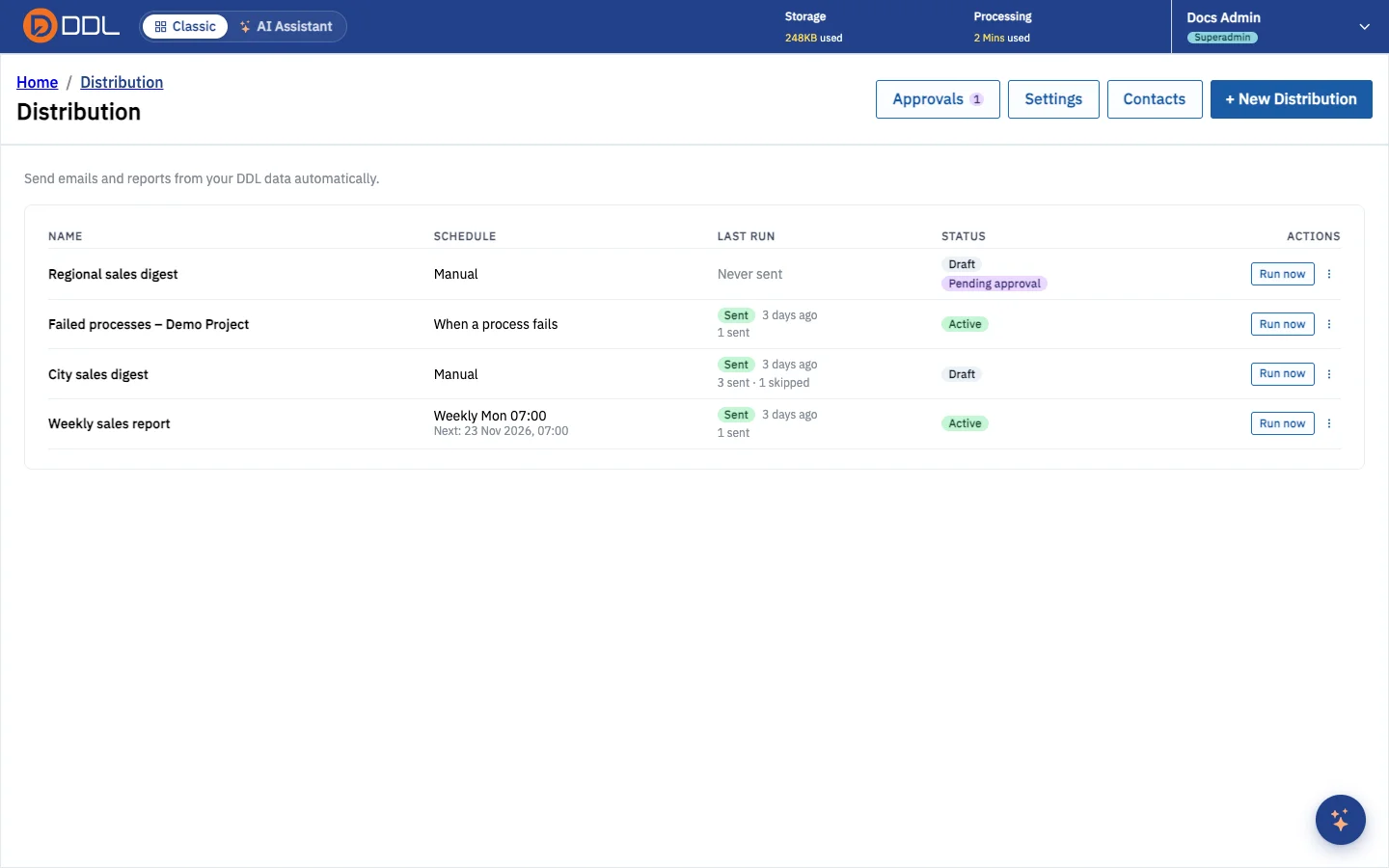
Section titled “The Distribution page”Open it from the account menu with Distribution. Above the table:
- Approvals, with the number waiting, and Settings, for administrators only.
- Contacts: your contact lists.
- + New Distribution: starts the wizard.
| Column | What it shows |
|---|---|
| Name | The name. A red Source data no longer exists or an orange Needs a test email before it can be activated below it means it needs attention. |
| Schedule | The trigger, such as Weekly Mon 07:00, After data updates or When a process fails. Active scheduled ones add Next: with the date and time of the next send. |
| Last run | The status of the last send, how long ago, and counts such as 12 sent · 1 failed. Never sent before the first send. |
| Status | Draft, Active or Paused, plus an approval chip when an approval is involved. |
| Actions | Run now, and ⋮ with Edit, Pause or Activate, Duplicate, Sending history and Delete. |
Click a row to open the distribution. The most recently changed distribution comes first. While a send is in progress, the list updates every few seconds.
| Status | Meaning |
|---|---|
| Draft | Saved but never activated. It sends only with Run now. |
| Active | Sends by itself whenever its trigger fires. |
| Paused | Does not send by itself; Run now still works. DDL also pauses a distribution when a change needs a new test or its data disappeared. |
A send, or run, has its own status: Queued, Sending, Sent, Partly sent (some messages failed), Failed or Skipped (nothing to send, for example no data).
Create a distribution
Section titled “Create a distribution”The wizard has six steps. Start with + New Distribution, or open a dashboard and click Subscribe. Subscribe pre-fills the name, project and dashboard and switches on Attach a dashboard snapshot.
Moving between steps saves your work, and so does Save draft, so you can stop and continue later with Edit. Leaving the wizard any other way does not save the step you are on.
| Step | Shown as | What you set |
|---|---|---|
| 1 | Data › Which data to send | Name, the project and node, optional row conditions |
| 2 | Email › Subject and content | Template, subject and body |
| 3 | Attachments › Files & AI (optional) | PDF, data file, dashboard snapshot, AI summary |
| 4 | Recipients › Email & channels | Who gets which rows, other channels, hidden columns |
| 5 | Check & test › Preview and test email | Checks, preview, approval and the test e-mail |
| 6 | Schedule › When to send | Trigger, e-mail server, failure notices, safety |
At the bottom, Save & continue saves and goes to the next step, Save draft saves and stays, and Back goes one step back. You can also click a step at the top; DDL saves first. The first save happens as soon as you choose the node in step 1: the address then changes from /distribution/new to /distribution/<id>/edit?step=1.
For example, to send Weekly sales report to the sales team every Monday morning:
- In the account menu, click Distribution, then + New Distribution.
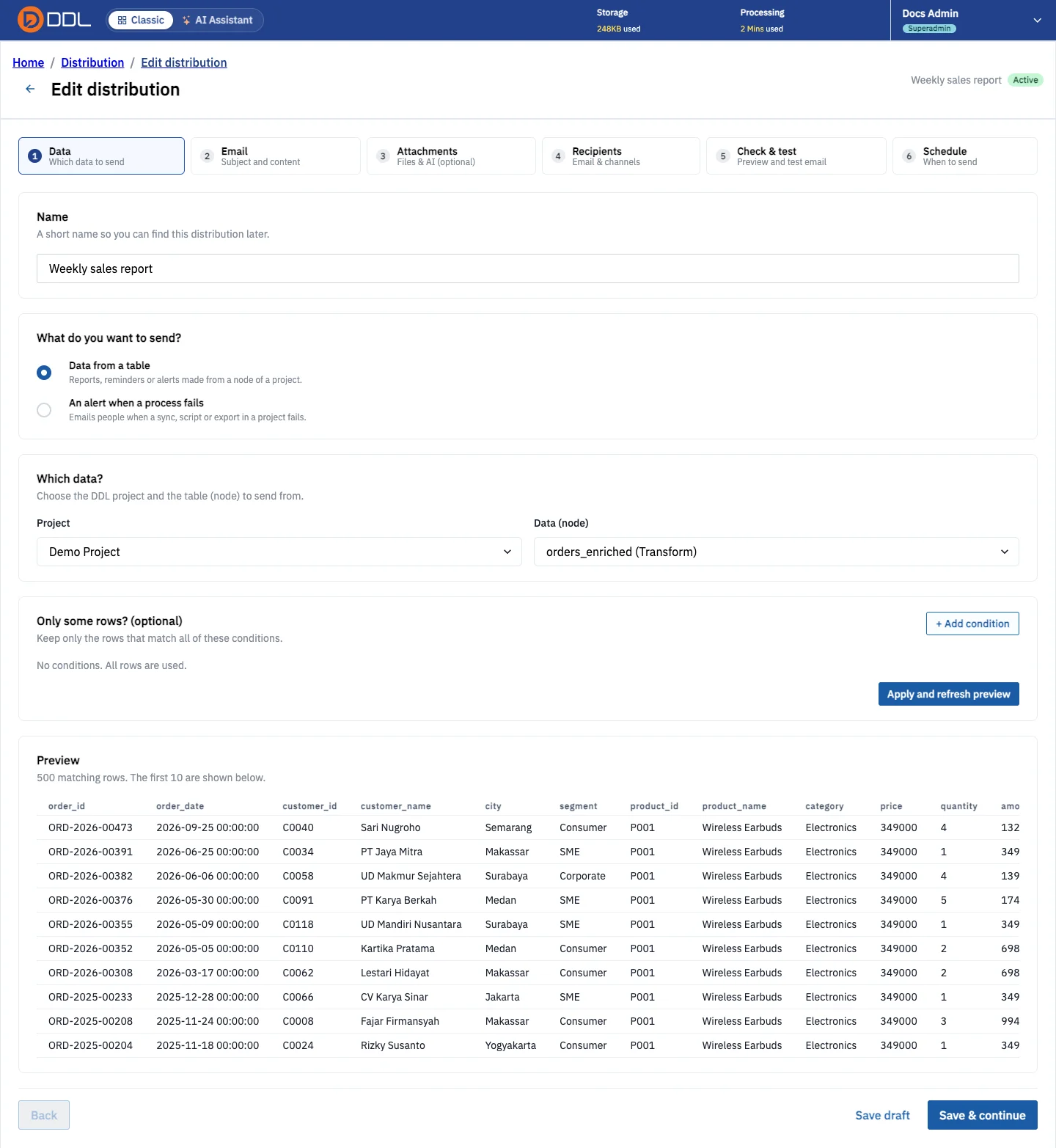
- Step 1: type the Name Weekly sales report, keep Data from a table, and choose the Project Demo Project and the Data (node) orders_enriched (Transform). Click Save & continue.
- Step 2: in Start from, choose the ready-made Daily report (table of all rows), type a Subject and check the preview. Click Save & continue.
- Step 3: optionally switch on Attach a dashboard snapshot and choose the dashboard Sales overview. Click Save & continue.
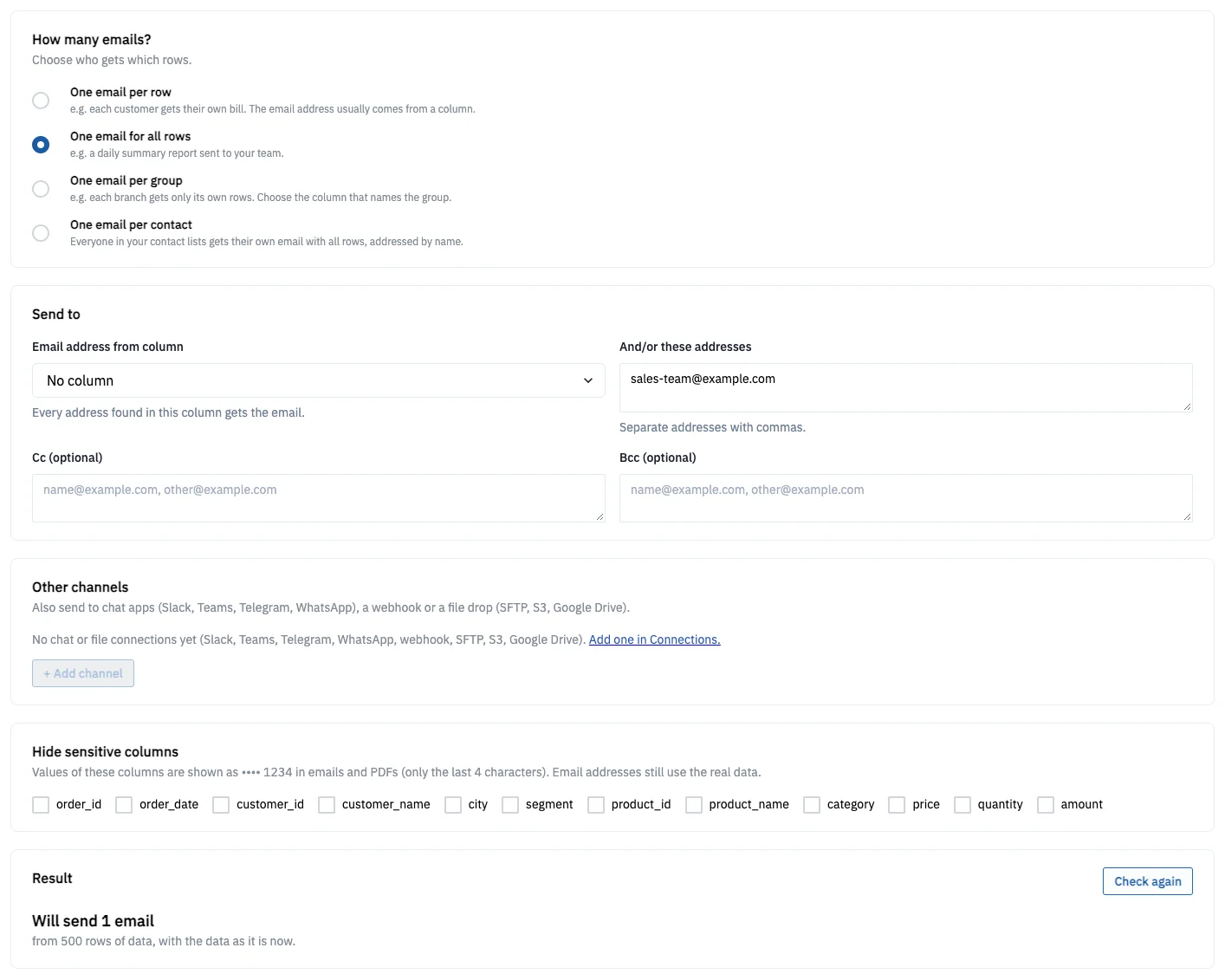
- Step 4: choose One email for all rows and type
sales-team@example.comin And/or these addresses. Click Save & continue. - Step 5: look through Checks and Email preview. Under Send a test email, choose the server in Send with (email server) and click Send test; the test goes to your own address.
- Step 6: choose Repeating, Every week, tick Monday, and set At (WIB, Asia/Jakarta) to 07:00. Click Activate.
Step 1: Data
Section titled “Step 1: Data”| Field | What to do |
|---|---|
| Name | A short name, up to 120 characters. If it is empty when you choose a node, DDL uses the node’s name. |
| What do you want to send? | Data from a table: reports, reminders or alerts made from a node. An alert when a process fails: see Send an alert when a process fails. |
| Project, Data (node) | The project and the node to read. The list shows the project’s nodes with their type, such as (Transform) or (Dataset); transfer nodes are left out. |
| Only some rows? (optional) | + Add condition: a column, a condition (is, is not, greater than, greater than or equal to, less than, less than or equal to, contains, is empty, is not empty) and a value. Rows must match all conditions. Click Apply and refresh preview. |
| Preview | The number of matching rows, such as 1,240 matching rows. The first 10 are shown below., and those rows. |
Step 2: Email
Section titled “Step 2: Email”- Start from offers Blank email, the Ready-made templates Row notification (all columns), Daily report (table of all rows), Reminder with attachment and Failed DDL process alert, and My templates. When you save, DDL keeps your version under Template name in My templates; the ready-made template itself does not change.
- A template can serve several distributions. Changing it changes all of them, and pauses the active ones until each passes a new test.
- Write the e-mail in the Visual editor, with blocks from + Add block (Heading, Paragraph, Data table, Number cards, KPI card (calculated), Bar chart, List of all rows, Highlighted note, Image, Button, Divider, Space, Footer), or in HTML. Switching from HTML to Visual replaces your HTML.
- Insert field adds a value to the Subject or the body: Columns of your data, Other fields such as Distribution name, Date of sending, Number of rows and Unsubscribe link (address), and Widgets with KPI cards and bar charts built from your columns.
- The Preview on the right shows the e-mail with the first row of your data.
Fields are written between double braces and replaced by the value of each row. Formats turn numbers and dates into Indonesian notation:
{{ customer_name }} → the value of the column customer_name{{ amount | rupiah }} → Rp 1.500.000{{ quantity | angka }} → 1.500{{ order_date | tanggal }} → 30 Oktober 2026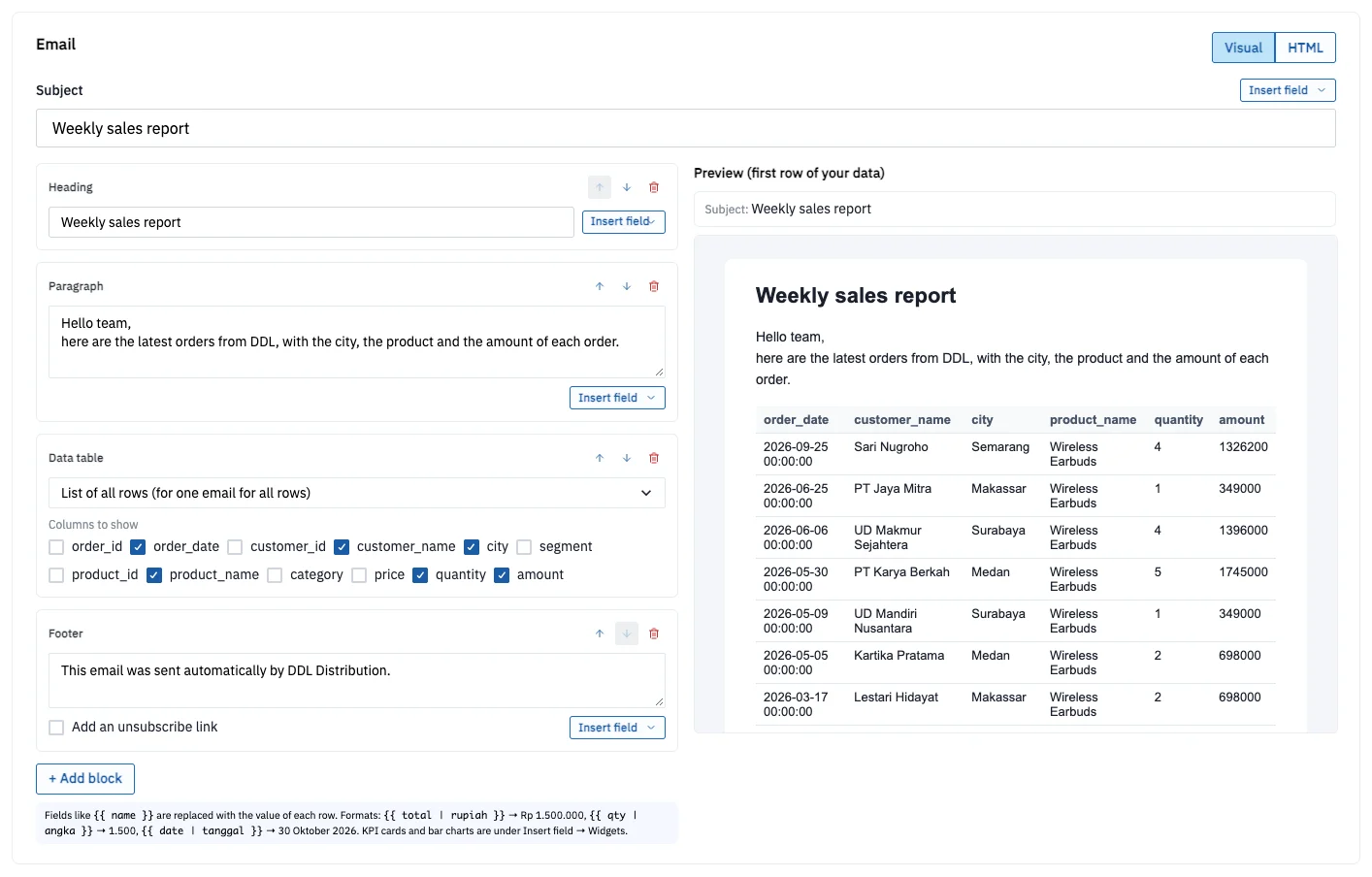
Step 3: Attachments
Section titled “Step 3: Attachments”Everything in this step is optional.
| Section | What it adds |
|---|---|
| Attachments › Attach PDF | A PDF made from your data: One PDF per row or One PDF with all rows, from a PDF template (ready-made Form per row (all columns) or Table report (all rows), or your own). Options: Put the PDFs in one ZIP file, a password (Same password for everyone, or Different per recipient from a Password pattern), Also lock the PDF files (AES-256, same password) and File names. Preview with your data shows the PDF of the last saved version. |
| Data file (Excel/CSV) › Attach a data file | The rows of each message as Excel (.xlsx), CSV, comma separated or CSV, semicolon separated (Excel in Indonesian). |
| Dashboard snapshot › Attach a dashboard snapshot | A picture of a DDL dashboard, as PDF or Image (PNG), taken once per send after every tile loads and attached to every message. Choose its Project and Dashboard; old dashboards are listed too. |
| AI summary › Add an AI summary | A short summary of each message’s rows, written by Claude. Put {{ ai_summary }} in the e-mail, the PDF or a channel message. Describe the focus in What should the summary focus on? (up to 2,000 characters), pick the columns it reads, and set Read at most (up to 2,000 rows). |
| How files are delivered | Shown when a file is attached: Attach to the email, Send a download link, or Automatic (a link only when the files are too big for e-mail). A link works for 1 to 30 days and can ask for a code sent to the recipient’s e-mail. |
A snapshot needs View Project on its project for you and for the Distribution service account. A dashboard share alone is not enough. Subscribe uses the dashboard’s default filter values, not the values you applied in your own view.
Step 4: Recipients
Section titled “Step 4: Recipients”How many emails? decides who gets which rows:
| Option | Who gets what | Example |
|---|---|---|
| One email per row | Each row is one e-mail, usually to the address in a column. | Each customer gets their own bill. |
| One email for all rows | One e-mail with all rows. | A daily summary for your team. |
| One email per group | One e-mail per value of Group rows by column, with only that group’s rows. | Each branch gets only its own rows. |
| One email per contact | Every contact in the chosen contact lists gets an e-mail with all rows, addressed by name. | A digest for the sales team. |
- Send to: Email address from column, And/or these addresses (separated by commas), Cc (optional) and Bcc (optional).
- Email › Send email can be switched off to send only through other channels. Backup email providers (optional): up to three other e-mail servers, tried in order when the main one is down.
- Other channels › + Add channel: also send to Slack, Teams, Telegram, WhatsApp, a webhook, SFTP, S3 or Google Drive, through connections an administrator set up. Up to ten channels.
- Hide sensitive columns: the values of these columns appear as •••• 1234 in e-mails and PDFs. Addresses still use the real data.
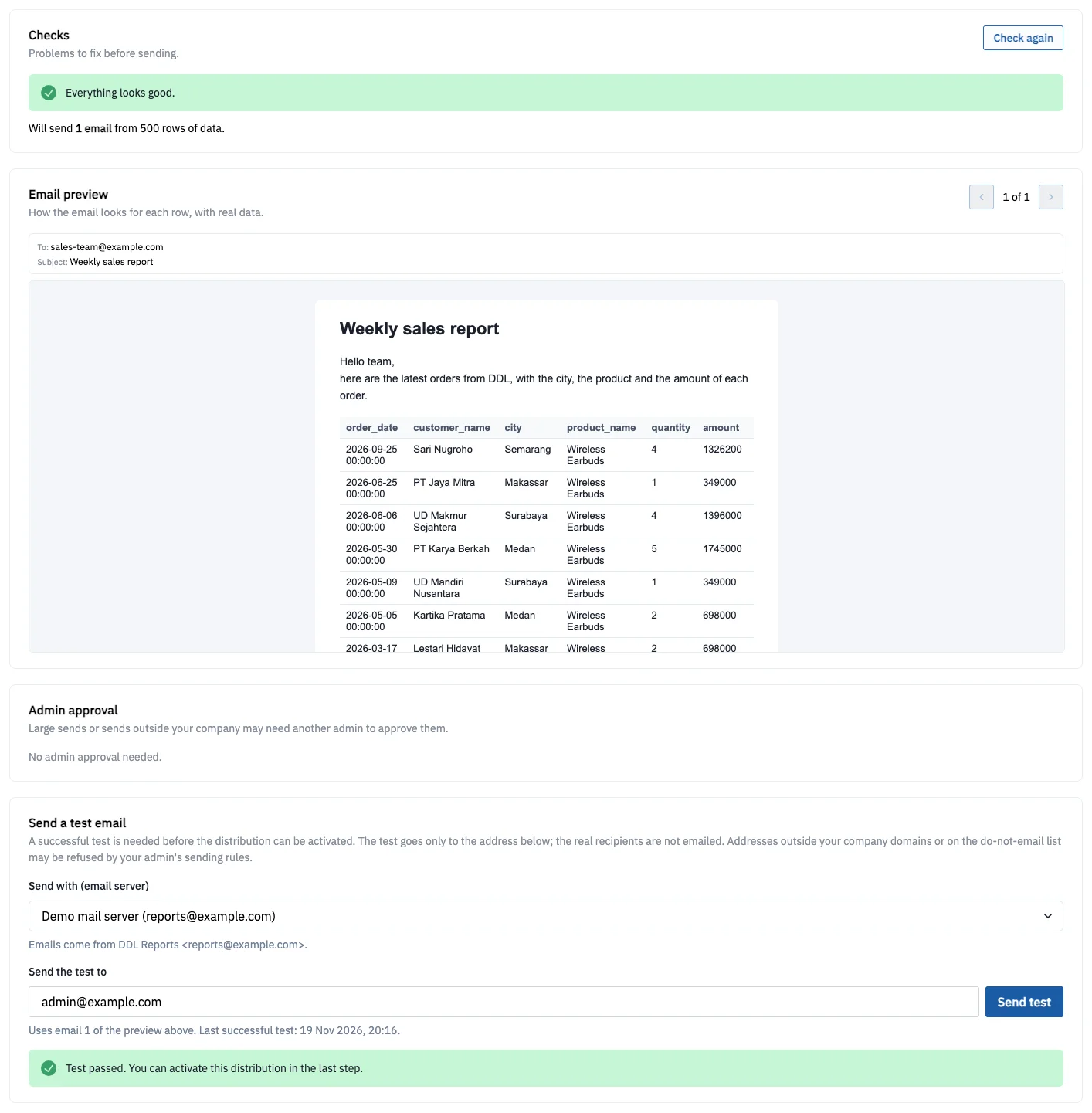
- Result counts what would be sent with the data as it is now, for example Will send 1 email, with the number of rows it comes from. Click Check again after a change.
Step 5: Check and test
Section titled “Step 5: Check and test”Check & test shows the distribution as it would send now:
- Checks: problems to fix, or Everything looks good. Warnings include rows without a valid address and fields in the e-mail that are not in the data.
- Email preview: each e-mail with its To, Cc and Subject. Use ‹ and › to browse, for example 1 of 12.
- Admin approval: No admin approval needed., or the reasons it needs one. See Approvals.
- Other channels: the first message of each channel.
- Send a test email: choose the server in Send with (email server), keep or change Send the test to (your own address), and click Send test. The test goes only to that address; the real recipients get nothing.
A distribution can only be activated or run after a successful test. When the test is through, the step says Test passed. You can activate this distribution in the last step. If e-mail is off, a successful channel test counts instead.
Step 6: Schedule
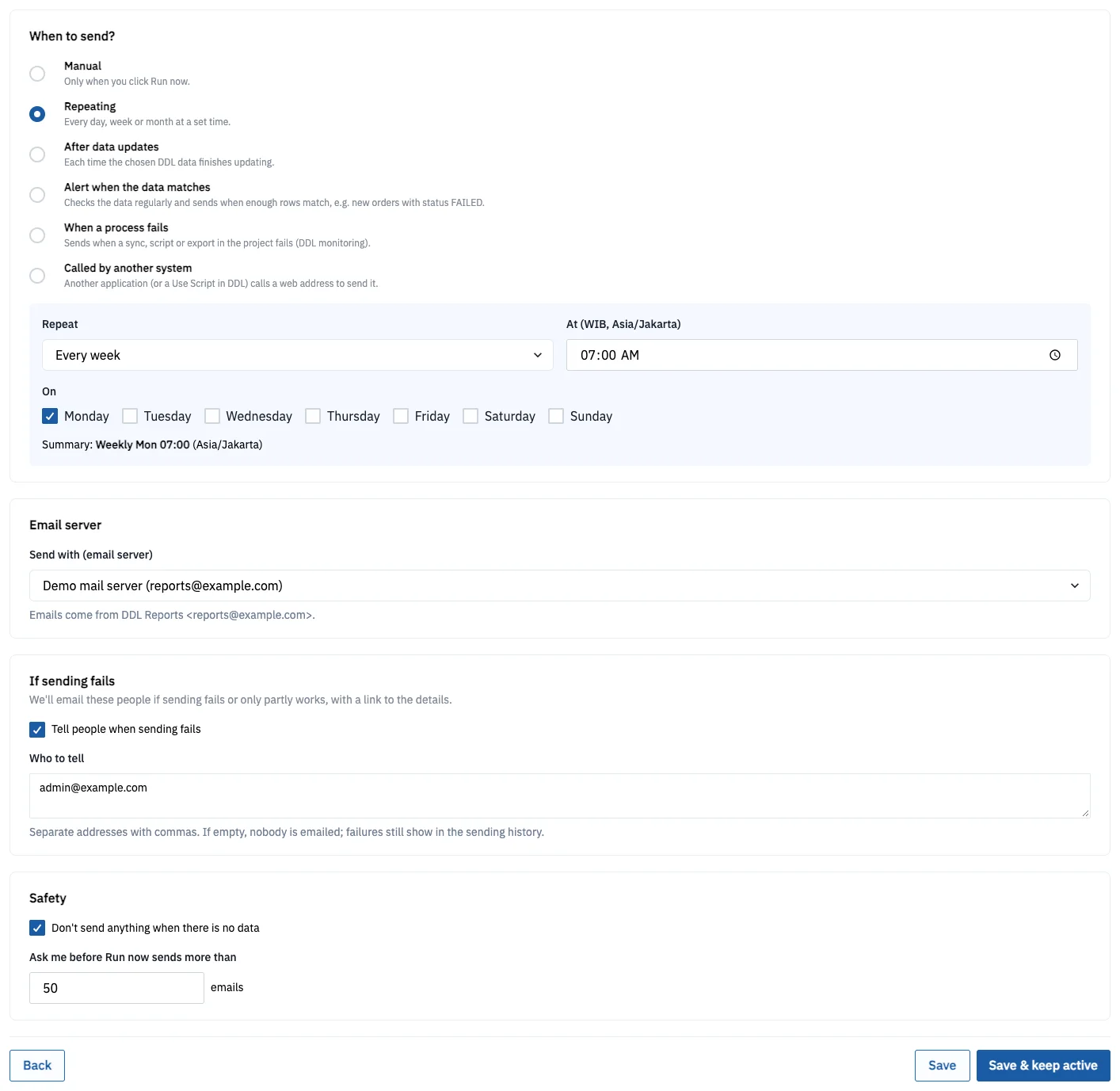
Section titled “Step 6: Schedule”When to send?
| Trigger | When it sends |
|---|---|
| Manual | Only when you click Run now. |
| Repeating | Every day, Every week (tick the days under On) or Every month (On day 1 to 28), at the time in At (WIB, Asia/Jakarta): Western Indonesian Time, whatever your own time zone. The summary reads, for example, Weekly Mon 07:00. |
| After data updates | Each time the node finishes a successful refresh, for example after a schedule syncs it. DDL looks about once a minute; its first look only notes the current data. |
| Alert when the data matches | When enough rows match the conditions of step 1: set the number in Send when at least … rows match. Check every sets how often DDL looks (5 minutes to 1 day), After an alert, wait at least avoids repeats, and Only alert when it starts (not again on every check while it stays true) sends once per occurrence. |
| When a process fails | When a process of the project fails. See Send an alert when a process fails. |
| Called by another system | When another application, or a Use Script in DDL, calls a web address. Save, then click Create webhook token: the Address (URL), the Token and an Example (curl) are shown once; copy them and click I have copied it. The caller may send its own rows, up to 1,000, instead of the node’s data. Only the owner can create a token, a new token stops the old one, and calls work only while the distribution is Active. |
Below the triggers:
- Email server › Send with (email server): the server that sends the e-mails.
- If sending fails › Tell people when sending fails: Who to tell gets an e-mail with a link when a send fails or only partly works.
- Safety: Don’t send anything when there is no data, and Ask me before Run now sends more than a number of emails (50 by default).
Finish with Activate (Save & keep active for a distribution that is already active), or Save to keep it as it is. Activate stays greyed out until the test of step 5 passed.
Send an alert when a process fails
Section titled “Send an alert when a process fails”A distribution can watch a project and e-mail you when one of its processes fails, the ones you see as Failed in Monitoring.
- Start a new distribution. In step 1, choose An alert when a process fails and the Project to watch. DDL names it, for example Failed processes – Demo Project. Each failure becomes a row with the columns project, node, process_type, status, started_at and process_id.
- In step 2, start from the ready-made template Failed DDL process alert.
- In step 4, type the addresses that should get the alert in And/or these addresses.
- In step 5, send a test. Until the project has a failure, the preview uses an example row.
- In step 6, When a process fails is already chosen. Pick Right away, for each failure, or One summary a day of all failures and its time in Send the summary at (WIB). Click Activate.
DDL looks for new failures about once a minute. Failures from before the alert became active are not sent. To e-mail failures without Distribution, use the project’s failure e-mails.
Run, pause, edit or delete
Section titled “Run, pause, edit or delete”| Action | Where | What happens |
|---|---|---|
| Run now | List or distribution page | Asks Send now? and sends with the latest data after Send now. Above the Safety number, DDL asks Send a large number of emails? first; confirm with Yes, send them. Works for any status, once the test passed. |
| Pause, Activate | ⋮ menu or distribution page | Stops or starts the automatic sends. Activating needs a passed test and, where the rules require it, an approval. |
| Edit | ⋮ menu or distribution page | Opens the wizard at /distribution/<id>/edit. |
| Duplicate | ⋮ menu or distribution page | Makes a draft copy, named after the original with (salinan), Indonesian for “copy”, and opens it in the wizard. |
| Delete | ⋮ menu or distribution page | Asks Delete distribution? and deletes it with its history and files. This cannot be undone. Not possible while it is sending. |
Only one send of a distribution runs at a time: another Run now during a send answers This distribution is already running; wait until it finishes.
Sending history and runs
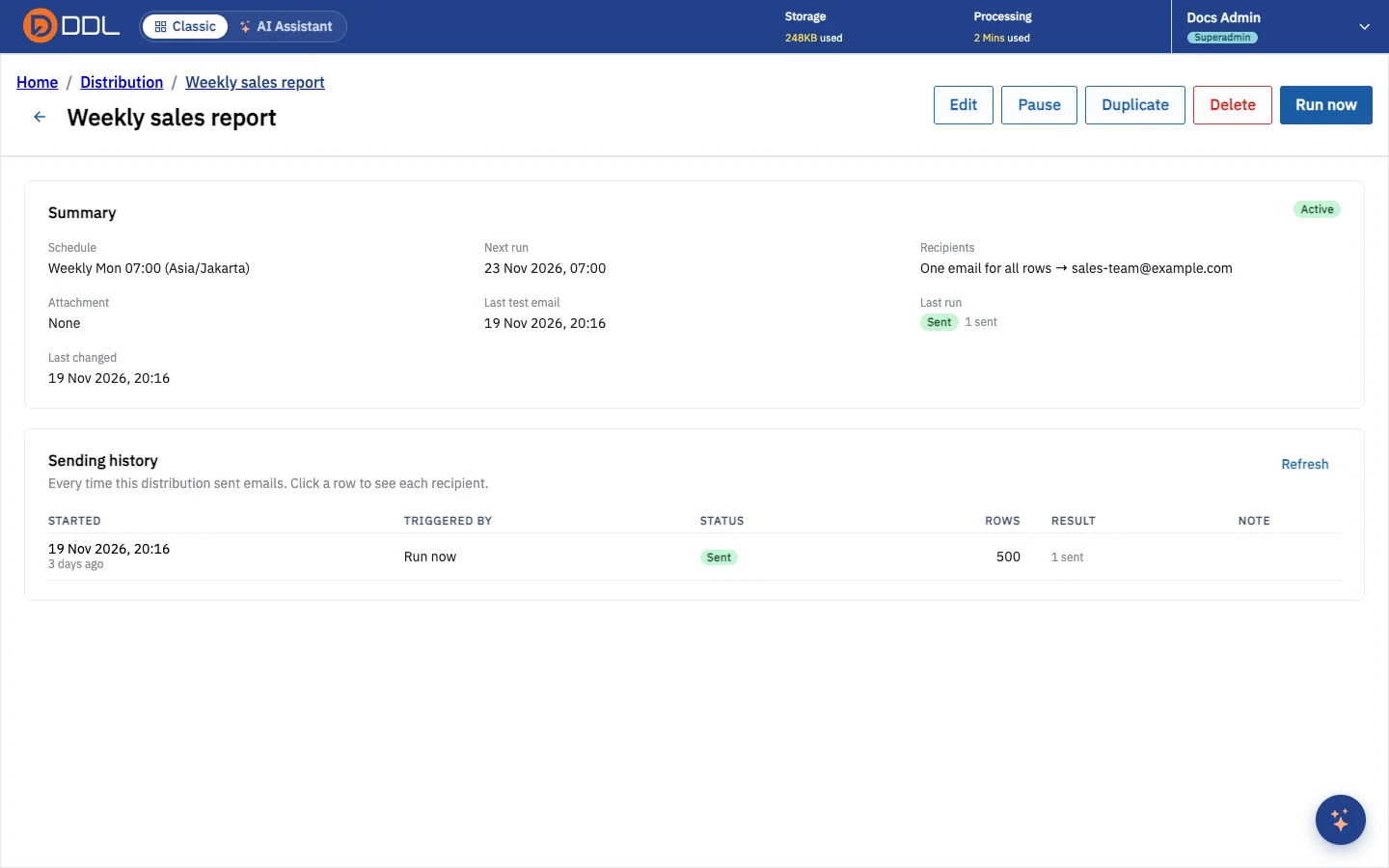
Section titled “Sending history and runs”Click a distribution to open its page, at /distribution/<id>. It shows warnings when it needs attention, its approval state, a Summary (Schedule, Next run, Recipients, Attachment, Last test email, Last run, Last changed) and the Sending history: one row per send with Started, Triggered by (such as Run now, Schedule, Data updated, Alert condition, Process failed or Webhook), Status, Rows, Result and a Note with the error. The page updates by itself during a send; Refresh reloads it.
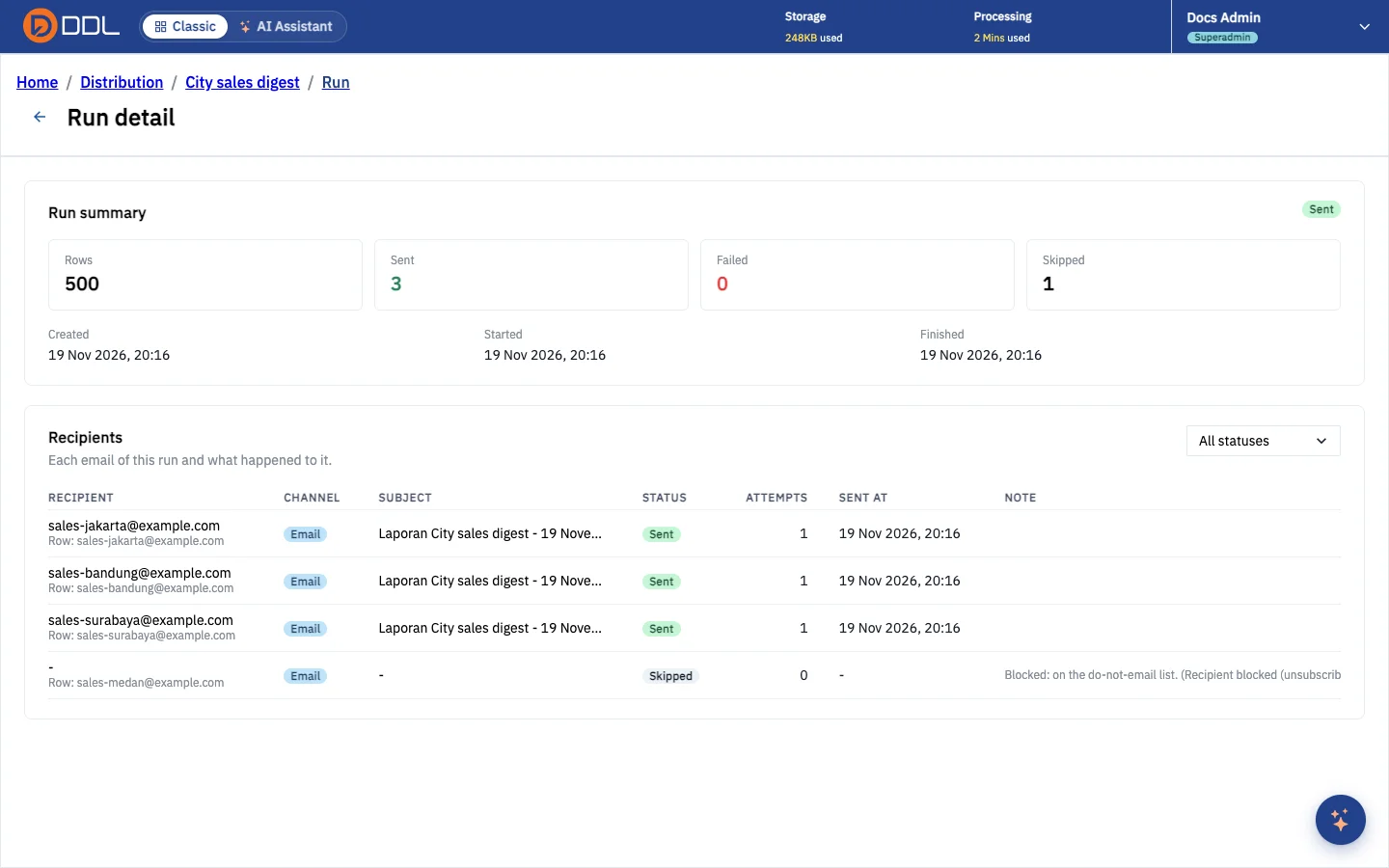
Click a send to open its run page. Run summary counts the Rows, Sent, Failed and Skipped messages, with the Created, Started and Finished times. Recipients lists every message:
| Column | What it shows |
|---|---|
| Recipient | The addresses, with Cc and Bcc, or the chat or folder of a channel. |
| Channel | Email with Sent via and the server, marked (backup) when a backup server sent it, or the channel, such as Slack. |
| Subject | The subject and the files attached to that message; click a file to download it. |
| Status | Waiting, Sent, Failed, Skipped, Bounced or Marked as spam. |
| Attempts, Sent at | How often DDL tried, and when it was sent. |
| Note | Why a message failed or was skipped. |
- Filter the list with All statuses. Download all files saves every file of the send at once. Files are kept for a limited time, 30 days by default; the page says until when.
- Retry failed sends the failed messages of this send again, after Retry failed emails?.
- A recipient on the do-not-email list, or outside the company domains when an administrator blocks those, is not e-mailed. A message left without any address is Skipped, with the note Blocked: on the do-not-email list. and the reason in brackets.
- Bounced and Marked as spam addresses are added to the do-not-email list automatically.
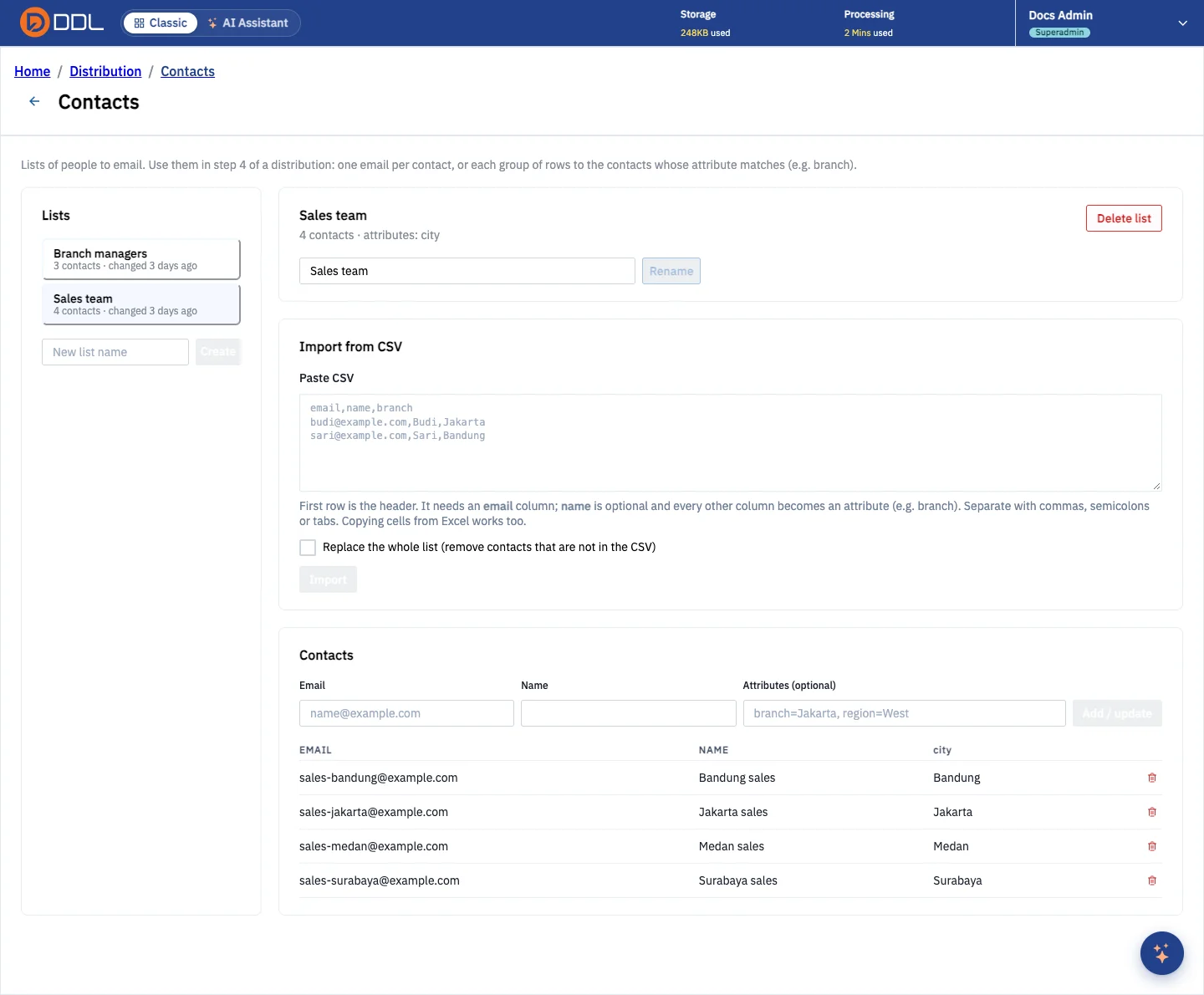
Contact lists
Section titled “Contact lists”A contact list is a list of people to e-mail, with a name and attributes such as a city. Use it in step 4 with One email per contact, or with One email per group and Match contacts by attribute, so each group goes to the contacts whose attribute matches the group’s value.
- On the Distribution page, click Contacts (
/distribution/contacts). - Under Lists, type a New list name and click Create.
- Add people one by one with Email, Name and Attributes (optional), written as
city=Jakarta, segment=Retail, and Add / update. Or paste them in Import from CSV and click Import.
For Paste CSV, the first row is the header. It needs an email column; name is optional, and every other column becomes an attribute. Commas, semicolons and tabs all work, so you can copy cells from Excel. DDL reports how many contacts were added, updated and skipped. Tick Replace the whole list (remove contacts that are not in the CSV) to make the list match the CSV exactly.
Rename and Delete list are next to the list’s name. Deleting a list means distributions that use it no longer e-mail its contacts. With One email per contact, Insert field also offers {{ contact.name }}, {{ contact.email }} and each attribute, such as {{ contact.attributes.city }}.
Approvals
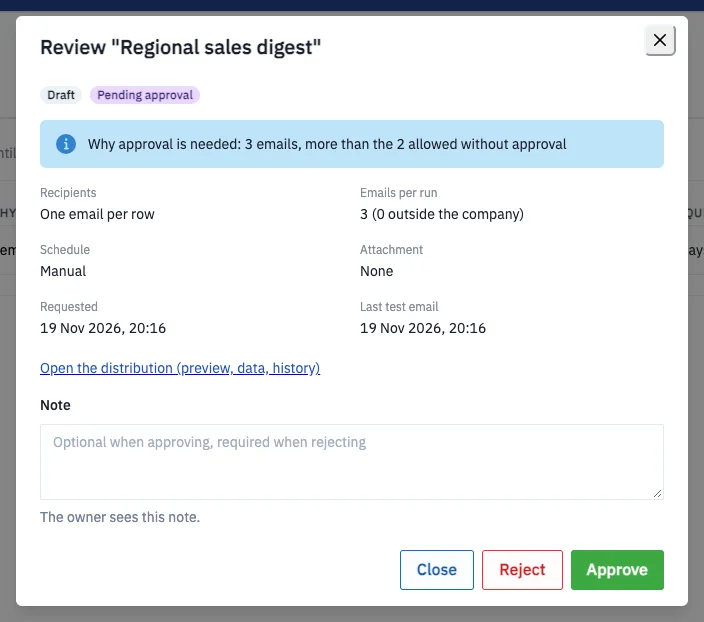
Section titled “Approvals”When an administrator has turned on sending rules, a distribution that would send many e-mails in one run, or send outside the company, needs the approval of another administrator before it can be activated or run.
- Step 5 and the distribution’s page then say This needs an admin’s approval, with the reasons, such as 3 emails, more than the 2 allowed without approval, and a Request approval button. Send a successful test first.
- Run now or Activate without an approval opens the same question, with Request approval.
- The chip then reads Pending approval, and later Approved or Rejected, with the administrator’s note. A change to what recipients get turns an approval into Approval outdated: request it again.
Administrators review requests with Approvals on the Distribution page (/distribution/approvals). The table shows each Distribution, Why it needs approval and when it was Requested. Review opens the details: recipients, Emails per run with how many go outside the company, schedule, attachment and last test, and a link to the distribution. Write a Note (required to reject; the owner sees it) and click Approve or Reject.
Settings for administrators
Section titled “Settings for administrators”Administrators open these pages from the Settings menu on the Distribution page. Other users can look at the first three without changing them; the do-not-email list is for administrators only.
| Menu item | Page | What it controls |
|---|---|---|
| Connections (email, chat, files) | Connections, /settings-admin/smtp |
Where Distribution sends: e-mail servers (SMTP, Amazon SES), chat apps (Slack, Teams, Telegram, WhatsApp) and file drops (webhook, SFTP, S3, Google Drive). At least one e-mail server is needed before anyone can send. See Admin console. |
| AI summary | AI summary, /settings-admin/distribution-ai |
Allow AI summaries. The status reads available, on, but no API key or off. The server also needs a Claude API key. |
| Sending rules (approval) | Sending rules, /settings-admin/distribution-approval |
Require an admin’s approval for risky sends; Approval needed from a number of emails in one run (100 by default); Company email domains; Sending to anyone outside the company needs approval; and Never send outside the company domains, which skips those recipients even when approval is off. Click Save rules. |
| Do-not-email list | Do-not-email list, /settings-admin/distribution-suppressions |
Addresses that are never emailed. Add one with Email address, Note (optional) and Block address. The Why column says Added by admin, Unsubscribed, Bounced or Marked as spam. Remove asks Allow this address again?. |
Every e-mail carries a one-click unsubscribe header, and templates can show a link with {{ unsubscribe_url }}. People who unsubscribe are added to the do-not-email list automatically. While addresses outside the company are blocked or need approval, test e-mails can only go to addresses on the company domains.
Troubleshooting
Section titled “Troubleshooting”| Problem | Cause and fix |
|---|---|
| Distribution is not enabled | Distribution is turned off on your DDL. Ask your administrator. |
| No email server is set up yet. | An administrator must add one under Settings › Connections (email, chat, files). |
| Activate is greyed out: Send a successful test email first (step 5) | Send a test e-mail in step 5. |
| An active distribution is suddenly Paused | Someone changed what recipients get, or edited its template. Send a test and activate it again. |
| Source data no longer exists | The project, node or dashboard was deleted, or you or the Distribution service account lost access to its project. DDL pauses the distribution and e-mails Who to tell. Restore access, or choose other data; then test and activate. |
| You have no access to the dashboards of that project in DDL | Choosing, previewing and testing a snapshot needs View Project on its project; a dashboard share alone is not enough. |
| The Distribution service account cannot see the dashboards of this project in DDL; share the project with it | Share the project with the service account, with View Project, then test again. |
| DDL was too busy to load every chart of the dashboard, so no picture was taken; try again in a few minutes | Wait a few minutes and try again. A snapshot is not sent with missing charts. |
| The preview works, but sends fail and the distribution stops | The project is not shared with the Distribution service account. Ask your administrator to share it. |
| A recipient is Skipped with Blocked: on the do-not-email list. | The address is on the do-not-email list, or outside the company domains while those are blocked. An administrator can remove it from the list. |
| A test is refused: This address is on the block list (unsubscribed or bounced) | Send the test to another address. |
| A test is refused: Test sends can only go to office domain addresses (…) | The sending rules allow tests only on the company domains. Use an address there. |
| A send is Skipped with No data; no message was sent | No row matched and Don’t send anything when there is no data is on. |
| AI summaries are not turned on by an admin or not set up yet | Ask an administrator to turn on AI summary. |
| The data table cannot be saved in the Visual editor | It is built from the columns of step 1. Choose the data first, or wait until the sample data has loaded. |