

SQL Query
SQL Query is the SQL workbench of a project. Every node that holds data is a table you can query, so you can look inside a node, try a join or a total, and keep what works: a saved query becomes a SQL node in the pipeline, and DDL runs it again whenever the nodes it reads get new data.
Open SQL Query
Section titled “Open SQL Query”- In the project menu, click Pipeline, then SQL Query below it. If the menu shows only icons, expand it with ☰ first. The page lives at
/projects/<id>/sql-query. - On the Pipeline page, click Transform and choose SQL Query (Write SQL query) in Transform Data.
- To change the query of an existing SQL node, see Edit a SQL node.
The workbench at a glance
Section titled “The workbench at a glance”| Area | What it does |
|---|---|
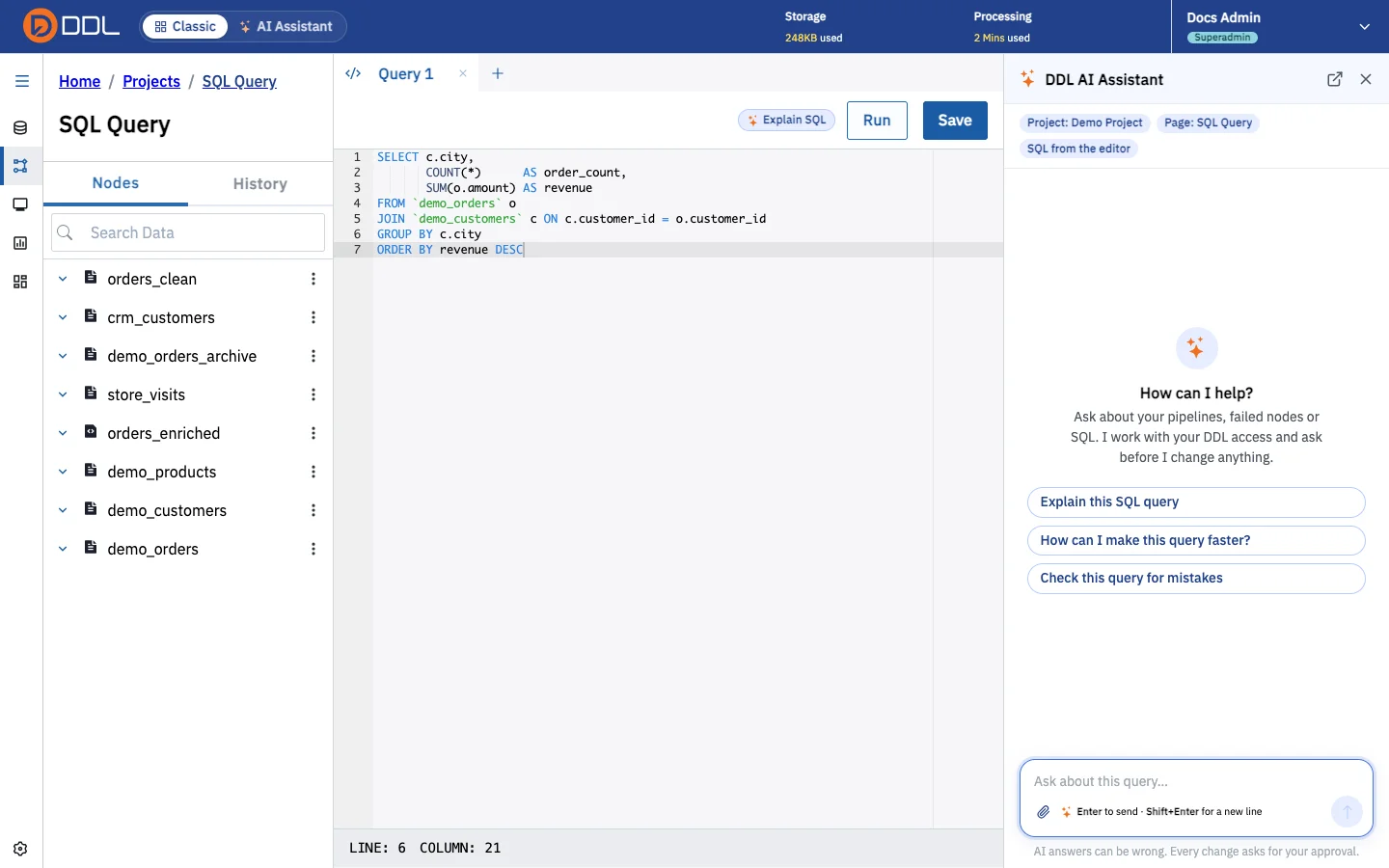
| Nodes tab | The project’s nodes that hold data: imported tables, transforms and SQL nodes, Data Repository datasets and uploaded files, newest first. Search Data filters them by name. |
| Node row | The arrow lists the node’s columns. Click the node name to insert it, in backticks, where the cursor is; click a column to insert it in double quotes. Hover the icon to tell a SQL Node from other nodes. |
| Node ⋮ menu | View Data previews the node in a new tab. Edit Query, shown for SQL nodes only, opens the node’s query for editing. |
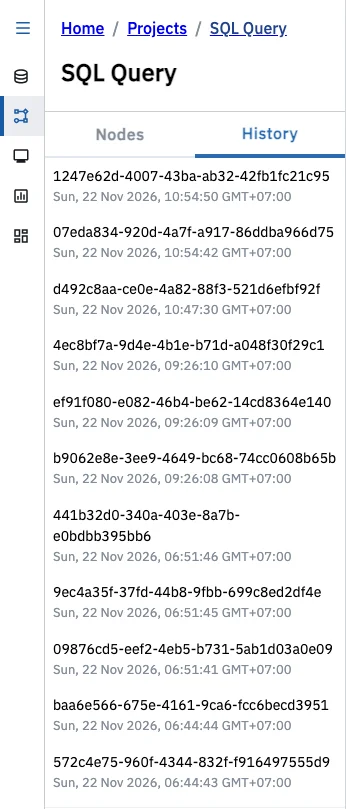
| History tab | The queries run in this project, newest first. See Tabs and history. |
| Query tabs | Query 1, Query 2 and so on. + adds a tab, × closes one. |
| Tab header | Explain SQL or Ask AI, Run (it becomes Stop Preview while a query runs) and Save. |
| Editor | SQL highlighting and line numbers. As you type, it suggests SQL keywords and words already in the editor. The bar below it shows the cursor position as LINE and COLUMN, both counted from 0. |
| Result panel | The Data, Details and Logs tabs of the last run. The arrow at its right end folds the panel away to give the editor more room. |
Refer to nodes in backticks
Section titled “Refer to nodes in backticks”In DDL SQL a table is a node of this project, written as the node name between backticks. Before the query runs, DDL replaces each backticked name with the table that holds the node’s current data.
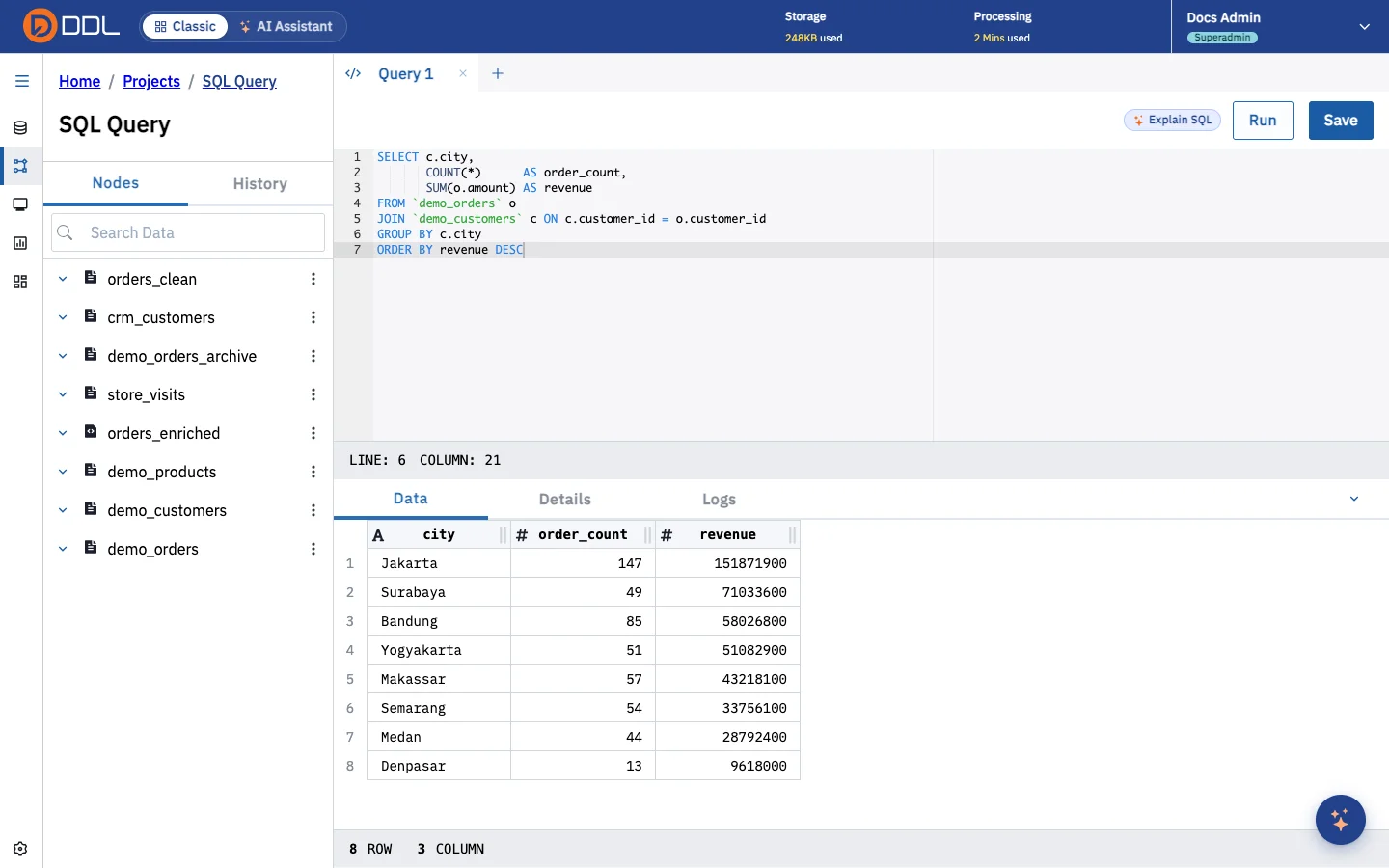
SELECT c.city, COUNT(*) AS order_count, SUM(o.amount) AS revenueFROM `demo_orders` oJOIN `demo_customers` c ON c.customer_id = o.customer_idGROUP BY c.cityORDER BY revenue DESC| You write | What happens |
|---|---|
`demo_orders` |
Works. |
demo_orders |
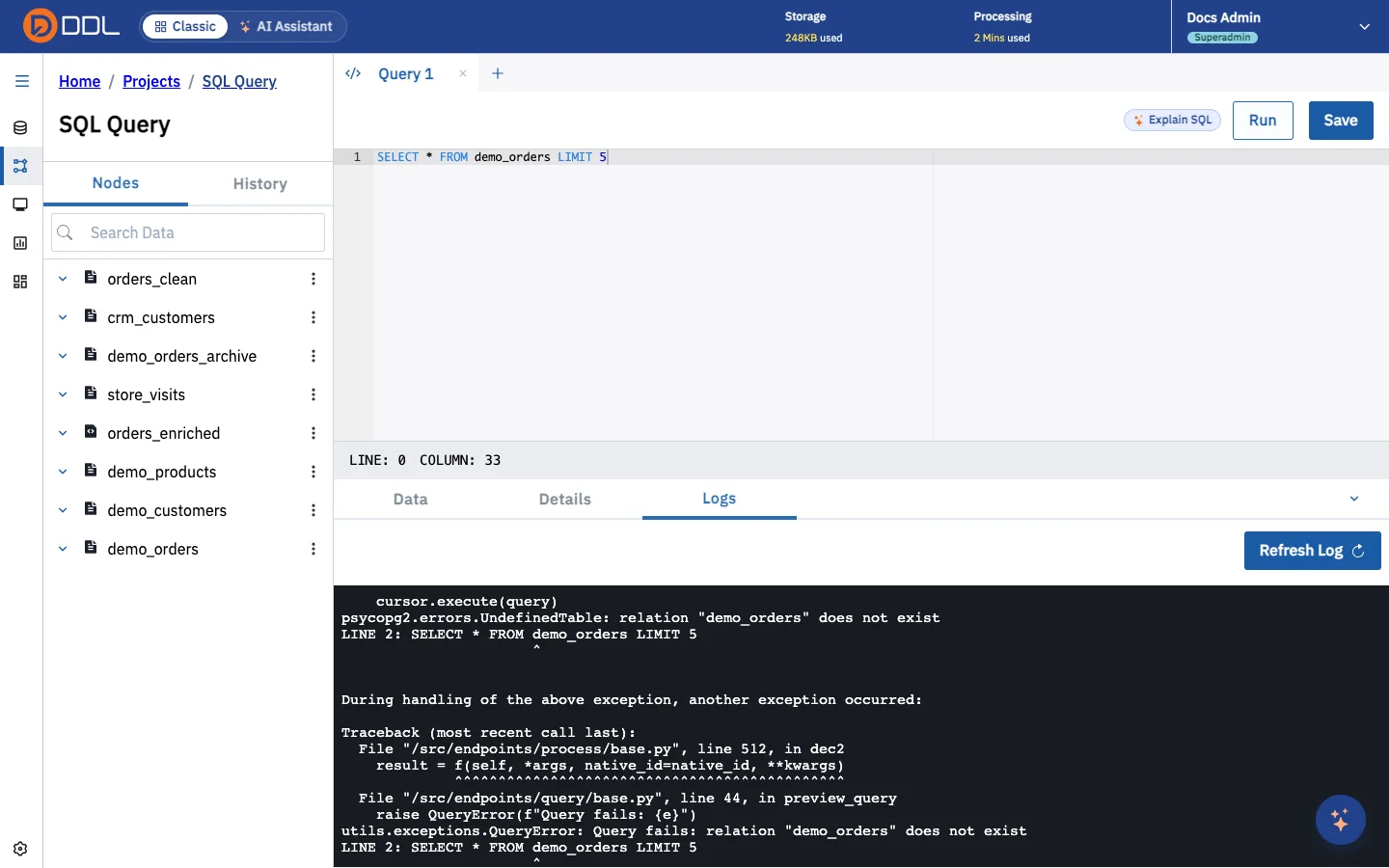
The run fails: relation “demo_orders” does not exist. |
"demo_orders" |
Fails the same way. Double quotes are for column names, not for nodes. |
ddl.demo_orders |
Fails: relation “ddl.demo_orders” does not exist. |
`demo_order` (a typo), or the name of a node in another project |
Refused before it runs: Node demo_order doesn’t exist. |
Write columns as plain names, or in double quotes when they contain capitals or spaces. Short table aliases, such as o and c above, keep joins readable.
Run a query
Section titled “Run a query”- Type a query in the editor of Query 1, or click + to start a new tab. Click node and column names in Nodes to insert them at the cursor.
- Click Run. DDL shows Building Data for Query 1, and the Data tab reads Building your Data, then Retrieving your Data. To cancel a long query, click Stop Preview; a stopped query ends with the status Failed.
- Read the result in the Data tab. It shows the first 25 rows, with row numbers and a type icon in each column header. The footer counts the whole result, for example 8 ROW and 3 COLUMN for the revenue-per-city query above.
| Tab | What it shows |
|---|---|
| Data | The first 25 rows of the result, and its size in rows and columns. |
| Details | Query ID, Total Size, Started At, Status and Duration of the run. The same Query ID appears in History. |
| Logs | The log of the run, including the database error and traceback when it fails. Refresh Log loads it again. DDL switches to this tab by itself when a run fails. |
Every run is also recorded as a process in Monitoring.
Preview a node with View Data
Section titled “Preview a node with View Data”-
In Nodes, click the ⋮ of a node and choose View Data.
-
A new tab opens with a statement for that node:
SELECT * from `orders_enriched`LIMIT 25 -
The Data tab shows the first 25 rows of the node’s current data. The footer counts all of the node’s rows, for example 500 ROW and 12 COLUMN for
orders_enriched.
View Data reads the data the node already holds. It does not run the statement, so Details and Logs stay unavailable and nothing is added to History or Monitoring. Change the statement and click Run to query further.
Rules and limits
Section titled “Rules and limits”DDL runs your query as CREATE TABLE … AS followed by your statement, on the PostgreSQL database that holds the node data. A few checks happen first. When a check fails, DDL refuses the query with a message and nothing runs; database errors show up in Logs.
| Rule | If you break it |
|---|---|
Write one statement that returns rows: SELECT, or WITH … SELECT. DDL removes semicolons, so a second statement runs into the first. |
A database error such as syntax error at or near “SELECT”. |
Read data only. ALTER, CREATE, DELETE, DROP, INSERT and UPDATE are refused wherever they stand as separate words, even inside a text value. |
You may not use data-modifying keyword(s) in your query |
Avoid reserved DDL names as separate words, even as column aliases. If an alias is refused, choose a more specific one, such as user_count. The built-in administrator account is exempt. |
This query might try to access invalid data, use backticks to wrap dataset names |
Give every result column its own name. SELECT * over a join of tables that share a column fails, because the result is stored as a table. |
column “customer_id” specified more than once |
| You must be allowed to view every node the query reads. | You do not have access to node ‘…’ |
| Backticks find nodes of this project only. | Node … doesn’t exist |
To join the three demo datasets, list the columns you need instead of SELECT *:
SELECT o.order_id, o.order_date, o.quantity, o.amount, c.customer_id, c.customer_name, c.city, c.segment, p.product_id, p.product_name, p.category, p.priceFROM `demo_orders` oJOIN `demo_customers` c ON c.customer_id = o.customer_idJOIN `demo_products` p ON p.product_id = o.product_idSave a query as a node
Section titled “Save a query as a node”Saving turns the query into a SQL node of the pipeline. The nodes in backticks become its inputs: the new node appears on the Pipeline linked to them, and it runs again whenever they get new data.
- Run the query once and check the result. Save checks the rules above but does not test the query before it creates the node: a query with a mistake still becomes a node, and that node fails.
- Click Save.
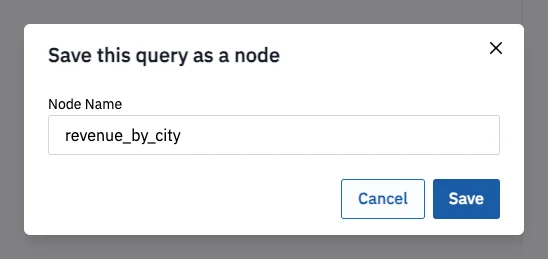
- In Save this query as a node, type a Node Name, for example
revenue_by_city, and click Save. - DDL confirms with Node Created, adds the node to Nodes and builds it straight away. Open Pipeline to see it next to its inputs.
- Node names are unique within a project. A name in use is refused with Node with the same name already exists in this project.
- Renaming a source does not retarget an existing SQL node: it remembers which nodes it reads, not their names.
- The tab keeps your query after Save, so you can go on experimenting in it.
Pipeline canvas explains node statuses and runs. For joins and appends without SQL, see Transforms.
Edit a SQL node
Section titled “Edit a SQL node”Open the query of a SQL node in one of these ways:
- In Nodes, open the node’s ⋮ menu and choose Edit Query. The item exists only for nodes created from SQL.
- On the Pipeline, click the node, open the ⋮ menu in its side panel and choose Edit SQL Query.
The query opens in a tab named after the node, at /projects/<id>/sql-query/edit?nodeId=<node-id>.
- Change the query. Run tries the new version without touching the node.
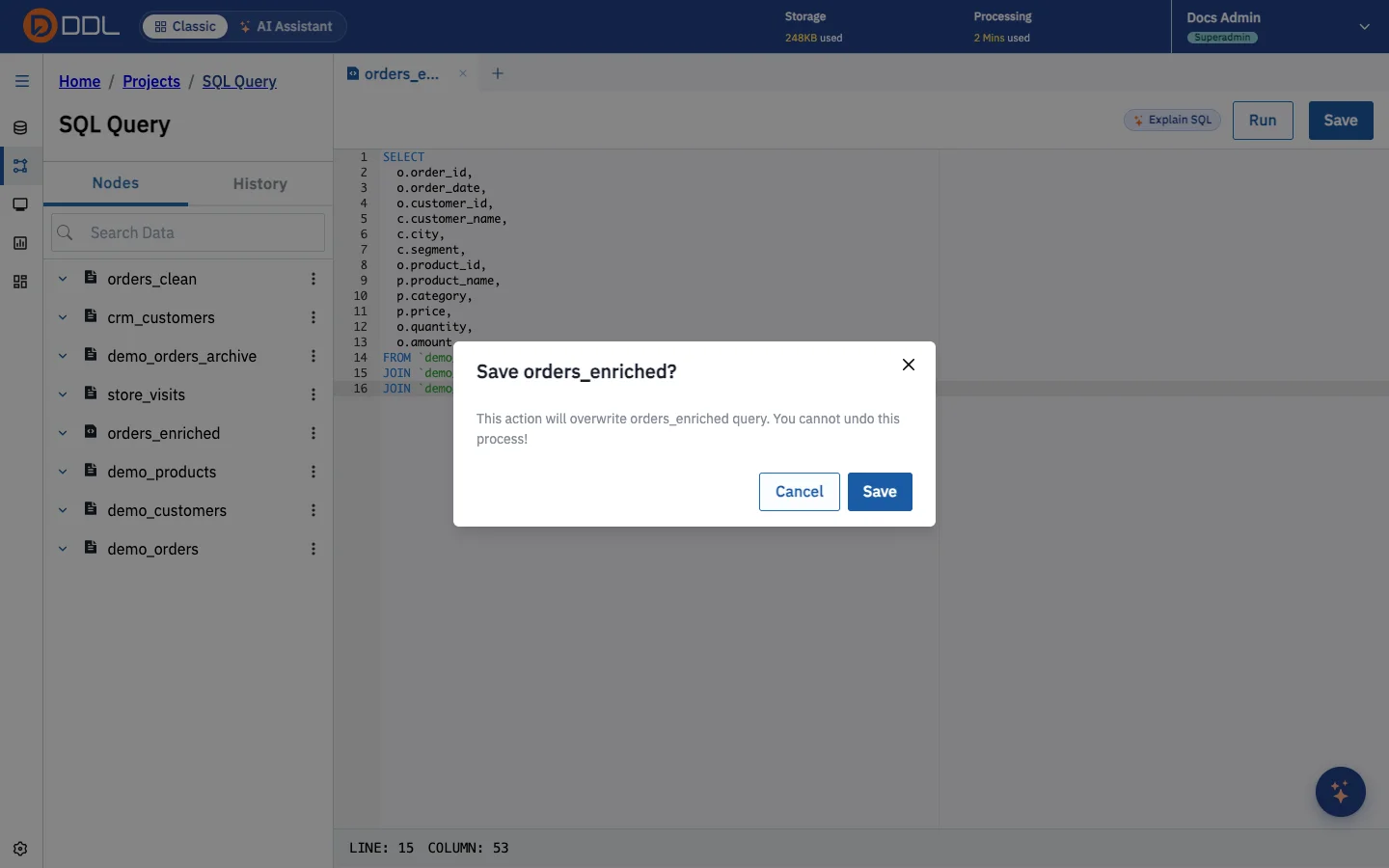
- Click Save. The dialog Save orders_enriched? warns: This action will overwrite orders_enriched query. You cannot undo this process! Click Save to confirm.
- Run the node again so that it uses the new query: on the Pipeline, hover over the node and click Rerun, or click Rerun in its side panel. DDL rebuilds the node, then the nodes that depend on it.
In an edit tab, Save always overwrites that node. To build a new node from the same SQL, copy it into a new tab (+) and save it there.
Tabs and history
Section titled “Tabs and history”- + opens a new tab, named Query 2, Query 3 and so on.
- × closes a tab after you confirm in Close Query 2 Window (Are you sure to close this running query? All progress will be lost.) with Close. A query still running in that tab is stopped. The last tab cannot be closed.
- Tabs exist only while the page is open. Leaving or reloading the page clears them, so keep what matters as a node, or find it again in History.
History lists every query run in this project, by you and by others, newest first, 25 per page; the arrows below the list turn the pages. Each entry shows the Query ID and the date and time of the run. Click one to open its SQL in a new tab; it runs only when you click Run. A project without runs shows There’s no history to show.
Ask AI about SQL
Section titled “Ask AI about SQL”- Explain SQL in the tab header sends the SQL of the current tab to the AI Assistant with the question Explain this SQL query. When the editor is empty, the button reads Ask AI and opens the AI panel.
- The panel knows where you are. It shows the project (Project: Demo Project), Page: SQL Query and SQL from the editor as context, and Node: orders_enriched in a tab that edits that node. Before your first question it suggests Explain this SQL query, How can I make this query faster? and Check this query for mistakes.
- SQL in an answer comes with Copy and Insert into editor. Insert places the SQL at the cursor of the current tab.
- Asked to change a SQL node, the AI shows the change as a comparison of the old and new query, with the columns it removes or adds and the nodes downstream, and waits for you to click Approve & run. Unlike Save on this page, an approved change also reruns the node and its downstream nodes.
- Ctrl+J (⌘+J on a Mac) opens and closes the AI panel.
On a phone
Section titled “On a phone”On a screen narrower than 768 pixels, the node list sits above the editor and a note reads Editing works best on a tablet or a computer. The page still works for a quick look or a small change. In the dark appearance the editor turns dark too; see Light and dark appearance.
Troubleshooting
Section titled “Troubleshooting”| Problem | Cause and fix |
|---|---|
| relation “demo_orders” does not exist | The node name is not in backticks. Write `demo_orders`. |
| Node demo_order doesn’t exist | A typo in a backticked name, or a node of another project. Click the name in Nodes to insert it. |
| column “customer_id” specified more than once | SELECT * over a join. List the columns, or rename duplicates with AS. |
| This query might try to access invalid data, … | A word in the query, often an alias, is a reserved DDL name. Choose a more specific alias, such as user_count. |
| Save is greyed out | The editor is empty, you do not have Modify Project, or the project is locked. |
| A SQL node still shows old data after you edited its query | Save does not rerun the node. Click Rerun on the Pipeline. |
| A query returns no rows | An input node has not run yet or holds no data. Check it on the Pipeline, or open it with View Data. |
The other messages are explained in Rules and limits.