

Teams and roles
Teams and roles let you share a project or dataset with a group instead of each person. Superadmins manage Divisions, Teams & Roles and Users in Settings › Organization settings.
How DDL organises people
Section titled “How DDL organises people”| Level | What it is | Example |
|---|---|---|
| Division | A group of accounts for an organisation or department, with its own administrator, teams and roles. | Analytics |
| Team | A group inside a division. Each new team gets admin and member roles. | Platform Team |
| Role | A group inside a team. A person can have several roles. | Operators |
| Member | An account with a role. | Sam Operator, a standard account in Operators of Platform Team |
DDL’s two built-in divisions show a System badge:
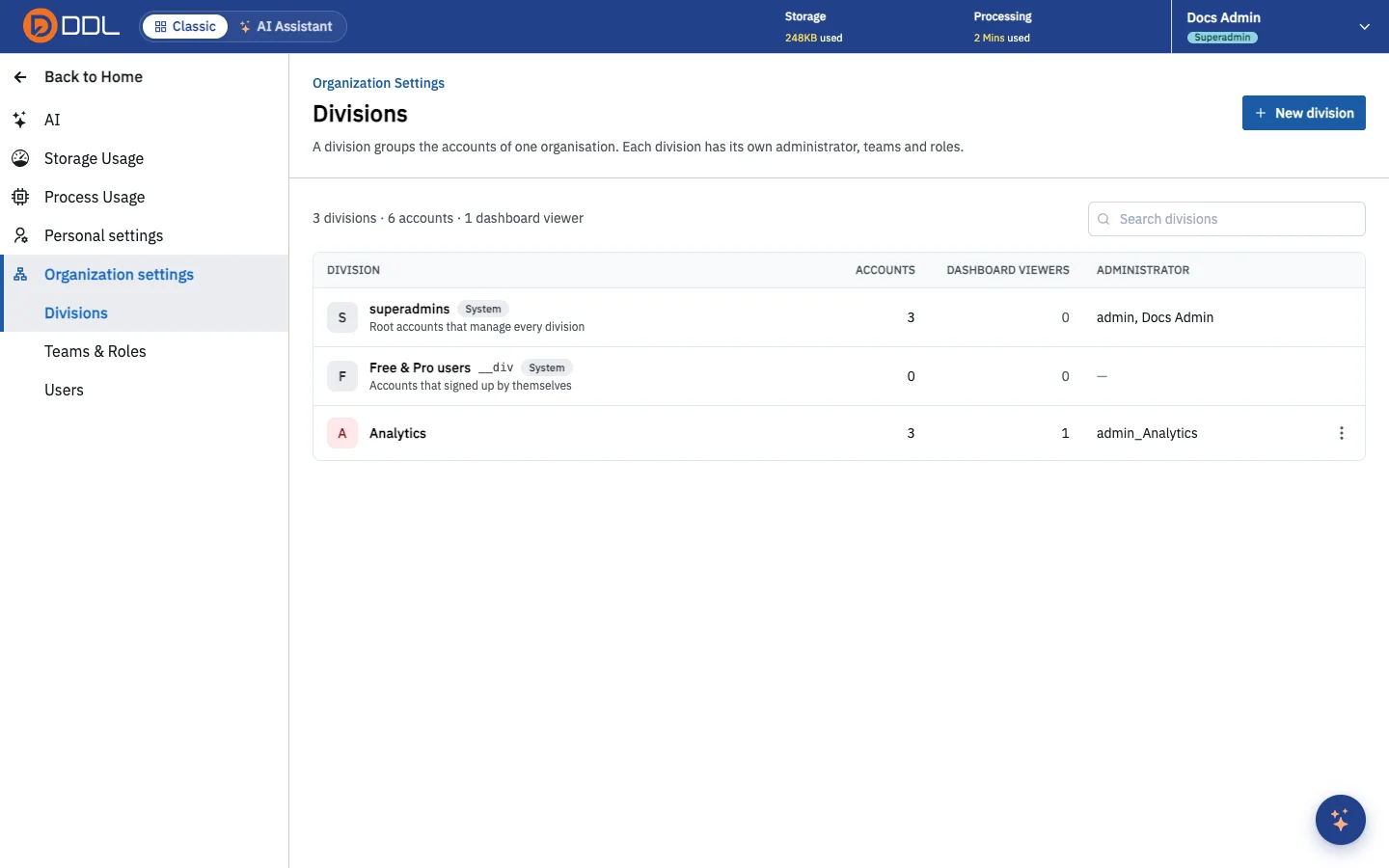
- superadmins: root accounts that manage every division. The built-in administrator is its first member.
- Free & Pro users: accounts that signed up by themselves. New sign-ups start on the Free plan.
Manage other divisions in Settings › Organization settings › Divisions, not in the admin console. See Manage divisions.
How roles give access
Section titled “How roles give access”For a standard account, a role groups people so that one share reaches all of them:
- Whoever creates a project, connection or dataset owns it.
- Owners share projects with Members or Roles, choosing the permissions. See Share a project, Share a dataset and Share or delete an agent.
- A grant to a role reaches its members, including people added later. Removing the role removes that access when the person’s roles are refreshed at sign-in.
- A standard account combines its direct grants with grants to its roles.
- Roles in Share Project offers the roles of your own team.
- Free accounts cannot receive shares. Adding one to a role takes it off the Free plan.
The admin and member roles are ordinary roles; their names give no extra rights. See Who is an administrator for administrator roles. A division administrator has no extra dashboard rights from that role.
The superadmins division
Section titled “The superadmins division”Accounts in the superadmins division show a Root badge. Its tooltip says Accounts in the superadmins division get root access to every division. Edit User shows the same warning.
For standard accounts, any role in this division gives administrator access, regardless of the role’s name. They can open the admin console, administer Distribution and change the AI settings that apply to everyone. Organization settings is shown to those with the superadmin role.
Sam Operator (operator@example.com) is a standard root account in Operators of Platform Team, not a dashboard viewer. Lee Manager (manager@example.com) is a dashboard viewer in Analytics, with a read-only grant to Sales overview.
Manage divisions
Section titled “Manage divisions”Only superadmins manage divisions. Open Settings › Organization settings › Divisions at /settings/divisions.
The summary counts divisions, accounts and dashboard viewers. Search divisions filters the table, whose columns are Division, Accounts, Dashboard viewers and Administrator. The two System divisions cannot be deleted.
Create a division
Section titled “Create a division”- Click New division.
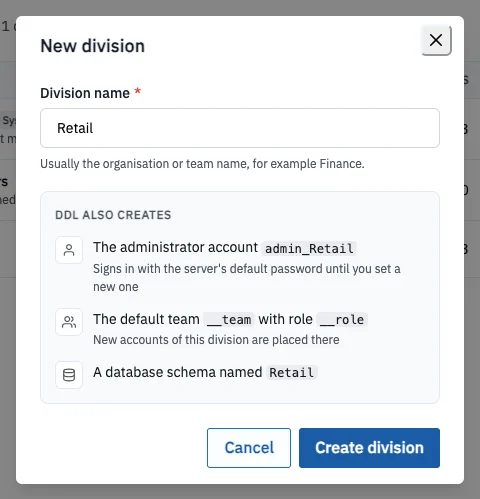
- Enter Division name, for example Retail. Use a unique name of at most 63 bytes, with letters, numbers, spaces, hyphens or underscores. System names are reserved.
- Read DDL also creates. DDL creates the administrator
admin_<name>and the division’s teams and roles. For Retail, the administrator isadmin_Retail. - Click Create division.
- Choose Set a new password for the administrator. Copy the new password with Copy before clicking Done; it is not shown again.
- Send the administrator’s username and new password through a safe channel. Ask them to change the password after signing in.
The division administrator then creates roles in Roles setting and assigns people in User roles.
Set an administrator password
Section titled “Set an administrator password”- In Divisions, open the division’s ⋮ menu and choose Set administrator password.
- Set a new password for the administrator.
- Use Copy before Done, and send the password safely. The previous password stops working.
Delete a division
Section titled “Delete a division”- Open the division’s ⋮ menu and choose Delete division.
- Read the warning and confirm with Delete division only if you intend to remove it permanently.
Open Teams & Roles
Section titled “Open Teams & Roles”- Open Settings from the account menu.
- Click Organization settings › Teams & Roles.
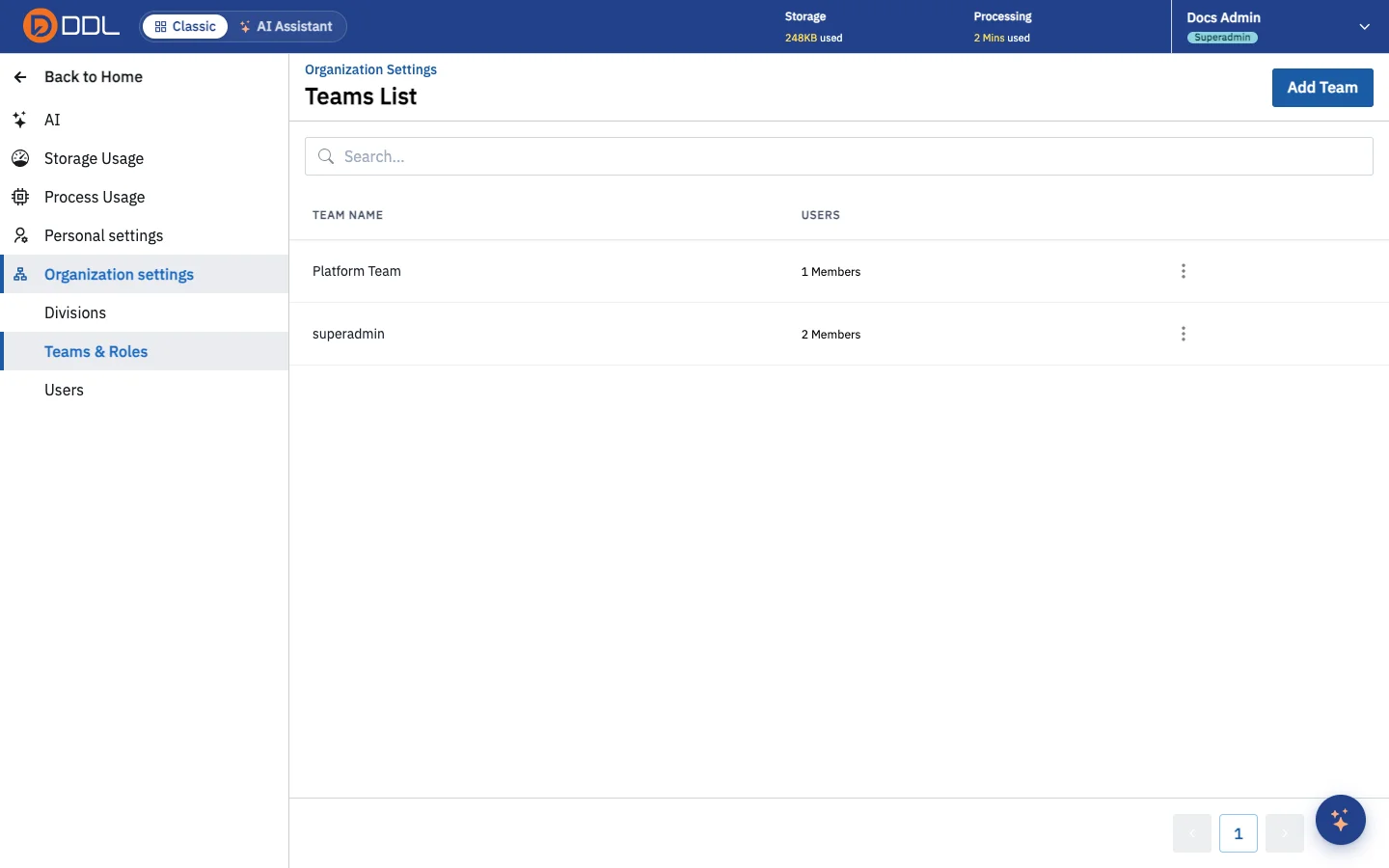
The Teams List shows your division’s teams, newest first, eight per page. Users counts members, for example 3 Members; a person with two roles in a team counts twice. Use Search… to filter by team name and the arrows to turn pages. On a phone, each team is a card.
Manage teams
Section titled “Manage teams”Add a team
Section titled “Add a team”-
On Teams List, click Add Team.
-
In Add New Team, enter Teams Name, for example Platform Team.
-
Click Add Teams.
DDL answers Team created. The team appears first, with admin and member roles.
A team name must be unique in its division. Built-in team names are reserved; DDL refuses them with Can’t create team with this name.
Rename or delete a team
Section titled “Rename or delete a team”- Rename: open ⋮ › Edit. In Rename Team, change Teams Name and click Rename Teams. A taken name gives This team name is already exist.
- Delete: open ⋮ › Delete, read the warning about removing its roles and access, then click Delete Team.
Deleting a team deletes its roles and the access shared with them. In the superadmins division, its members get the Free role and Free plan limits; add them to another role if they still need to work in DDL.
The superadmin team cannot be deleted (Can’t delete this team) or renamed.
Manage the roles of a team
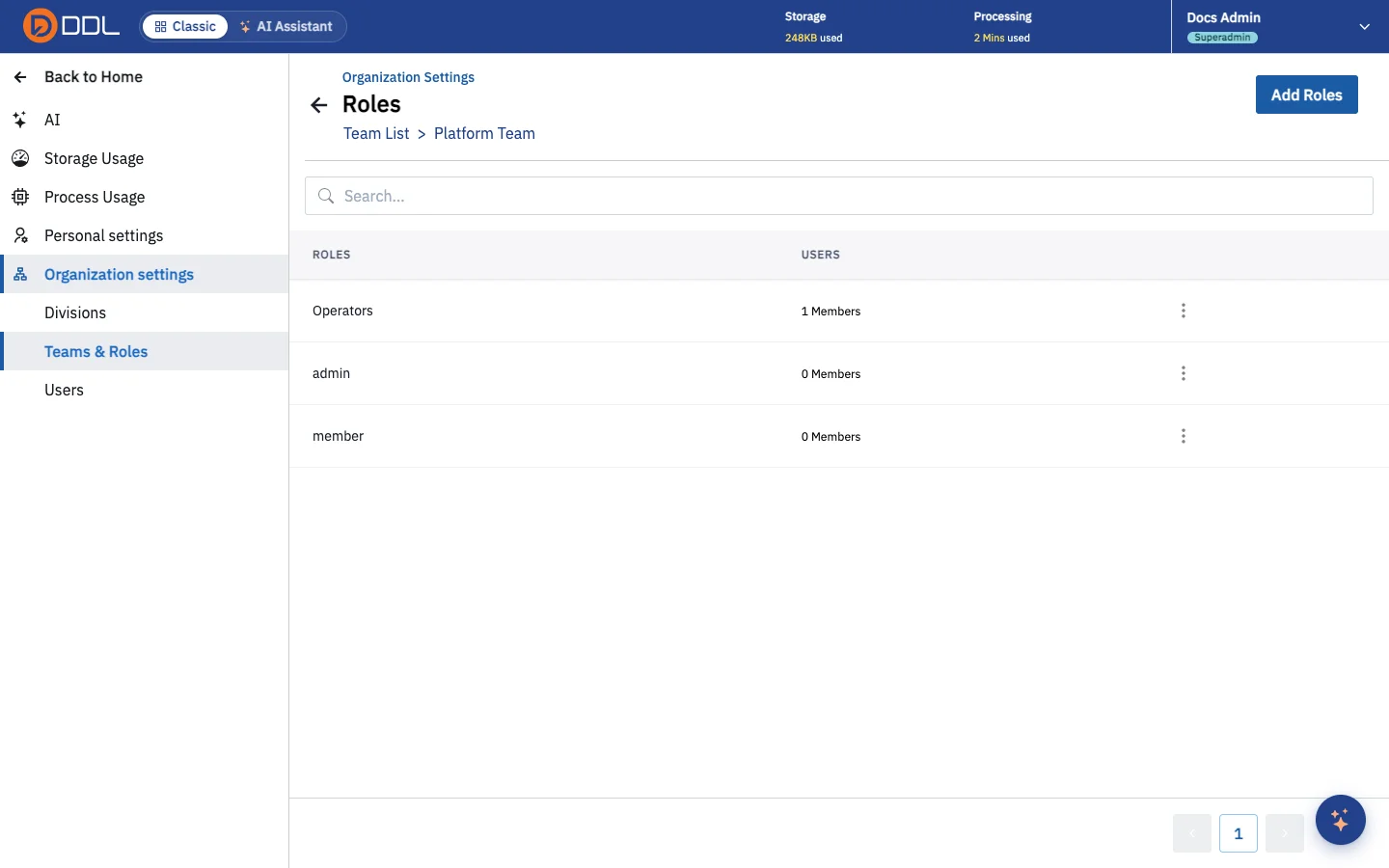
Section titled “Manage the roles of a team”Click a team on Teams List. Roles lists its roles alphabetically, eight per page, with member counts. Team List in the breadcrumb, or the arrow beside the title, goes back.
Add a role
Section titled “Add a role”-
On the team’s Roles page, click Add Roles.
-
Enter Roles Name, for example Operators, and click Add Roles.
DDL answers Role created.
A role name must be unique in its team. Built-in names, including superadmin, admin, member, Free and Pro, are reserved: Can’t create role with this name.
Rename or delete a role
Section titled “Rename or delete a role”- Rename: ⋮ › Edit opens Rename Roles. Change Roles Name and click Rename Roles. A taken name gives This roles name is already exist.
- Delete: ⋮ › Delete asks you to confirm the loss of access. Click Delete Roles.
Members of a deleted role move to the team’s member role and lose shares to the deleted role. Built-in roles cannot be deleted (Can’t delete this role) or renamed.
Add people to a role
Section titled “Add people to a role”Click a role. Members lists its people, and Permissions holds its global permissions.
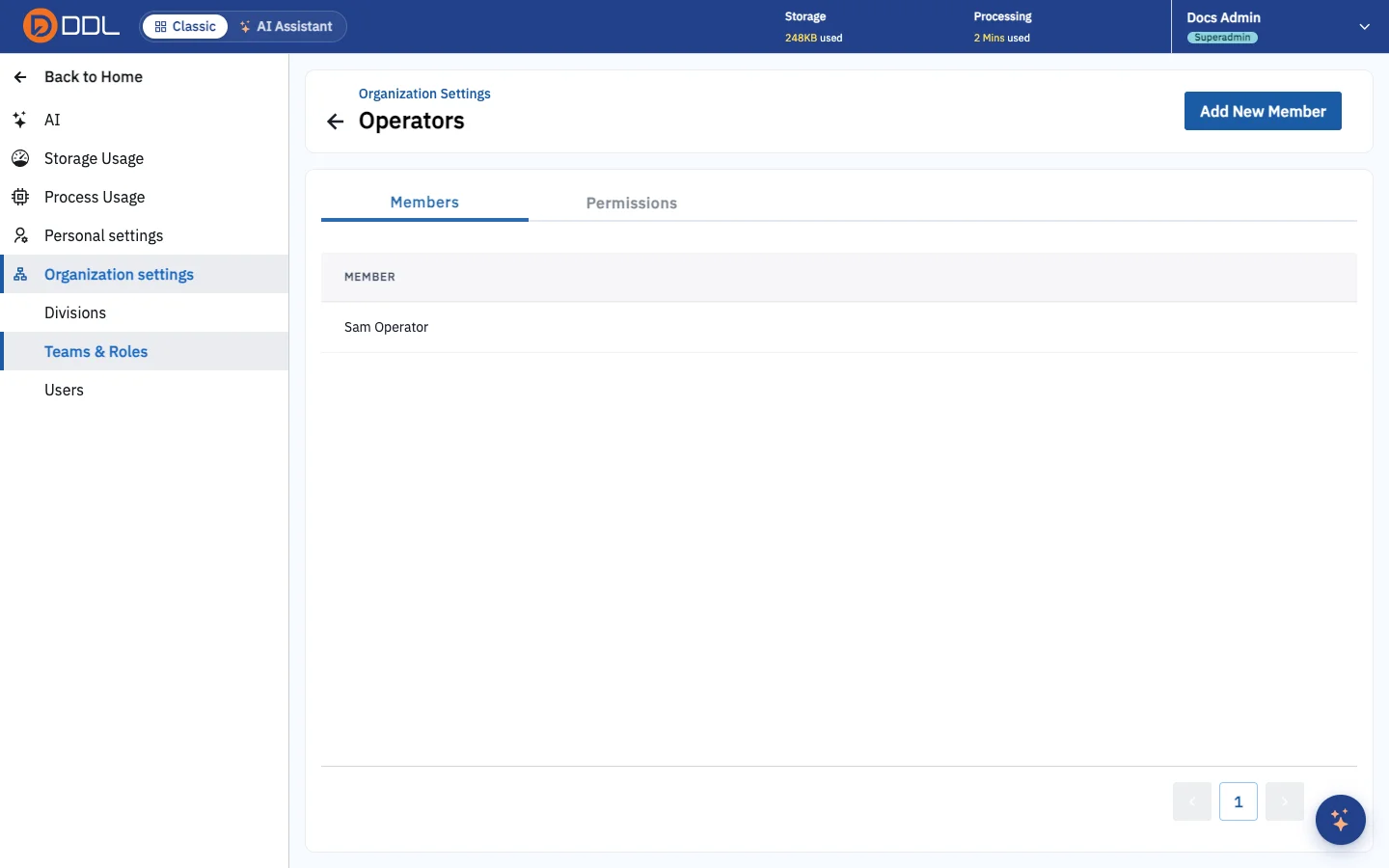
-
Click Add New Member.
-
Open Member (Select Member) and search by username. Pick the person.
-
Click Save.
DDL answers Role assigned, and the person appears in Members.
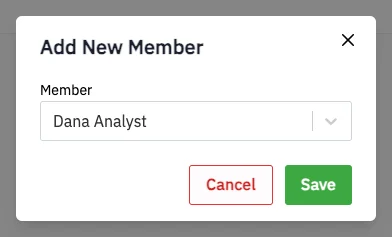
- The list offers your division’s accounts. Superadmins see every account, 20 at a time as they scroll.
- An existing member gives Role has been previously assigned to the user.
- A Free account leaves the Free plan and joins the role’s division.
- Standard accounts read their new roles at the next sign-in. Assigning a role never expands a dashboard viewer’s access.
Take someone out of a role
Section titled “Take someone out of a role”Members has no remove action. Use User roles in the admin console. A standard account that loses its last role gets the Free plan in superadmins, or a placeholder role in another division.
Global permissions
Section titled “Global permissions”Only administrators can read a role’s global permissions. Other accounts see You can’t read the global permissions of this role.
Permissions shows Global Permission, with Permissions, Description and Allow. Ticking or clearing Allow saves immediately with Global permission shared.
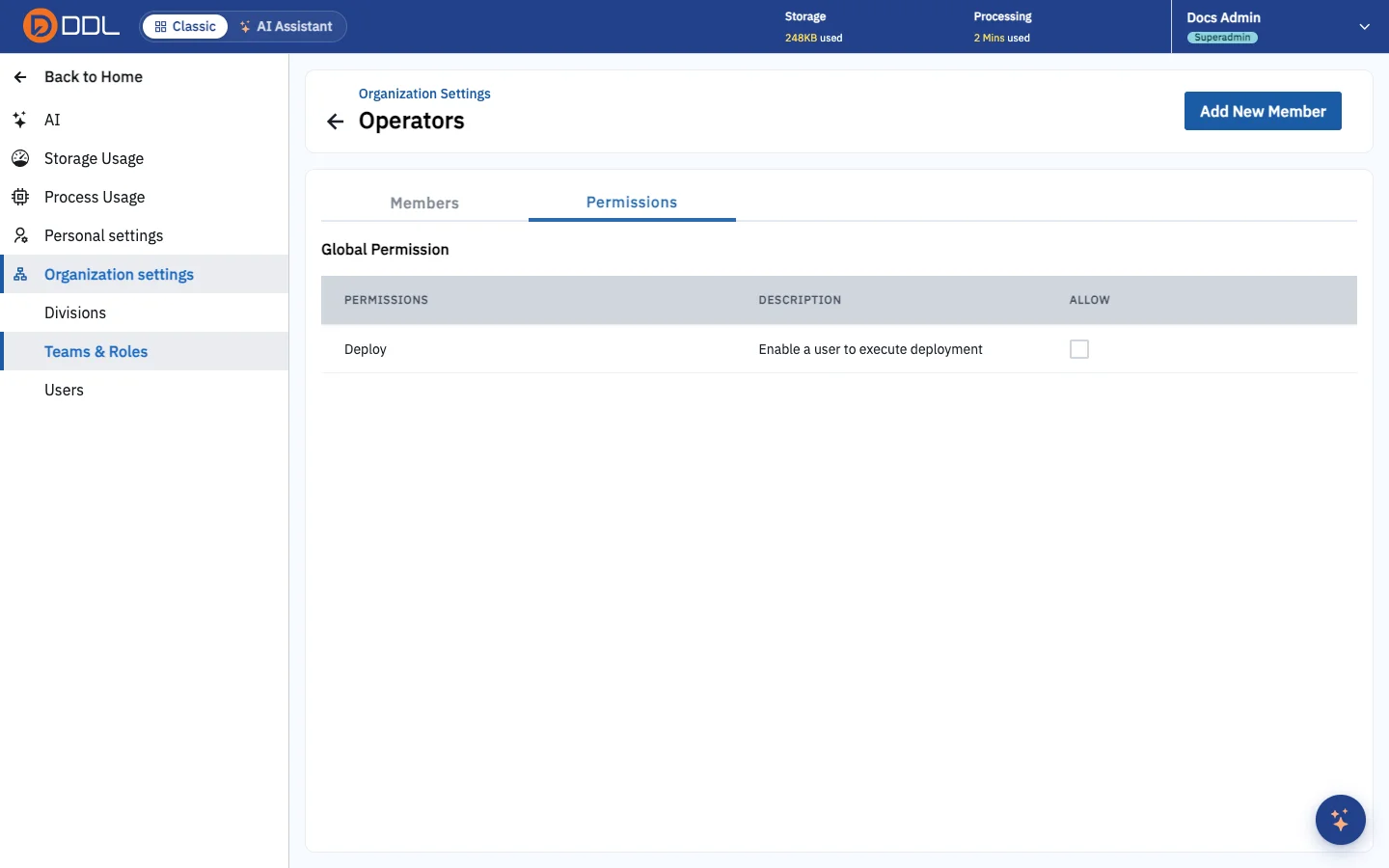
The only global permission is Deploy, Enable a user to execute deployment. No feature in this version checks it, so changing it has no visible effect. Project and dataset access comes from sharing: see How roles give access.
Manage user accounts
Section titled “Manage user accounts”Organization settings › Users lists Username, Email, Teams, Roles and Type. Type is Standard or Dashboard viewer. Accounts appear alphabetically, eight per page; a person with several roles appears once per role. Superadmins see accounts in every division, including Free and Pro accounts.
Choose All, Username or Email, then type in the search box. Each row’s ⋮ menu offers Edit and Dashboard access. Root accounts show the Root badge.
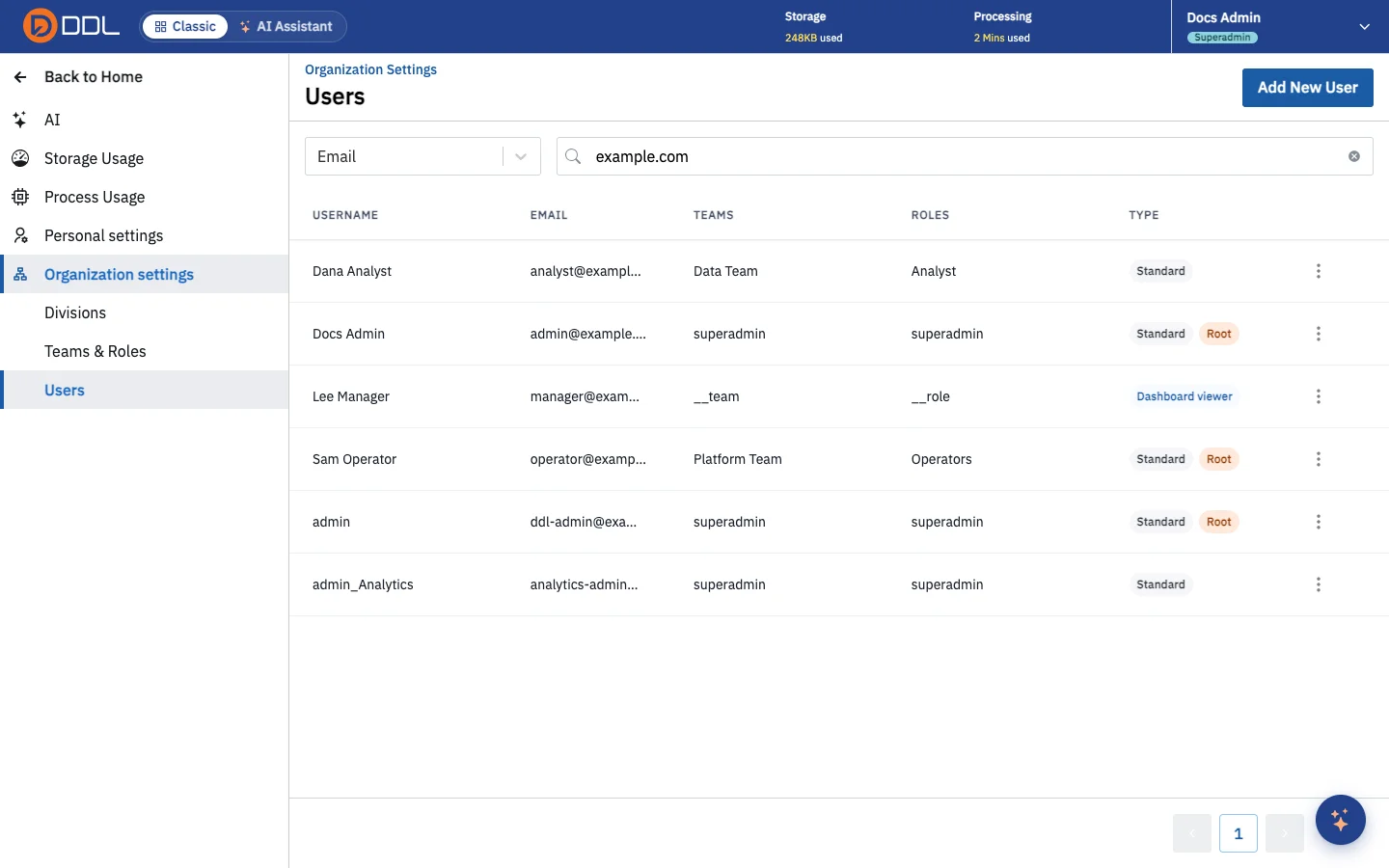
Add a user
Section titled “Add a user”-
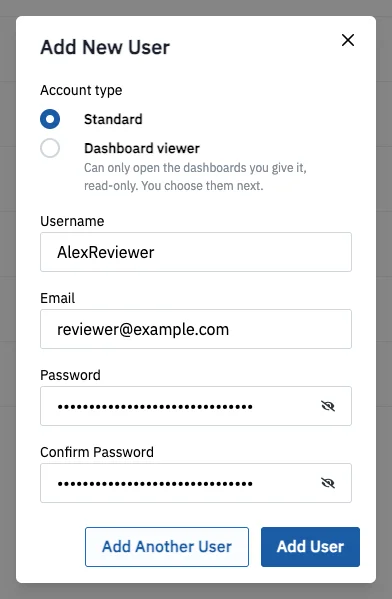
Click Add New User.
-
Choose Account type: Standard is the default. A Dashboard viewer can only open dashboards you give it, read-only; you choose them next.
-
For a viewer, choose a Division other than superadmins or Free & Pro users. Manage divisions opens division management. See Create a viewer account.
-
Enter Username, Email, Password and Confirm Password.
-
Click Add User. For a standard account, Add Another User saves it and starts the next form.
A standard account gives User created. A viewer gives Dashboard viewer created and opens Dashboard access. Choose its grants and click Save.
| Field | Rules |
|---|---|
| Username | Required, with at least one letter or number, and unique: User with the same name already exists. |
| A valid address (Invalid email address) not used by another account (Another user has registered with this email). | |
| Password | At least 8 characters, with uppercase and lowercase letters, a digit and a symbol. The server’s default is refused: Choose a password other than the server’s default. |
| Confirm Password | The same password again (Confirmed password does not match). |
DDL verifies the account immediately and sends no email. Send its sign-in details through a safe channel and ask the person to change the password.
A standard account’s initial role depends on your DDL. With sign-up enabled, it starts as Free. Otherwise it gets a placeholder role in your own division. For a superadmin, that means root access in superadmins. Assign standard accounts to the intended division and role before handing them over. A dashboard viewer instead belongs to the division you choose and gets only its saved dashboard grants.
Edit a user or give a new password
Section titled “Edit a user or give a new password”-
Open the account’s ⋮ menu and click Edit.
-
In Edit User, change Username or Email, then click Edit User.
DDL answers User updated.
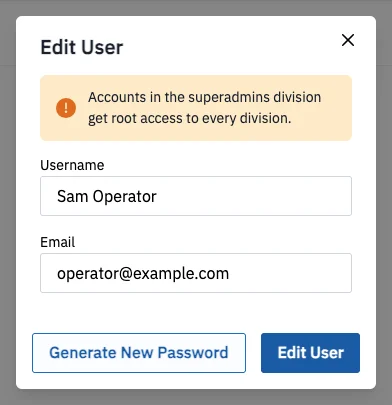
To reset a password, click Generate New Password, then confirm with Generate New Password in Generate Password. Password Generated shows New Password once, with a copy button. Copy it before closing and send it safely. The old password stops working, and generating a new one also lifts a sign-in lockout.
Use ⋮ › Dashboard access to change an account’s viewer status or grants: see Turn an existing account into a viewer, or back.
Delete a user
Section titled “Delete a user”Users has no delete action. Superadmins delete accounts under Manage Users in the admin console. Deleting a division also deletes its administrator, but leaves its other accounts: see Delete a division.
Troubleshooting
Section titled “Troubleshooting”| What you see | Why | What to do |
|---|---|---|
| Organization settings is missing | It is for superadmins with the superadmin role. | Ask a superadmin. Division administrators use the admin console. |
| A division cannot be deleted | It is a System division, or its administrator owns objects. | Keep System divisions. Resolve the administrator’s owned objects before deleting another division. |
| Root appears on an account you meant to keep restricted | It belongs to superadmins. | Review its division and roles before handing it over. Use a separate division for non-administrators. |
| Can’t create team with this name or Can’t create role with this name | The name is reserved. | Choose another name. |
| Team with the same name already exists in this division | The team name is taken. | Choose another name. |
| Role with the same name already exists in this team | The role name is taken. | Choose another name. |
| Renaming or deleting a built-in team or role fails | Built-in teams and roles are protected. | Nothing to fix. |
| Role has been previously assigned to the user | The person already has the role. | Nothing to fix. |
| A standard account added to a role still lacks access | Roles refresh at sign-in, or the project has not been shared with the role. | Sign out and in, then check the project’s share permissions. |
| A viewer gets no access after being assigned a role | Roles never grant viewer access. | Use Dashboard access. |
| Choose a password other than the server’s default | You used the server’s default password. | Choose a unique password that follows the rules. |
| A Teams List search shows No users to show | No team matches. | Change or clear the search. |